Skip to content

Software

D2Decomp: Act IV, widescreen and couch co-op

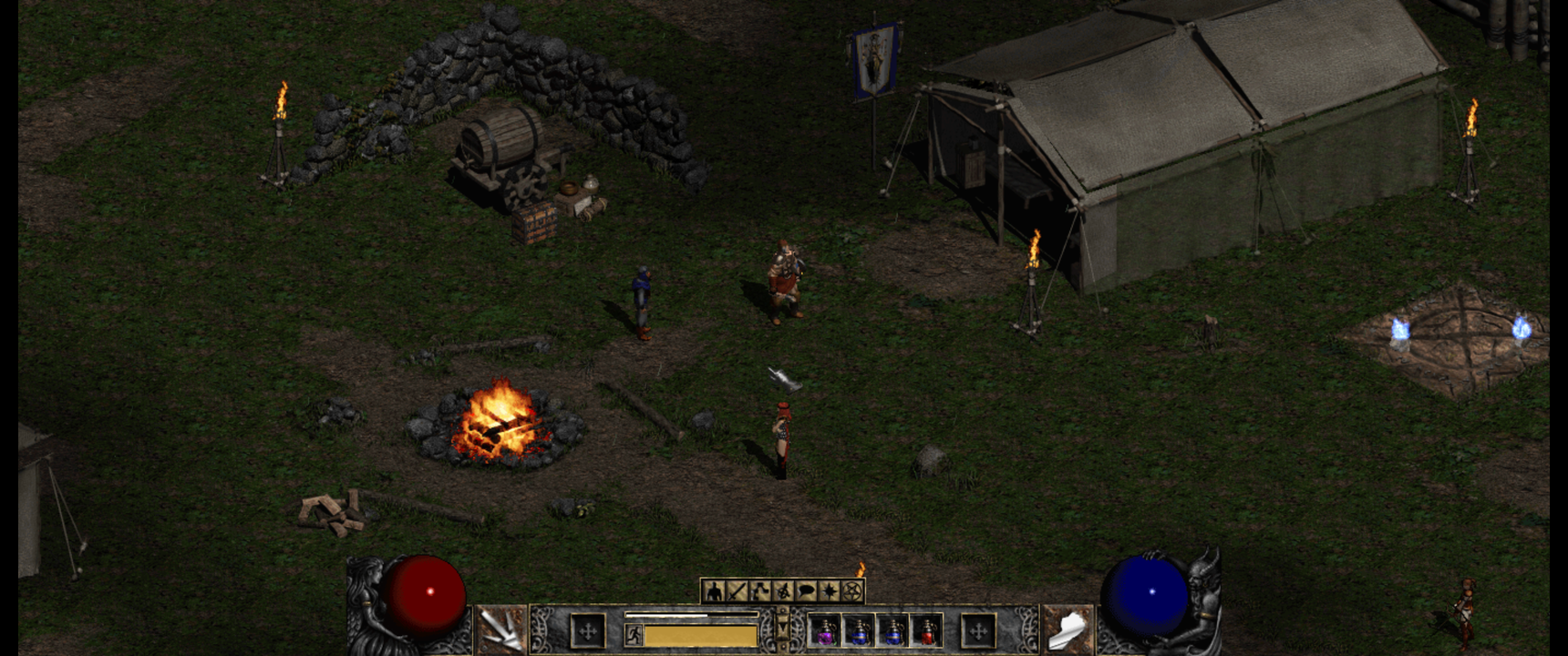
The Rogue Encampment in widescreen

It has been a busy week since the last post. Roughly two hundred commits and a run of releases from v0.3.0 to v0.5.6 later, D2Decomp has grown in a direction that matters most to me: playing together.

The screenshot above is the Rogue Encampment with the new widescreen view, running at 3440×1440. More on that below.

Act IV and Diablo

Last time, the hellgate in Act III opened onto nothing. Now it leads to the Pandemonium Fortress. All six Act IV levels match the original, from the Outer Steppes through the River of Flame to the Chaos Sanctuary. The three Act IV quests are in: Izual, the Hellforge and Terror's End.

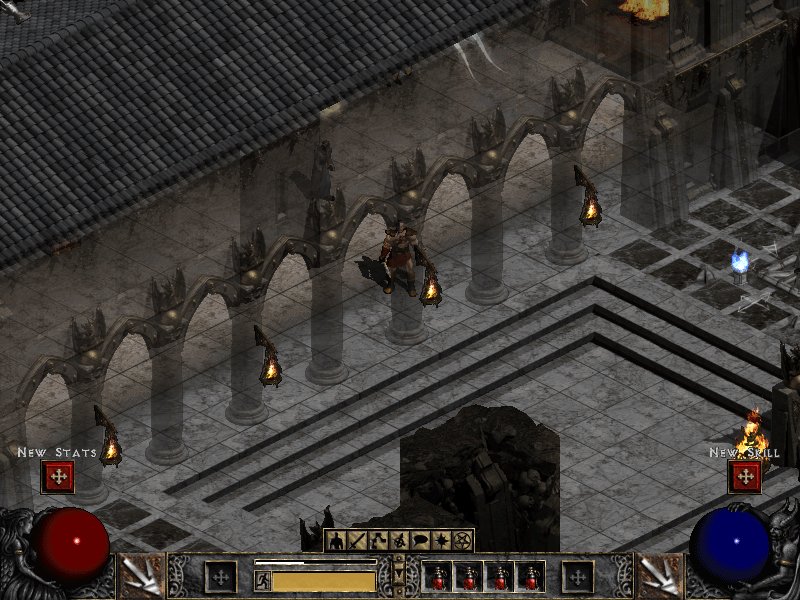
The Pandemonium Fortress

Izual's spirit, freed in the Plains of Despair

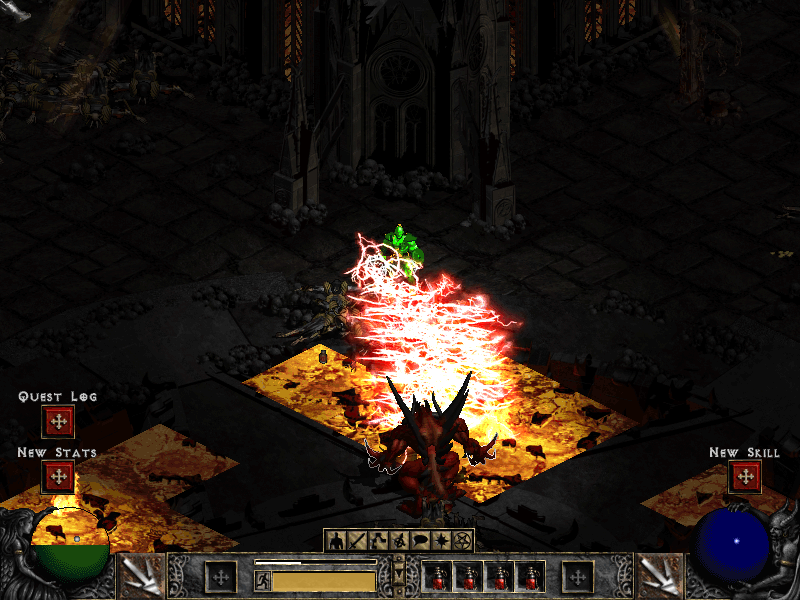
Diablo himself took the most work. His choice of what to do next, his Run, Bone Wall and Bone Prison, the seals and the knights guarding them have all been traced in the original and checked against it. A classic game ends with Diablo's death and the ending sequence. In Lord of Destruction, Tyrael's portal leads to Act V, which is not built yet.

Diablo in the Chaos Sanctuary

That makes Acts I to IV, all twenty-one quests up to Diablo. Nightmare and Hell also place their monsters and objects as the original does, on every level of the first four acts.

Widescreen

Widescreen is an opt-in improvement, turned on from the launcher or with widescreen = 1 in d2d.cfg. The game view widens to fit the window, up to 1400 pixels wide, so you see more of the world to the left and right. The HUD and panels keep their familiar 800×600 layout in the middle, and menus and cinematics stay at 800×600.

It is off by default, because D2Decomp's job is to play like the original first.

Gamepads and the Steam Deck

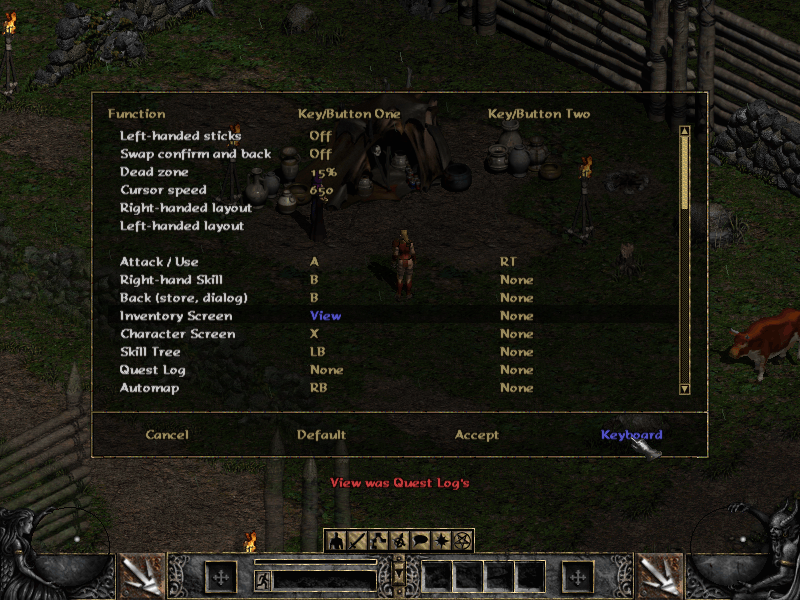
D2Decomp now plays with a gamepad as well as with mouse and keyboard. Xbox, PlayStation, Switch and Steam Deck controllers work, with button labels to match each one. The left stick walks, the right stick aims, and ranged skills and spells lock on to the nearest target. The d-pad moves between slots in the inventory, stash and stores. There is also a Configure Controls screen, like the original's key configuration, with an extra page for the pad.

The gamepad page of Configure Controls

The Steam Deck build is a Flatpak, attached to every release. It is still experimental and not on Flathub yet. The launcher has an Add to Steam button that adds the game to your library with its artwork, and in Gaming Mode the launcher is skipped so you go straight into the game. Steam's on-screen keyboard opens when you need to type, for example to name a character.

Couch co-op

This is the part I am most excited about. Up to four players can now play together on one screen, from one machine, with no original game running. The idea is a docked Steam Deck with a few controllers, my daughter on one of them, but any PC or Mac with pads works the same way.

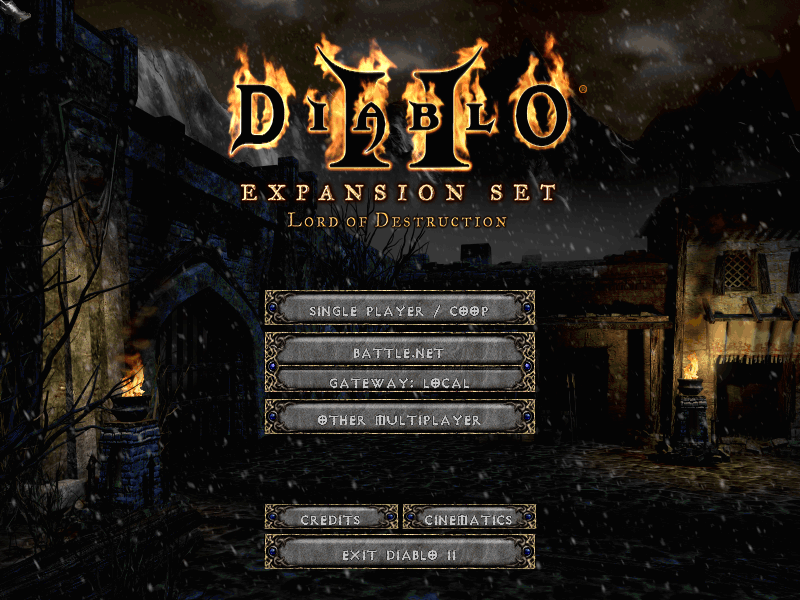
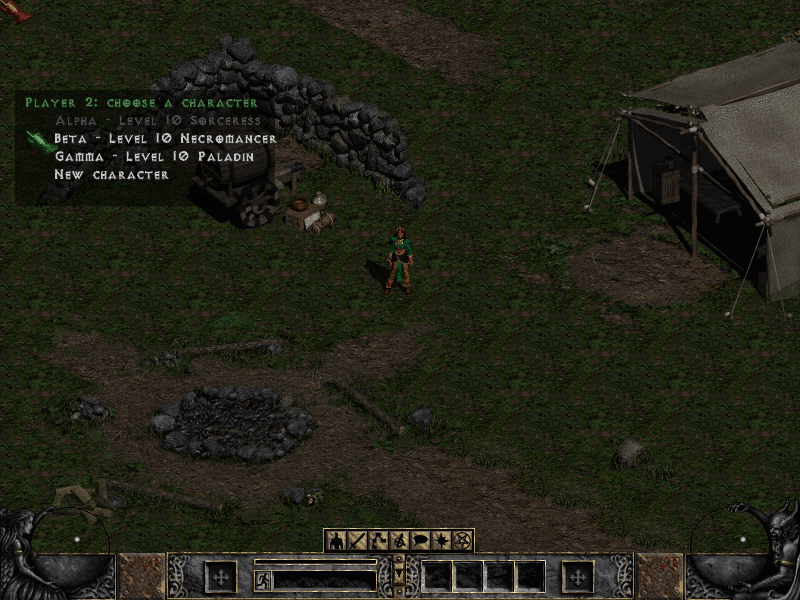
From the title screen, choose COOP. Each pad gets its own player, who picks or creates a character from a roster. A pad that connects mid-game can join right away. The party shares one camera and a leash keeps everyone together. Monsters scale with the number of players, and experience, gold and quests are shared by the same rules as an original multiplayer game.

SINGLE PLAYER / COOP on the title screen

A second player picks a character from the roster

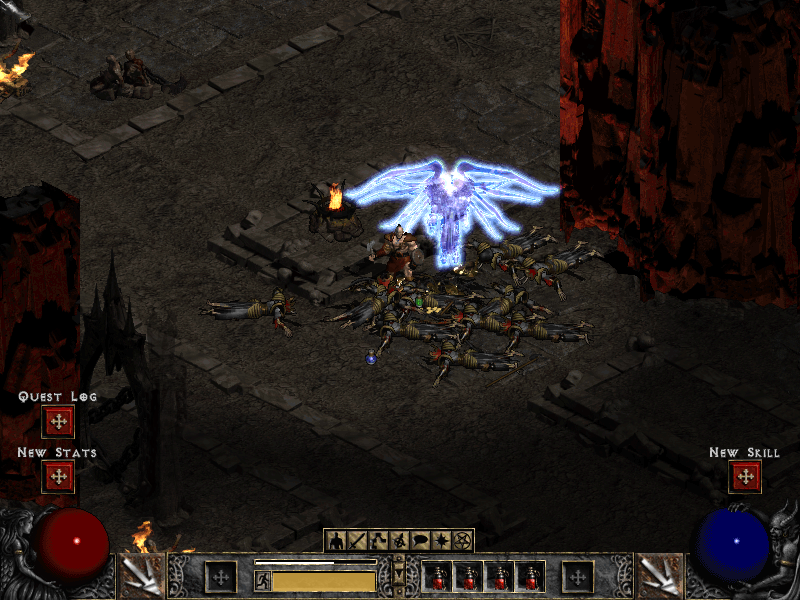
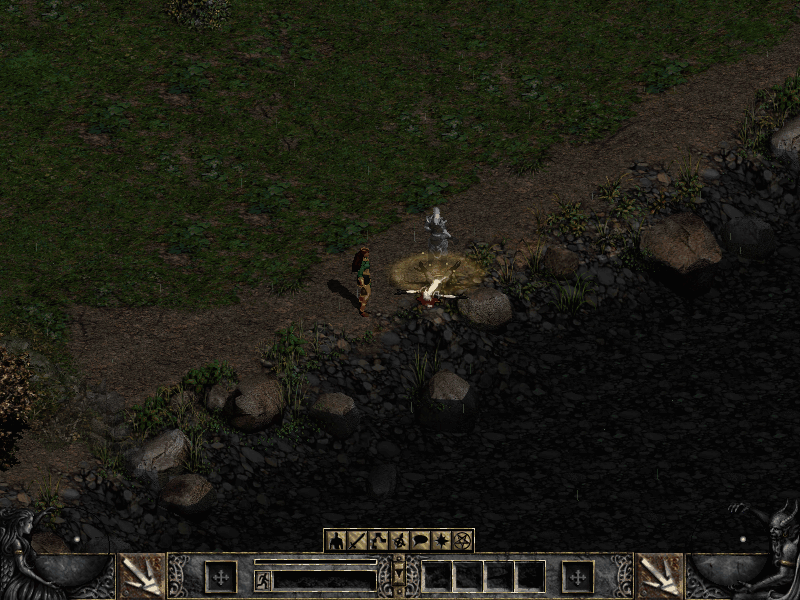
Dying works a little differently from the original. A fallen player becomes a ghost next to their body, and the others can channel a Resurrect skill to bring them back. More players channelling means a quicker resurrection. There was never a couch in Diablo II, so this is one of the places where D2Decomp adds something of its own.

The Resurrect aura under a fallen player's ghost

Joining a game hosted by the original game over TCP/IP has also moved on. Acts I to IV have now been played through together with an original host: party, trade, portals, waypoints, chat, quests and travel.

Sound, screens and smaller things

Sound has come a long way. 3,123 of the base game's 3,520 sounds play as the original plays them: combat, spells, missiles, footsteps, monsters, objects and NPC greetings. Sounds in the world fade with distance and pan between the speakers as in the original, and items make their sounds when you pick them up, place them or equip them. The hero's quest lines are next.

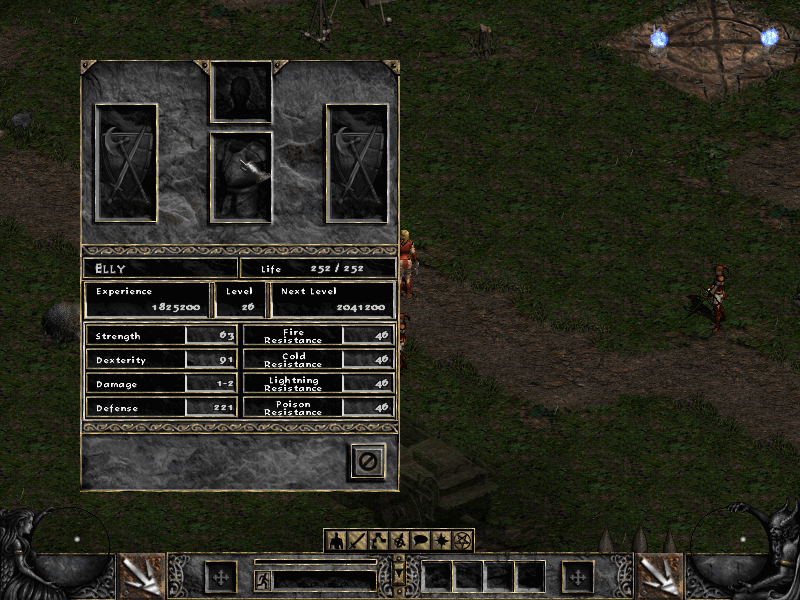
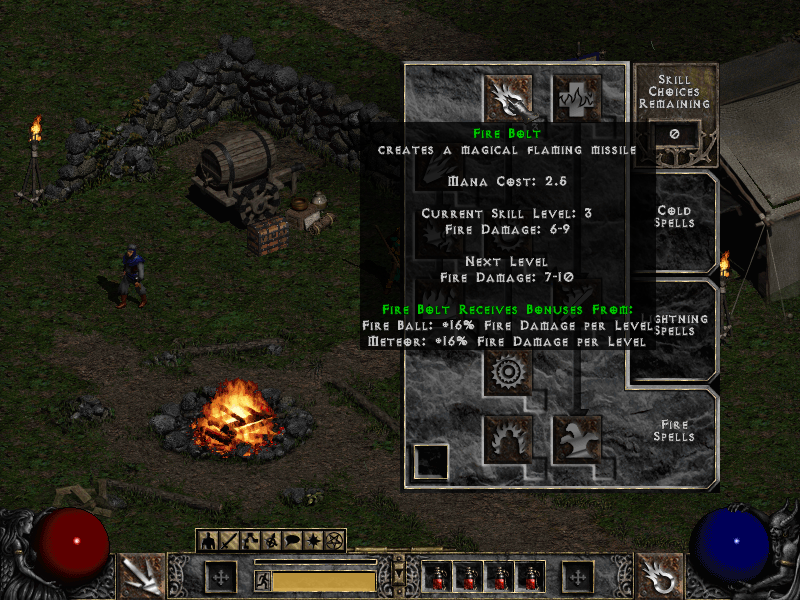
A number of screens arrived too: the Party screen, the Hireling screen for your mercenary's gear, the Help screen, automap options and skill tooltips, all drawn the way the original draws them. You can now drop, deposit and withdraw gold, and use the weapon switch.

The Hireling screen

A skill tree tooltip

Keeping it honest

The less visible work continues as well. The opt-in crash reporting from last time has already paid for itself: a handful of crashes reported by testers were found and fixed within a day. The project is now also scanned by Coverity, and a fair amount of this week went into working through what it found.

What's next

Act V, hosting multiplayer games from d2d itself, and a dedicated server are still ahead of us. The source, releases and roadmap are on GitHub. As before, D2Decomp does not include any game files; you need your own copy of Diablo II and Lord of Destruction.

Playing Diablo II natively on Linux

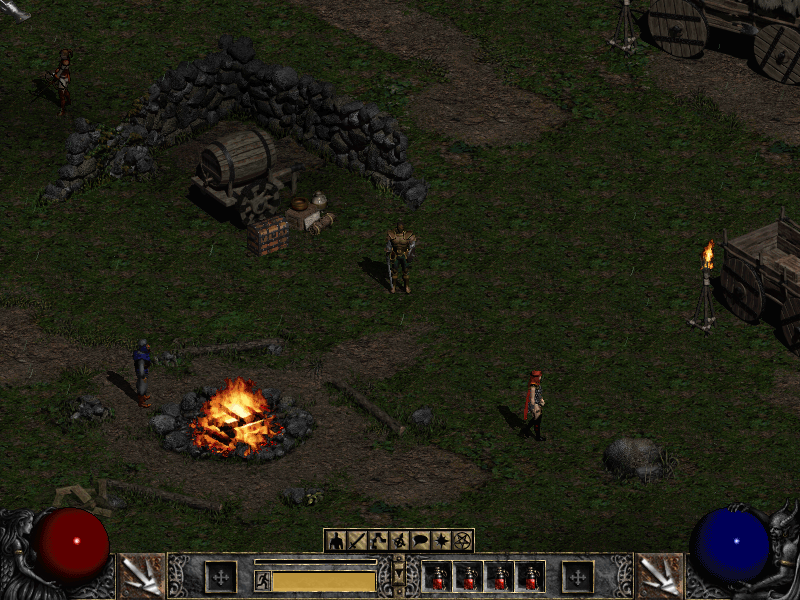
Rogue Encampment running in D2Decomp

I want to play Diablo II with my daughter on Linux, without Wine or an emulation layer. That is why I started D2Decomp: a from-scratch reimplementation of the Diablo II: Lord of Destruction game engine.

It is still unfinished, but Acts I, II and III play through, with all eighteen quests. That takes you from the Rogue Encampment to Lut Gholein and the Kurast Docks, then on to Mephisto's Durance of Hate. The maps for all 101 levels match the original. Act IV is not built yet.

The interesting part is checking that the engine does what the original does, rather than just making something that looks close. I use Ghidra to understand the original game and Unicorn to run its functions, then compare that behavior with the new C++ code. The project does not include game files; it reads them from a copy you own.

There are a few details I didn't expect to get this far: single player runs as a one-player client/server, like the original, and d2d can join an original game's TCP/IP host. Party play, trade, portals, waypoints, chat, quests and travel are implemented for Acts I and II, though live checks are still pending.

I have also been working on the less visible parts of keeping a project like this moving. The current development branch has opt-in crash reporting, off by default. When enabled, it can send a crash dump, hardware and OS details, GPU model and the last game frame if the game crashes. Crash-frame capture runs asynchronously, so it does not hold up the game while the frame is prepared. The launcher explains what may be sent, including that a report can contain sensitive data from game memory.

Here is the Rogue Encampment in Act I:

Rogue Encampment

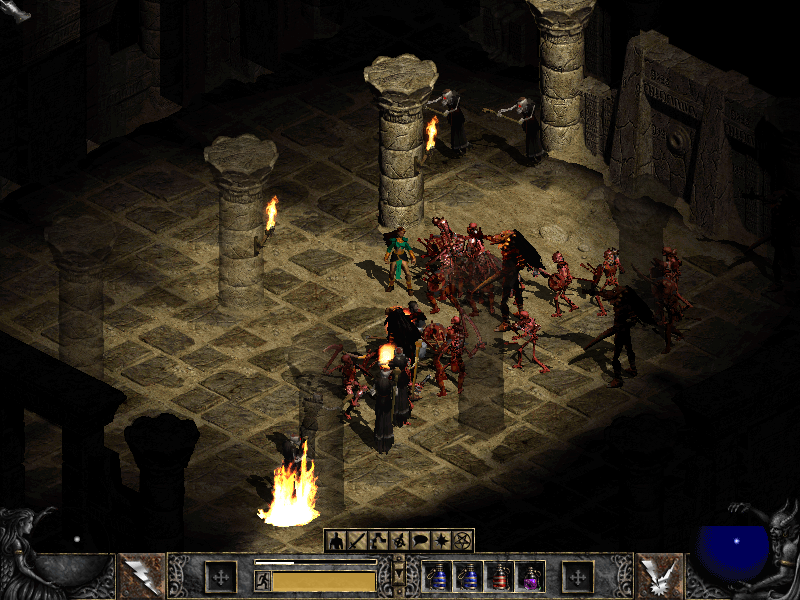
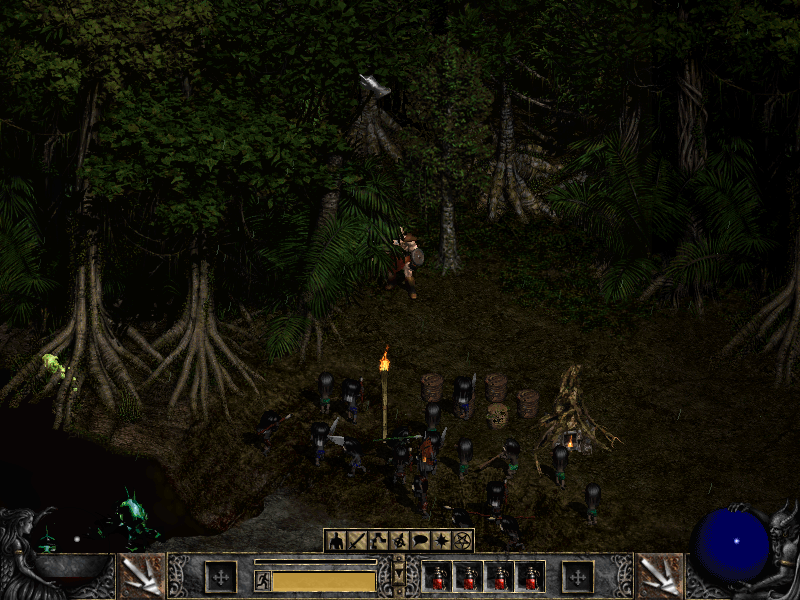
And scenes from Acts II and III:

Tal Rasha's Tomb in Act II

Flayer Jungle in Act III

The D2Decomp project page has more about the current state, and the source and roadmap are on GitHub. Acts IV and V, hosting multiplayer games and a dedicated server are still ahead of us.

Running Webex on Ubuntu

Webex Logo

Webex running on Ubuntu and other non-Windows platforms is literally a click away, in this case the CMR (Collaboration Meeting Room).

Webex is a fact of life for many people and for many Linux (BSD and other non-Windows) users, it has been a thorn in the side with people going so far as to set up virtual machines just to run Cisco’s collaboration software. While Webex is written in Java, it isn’t so simple to get running everywhere and apparently not all features are available for non-Windows users.

Most likely you are running up against the following message after logging into *.webex.com

Your browser,browser version, or operating system is currently unsupported

This requires the intervention of whoever is administrating the *.webex.com account and they can modify it in the following way.

Directions for disabling CMR

  1. Log into “xxxxx.webex.com/admin” using a site admin level account
  2. Click “Edit user list” on the left navigation Window.
  3. Search for the account you want to change
  4. Click on the account and uncheck “Collaboration Meeting Room”
  5. Click “Update”

Once this has happened, then you can log in and start Webex. Usually this is enough, but in case you hit the next wall which is runnig Java from a web-browser then there is always Firefox ESR (Extended Support Release). This version will allow you to still run the Java (or IcedTea) NPAPI plugin. I usually download and extract to /opt then run a symlink over the system’s version of firefox in /usr/bin/firefox which is enough for my needs.

You can check to see if the Java plugin is installed in Firefox by going to the URL bar and typing:
about:plugins
Should you not see it, but you’re sure the plugin exists on the system you can make a symlink yourself:
ln -vs /usr/lib/jvm/java-8-oracle/jre/lib/amd64/libnpjp2.so ~/.mozilla/plugins/
or
ln -vs /usr/lib/jvm/java-8-openjdk-i386/jre/lib/i386/IcedTeaPlugin.so ~/.mozilla/plugins/
depending on your implementation, 32/64-bit or library location.

Ultimately regardless of which bit-ness of Java you use, Webex uses 32-bit libraries as well. Which ones? Here is list, not complete, of all the ones I needed to get it working:

apt-get install libasound2:i386 libasound2-plugins:i386 libfontconfig1:i386 libfreetype6:i386 libgtk2.0-0:i386 libglib2.0-0:i386 libglib2.0-0:i386 libglib2.0-0:i386 libgtk2.0-0:i386 libgcj14-awt:i386 libpango-1.0-0:i386 libpangoft2-1.0-0:i386 libpangox-1.0-0:i386 gcj-4.8-jre-headless libpangoxft-1.0-0:i386 libpng12-0:i386 lib32stdc++6: libuuid1:i386 libx11-6:i386 libxext6:i386 libxft2:i386 libxi6:i386 libxmu6:i386 libxrender1:i386 libxt6:i386 libxtst6:i386 libxv1:i386 libcanberra-gtk-module:i386 gtk2-engines-murrine:i386

To find which libraries you are still missing, you can go to your Webex directory and ldd through all the ‘so’ files to see what is missing.

cd ~/.webex/ find | grep so | xargs ldd | grep 'not found' | sort | uniq

If the result is something like this:

libjawt.so => not found

then you’re ready to go. Otherwise you’ll need to track down all the libraries in order to get the most out Webex.

Using Qemu and Chroot to replace your cross-compile toolchain

RaspberryPi Logo

Awhile back I wrote about how you can set up a cross-compile toolchain for compiling on x86_64 with the Raspberry Pi as a target. There is another, perhaps easier way to do the same thing by using Qemu 2.0 as your backend.

By installing and enabling Qemu support, you can run code compiled for another architecture (that is supported by Qemu) on your native machine. You can then create a Chroot environment, perhaps similar to what you have on your Raspberry Pi, and run it as if it was natively.

You can verify support by checking for the availability of the aarch64 interpreter:
# update-binfmts --display | grep -i aarch qemu-aarch64 (enabled): interpreter = /usr/bin/qemu-aarch64-static

First you’ll need to set up your locales on your host:
You’ll need to configure locales so your Qemu Chroots have access to them. Otherwise, you will have to configure each Chroot’s locale individually.

# From the host sudo dpkg-reconfigure locales

Secondly you’ll need to install the necessary packages:
This includes qemu, Chroot and binfmt support
# From the host sudo apt-get install qemu qemu-user-static binfmt-support debootstrap

Thirdly we create the Chroot.
This uses debootstrap to create the Chroot environment. In the command below, the Chroot will be named debian-arm64. You can change it to suit your taste.

From the host

sudo qemu-debootstrap –arch=arm64 –keyring /usr/share/keyrings/debian-archive-keyring.gpg \
–variant=buildd –exclude=debfoster stretch debian-arm64 http://ftp.debian.org/debian
…
I: Retrieving Release
I: Retrieving Release.gpg
I: Checking Release signature
…

Fourthly we step into Chroot
Lastly before it’s usable we’ll setup the guest environment.

# From the host sudo chroot debian-arm64/

apt-get install debian-ports-archive-keyring

apt-get install locales build-essential git curl cmake # and etc.

Lastly…
The sky is the limit, you have your own chroot using binaries compiled for another arch. Clone your git repo, run cmake, install deps as necessary and run make to compile. The resulting binaries should run just fine on your RPi3.

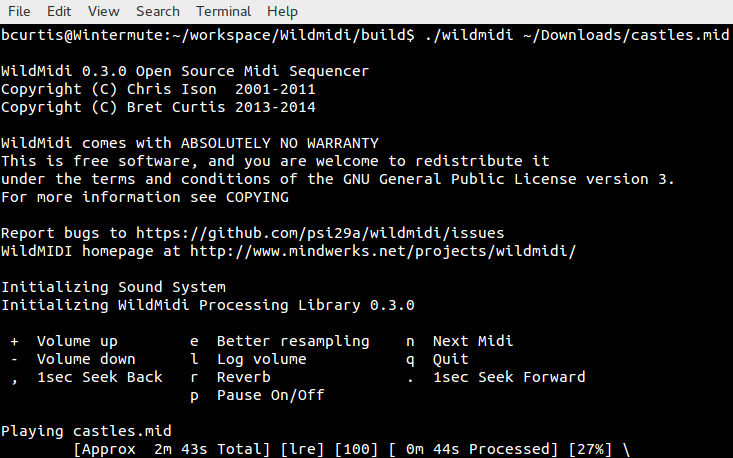
WildMIDI 0.4 is here with support for other formats!

WildMIDI

WildMIDI 0.4 is released!

It has been two years in development and we’ve pushed WildMIDI 0.4 beyond just MIDI support, we’ve branched out into MIDI like files as well. We’ve worked together with other projects like GStreamer, OpenTESArena, XLEngine (DaggerXL), Thirdeye, ZDoom and more to ask what we can do to make their lives easier, as a result we now support rendering, streaming and playback of many older MIDI-like formats!

What’s new in this release

We’ve added support for KAR (MIDI with Karaoke) files, MIDI Type 2 and many MIDI-like formats such as HMI, HMP, MUS (Id) and XMI! We’ve also expanded our API in libwildmidi to support getting text/karaoke out of files, seeking songs in multi song MIDI Type 2, get errors instead of having a noisy library, setting conversion options, converting MIDI-like files into MIDI files and library now returns a buffer in the Endian format of the host.

You’ll want to re-experience old game soundtracks:

You probably still remember the soundtracks of your favorite games in their original OPL2, OPL3 or even MT32 glory, but now you’ll get to experience via a softsynth. Real guitars thrashing away on Doom’s opening anthem from e1m1 hangar or relax to the ambient Daggerfall soundtrack rendered by an orchestra. Here is a non-complete list of games that WildMIDI can use their native file formats to play back:

  • 1992-03-?? XMI Ultima Underworld: The Stygian Abyss
  • 1992-04-16 XMI Ultima VII: The Black Gate
  • 1992-05-?? XMI The Legend of Kyrandia: Book One
  • 1992-12-?? XMI Dune II: The Building of a Dynasty
  • 1992-??-?? XMI Eye of the Beholder III: Assault on Myth Drannor
  • 1992-??-?? XMI Battle Chess 4000
  • 1992-??-?? XMI The Dark Queen of Krynn
  • 1992-??-?? XMI Tetris Classic
  • 1993-12-10 MUS Doom
  • 1993-12-?? XMI Isle of the Dead
  • 1993-??-?? XMI Dungeon Hack
  • 1993-??-?? XMI The Legend of Kyrandia: Book Two – Hand of Fate
  • 1993-??-?? XMI The Seven Cities of Gold
  • 1993-??-?? XMI SimCity 2000
  • 1993-??-?? XMI SimFarm
  • 1993-??-?? XMI Wayne’s World
  • 1994-04-01 MUS Raptor: Call of the Shadows
  • 1994-05-06 HMP Magic Carpet
  • 1994-09-23 XMI System Shock
  • 1994-10-10 MUS Doom II: Hell On Earth
  • 1994-11-19 XMI U.S. Navy Fighters
  • 1994-12-23 MUS Heretic: Shadow of the Serpent Riders
  • 1994-12-?? HMP Wing Commander III: Heart of the Tiger
  • 1994-??-?? XMI The Settlers
  • 1994-??-?? HMP Sensible Golf
  • 1995-03-17 HMP Descent
  • 1995-08-?? HMP Abuse
  • 1995-09-30 MUS Hexen: Beyond Heretic
  • 1995-10-30 HMP Whiplash (a.k.a. Fatal Racing)
  • 1995-??-?? XMI Hi Octane
  • 1995-??-?? HMI The Terminator: Future Shock
  • 1996-03-13 HMP Descent II
  • 1996-03-31 XMI ATF: Advanced Tactical Fighters
  • 1996-05-15 MUS Strife
  • 1996-08-31 HMI Daggerfall
  • 1996-08-31 XMI The Settlers II
  • 1996-11-30 XMI Rex Blade: The Battle Begins
  • 1996-??-?? HMP Astérix & Obélix
  • 1996-??-?? HMI The Terminator: SkyNET
  • 1997-06-30 HMI Carmageddon
  • 1997-07-15 HMI X-COM Apocalypse

Head on over to Videogame Music Preservation Foundation track down your nostalgia!

What others have been up to:
It seems that WildMIDI has been webified, over at Wild Web Midi you can give them your MIDI file and they will stream or give you the resulting rendered file! You can look at their source code here: wild-web-midi github account.

Great job guys!

What to look forward to…:

We would like to of course support more formats! So far on our list are: MMF, RMI, RDL, CMF, DRO, IMF and RDos.

Additional features also include SF2 and DLS support to help expand WildMIDI’s softsynth ability. There is also OPL3 emulation also known as a backup soundfont generator.

Support for AmigaOS and OpenBSD are also coming.

As was mentioned already, we’ve reached out to a few project to ask if there was anything we could help them with and now we want to extend that invitation to everyone. So if there is something you think WildMIDI should be supporting, let us know!

That’s it for this release, it was a huge and long one in coming. Now that the heavy lifting has finished, we can get back to smaller updates and shorter release cycle.

WildMIDI Resources:
Release: WildMIDI 0.4
Issues: WildMIDI Issue Tracker

New releases of WorldEngine, OpenMW and TESAnnwyn

Rivers

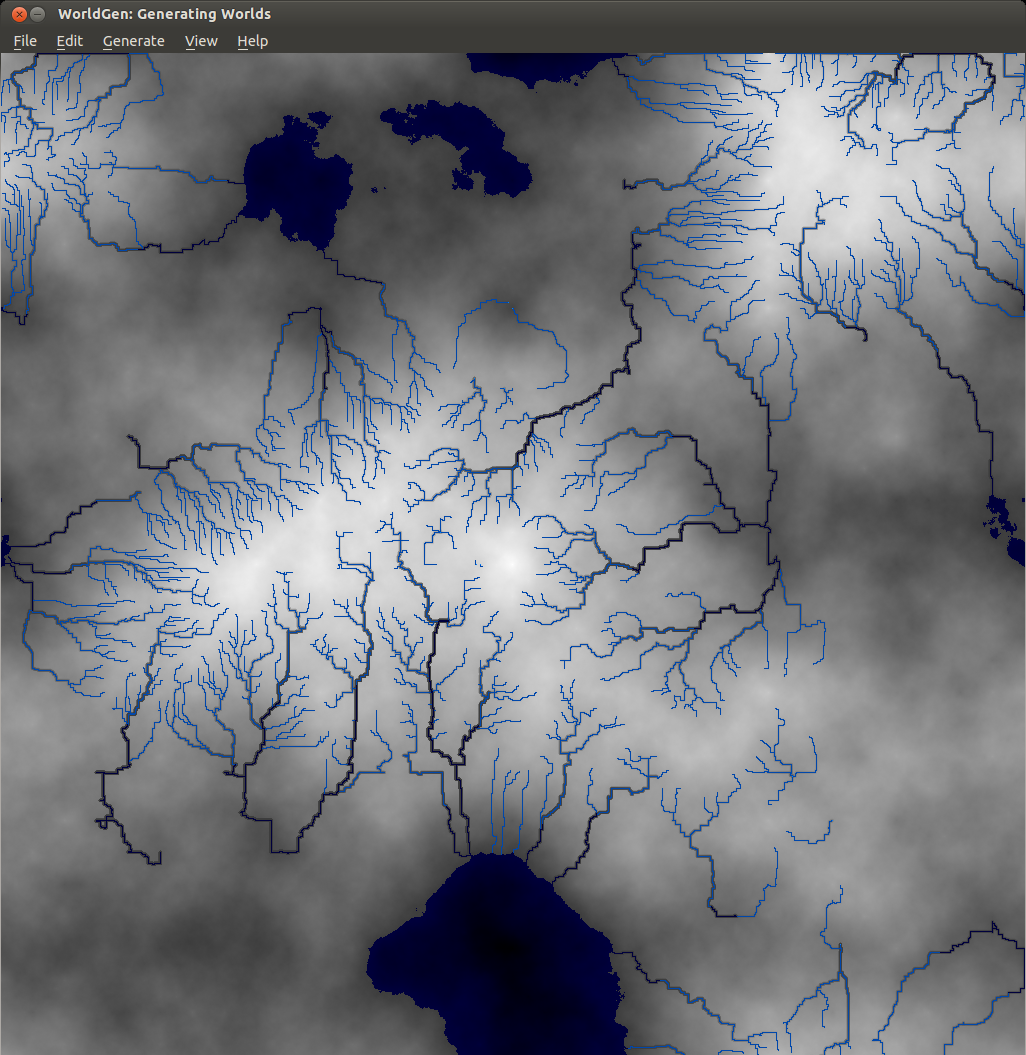
WorldEngine 0.19 has been released! In case you’re wondering, WorldEngine is the combination of two projects: Lands and WorldSynth. The biggest gain in the merge is that we’re now two developers on the same wavelength and we’ve added plate tectonic simulations! As things have become more serious and complicated, we’ve had to write tests suites to cover our bases. We’re currently about 86% code coverage and the tests guarantee reproducibility which aids us in finding regressions. We’ve got many contributions, so having these in place are crucial for project stability.

What’s new in WorldEngine 0.19:

  • Speed of generation increased by almost a factor of 3 (due to update to Platec and making heavy use of numpy).
  • World-generation is now deterministic, i.e. generation is 100% reproducible.
  • Added support for exporting heightmaps using libgdal (see http://www.gdal.org/formats_list.html for possible formats).
  • Added the ability to modify temperature and humidity ranges as well as the temperature/precipitation curve.
  • Added the ability to generate scatter plots showing temperature and humidity of all terrestrial cells.
  • Added small variations to the temperature-map based on basic orbital parameters.
  • Added a satellite-like view of the world.
  • Added support to save/load worlds in/from HDF5-format.

Exposure!

In addition to a new release, Smashing Magazine published an article that I co-authored with Federico titled “Diving Into Procedural Content Generation” which goes into detail about our motivations in creating WorldEngine (originally WorldSynth and Lands) and how by simulating real world phenomenon we can “create” realistic worlds, the results of which have been used by others for their own projects.

Speaking of own projects…

I’ve been a member of OpenMW for a while now and with the recent advances in the OpenMW-CS (construction set), it has made it possible to create your own “game” and not have to rely on Morrowind or any other Bethesda IP. In this particular case, I’ve been working on the OpenMW-Template and OpenMW-Example-Suite. The Template is fully CC-BY 3.0 and can be used by anyone wanting to have something akin to a starter kit or SDK when using OpenMW and its CS. The Example-Suite is OpenMW’s own game using the Template as a basis but going further in demonstrating what the engine can do.

One of the things I’ve been working on is getting height data (DEM) into OpenMW, such as ones created by WorldEngine. Introducing TESAnnwyn, originally open-sourced by Lightwave, I’ve been working to turn it into a library with a CLI and improving it even further by adding features and fixing bugs. The result is that you can use GDAL to convert whatever DEM you might have, into a 32-bit signed raw (ENVI) file that can be read by TESAnnwyn and converted to an ESP full of terrain data! My hope is that one day it will have Python bindings so it can be used directly by OpenMW-CS.

Here is an example of the result of a DEM that was reduced by 50% in terms of resolution and size running in OpenMW with all the setting cranked to max, including view distance.

https://www.youtube.com/watch?v=4LmzpdhNHds

As you can see, we’ve come a long way and many of the projects I’ve been working on are cross pollinating. There is so much left to do! If you’re interested in any of the projects, please feel free to leave a comment and/or help!

Deadlines and Timeouts for Realtime MongoDB Access with TxMongo

2000px-Twisted_Logo_(software).svg

Murphey had an adage: “Anything that can go wrong, will go wrong.” The best we can do is attempt to anticipate any problems that might come up and keep ‘the machine’ running. From an end-user perspective that means being responsive, even with errors. If there is a network error, we want to know as soon as possible with the guarantee that state of ‘the machine’ was not effected by the error.

With the release of TxMongo 15.3.1 we’ve introduced a few things that are useful when creating real-time applications.

We now have per-call deadline and timeouts!

Deadline: The latest time (in the future) by which the call should be completed. Useful when your application has a deadline to complete a task and you pass the same deadline to all MongoDB calls.

Timeout: How much time the call has to complete itself. Useful when each call in your application is allowed a certain amount of time to complete itself.

If these are ever exceeded, an error TimeExceeded is raised that you can trap. The guarantee is that when the error is raised, the call will not have modified MongoDB.

Here are two examples of how to implement these in your application:

yield conn.db.coll.insert({'x': 42}, safe=True, timeout=10)
yield conn.db.coll.insert({'x': 42}, safe=True, deadline=time()+10)

We also have additional features that will be useful as well:

  • When dealing with connection.ConnectionPool, max\_delay is now exposed which is used to set the maximum number of seconds between connection attempts. The default is set to 60.
  • When dealing with connection.ConnectionPool, initial\_delay is now exposed which is used to set the initial backoff retry delay. The default is set to 1.
  • NotMaster instead of AutoReconnect error will be returned when a call can be safely
  • Python3 support!

If you have any feature requests or problems, you can use our txmongo github issue tracker!

Vagrant, Virtualbox and Ubuntu Wily Weerwolf: Getting them to play along

Vagrant

I recently upgraded to Ubuntu 15.10 (Wily Weerwolf) which automatically upgraded VirtualBox from 4.3 to 5.0 and broke compatibility with Vagrant 1.6 in the process. Thinking that Vagrant knows about this and they claim VBox 5.0 compatbility, I upgraded to 1.7 and came across the same error!

Vagrant attempted to execute the capability ‘configure_networks’ on the detect guest OS ‘linux’

There is a workaround!

Apparently it hasn’t been fixed yet and others are also running into this problem. Being pragmatic, I reverted Vagrant back to 1.6 and purged VirtualBox from my system. I manually downloaded an older 4.3 build of VBox from here: https://www.virtualbox.org/wiki/Download_Old_Builds_4_3

Of course these builds are only supported up to Ubuntu 14.10, so we have a bit more work to get back to work. The first bit is that the VBox deb package won’t install until libvpx1 is installed. The problem here is that this package no longer exists in Ubuntu 15.10, but it’s later revision libvpx2 does. So we have to create a temporary empty deb package to allow installation without forcing anything.

You can follow the directions here to create your own package here: Creating_dummy_packages_to_fullfill_dependencies_in_Debian.

Or you can download it from me here: libvpx1_1.0.0_all.deb

Now you can install your VBox 4.3 without it complaining. However if you try to do this:

vagrant up

You’ll get this:

Bringing machine ‘default’ up with ‘virtualbox’ provider…
There was an error while executing VBoxManage, a CLI used by Vagrant
for controlling VirtualBox. The command and stderr is shown below.

Command: [“list”, “hostonlyifs”]

Stderr: VBoxManage: error: Failed to create a session object!
VBoxManage: error: Code NS_ERROR_FACTORY_NOT_REGISTERED (0x80040154) – Class not registered (extended info not available)
VBoxManage: error: Most likely, the VirtualBox COM server is not running or failed to start.

This is solved by making a symlink from libvpx.so.2 to libvpx.so.1 and it should be solved. We’re back to normal, until the original problem with Virtualbox 5.0 and Vagrant are fixed.

VideocoreIV Glamor on your Raspberry Pi

RaspberryPi Logo

Running an X (Xorg) server on your Raspberry Pi is frustrating. You can either use the fbdev or fbturbo driver which will give an un-accelerated 2D environment with swrast 3D (OpenGL) all beating your poor RPi's CPU. Overclocking it will only help you so much which is a pity considering that there is another layer on the SoC that would be perfect for that but is now unused.

Enter the VideocoreIV (VC4) and Eric Anholt (formally of Intel, now of Broadcom), who are going to breath new life into the RPi. The idea is to offload the 2D rendering, via Glamor, to the VC4 with OpenGL calls. Since a OpenGL stack needs to exist, that means there will be a Direct Rendering Manager (DRM) Linux kernel module and Gallium/DRI module in Mesa.

This is happening now, here is the current status of support via the Piglit test-suite: skip 19102, fail 3866, pass 3146, crash 153, total 26267

While we skip a great deal of tests, they are because some extensions are not yet implemented. Of those implemented, almost half of the tests are passing! Wrapping up the crashed and failed tests will help add stability to the OpenGL stack that will lead to the eventual use of the VC4 as an everyday use of the RPi.

If you would like to follow along from home, and I suggest you do as there are updates almost every day, then you can see the progress for yourself! The end result, at least for me, is to see OpenMW running on the RPi with full OpenGL acceleration under X. Eric has left some low-hanging fruit for new and would be contributors to help out! I'll provide a check-list of things you'll need, best practices and ways that you can help too.

Phase 1: Setting up your RPi workbench You'll need an RPi, running the latest Raspbian "Jessie" release. Setup a 'dev' directory under your account. Optionally, but highly recommended is to set this dev directory up as an NFS mountpoint so that your compiling/working is not ruining your SD-card with constant writes.

Phase 2: Getting the VC4 kernel driver At this point, you'll need to git clone Eric's fork of the kernel and get familiar with building your own kernel. You'll need do the following:

  • sudo apt-get install git build-essential ncurses-dev
  • git clone -b vc4 --depth=10 https://github.com/anholt/linux.git
  • cd linux; zcat /proc/config.gz > .config; make oldconfig

The basic idea is that you are cloning his specific branch and not the whole tree, otherwise your just wasting time. You'll pull in your running kernel's config and bring it up to date with what is new in Eric's VC4 branch.

You'll also need to modify a few things in the .config file, first: CONFIG_CMA_SIZE_MBYTES=5 --> CONFIG_CMA_SIZE_MBYTES=64 This needs to be set to, at least, 64 since 5 is NOT enough for the VC4 kernel module. The VC4 DRM module on the other hand is best, currently at least, to be built into the kernel. You'll need to turn on DRM and VC4 like below.

Direct Rendering Manager

CONFIG_DRM=y CONFIG_DRM_KMS_HELPER=y CONFIG_DRM_KMS_FB_HELPER=y

CONFIG_DRM_LOAD_EDID_FIRMWARE is not set

CONFIG_DRM_GEM_CMA_HELPER=y CONFIG_DRM_KMS_CMA_HELPER=y

I2C encoder or helper chips

CONFIG_DRM_I2C_CH7006 is not set

CONFIG_DRM_I2C_SIL164 is not set

CONFIG_DRM_I2C_NXP_TDA998X is not set

CONFIG_DRM_UDL is not set

CONFIG_DRM_ARMADA is not set

CONFIG_DRM_RCAR_DU is not set

CONFIG_DRM_SHMOBILE is not set

CONFIG_DRM_PTN3460 is not set

CONFIG_DRM_VC4=y

If you don't wish to do this by hand, just give the 'make menuconfig' a spin and you'll work through the options available there. A this point, you should be ready to build your kernel. The first time around will take a while.

make; make modules; make modules_install

After it is finished, time to copy your newly baked kernel and copy it to /boot to be usable. If you screw up, and your RPi no longer boots, just insert your SD-card into a FAT readable machine and edit the config.txt file to point to the old kernel since we'll be moving it out-of-the-way first.

sudo mv /boot/kernel.img /boot/kernel.img.orig; sudo cp arch/arm/boot/zImage /boot/kernel.img; sync

At this point, cross your fingers and reboot your RPi. If it comes back online, check your dmesg for the following output:

[ 1.267449] BCM2708FB: allocated DMA memory 58400000 [ 1.272631] BCM2708FB: allocated DMA channel 0 @ f2007000 [ 1.298488] Console: switching to colour frame buffer device 200x75 [ 1.320303] uart-pl011 dev:f1: no DMA platform data [ 1.325906] vc-cma: Videocore CMA driver [ 1.330043] vc-cma: vc_cma_base = 0x00000000 [ 1.334843] vc-cma: vc_cma_size = 0x00000000 (0 MiB) [ 1.340424] vc-cma: vc_cma_initial = 0x00000000 (0 MiB) [ 1.346345] Initialized drm 1.1.0 20060810 [ 1.361836] vc4-drm vc4-drm.0: fb1: frame buffer device [ 1.367283] vc4-drm vc4-drm.0: registered panic notifier [ 1.372819] Initialized vc4 0.0.0 20140616 on minor 0

At this point, you are good to go! The glue between VC4 and userland is ready to be abused! Keep in mind, if there are updates on the linux side, git pull and rebuild your kernel and modules. Don't forget to install both! Thankfully this doesn't happen often as most of the work happens in Mesa.

Phase 3: Getting Mesa and building the VC4 Gallium DRM

This is pretty straight forward, if you know the right magic during configuration. We've (Eric and I) finally nailed with is necessary to build and get working.

  • sudo apt-get install xorg-dev libgl1-mesa-dev libgles1-mesa-dev libgles2-mesa-dev libglu1-mesa-dev xutils-dev xserver-xorg-dev
  • git clone --depth=10 git://anongit.freedesktop.org/mesa/mesa
  • cd mesa; autoreconf -v --install
  • ./autogen.sh \ --prefix=$HOME/prefix \ --with-gallium-drivers=vc4,swrast \ --enable-gles1 \ --enable-gles2 \ --with-egl-platforms=x11,drm \ --enable-glx-tls \ --enable-dri \ --with-dri-drivers=swrast \ --enable-shared-glapi \ --enable-texture-float \ --with-log-dir=/var/log \ --prefix=/usr \ --libdir=/usr/lib/arm-linux-gnueabihf
  • make; sudo make install

What is going on here is that you need to install some development headers so that you can build your Mesa drivers that will be used with Xorg. You might need to install more packages, if so, please notify me but these should work and configuration shouldn't fail. At the end of the configuration, it should give you an output of everything it will do during compilation. Yours should look like mine:

prefix: /usr exec_prefix: ${prefix} libdir: ${exec_prefix}/lib includedir: ${prefix}/include

OpenGL: yes (ES1: yes ES2: yes) OpenVG: no

OSMesa: no

DRI platform: drm DRI drivers: swrast DRI driver dir: ${libdir}/dri GLX: DRI-based

EGL: yes EGL platforms: x11 drm EGL drivers: builtin:egl_dri2

llvm: no

Gallium: yes

Shared libs: yes Static libs: no Shared-glapi: yes

CFLAGS: -g -O2 -Wall -std=c99 -Werror=implicit-function-declaration -Werror=missing-prototypes -fno-strict-aliasing -fno-builtin-memcmp CXXFLAGS: -g -O2 -Wall -fno-strict-aliasing -fno-builtin-memcmp Macros: -DUSE_EXTERNAL_DXTN_LIB=1 -D_GNU_SOURCE -DTEXTURE_FLOAT_ENABLED -DHAVE_DLOPEN -DHAVE_POSIX_MEMALIGN -DHAVE_LIBDRM -DGLX_USE_DRM -DHAVE_LIBUDEV -DGLX_INDIRECT_RENDERING -DGLX_DIRECT_RENDERING -DGLX_USE_TLS -DHAVE_ALIAS -DHAVE_DRI3 -DHAVE_MINCORE

PYTHON2: python2

Phase 4: Piglit testing

This is the part that will tell you that everything you've done up to this point hasn't been in vain. Piglit is a OpenGL test-suite that is very thorough. You'll use this when developing, to test against.

  • sudo apt-get install libwaffle-dev python-dev
  • git clone --depth=10 git://anongit.freedesktop.org/git/piglit
  • cd piglit; cmake -DPIGLIT_BUILD_GLES2_TESTS=TRUE .
  • PIGLIT_PLATFORM=gbm ./bin/shader_runner tests/shaders/glsl-algebraic-add-add-1.shader_test -auto -fbo

After running the individual test, you should get something like this:

PIGLIT: {"result": "pass" }

Don't mind the rather noisy MESA-LOADER issues, the RPi doesn't have a PCI bus. Congratulations, you're now utilizing your VC4! Happy hacking!

For additional output, debug information and trace level QIR calls, try running the former command like this:

PIGLIT_PLATFORM=gbm VC4_DEBUG=qir ./bin/shader_runner tests/shaders/glsl-algebraic-add-add-1.shader_test -auto -fbo

MESA-LOADER: malformed or no PCI ID MESA-LOADER: malformed or no PCI ID libEGL debug: Native platform type: drm (environment overwrite) libEGL debug: EGL search path is /usr/lib/arm-linux-gnueabihf/egl libEGL debug: added /usr/lib/arm-linux-gnueabihf/egl/egl_gallium.so to module array libEGL debug: added egl_dri2 to module array libEGL debug: dlopen(/usr/lib/arm-linux-gnueabihf/egl/egl_gallium.so) libEGL info: use DRM for display 0x16a1568 libEGL debug: EGL user error 0x3001 (EGL_NOT_INITIALIZED) in eglInitialize(no usable display)

libEGL debug: the best driver is DRI2 QIR: mov t2, u2 mov t3, u3 mov t4, u4 mov t5, u5 fadd t6, u0, t2 fadd t7, u1, t3 fadd t8, u1, t4 fadd t9, u1, t5 pack_colors t15, t6, t7, t8, t9 tlb_color null, t15 ... PIGLIT: {"result": "pass" }

Now on to the real work, as Eric describes it in his LJ article helping out with VC4:

Now the actual work: I've left some of the TGSI opcodes unfinished (SCS, DST, DPH, and XPD, for example), so the driver just aborts when a shader tries to use them. How they work is described in src/gallium/docs/source/tgsi.rst. The TGSI-to_QIR code is in vc4_program.c (where you'll find all the opcodes that are implemented currently), and vc4_qir.h has all the opcodes that are available to you and helpers for generating them. Once it's in QIR (which I think should have all the opcodes you need for this work), vc4_qpu_emit.c will turn the QIR into actual QPU code like you find described in the chip specs.

Phase 5: Bonus Round -- Modesetting Xorg driver

You're likely thinking, right... all this work and how do I get it into Xorg's driver seat? The answer is the 'modesetting' driver which acts as the glue to getting X talking with Glamor. Be warned though, there isn't anything usable yet. This might change though in a month or two so keep an eye on this. Who knows, glxgears might be just around the corner!

  • git clone git://people.freedesktop.org/~anholt/xf86-video-modesetting
  • ./configure --prefix=/usr
  • make; sudo make install

You'll need to create an xorg.conf file and run startx to see anything. However, be again warned, if you do this, the VC4 will be in an unknown state afterwards and likely need a reboot of your RPi.

sudo vim /etc/X11/xorg.conf

Section "Module" Load "glamoregl" Load "glx" EndSection

Section "Device" Identifier "Default screen" Driver "modesetting" # you can change this back to fbdev Option "ForceGallium" "True" Option "AccelMethod" "glamor" EndSection

Section "dri" Mode 0666 EndSection

As always, you should also keep up to date with what Eric has been up to here: http://anholt.livejournal.com/

This wraps up hacking the VC4 on your Raspberry Pi boot-camp and I hope it was useful enough to get you started in the right direction.
Development on the Raspberry Pi

RaspberryPi Logo

Now that I'm a proud owner of a Raspberry Pi, I've being really stressing the little guy. There is only but so much a ARMv6 processor, on an microSD with only 512MiB of ram can do, which means that compiling on such a machine is going to take a really long time.

Take for example OpenMW, currently it takes about 4 minutes on a quad-core i7 to compile. You're in for a treat on the Pi, it will take you at least a day, two days if you realize that half-way through the OOM Killer came through and killed your cc process. This is about the time you start wondering about various ways to improve the situation, such as a larger swap file or using zram.

At this point, I was wondering about other ways compiling binaries and packages for the Pi. There was cross-compiling, but then I would have to set up a full toolchain and recompile all the packages from scratch. That will have to be for another post though as it is another world. Another option is to try virtualizing the Pi and apparently QEMU gets us pretty darn close.

Let us begin with the preparation of our environment. We'll get the latest Raspbian release and clean up it for use in a QEMU environment.

# get the latest Raspbian: wget http://downloads.raspberrypi.org/raspbian_latest

create new target image of about 20GiB and mount it

dd bs=1 count=0 seek=20G if=/dev/zero of=raspbian.img sudo losetup -f --show raspbian.img

mount downloaded raspbian image and copy over

sudo losetup -f --show 2014-06-20-wheezy-raspbian.img sudo dd if=/dev/loop1 of=/dev/loop0 sudo losetup -d /dev/loop1

resize partition, edit one file, and umount

sudo parted /dev/loop0 resizepart 2 20GB

resize our filesystem

sudo partprobe /dev/loop0 sudo resize2fs /dev/loop0p2

editing out shared lib preloading so that it fully boots

sudo mount /dev/loop0p2 /mnt/image sudo sed -i s/'\/usr'/'#\/usr'/g /mnt/image/etc/ld.so.preload cp /mnt/image/boot/kernel.img ~/kernel.img # used later in the custom built qemu sync sudo losetup -d /dev/loop0

At this point, you have an image for QEMU to use but now you have to choose. There are two routes:

  • The default QEMU with only 256MiB of ram and a slightly different kernel than the Raspbian one because it uses a different CPU. The benefit here is that you don't have to do much, just apt-get install and you're on your way.
  • The modified QEMU, that gives you native RPi support so you can use your Raspbian kernel. It also has 512MiB of ram, like the RPi B+ which helps with compiling. The only drawback currently is the lack of networking.

First choice: # get a kernel: wget http://xecdesign.com/downloads/linux-qemu/kernel-qemu

fire up QEMU:

qemu-system-arm -kernel kernel-qemu -cpu arm1176 -m 256 -M versatilepb -no-reboot -serial stdio -append "root=/dev/sda2 panic=1 rootfstype=ext4 rw" -hda raspbian.img

Second choice: # setup build environment, configure and compile sudo aptitude install libsdl-dev libfdt-dev git build-essential git clone git://github.com/Torlus/qemu.git -b rpi cd qemu ./configure --target-list="arm-softmmu arm-linux-user" --enable-sdl make -j8

remember that kernel.img we copied earlier? We can use it here!

run our newly made system

arm-softmmu/qemu-system-arm -M raspi -m 512 -sd ~/raspbian.img -kernel ~/kernel.img -append "earlyprintk loglevel=8 panic=120 keep_bootcon rootwait dma.dmachans=0x7f35 bcm2708_fb.fbwidth=1024 bcm2708_fb.fbheight=768 bcm2708.boardrev=0xf bcm2708.serial=0xcad0eedf smsc95xx.macaddr=B8:27:EB:D0:EE:DF sdhci-bcm2708.emmc_clock_freq=100000000 vc_mem.mem_base=0x1c000000 vc_mem.mem_size=0x20000000 dwc_otg.lpm_enable=0 kgdboc=ttyAMA0,115200 console=tty1 elevator=deadline rootwait root=/dev/mmcblk0p2 panic=1 rootfstype=ext4 rw" -serial stdio -device usb-kbd -device usb-mouse -usbdevice net

At this point, you should have a usable Raspbian environment which should be faster than the real deal. Perfect for compiling and creating packages for your Raspberry Pi.

Happy hacking!