Skip to content

Linux

D2Decomp: Act IV, widescreen and couch co-op
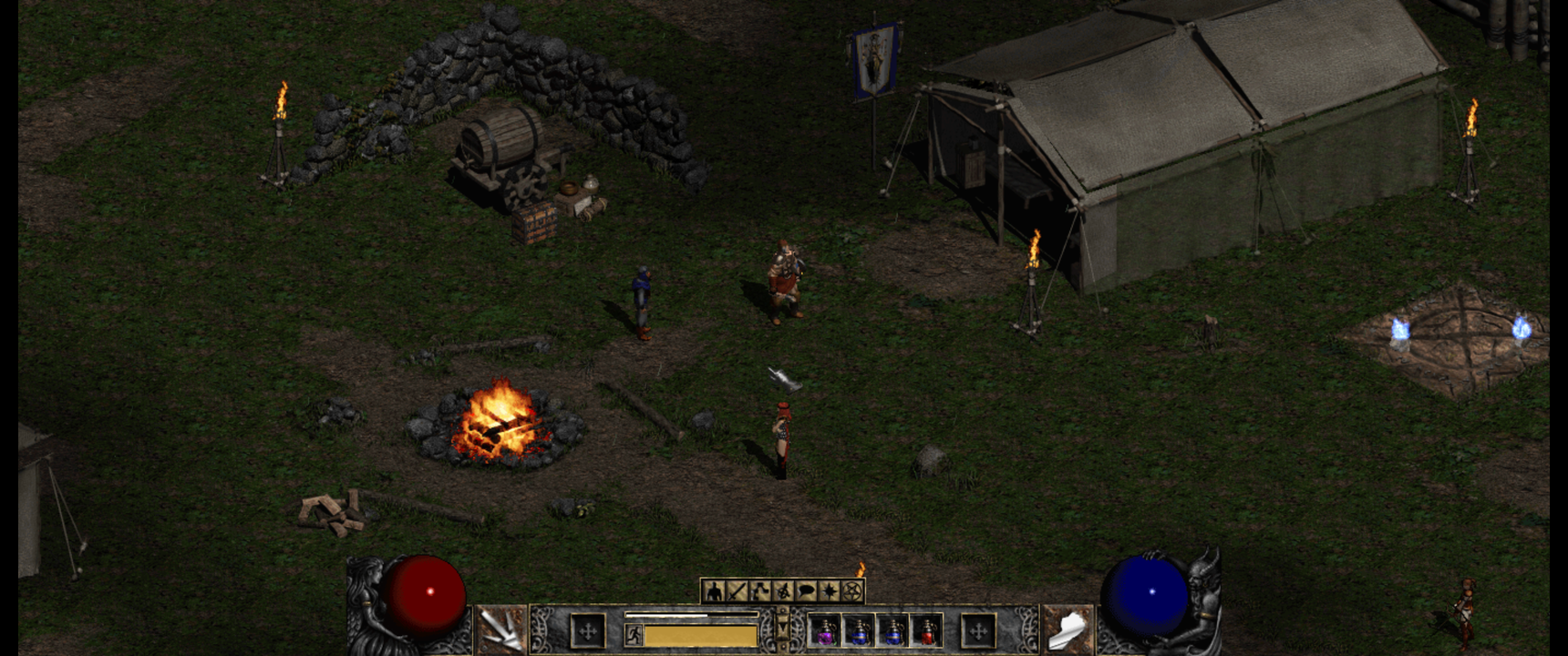
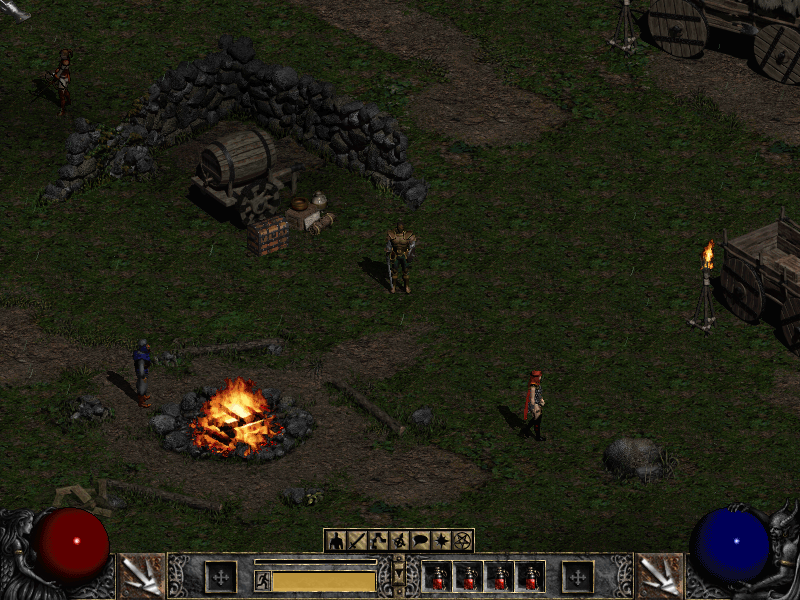
The Rogue Encampment in widescreen

It has been a busy week since the last post. Roughly two hundred commits and a run of releases from v0.3.0 to v0.5.6 later, D2Decomp has grown in a direction that matters most to me: playing together.

The screenshot above is the Rogue Encampment with the new widescreen view, running at 3440×1440. More on that below.

Act IV and Diablo

Last time, the hellgate in Act III opened onto nothing. Now it leads to the Pandemonium Fortress. All six Act IV levels match the original, from the Outer Steppes through the River of Flame to the Chaos Sanctuary. The three Act IV quests are in: Izual, the Hellforge and Terror's End.
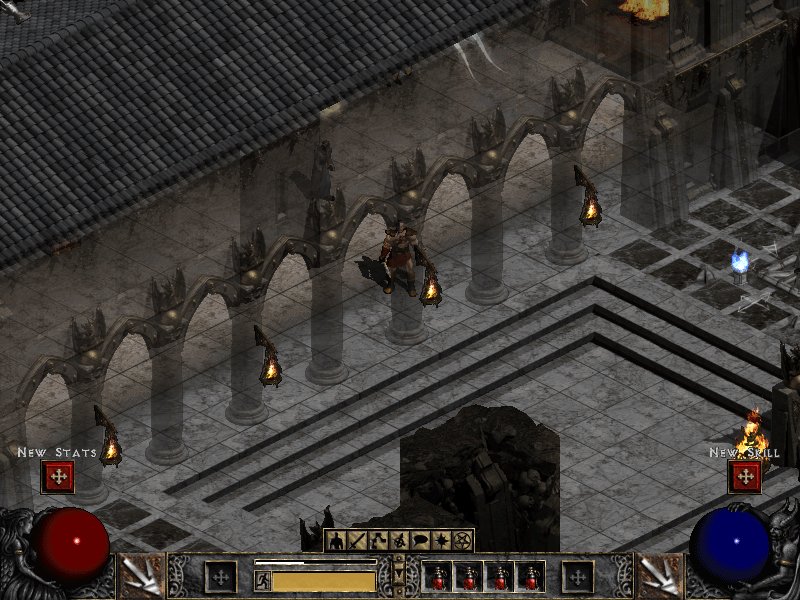
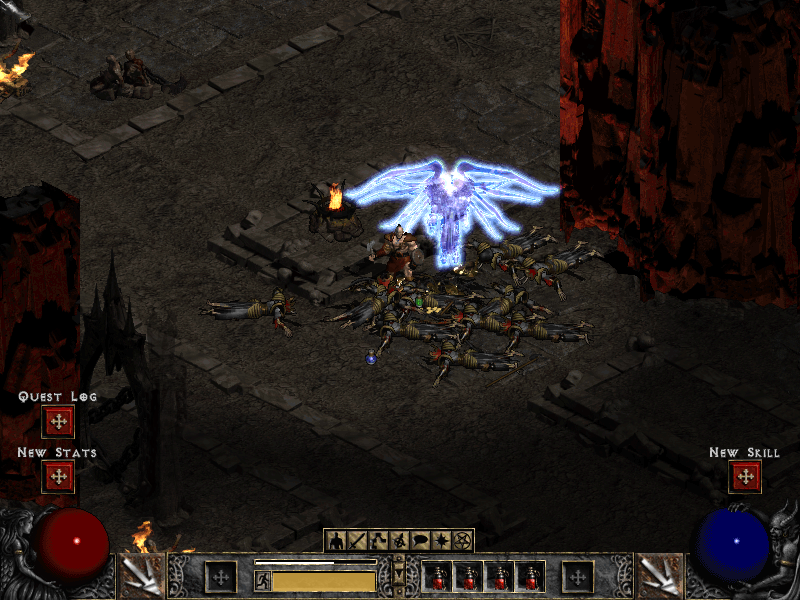
The Pandemonium Fortress

Izual's spirit, freed in the Plains of Despair

Diablo himself took the most work. His choice of what to do next, his Run, Bone Wall and Bone Prison, the seals and the knights guarding them have all been traced in the original and checked against it. A classic game ends with Diablo's death and the ending sequence. In Lord of Destruction, Tyrael's portal leads to Act V, which is not built yet.
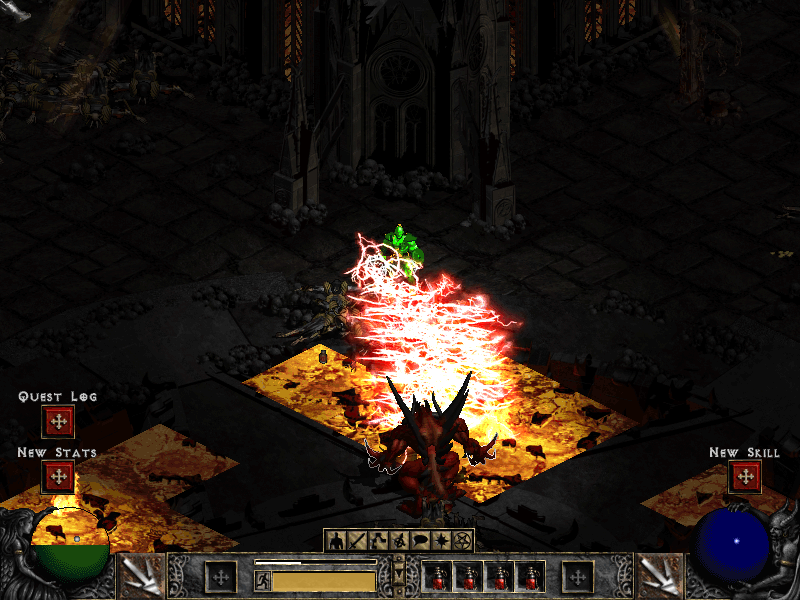
Diablo in the Chaos Sanctuary

That makes Acts I to IV, all twenty-one quests up to Diablo. Nightmare and Hell also place their monsters and objects as the original does, on every level of the first four acts.

Widescreen

Widescreen is an opt-in improvement, turned on from the launcher or with widescreen = 1 in d2d.cfg. The game view widens to fit the window, up to 1400 pixels wide, so you see more of the world to the left and right. The HUD and panels keep their familiar 800×600 layout in the middle, and menus and cinematics stay at 800×600.

It is off by default, because D2Decomp's job is to play like the original first.

Gamepads and the Steam Deck

D2Decomp now plays with a gamepad as well as with mouse and keyboard. Xbox, PlayStation, Switch and Steam Deck controllers work, with button labels to match each one. The left stick walks, the right stick aims, and ranged skills and spells lock on to the nearest target. The d-pad moves between slots in the inventory, stash and stores. There is also a Configure Controls screen, like the original's key configuration, with an extra page for the pad.
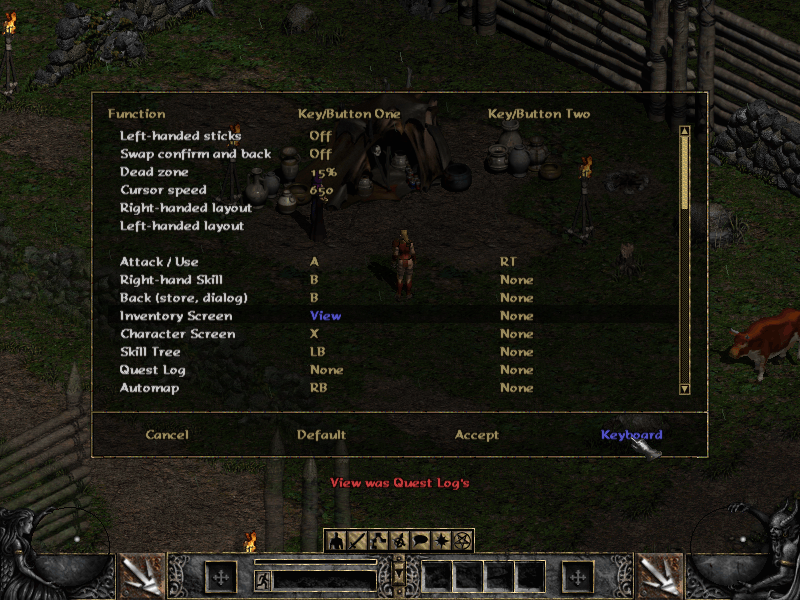
The gamepad page of Configure Controls

The Steam Deck build is a Flatpak, attached to every release. It is still experimental and not on Flathub yet. The launcher has an Add to Steam button that adds the game to your library with its artwork, and in Gaming Mode the launcher is skipped so you go straight into the game. Steam's on-screen keyboard opens when you need to type, for example to name a character.

Couch co-op

This is the part I am most excited about. Up to four players can now play together on one screen, from one machine, with no original game running. The idea is a docked Steam Deck with a few controllers, my daughter on one of them, but any PC or Mac with pads works the same way.

From the title screen, choose COOP. Each pad gets its own player, who picks or creates a character from a roster. A pad that connects mid-game can join right away. The party shares one camera and a leash keeps everyone together. Monsters scale with the number of players, and experience, gold and quests are shared by the same rules as an original multiplayer game.
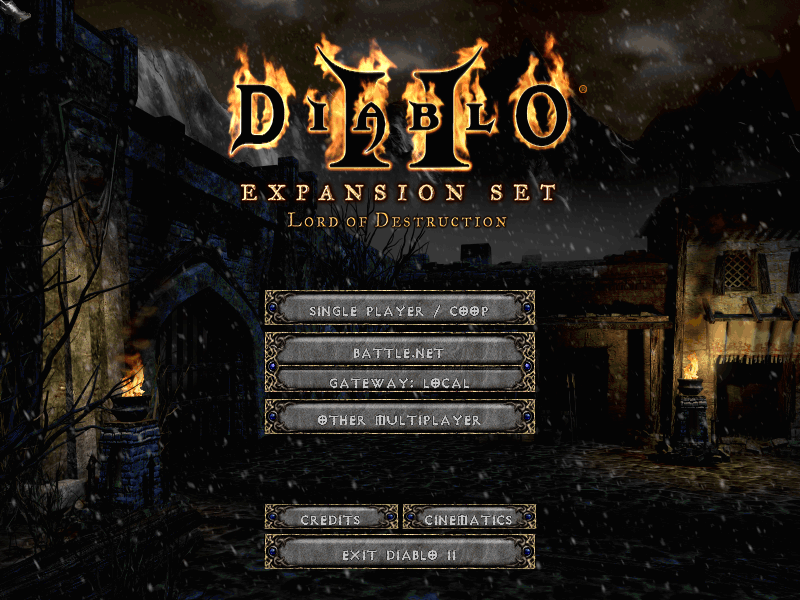
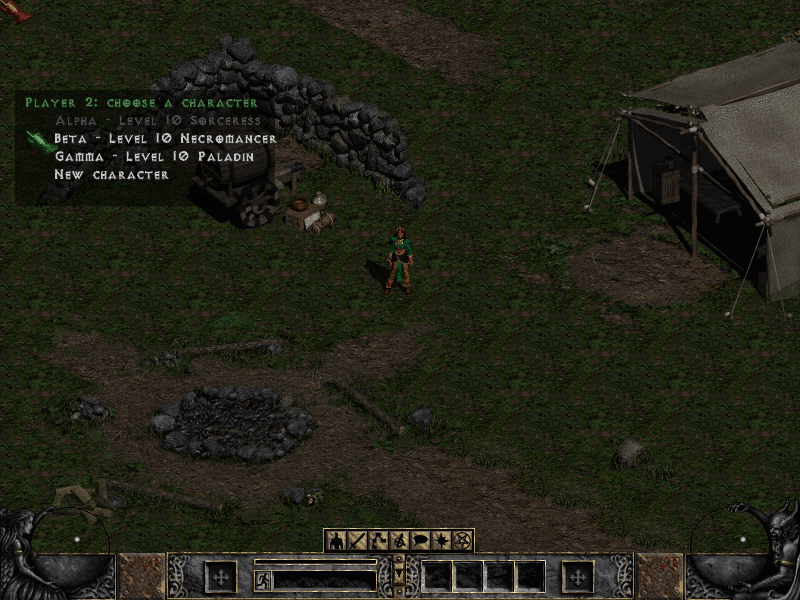
SINGLE PLAYER / COOP on the title screen

A second player picks a character from the roster

Dying works a little differently from the original. A fallen player becomes a ghost next to their body, and the others can channel a Resurrect skill to bring them back. More players channelling means a quicker resurrection. There was never a couch in Diablo II, so this is one of the places where D2Decomp adds something of its own.
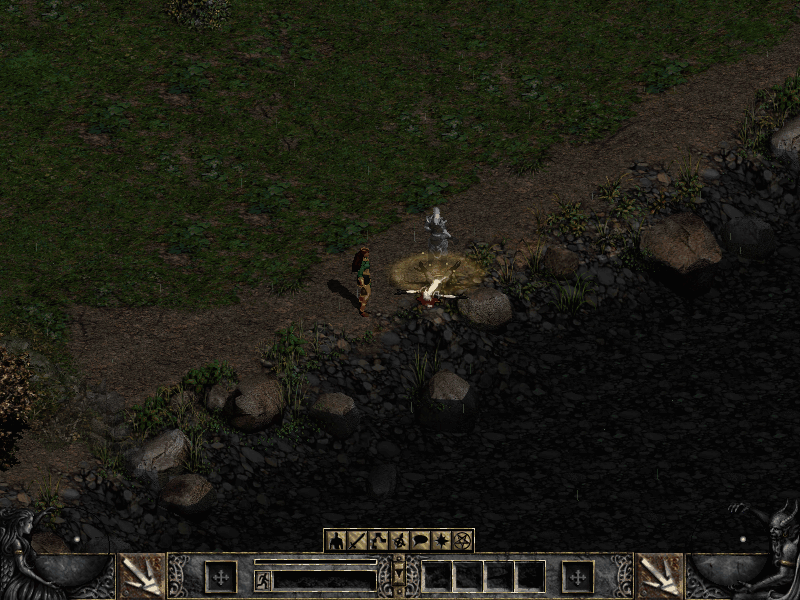
The Resurrect aura under a fallen player's ghost

Joining a game hosted by the original game over TCP/IP has also moved on. Acts I to IV have now been played through together with an original host: party, trade, portals, waypoints, chat, quests and travel.

Sound, screens and smaller things

Sound has come a long way. 3,123 of the base game's 3,520 sounds play as the original plays them: combat, spells, missiles, footsteps, monsters, objects and NPC greetings. Sounds in the world fade with distance and pan between the speakers as in the original, and items make their sounds when you pick them up, place them or equip them. The hero's quest lines are next.

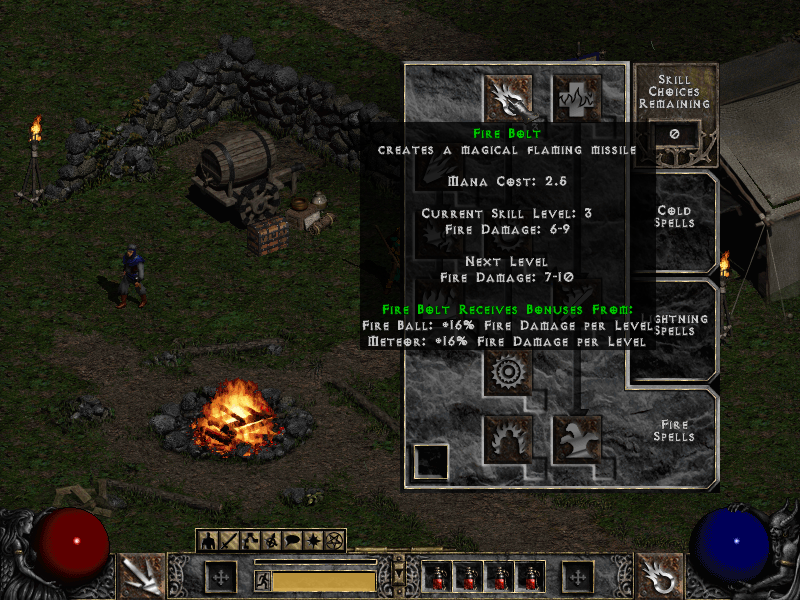
A number of screens arrived too: the Party screen, the Hireling screen for your mercenary's gear, the Help screen, automap options and skill tooltips, all drawn the way the original draws them. You can now drop, deposit and withdraw gold, and use the weapon switch.
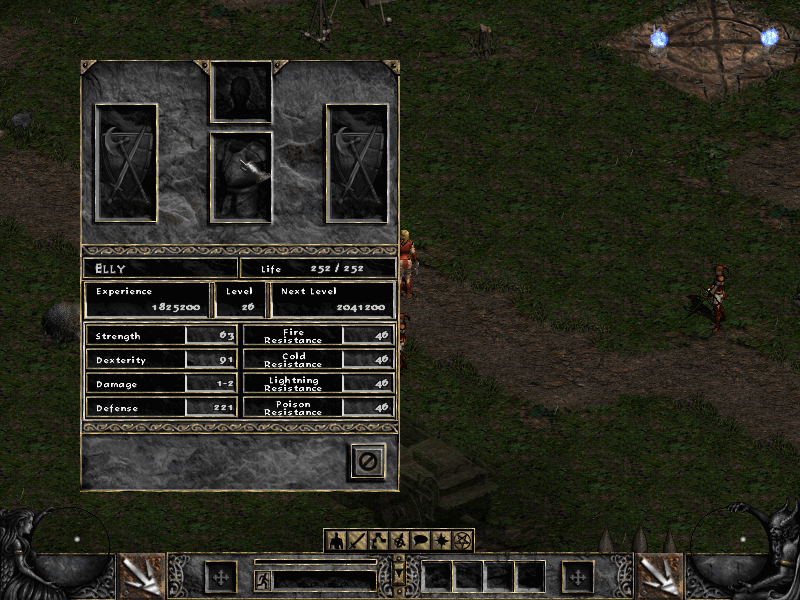
The Hireling screen

A skill tree tooltip

Keeping it honest

The less visible work continues as well. The opt-in crash reporting from last time has already paid for itself: a handful of crashes reported by testers were found and fixed within a day. The project is now also scanned by Coverity, and a fair amount of this week went into working through what it found.

What's next

Act V, hosting multiplayer games from d2d itself, and a dedicated server are still ahead of us. The source, releases and roadmap are on GitHub. As before, D2Decomp does not include any game files; you need your own copy of Diablo II and Lord of Destruction.
Playing Diablo II natively on Linux

Rogue Encampment running in D2Decomp

I want to play Diablo II with my daughter on Linux, without Wine or an emulation layer. That is why I started D2Decomp: a from-scratch reimplementation of the Diablo II: Lord of Destruction game engine.

It is still unfinished, but Acts I, II and III play through, with all eighteen quests. That takes you from the Rogue Encampment to Lut Gholein and the Kurast Docks, then on to Mephisto's Durance of Hate. The maps for all 101 levels match the original. Act IV is not built yet.

The interesting part is checking that the engine does what the original does, rather than just making something that looks close. I use Ghidra to understand the original game and Unicorn to run its functions, then compare that behavior with the new C++ code. The project does not include game files; it reads them from a copy you own.

There are a few details I didn't expect to get this far: single player runs as a one-player client/server, like the original, and d2d can join an original game's TCP/IP host. Party play, trade, portals, waypoints, chat, quests and travel are implemented for Acts I and II, though live checks are still pending.

I have also been working on the less visible parts of keeping a project like this moving. The current development branch has opt-in crash reporting, off by default. When enabled, it can send a crash dump, hardware and OS details, GPU model and the last game frame if the game crashes. Crash-frame capture runs asynchronously, so it does not hold up the game while the frame is prepared. The launcher explains what may be sent, including that a report can contain sensitive data from game memory.

Here is the Rogue Encampment in Act I:

Rogue Encampment

And scenes from Acts II and III:

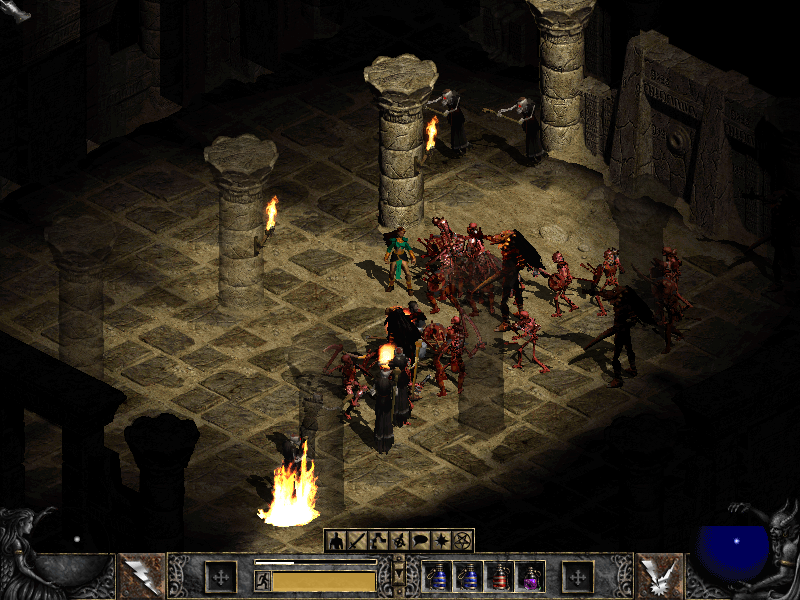
Tal Rasha's Tomb in Act II

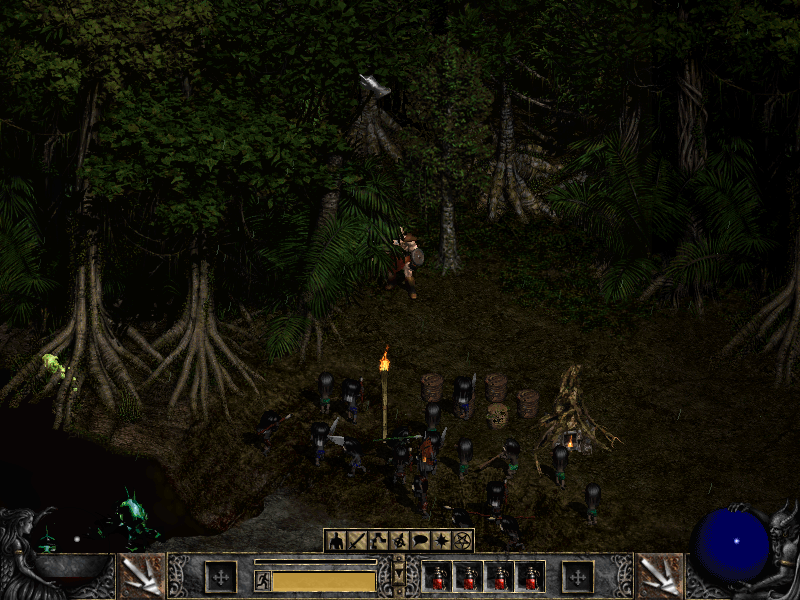
Flayer Jungle in Act III

The D2Decomp project page has more about the current state, and the source and roadmap are on GitHub. Acts IV and V, hosting multiplayer games and a dedicated server are still ahead of us.

Running Webex on Ubuntu

Webex Logo

Webex running on Ubuntu and other non-Windows platforms is literally a click away, in this case the CMR (Collaboration Meeting Room).

Webex is a fact of life for many people and for many Linux (BSD and other non-Windows) users, it has been a thorn in the side with people going so far as to set up virtual machines just to run Cisco’s collaboration software. While Webex is written in Java, it isn’t so simple to get running everywhere and apparently not all features are available for non-Windows users.

Most likely you are running up against the following message after logging into *.webex.com

Your browser,browser version, or operating system is currently unsupported

This requires the intervention of whoever is administrating the *.webex.com account and they can modify it in the following way.

Directions for disabling CMR

  1. Log into “xxxxx.webex.com/admin” using a site admin level account
  2. Click “Edit user list” on the left navigation Window.
  3. Search for the account you want to change
  4. Click on the account and uncheck “Collaboration Meeting Room”
  5. Click “Update”

Once this has happened, then you can log in and start Webex. Usually this is enough, but in case you hit the next wall which is runnig Java from a web-browser then there is always Firefox ESR (Extended Support Release). This version will allow you to still run the Java (or IcedTea) NPAPI plugin. I usually download and extract to /opt then run a symlink over the system’s version of firefox in /usr/bin/firefox which is enough for my needs.

You can check to see if the Java plugin is installed in Firefox by going to the URL bar and typing:
about:plugins
Should you not see it, but you’re sure the plugin exists on the system you can make a symlink yourself:
ln -vs /usr/lib/jvm/java-8-oracle/jre/lib/amd64/libnpjp2.so ~/.mozilla/plugins/
or
ln -vs /usr/lib/jvm/java-8-openjdk-i386/jre/lib/i386/IcedTeaPlugin.so ~/.mozilla/plugins/
depending on your implementation, 32/64-bit or library location.

Ultimately regardless of which bit-ness of Java you use, Webex uses 32-bit libraries as well. Which ones? Here is list, not complete, of all the ones I needed to get it working:

apt-get install libasound2:i386 libasound2-plugins:i386 libfontconfig1:i386 libfreetype6:i386 libgtk2.0-0:i386 libglib2.0-0:i386 libglib2.0-0:i386 libglib2.0-0:i386 libgtk2.0-0:i386 libgcj14-awt:i386 libpango-1.0-0:i386 libpangoft2-1.0-0:i386 libpangox-1.0-0:i386 gcj-4.8-jre-headless libpangoxft-1.0-0:i386 libpng12-0:i386 lib32stdc++6: libuuid1:i386 libx11-6:i386 libxext6:i386 libxft2:i386 libxi6:i386 libxmu6:i386 libxrender1:i386 libxt6:i386 libxtst6:i386 libxv1:i386 libcanberra-gtk-module:i386 gtk2-engines-murrine:i386

To find which libraries you are still missing, you can go to your Webex directory and ldd through all the ‘so’ files to see what is missing.

cd ~/.webex/ find | grep so | xargs ldd | grep 'not found' | sort | uniq

If the result is something like this:

libjawt.so => not found

then you’re ready to go. Otherwise you’ll need to track down all the libraries in order to get the most out Webex.

Using Qemu and Chroot to replace your cross-compile toolchain

RaspberryPi Logo

Awhile back I wrote about how you can set up a cross-compile toolchain for compiling on x86_64 with the Raspberry Pi as a target. There is another, perhaps easier way to do the same thing by using Qemu 2.0 as your backend.

By installing and enabling Qemu support, you can run code compiled for another architecture (that is supported by Qemu) on your native machine. You can then create a Chroot environment, perhaps similar to what you have on your Raspberry Pi, and run it as if it was natively.

You can verify support by checking for the availability of the aarch64 interpreter:
# update-binfmts --display | grep -i aarch qemu-aarch64 (enabled): interpreter = /usr/bin/qemu-aarch64-static

First you’ll need to set up your locales on your host:
You’ll need to configure locales so your Qemu Chroots have access to them. Otherwise, you will have to configure each Chroot’s locale individually.

# From the host sudo dpkg-reconfigure locales

Secondly you’ll need to install the necessary packages:
This includes qemu, Chroot and binfmt support
# From the host sudo apt-get install qemu qemu-user-static binfmt-support debootstrap

Thirdly we create the Chroot.
This uses debootstrap to create the Chroot environment. In the command below, the Chroot will be named debian-arm64. You can change it to suit your taste.

From the host

sudo qemu-debootstrap –arch=arm64 –keyring /usr/share/keyrings/debian-archive-keyring.gpg \
–variant=buildd –exclude=debfoster stretch debian-arm64 http://ftp.debian.org/debian
…
I: Retrieving Release
I: Retrieving Release.gpg
I: Checking Release signature
…

Fourthly we step into Chroot
Lastly before it’s usable we’ll setup the guest environment.

# From the host sudo chroot debian-arm64/

apt-get install debian-ports-archive-keyring

apt-get install locales build-essential git curl cmake # and etc.

Lastly…
The sky is the limit, you have your own chroot using binaries compiled for another arch. Clone your git repo, run cmake, install deps as necessary and run make to compile. The resulting binaries should run just fine on your RPi3.

Cross-compiling for Raspberry Pi on Ubuntu

RaspberryPi Logo

While the Raspberry Pi 2 has four cores to churn through code, it still takes longer to compile than on most workstations and laptops. If you are feeling adventurous, you can try cross-compiling which has become easier to set up and get working. Cross-compiling is when binaries created are for another target architecture than the one you are compiling on. This kind of set up is very typical when creating Android applications. The end result is that you can take the resulting binary and place on its target platform, and it will run there. There are even tricks to getting the cross-compiled binary to also run on your native system! In this guide, I'll walk you through:

  • Setting up a cross-compile toolchain in Ubuntu (15.04 Vivid)
  • Setting up the proper exports
  • Compiling a test program for your native and target armhf platform
  • Compiling the latest Raspberry Pi 2 kernel with VC4 support.

The first thing we need to do is set up your Ubuntu to be able to compile software for a Raspberry Pi (1 and 2). You'll need at least Ubuntu Vivid (15.04) installed. From there, you'll need to install the following packages.

sudo apt-get install binutils-arm-linux-gnueabihf \
cpp-4.9-arm-linux-gnueabihf \
cpp-arm-linux-gnueabihf \
g++-4.9-arm-linux-gnueabihf \
g++-4.9-multilib-arm-linux-gnueabihf \
g++-arm-linux-gnueabihf \
gcc-4.9-arm-linux-gnueabihf \
gcc-4.9-arm-linux-gnueabihf-base \
gcc-4.9-multilib-arm-linux-gnueabihf \
gcc-arm-linux-gnueabihf \
pkg-config-arm-linux-gnueabihf \
binutils-arm-linux-gnueabihf \
cmake \
cpp-4.9-arm-linux-gnueabihf \
cross-gcc-dev \
dpkg-cross \
g++-4.9-arm-linux-gnueabihf \
g++-4.9-multilib-arm-linux-gnueabihf \
gcc-4.9-arm-linux-gnueabihf \
gcc-4.9-arm-linux-gnueabihf-base \
gcc-4.9-multilib-arm-linux-gnueabihf \
libasan1-armhf-cross \
libatomic1-armhf-cross \
libc6-armel-armhf-cross \
libc6-armel-cross \
libc6-armhf-cross \
libc6-dev-armel-armhf-cross \
libc6-dev-armel-cross \
libc6-dev-armhf-cross \
libdebian-dpkgcross-perl \
libfile-homedir-perl \
libgcc-4.9-dev-armhf-cross \
libgcc1-armhf-cross \
libgomp1-armhf-cross \
libsfasan1-armhf-cross \
libsfatomic1-armhf-cross \
libsfgcc-4.9-dev-armhf-cross \
libsfgcc1-armhf-cross \
libsfgomp1-armhf-cross \
libsfstdc++-4.9-dev-armhf-cross \
libsfstdc++6-armhf-cross \
libsfubsan0-armhf-cross \
libstdc++-4.9-dev-armhf-cross \
libstdc++6-armhf-cross \
libubsan0-armhf-cross \
linux-libc-dev-armhf-cross \
pdebuild-cross \
xapt \

The last package in the list is xapt, a wrapper around apt so that we can install packages specifically for other architectures like armhf. This includes things like *-dev packages with headers which will likely be required if you compile other software. Once those are installed, you need to tell the terminal you are targeting the armhf architecture. The CROSS_COMPILE flag will make your toolchain (gcc and friends) and your software aware that you are using a cross-compiler.

export $(dpkg-architecture -aarmhf) 
export CROSS_COMPILE=arm-linux-gnueabihf-

You might get this warning:

dpkg-architecture: warning: specified GNU system type arm-linux-gnueabihf does not match gcc system type x86_64-linux-gnu, try setting a correct CC environment variable

This message is harmless and you can ignore it. Now to test this, create a file called main.c and copy this Hello World code into it.

#include <stdio .h>
#include <stdlib .h>

int main(int argc, char **argv)
{
    printf("Hello world\
");
}

You'll then compile it twice, first natively and second for your target platform.

gcc -o hello_x86 main.c -static
arm-linux-gnueabihf-gcc -o hello_arm main.c -static

You can then use file to test the resulting output and it should match below:

bcurtis@Redqueen:~/workspace/RPi$ file hello_x86 hello_x86: ELF 64-bit LSB executable, x86-64, version 1 (GNU/Linux), statically linked, for GNU/Linux 2.6.32, BuildID=217c28644cf5be3ea4d24bea79c3da3bbdd9a2a9, not stripped bcurtis@Redqueen:~/workspace/RPi$ file hello_arm hello_arm: ELF 32-bit LSB executable, ARM, EABI5 version 1 (GNU/Linux), statically linked, for GNU/Linux 2.6.32, BuildID=3a5e42174d6b72ddf8b0265a9b76b3cea0668623, not stripped

Notice how the last one is ARM, EABI5 version 1, this indicates that the binary is compiled for armhf, your Raspberry Pi. Next we are going to try to run them:

bcurtis@Redqueen:~/workspace/RPi$ ./hello_x86 Hello world bcurtis@Redqueen:~/workspace/RPi$ ./hello_arm Hello world

You might asking you how the hello_arm binary can run on an x86 system. This is thanks to -static flag during compilation that shoves all the required libraries into your binary. The ones that you included are specifically crafted multi-libs that can used on both your host and your target platform (both x86 and arm). The resulting binaries are larger as a result. You can remove the -static flag and see that it will no longer run on your host machine, but much smaller and will run on your target RPi2. Aiming higher, we will try to get Linux kernel built using Eric Anholt's VC4 branch. Go ahead and checkout Eric's branch: https://github.com/anholt/linux/tree/vc4-kms-v3d-rpi2

git clone [email protected]:anholt/linux.git -b vc4-kms-v3d-rpi2 --depth 10
cd linux
export $(dpkg-architecture -aarmhf); export CROSS_COMPILE=arm-linux-gnueabihf-
make ARCH=arm -j`nproc` bcm2709_defconfig
make ARCH=arm -j`nproc`

It will spawn a number of processes in parallel, nproc will return back how many cores you have. After a few minutes of tea sipping, you'll have your newly minted arch/arm/boot/zImage that you can then copy over to your sdcard. Take a moment to make sure your setup.cfg is pointing to the right kernel, then give it a try. You should now have your RPi2 online with Linux 4.0! Please note, at the time of this post, while the option to compile in VC4 support is there, it currently isn't functioning. Eric is still busy getting RPi2 back to the same state as the original RPi. Cheers!

Enterprise all your Twisted applications with Ldaptor

2000px-Twisted_Logo_(software).svg

We're proud to announce the release of 14.0.0 of Ldaptor, now a first party Twisted project! Ldaptor is an asynchronous LDAP (Lightweight Directory Access Protocol) client and server implementation written for Twisted in Python. The biggest change is that Ldaptor is now sponsored by Amplidata. Through them we were able to get development, bug fixes and Twisted first-party sponsorship back online. We now have continuous integration (CI) with a wide matrix of support for py26/py27/pypy using Twisted 12.1 to 14.0 (and trunk). We also have about 75% code coverage with unit testing! You can download 14.0.0 and other releases here: Ldaptor Github Releases For a full review of what has changed, feel free to take a look at our live documentation over at ReadTheDocs: Ldaptor Documentation and the Changelog itself. Backstory That is quite a jump from the last official release of 0.0.43 back in 2012 and from all the unofficial forks that have popped up to fill the void in between. Here is a bit of back story on how we got to where we are now. It was originally written and carried by Tommi Virtanen until 2012, since then Ldaptor was forked many ways to solve various problems and each distro of Linux and BSD had their own patches building up dust. In the spring of 2014, an internal project at Amplidata required an OpenLDAP client for their Twisted services and the only one that offered the most promise was Ldaptor. We got in touch with Tommi (tv42) and Glyph of Twisted to work out an arrangement where Amplidata would sponsor continued work on Twisted, Tommi would re-license Ldaptor under the MIT Expat License and it would be hosted as a first party library with Twisted. Since then we've consolidated the bug-fixes of other forks and distributions, improved the unit tests, cleaned up the code-base and managed to recover the PyPI Ldaptor entry. Once Travis was all green, we made our first release 14.0 (on Halloween) and are now seeing development picking up with pull requests for more tests and features! Usage and Example This particular example also includes how to connect to OpenLDAP with StartTLS. This particular feature is critical to Amplidata and there isn't any Ldaptor information about it. Now there is!


from OpenSSL import SSL from twisted.internet import reactor, defer, ssl from ldaptor.protocols.ldap import ldapclient, ldapsyntax, ldapconnector

class ServerTLSContext(ssl.DefaultOpenSSLContextFactory): def init(self, args, kw): kw['sslmethod'] = SSL.TLSv1_METHOD ssl.DefaultOpenSSLContextFactory.init(self, args, **kw)

@defer.inlineCallbacks def example(): serverip = '192.168.128.21' basedn = 'dc=example,dc=com' binddn = 'bjensen' bindpw = 'secret' ssl = True query = '(cn=*)' c = ldapconnector.LDAPClientCreator(reactor, ldapclient.LDAPClient) overrides = {basedn: (serverip, 389)} client = yield c.connect(basedn, overrides=overrides)

# do you want SSL/TLS, then you need to create a context for startTLS
if ssl:
    tls_ctx = ServerTLSContext(
        privateKeyFileName='your.key',
        certificateFileName='your.crt'
    )
    yield client.startTLS(tls_ctx)

yield client.bind(binddn, bindpw)
o = ldapsyntax.LDAPEntry(client, basedn)
results = yield o.search(filterText=query)
for entry in results:
    print entry

if name == 'main': df = example() df.addErrback(lambda err: err.printTraceback()) df.addCallback(lambda _: reactor.stop()) reactor.run()


The above should work as-is, but you'll need to change the IPs, basedn, binddn, certs and keys. If you don't need SSL/TLS, then just ssl to False and you should be ready to go!

Introducing WildMIDI version 0.3.2

WildMIDI

After several years of silence, There is now a new version of WildMIDI! Chris "Wildcode" Ison seems to have fallen off the planet around February of 2012 and the bug reports and patches have been accumulating on his SourceForge page. I decided to dump his SVN repository to github and continue hacking where he left off. We are still very much 100% API/ABI compatible and new versions can be considered drop-in replacements. We will continue to be open to developers that wish to improve WildMIDI but keep in mind that our goal is to be small and fast. We also wish Chris the very best and want very much for him to rejoin the project.

What's new?

There have been a lot of changes since WildMIDI 0.2.3.5, mostly involving our new build system.

  • Switched build system away from autotools and now using cmake
  • We can build natively on: Linux, FreeBSD, Windows and OSX
  • We support GCC, Clang, XCode and Visual Studio
  • Pulled in all out-standing patches from SourceForge, Debian and FreeBSD
  • Compile without warnings using enforced -Werrors
  • Found and fixed additional bugs

What we need: We still need people with other platforms to test WildMIDI and file bug reports and patches so that we can support more platforms as well. This includes both the library and the player.

We are also looking into adding new features, such as: XMI playback support, SF2 and DLS support.

Downloads:

  • Win32 Binaries (exe, dll, lib): WildMIDI-0.3.2-win32.zip
  • OSX Binaries: Not currently available, they can be built from source but there is currently no sound-code for the wildmidi player. You can however dump music to a WAV file.
  • Source: wildmidi-0.3.2.tar.gz
  • Free Patches (GUS):freepats_20060219.orig.tar.gz (extract the 'freepats' directory to where you want and adjust the 'dir' in wildmidi.cfg to point to it)

For more information: If you wish to read more about the History and the Future of the library, please read our WildMIDI Project page.

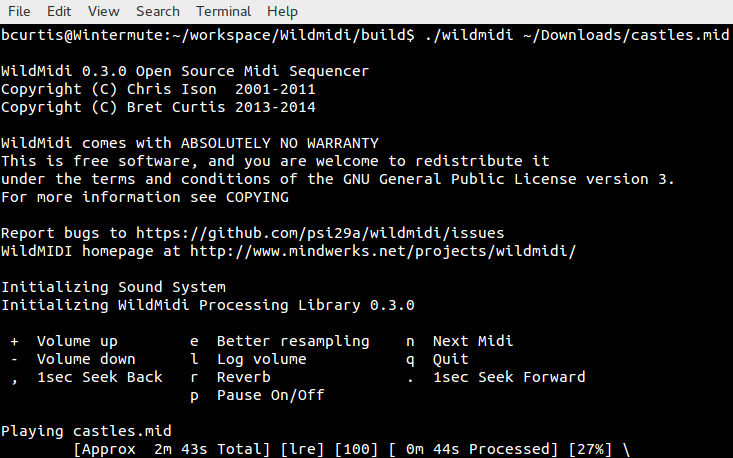
Screenshots running on Windows and Linux:

Wireless BCM4312 with the 3.10, 3.11, 3.12 and 3.13 kernels

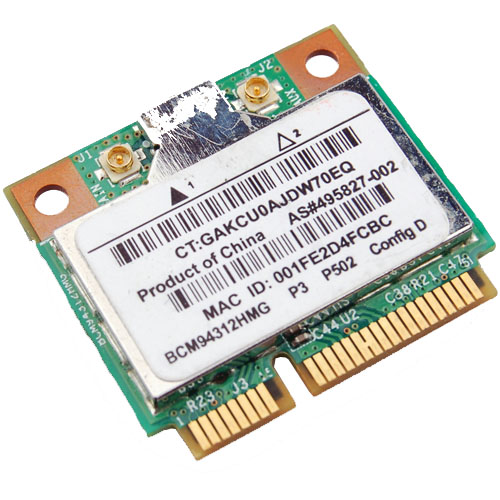
Broadcom Chipset BCM4312

The hybrid driver from Broadcom was updated again in September (2013) with all the previous patches and a few other fixes as well. This brings them up to support linux kernel 3.9, which is very much welcome.

Sadly it breaks again with >= 3.10 with many warnings and errors which isn't good considering that Ubuntu (13.10) Saucy Salamander is about to be released.

We do have a patch for you though that gets us working again up to the 3.11 kernel.

Chipsets supported by "Broadcom’s IEEE 802.11a/b/g/n hybrid Linux® device driver" are: BCM4311, BCM4312, BCM4313, BCM4321, BCM4322, BCM43224, BCM43225, BCM43227 and BCM43228.

The error you will run into:

bcurtis@Aria:~/Workspace/wl.orig$ make KBUILD_NOPEDANTIC=1 make -C /lib/modules/uname -r/build M=pwd make[1]: Entering directory /usr/src/linux-headers-3.11.0-11-generic' CFG80211 API is prefered for this kernel version Using CFG80211 API LD /home/bcurtis/Workspace/wl.orig/built-in.o CC /home/bcurtis/Workspace/wl.orig/src/shared/linux\_osl.o CC /home/bcurtis/Workspace/wl.orig/src/wl/sys/wl\_linux.o /home/bcurtis/Workspace/wl.orig/src/wl/sys/wl\_linux.c: In function ‘wl\_tkip\_printstats’: /home/bcurtis/Workspace/wl.orig/src/wl/sys/wl\_linux.c:3246:7: warning: passing argument 1 of ‘wl->tkipmodops->print\_stats’ from incompatible pointer type wl->tkip\_bcast\_data); ^ /home/bcurtis/Workspace/wl.orig/src/wl/sys/wl\_linux.c:3246:7: note: expected ‘struct seq\_file \*’ but argument is of type ‘char \*’ /home/bcurtis/Workspace/wl.orig/src/wl/sys/wl\_linux.c:3249:4: warning: passing argument 1 of ‘wl->tkipmodops->print\_stats’ from incompatible pointer type wl->tkipmodops->print\_stats(debug\_buf, wl->tkip\_ucast\_data); ^ /home/bcurtis/Workspace/wl.orig/src/wl/sys/wl\_linux.c:3249:4: note: expected ‘struct seq\_file \*’ but argument is of type ‘char \*’ /home/bcurtis/Workspace/wl.orig/src/wl/sys/wl\_linux.c: In function ‘wl\_reg\_proc\_entry’: /home/bcurtis/Workspace/wl.orig/src/wl/sys/wl\_linux.c:3470:2: error: implicit declaration of function ‘create\_proc\_entry’ [-Werror=implicit-function-declaration] if ((wl->proc\_entry = create\_proc\_entry(tmp, 0644, NULL)) == NULL) { ^ /home/bcurtis/Workspace/wl.orig/src/wl/sys/wl\_linux.c:3470:22: warning: assignment makes pointer from integer without a cast if ((wl->proc\_entry = create\_proc\_entry(tmp, 0644, NULL)) == NULL) { ^ /home/bcurtis/Workspace/wl.orig/src/wl/sys/wl\_linux.c:3475:16: error: dereferencing pointer to incomplete type wl->proc\_entry->read\_proc = wl\_proc\_read; ^ /home/bcurtis/Workspace/wl.orig/src/wl/sys/wl\_linux.c:3476:16: error: dereferencing pointer to incomplete type wl->proc\_entry->write\_proc = wl\_proc\_write; ^ /home/bcurtis/Workspace/wl.orig/src/wl/sys/wl\_linux.c:3477:16: error: dereferencing pointer to incomplete type wl->proc\_entry->data = wl; ^ cc1: some warnings being treated as errors make[2]: \*\*\* Error 1 make[1]: \*\*\* Error 2 make[1]: Leaving directory/usr/src/linux-headers-3.11.0-11-generic' make: *** Error 2

The rundown:

  1. Download the 32 or 64-bit version: http://www.broadcom.com/support/802.11/linux_sta.php
  2. Download the patch: wl_3.10.patch
  3. Extract the sources: cd ~/Downloads; mkdir -p wl; cd wl; tar xf ../hybrid-*.tar.gz
  4. Patch and compile the sources: patch -p2 < ~/Downloads/wl_3.10.patch; make; sudo make install; sudo depmod; sudo modprobe wl

Give Ubuntu a few seconds after loading the "wl" kernel module, then eventually the Network Manager will start looking for wireless networks.

TL;DR: These patches are required for a working wl kernel module for the 3.10 and 3.11 kernel series.

Update (2014-04-22): Known to also work with Raring (14.04) that uses the 3.13 kernel.

Upgrade Samsung Galaxy Gio to CyanogenMod 10.1

Android

After about a year of Gingerbread (2.2.3) and CyanogenMod (7.2), I thought it was time again to look at further upgrades to my Galaxy Gio. This was apparently enough time for developers to work out problems involved in dealing with Ice Cream Sandwich (4.0.x) and Jelly Bean (4.[1-2].x) such as no ICS (or greater) libs and codecs from Qualcomm for the MSM7x27 family of chips for hardware acceleration.

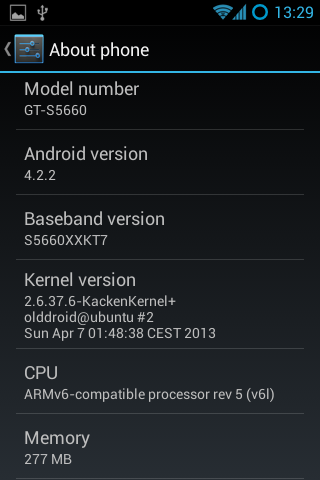
Thanks to the Samsung Galaxy Gio community at xda-developers, we now have CyanogenMod (10.1) which is based on Jelly Bean (4.2.2) that is usable for every day use. There are a few things that I've noticed that are not perfect, but it is a fully usable ROM. Before you do anything suggested below, it is wise to first backup anything you think important and not just to your SD as it will be overwritten to support an extra ext4 partition that can be used to store your applications and save valuable space. Make sure your SD is rated 6 or better.

You will need a new version of the Clockworkmod recovery rom for your Gio that specifically supports Jelly Bean. You should read more about the clockworkmod recovery image. Here is a wiki to answer some of your questions about it. ClockworkMod installation procedure:

  1. Download to your sd-card the cwm-6.0.2.7-itachiSan-ext4only.zip (clockworkmod 6.0.2.7) as your recovery rom image.
  2. Reboot into recovery mode, hold down the Home/OK (middle) button and press the Power button.
  3. In recovery mode, use the Volume buttons for navigation and the Home/OK button for selecting.
  4. Select “Update from SD card” from the recovery menu and drill down to cwm-6.0.2.7-itachiSan-ext4only.zip and press OK
  5. Reboot again into recovery mode and you should now have the new CWM recovery screen.
  6. Please wipe date/factory reset.
  7. Once finished head down to advanced and then to partition sdcard. Select 4096M (or smaller if your SD card is not big enough) for your new ext4 partition and hit OK, then select your swap partition size of 256M (or 0 if you do not wish to use swap on SD card) and press OK to create your new partitions.
  8. You are now ready to install CyanogenMod 10.1!

Once CWM is installed and you've created your new partitions, we should be ready to install CyanogenMod. The new partitions are purely optional, but I use them to help offset the Gio's memory is really small. You should have 3 partitions on your SD card, 1 that you can use to store applications on in ext4, 1 for swap and the last one is your normal fat32 partition. CM10.1 doesn't automatically make use of this, but I installed a separate application that makes the proper symlinks. It is advisable to install this application right after CM10.1 is installed. If you wish to read more about this particular blend of CynanogenMod, please follow the forums here: http://forum.xda-developers.com/showthread.php?t=1804646

Installation of CyanogenMod 10.1 for Samsung Gio

  1. Download last known good build:cm-10.1.0-RC6-GT-S5660-gio.zip which has been thoroughly tested and widely installed. or Download last known stable build:cm-10.1.6-GT-S5660-gio.zip is the latest build in the stable series. It is also reliable.
  2. Copy the file to your SD card
  3. Reboot into Recovery Mode (CWM)
  4. Select install zip from sd card
  5. Select "cm-10.1.*-GT-S5660-gio.zip" ROM
  6. Select Yes - Install update
  7. Wait till the Installation is finish
  8. Select 'wipe data/factory reset'
  9. Select 'reboot mobile' and enjoy

After you have settled into your new Android version, head over to XDA and download a modified version of S2E. Install S2E from clockworkmod, reboot and configure it to your liking. I check everything but Application data for performance reasons. Once you have it configured how you like it, make sure that the status is enabled and you need to restart your mobile for settings to take effect.

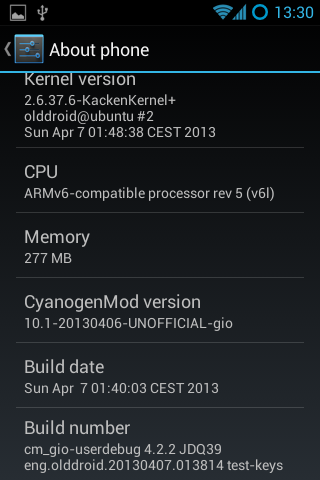
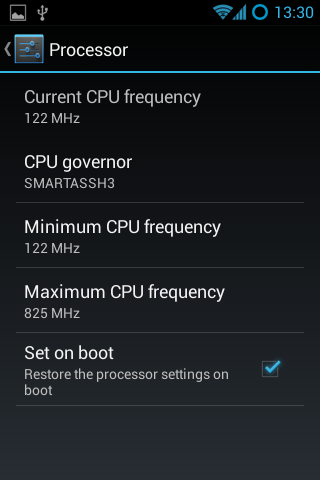
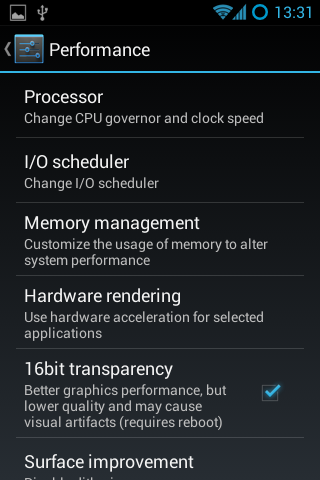
The next thing you should look into is getting the "Developers Options" screen to appear in settings. By pressing the "Build number" in the about section 7 times, you'll get access to an important part of the phone. I go to the CPU functions and set the min to the lowest the CPU will go and highest to a 825Mhz with the Smartassh3 governor. This creates a very smooth experience and an extra bit of raw power on top when necessary.

Some addition tips to help manage your battery: turn off any services you don't need, don't use too many widgets, the widgets you do use should not interrupt deep sleep, keep brightness to medium.

Enjoy your "new" mobile! :)

Update (20130625): Since Olddroid's project is abandoned, I've switched to using Erika's build he is a member of the androidarmv6 team.

Update (20131104): I've been running latest release from androidarm6 team for about a month now, and it has been very stable. I've not had one single unexpected restart. Cheers! cm-10.1.6-GT-S5660-gio.zip

Note: Should you ever run into a situation where your mobile is unresponsive and possibly 'bricked', then you should have a look at this thread about "one click unbricking" to try to get your mobile back in working order.

This is part 3 of a 3 part series about the Galaxy Gio. Part1: Upgrade Samsung Galaxy Gio from 2.2.x Froyo to 2.3.x Gingerbread Part2: Upgrade Samsung Galaxy Gio to CyanogenMod 7.2 Part3: Upgrade Samsung Galaxy Gio to CyanogenMod 10.1

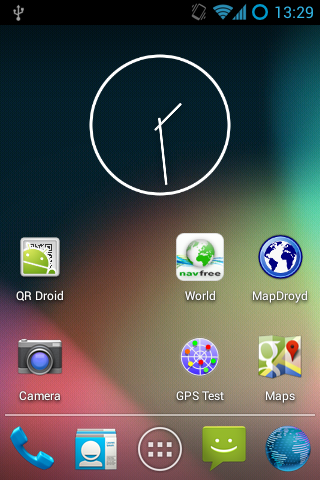
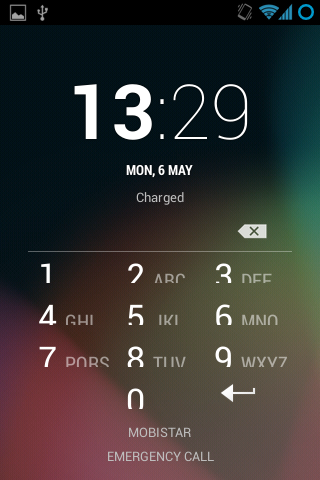
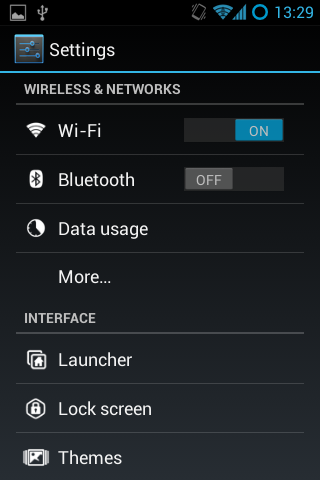
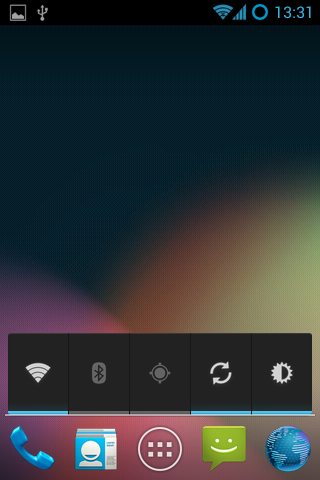
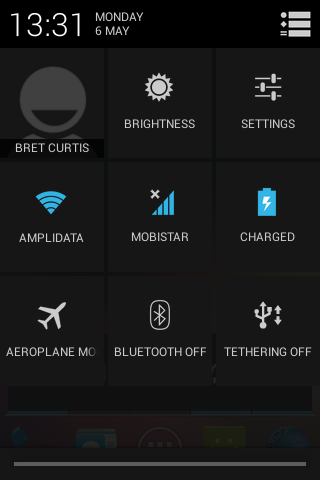
Here are screenshots of what to expect:

Screenshot_2013-05-06-13-29-04

Screenshot_2013-05-06-13-29-16

Screenshot_2013-05-06-13-29-37

Screenshot_2013-05-06-13-29-57

Screenshot_2013-05-06-13-30-02

Screenshot_2013-05-06-13-30-37

Screenshot_2013-05-06-13-31-17

Screenshot_2013-05-06-13-31-50

Screenshot_2013-05-06-13-31-56

Worldsynth 0.10.0 released

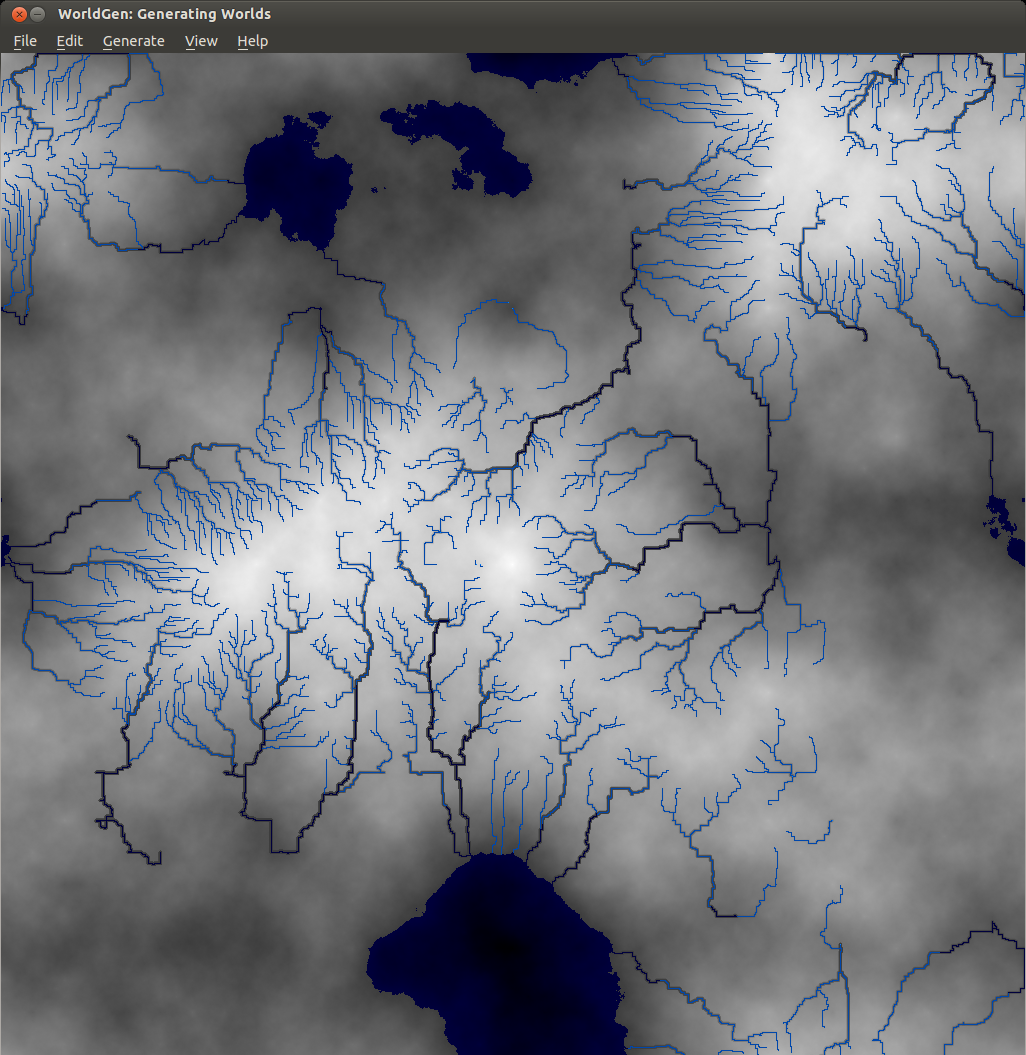
Rivers

Worldsynth version 0.10.0 is released and can be found on github. This is our first "official" release in which the result should work, out of the box, with a usable and familiar GUI instead of the pygame environment. This is provided by Qt4 via PySide. We have even tested Worldsynth on Windows XP to validate that it is indeed cross platform.

As for 0.11.0, we are looking to unlock size of terrain to be of any variable width and height instead of the basic power of two. We are also investigating fluvial erosion.

Here is a demo of the latest release: https://www.youtube.com/watch?v=xgxS1MpVBeY

Some of the things changed in this release are:

Improved our just-in-time library loading so that only libraries are loaded as needed and were needed. This also helped to reduce the number of dependencies necessary for running Worldsynth.

We implemented an erosion model so that we can use it as an overlay over the original heightmap.

There is also now an overflow flag that treats the terrain generated as one that wraps. Rivers, for example, can flow off edges of maps, overflow into other side. This make the world seamless and one step closer to being able to wrap the terrain to a globe and having a world.

We also have a demonstration of Worldsynth running on Windows. https://www.youtube.com/watch?v=QaHid9-etzo

Here are the files and libraries necessary to run Worldsynth on Windows: