Skip to content

Blog

Latency simulation over long fat network

World Network

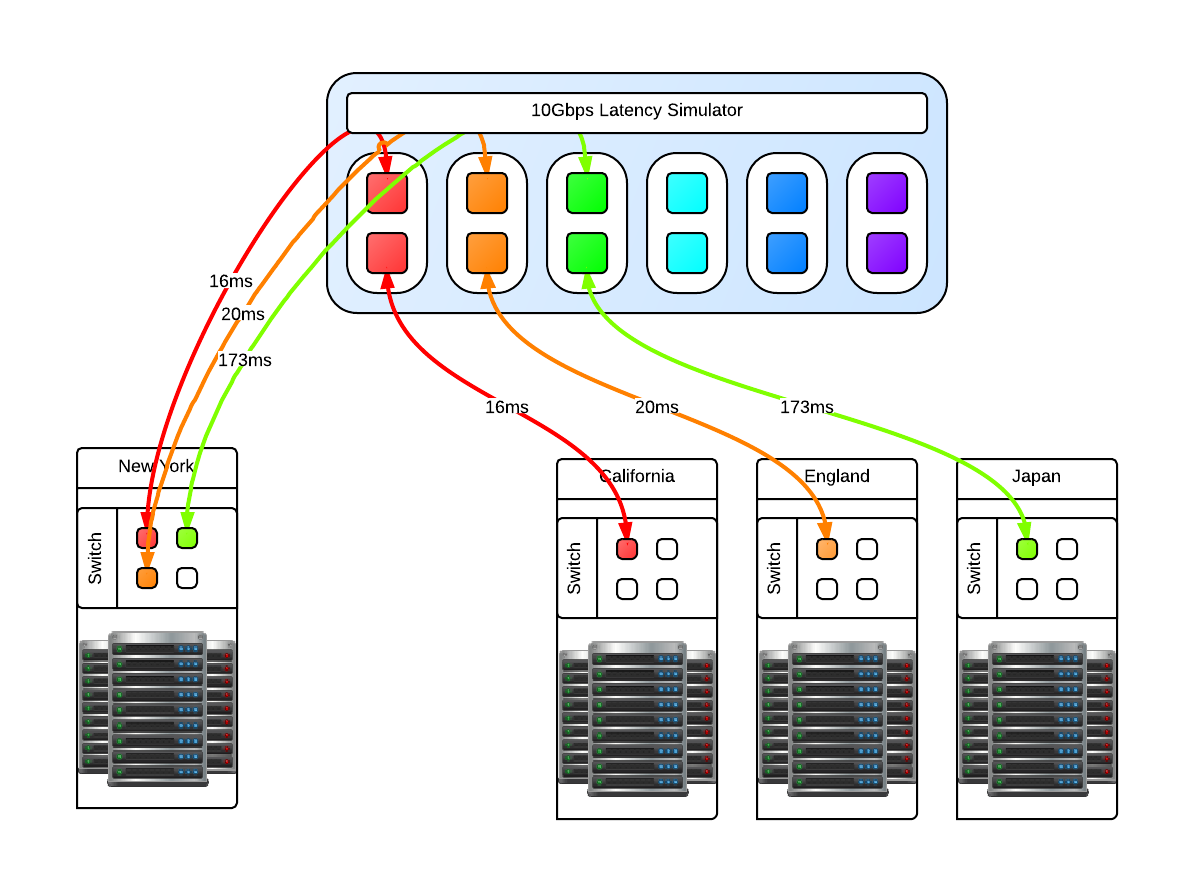
One of our clients asked us how we handle latency, and not just a few ms across racks but 2 and even 3 digit ms latency that indicates geographically separate locations across continents, not just a country. Not only that, the "pipes" involved are 10Gbps and we had to fill them. We have the theories and made models of how it would work. We perhaps might not be able to fill a 10Gbps fully with one stream, we could fill it with multiple streams but we had to validate this conclusion. The question now becomes, how do we test this. We've done our research and there are only a few commercial solutions available like the Netropy 10G2 which is a 4 port, 2 lane hardware latency simulator for $30,000 new. Not only is that outside my budget, it is still limited to simulating 2 10Gbps pipes while we need at least 3 lanes (6 ports) and possibility to expand to more as necessary. We decided it was cheaper in terms of total cost to put the research into creating our own Latency Simulator. We studied what we could from google, specifically the work done by NASA on a "Channel Emulator". They used traffic control (tc) to handle delay on the egress of an interface. This means that if a packet travels through, it is delayed but the return packet is not and goes right through. Our setup means that we have one 10Gbps card with 2 ports. We then link the two interfaces with bridge control (brctl) to create a layer2 bridge. We then split the "round trip time" or RTT delay and apply that to each 10Gbps interface. All packets going to and returning from a network then have the full simulated RTT delay. This type of machine does not need much in the way of RAM as the buffers necessary are not large, 4GiB is sufficient. What is important is the CPU operating frequency, all other aspects of the CPU is not important except that there should be 1 core per 10Gbps interface. This is required because part of the network stack is being simulated with the bridge then processed. For a 3 lane setup, that is 6 ports so we need at least a 6 core CPU @ >= 2.2 Ghz to handle the load.
Latency Simulator

You may be asking why just 3 and not 4 latency lanes, this is because for us there will always be a 'local' data center and the other 3 connect to it in a star like network layout like in the above diagram. Since this is a 'flat' network in the same subnet, any ping from one of the data centers to another data center will go through the 'local' data center. In reality, these 'data center' switches are connected to the Latency Simulator which then connects to the local data center switch. Realistic latency from the 'local' data center in New York: California: 32ms England: 80ms Japan: 346ms Source: Verizon's latency table Going from California to Ireland would involve first a hop through New York, so the compound delay would be 112ms. With that in mind you can then compute your bandwidth delay product (BDP) Once the machine is up and running with whatever Linux distribution you like, make sure that tc and brctl are installed. Here are the scripts that can be used to bring the bridges up and down, and apply latencies and remove the latencies for the four geographically seperate datacenters. Files:

Once in place, we could ping from one side to the other and see the latency being applied. It is now time for baseline testing. First we turned off the latency and used iperf to test end to end that we can fill the 10Gbps pipes and that the Latency Simulator isn't the bottleneck. We could get around 9.50Gbps point to point. Then we turn on the latency and see the impact directly. The first thing we noticed is that when running iperf for the default 10s that the slow start and initial TCP window size has an impact how much data we can send over the wire. Because of the slow start, if you want better performance in your stream then you need to test for longer than 10s. We could not fill a pipe with 120ms latency until after 25s of running iperf which time we had transferred something like 15GiB of data. So trying to send a 1GiB file will not fill pipe.

RTT in ms   MiB/s default   MiB/s MAX
0       1162        1157
2       1053        1136
4       513     1076
8       248     1075
16      103     691
22      91      366
32      47      358
44      31      208
64      8.2     64
128     0.8     26
130     0.7     26

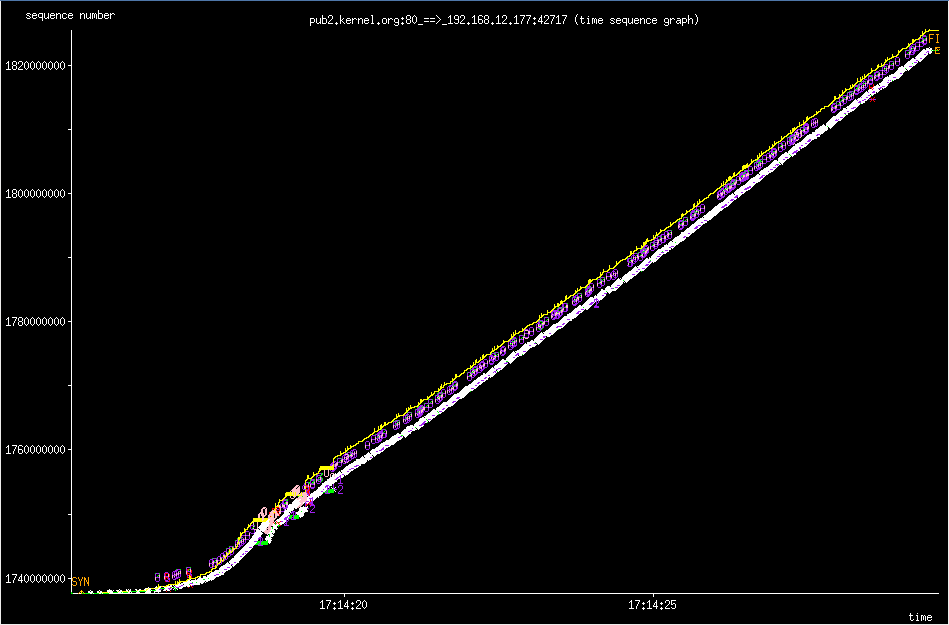
The MAX settings I used is the MAX TCP Window Size of 1GiB. If you try to go above that, you will find that Linux gets mad and some networking services will just not work. The sweet spot for us to set the initial window size to 8MiB which gave the algorithm enough time to shrink to either 4096 bytes or to grow in the other direction. Below are two 'key' tunables where rmem is the read buffer and wmem is the write buffer of the TCP buffer. sysctl -w net.ipv4.tcp_rmem='4096 8388608 33554432' sysctl -w net.ipv4.tcp_wmem='4096 8388608 33554432' However even with an initial 8MiB TCP Window Size, you'll never reach this potential because the Initial Congestion Window (initcwnd) is set to 10 as of 2011 per this git diff. This "slow start" is a congestion avoidance mechanism with exponential growth, a feature not a bug. Below is the 'slow start' in action when downloading a linux source tarball from kernel.org. slow star congestion control slow star congestion control What you are seeing is the an exponential growth of the congestion window that eventually grows to allow the TCP Window Size to kick in which then scales up linearly. You can however changed this per route which makes sense because congestion control works on a per network/host level. Examples of setting the initial congestion and receive windows: ip route change default via x.x.x.x initcwnd 20 initrwnd 20 # update your default gateway ip route change dev eth0 192.168.1.0/24 proto kernel src 192.168.0.1 initcwnd 20 initrwnd 20 # if you want to apply it just to one network Do not think of this as just updating the values and expecting fantastic results, because if you enter packet loss into the equation or real network congestion, then you are in for a painful experience with values that are too large. You'll not be as agile to respond to the pitfalls of the Internet, but if you are on a long fat network then adjusting these values can be a real boon for your throughput. You should now the tools necessary to implement your own "Long Fat Network" simulator and various things you can look at and adjust to get the most out of your network and applications.
Introducing worldsynth for your world generation and building needs

Rivers

After many years of development in my spare time, I've decided to release Worldsynth as a Free and Open Source Software. As a world generator, it fills the roll and can also be rapidly extended to support additional features. The source might not be of top quality, but the main purpose of creating it has been fulfilled and I want to share it. I only hope that others will find it useful and want to build upon it.

There is still much more functionality that I would like add and additional polishing to the user interface. Midway through I switched from pygame to pyside or Qt4 for the GUI. I consider it ready for "Alpha" at this point, meaning there might be bugs and few experimental features that may break but otherwise usable.

What we have so far:

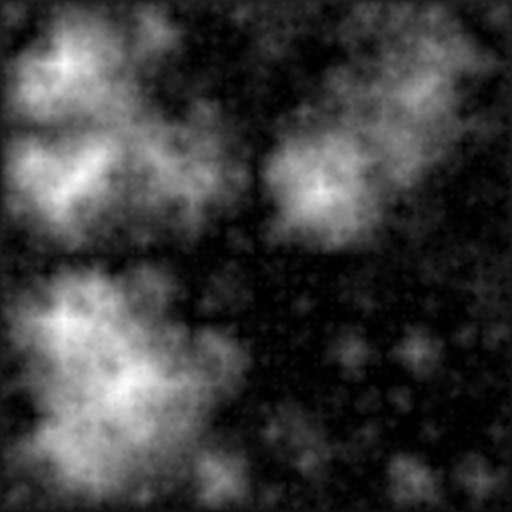
  • Heightmap - What we have so far is the ability to create a heightmap using three different methods: midpoint displacement, sphere slicing and diamond square. Each have their advantages and disadvantages depending on the type of terrain map you desire.
  • Heatmap - Based on the heightmap we generate a heatmap to get our temperature range across the terrain, either full equatorial or picking between northern or southern hemispheres.
  • Weather - There is wind and precipitation that are heavily influenced by the contours of the terrain. This includes rain shadows from mountains and average rainfall based on wind direction.
  • Drainage - The drainage dictates how fast the water is absorbed by the terrain. This has in impact on the type of geology that is there such as soft ground good for farming or hard stone that water just flows over with little erosion.
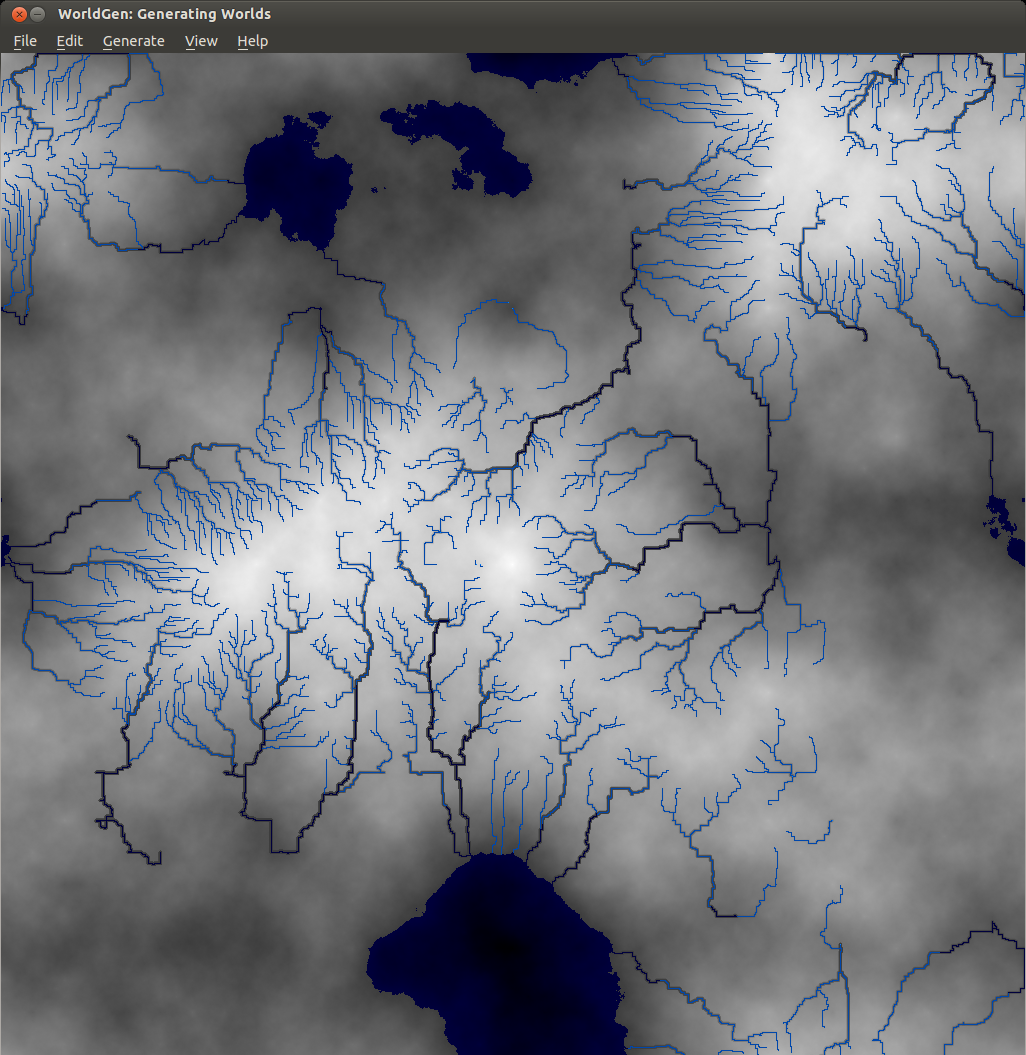
  • Rivers - With the rain water that collects when falling down the mountains and hills of the terrain, at a certain point to form streams that collect further into rivers. It flows either out to sea or collects into a depression of the terrain. This also has an impact on erosion on the terrain.
  • Biomes - With all the layers above we can then synthesize biomes which give a sort of realistic habitation zones that we find in real life.

Media: I've made films of older versions Worldsynth to give an idea of what is possible. The GUI has since changed from pygame as of version 0.8 to pyside in version 0.9, but the main features haven't changed. The follow video demostrates all the major features talked about above. http://www.youtube.com/watch?v=INfN3IXwwzg

The next video is older but still gives another demonstration. http://www.youtube.com/watch?v=Sixm7dd9klY

Outside interest: Other projects have already taken an interest in Worldsynth and have used the results for building their own worlds. OpenMW is a FOSS remake of the Morrowind game engine that will let you play Morrowind on multiple platforms. They are also working on a OpenCS which will be better than the Morrowind Construction Set, win parallel with an OpenES or "Example Suite" that will allow anyone to use OpenMW without having to own Morrowind.

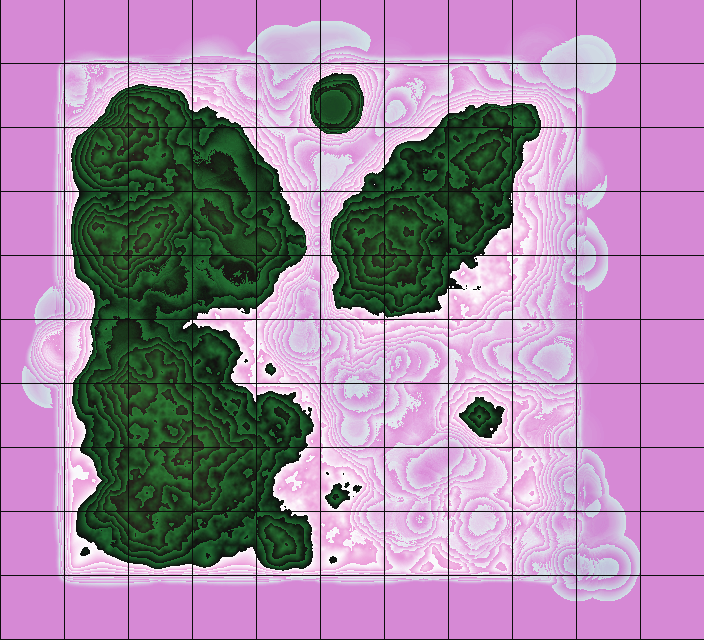
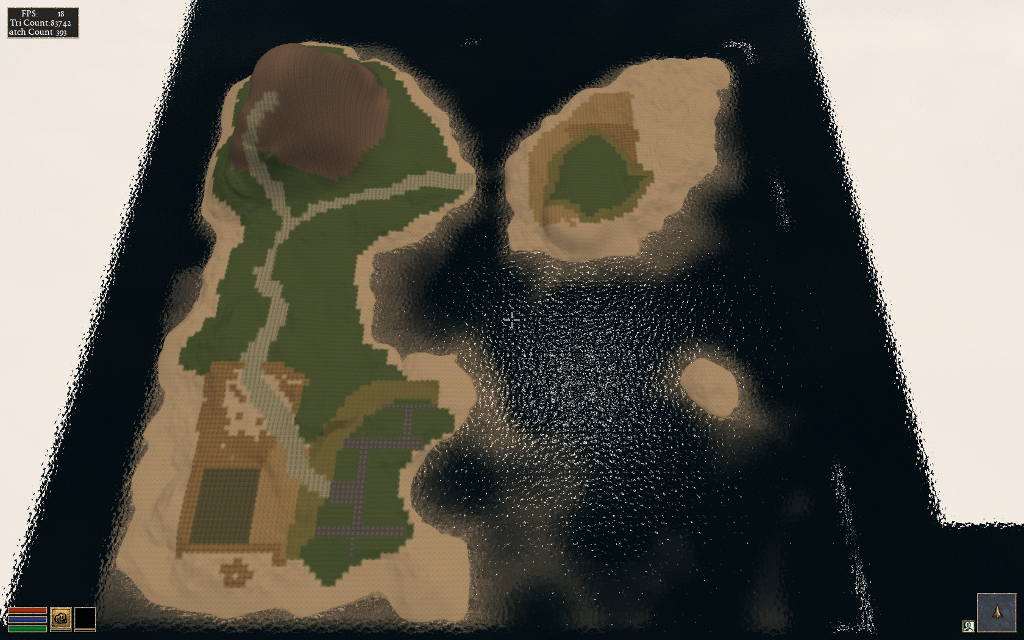
They first had to generate a heightmap that fit their requirements, three relatively big islands in a 512x512 map.

OpenMW Heightmap

Landscape

Once they had a heightmap that they could work with, they did a test conversion into an usable ESM for OpenMW. They used a tool made by Lightwave called TESAnnwyn which allow for the creation of an ESM using the heightmap. I've talked with Lightwave about open-sourcing his work, and he replied that it would love to but first needs to clean it up. He did provide Linux 32 and 64 bit versions of TESAnnwyn that I'm allowed to host until he can get around to it. tesannwyn_linux.tar

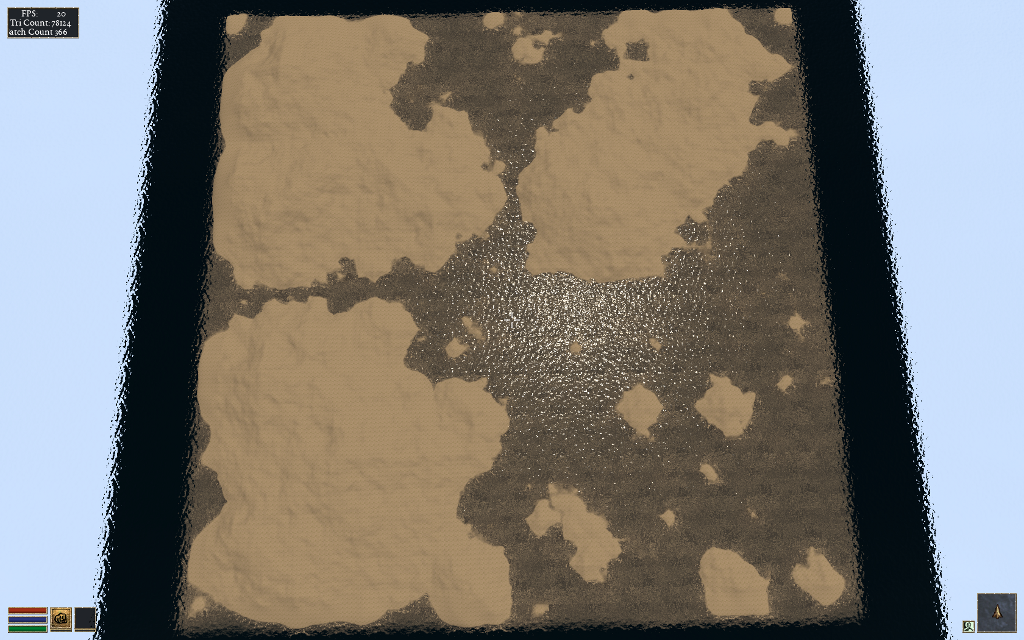
The result is a success!

Import of Heightmap Works

Raw Heightmap in OpenMW

With this they can plan out what they want to do and where things should go before editing.

Landscape and Overview

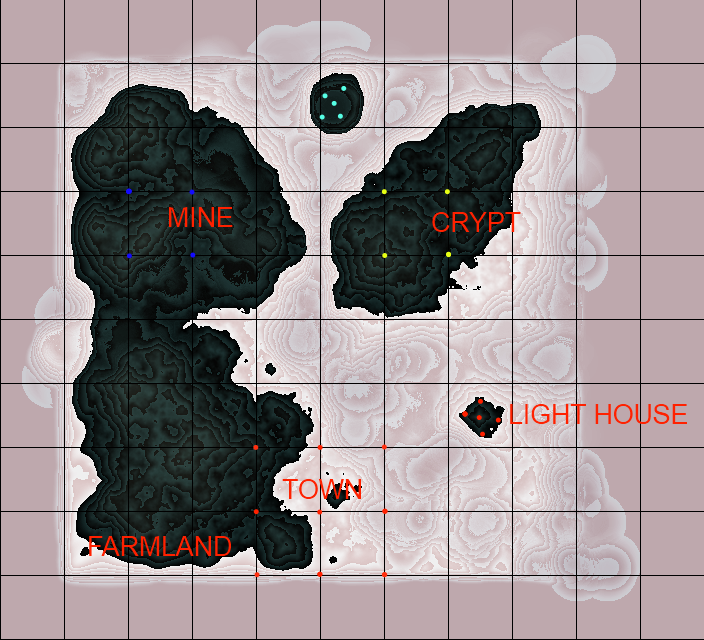
The ESM was put into the editor to mold their new world. I would love to add some of that very functionality into Worldsynth. The result of their modeling is this.

Demo of edited Heightmap

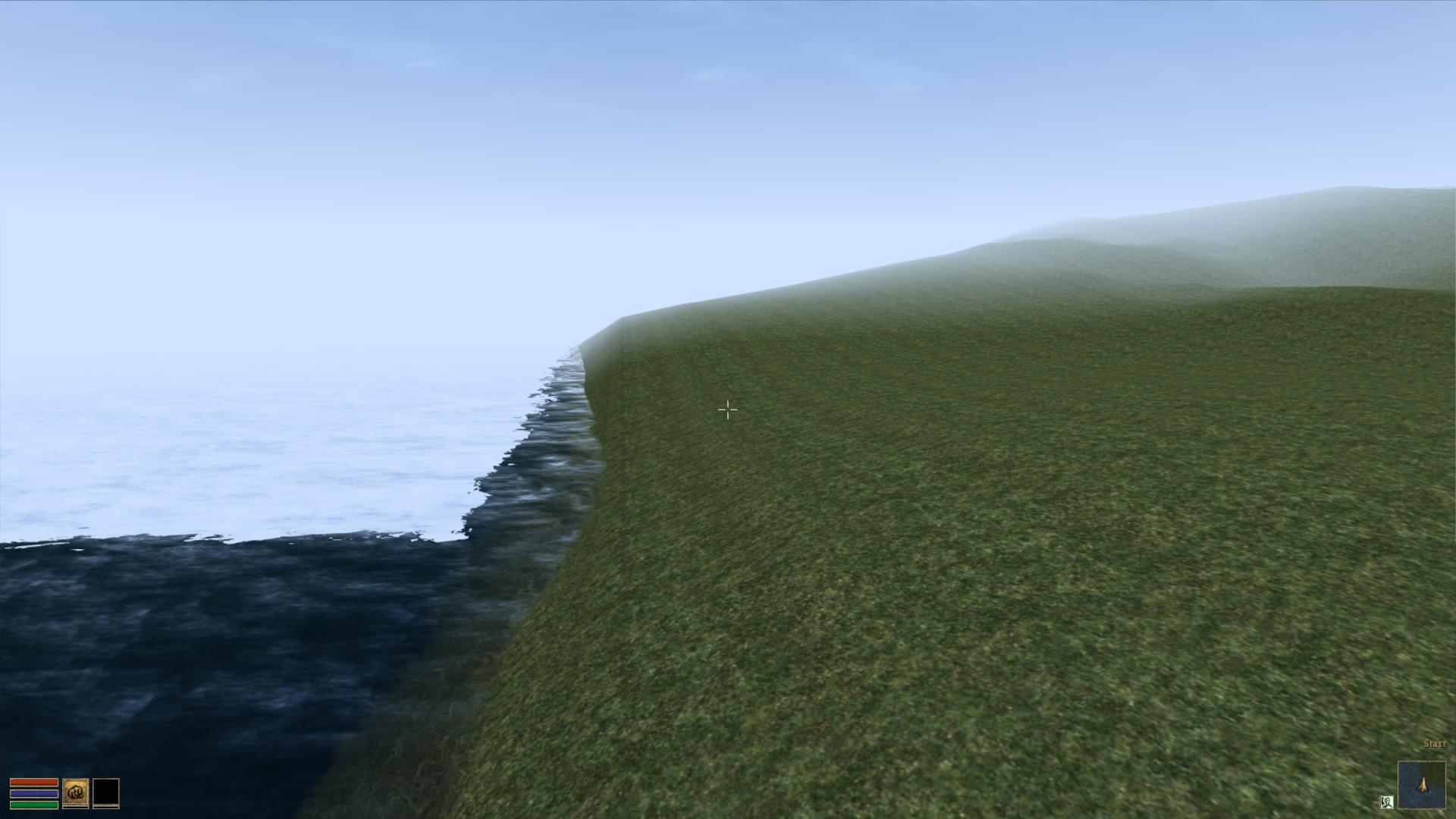
They are still building and creating, but this drop in replacement for Morrowind (Example Suite) is coming along fine. You can have a look for yourself as they provided me with a demo ESM you can use. Place OpenMW.esm in your "Data Files" directory next to Morrowind.bsa. Rename Morrowind.esm so that it is out of the way and copy OpenMW.esm to Morrowind.esm. With OpenMW, use the launcher and select OpenMW.esm in the "Data Files" tabs. Close the Launcher then on the command line type this: openmw --start="Town, Centre" Once in, hit f2 to open the console and set your speed so you can fly around and view the work that is going on with the Example Suite. player->setspeed 500

This is very good for moral here as people are actually using Worldsynth for their own projects. It is possible that they will ship it with their OpenCS or at least link against it for their heightmap generation needs.

Wireless BCM4312 with the 3.6, 3.7 and 3.8 kernel

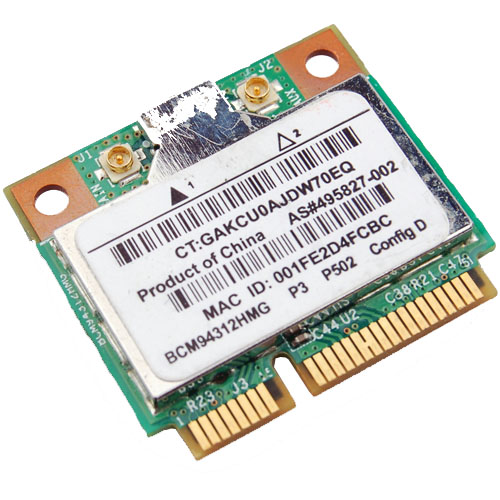
Broadcom Chipset BCM4312

As a follow up to , I've also tested the Broadcom hybrid driver with the 3.6, 3.7 and the soon to be released 3.8 kernels with success. There have been no major changes that should effect the operation of this driver.

To verify that everything is working as expected on the software side, when modprobe or insmod wl, you should get a similar dmesg output:

[ 307.560347] lib80211: common routines for IEEE802.11 drivers [ 307.560353] lib80211_crypt: registered algorithm 'NULL' [ 307.564524] wl: module license 'unspecified' taints kernel. [ 307.564529] Disabling lock debugging due to kernel taint

The only real issue at this point is this:

WARNING: modpost: missing MODULE_LICENSE() in /home/bcurtis/workspace/wl/wl.o see include/linux/module.h for more information WARNING: modpost: Found 1 section mismatch(es). To see full details build your kernel with: 'make CONFIG_DEBUG_SECTION_MISMATCH=y' CC /home/bcurtis/workspace/wl/wl.mod.o LD /home/bcurtis/workspace/wl/wl.ko

While these aren't errors, they are problems to be addressed upstream by Broadcom if they wish to see their driver to be used in the future. They will also need to incorporate my patch sets from my previous post. They haven't updated their driver in about two years now.

Properly ripping DVDs and adding subtitles in Ubuntu

dvd::rip

There are occasions where you legitimately need tools to help that would otherwise be considered the domain of "pirates" and "ne'er-do-wells". In this particular scenario, my grandparents send a DVD from the United States (Region1) to us in Belgium (Region2). Not only will the DVD not play back on a region locked DVD player, there are also no Dutch subtitles.

There are however technological solutions to this type of problem, including such programs as dvd::rip, vobsub2srt and a few websites dedicted to crowdsourced subtitles.

Our first task is to properly rip a DVD. There are many options here, but I chose dvd::rip because it just works. It creates a small xvid (avi) file that is compatible with a set-top DVD player and it is also allows ripping of any subtitles found on the DVD. If may wish to dig into the documentation to really understand the details of dvd:rip. I'll give you a step-by-step run down on how I did things.

dvd::rip

  1. Install the program and it's libraries.
  2. Following the directions and make sure the directories are set, dvd drive is found and that libraries are installed.
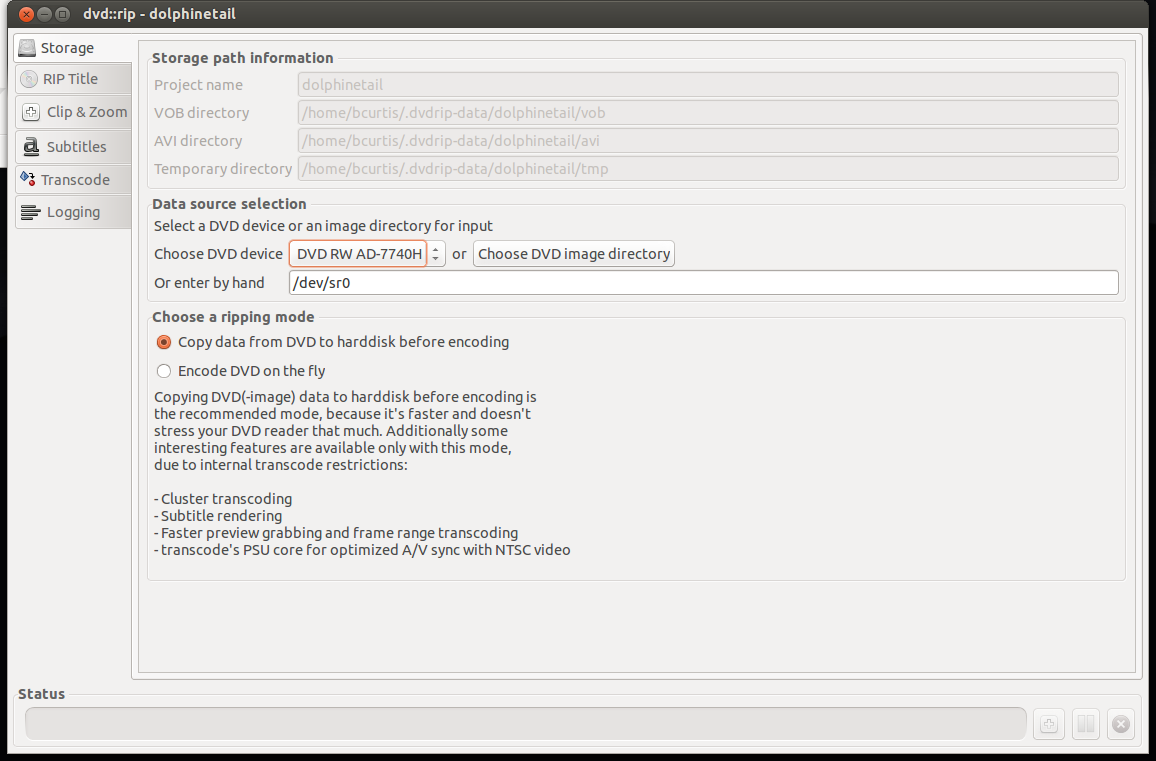
  3. On the left will be tabs, use this as a process. Begin with "Storage" where you set the project name, dvd drive to use and "Copy data from DVD to hard disk before encoding" which will make things faster.

Storage

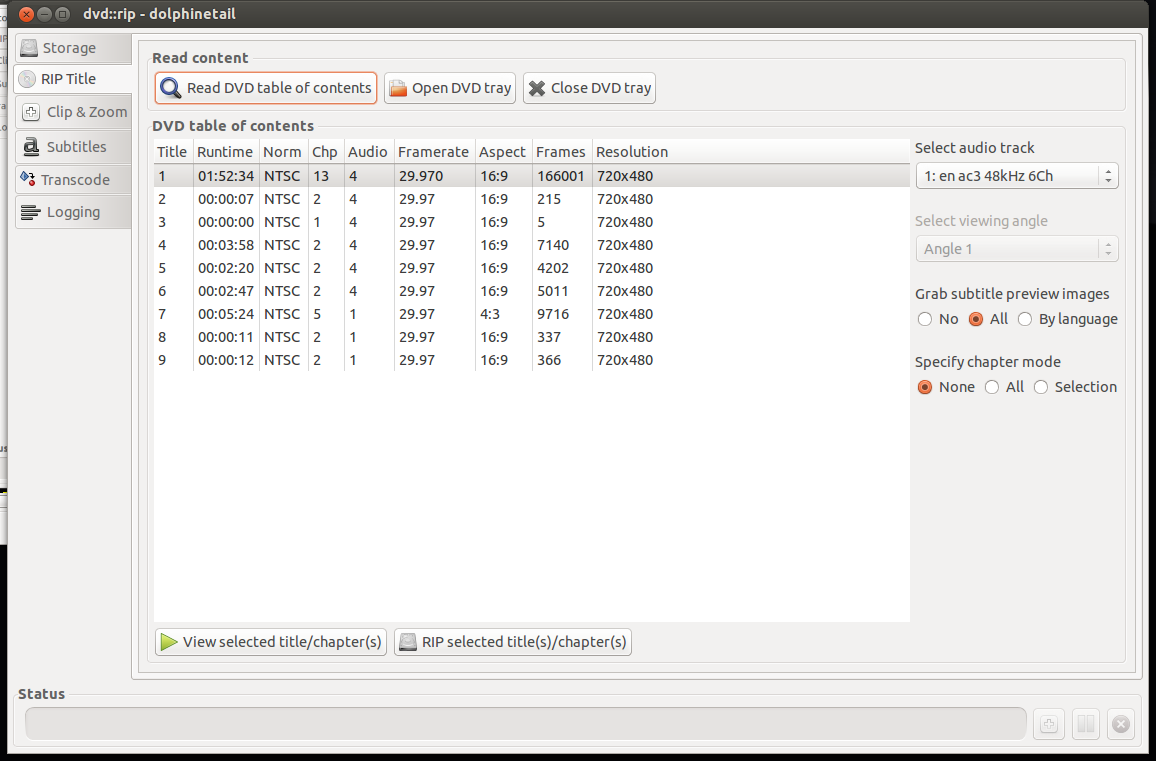
  1. On "Rip Title" you need to read the data on the DVD and select which files to rip. First "Read DVD table of contents", select the Title or Titles you wish to rip, usually the one with the most Chapters and/or Runtime is your target. Highlight that entry, select on the right your audio track (en for English, other en entries are usually commentary tracks). Set "Specify chapter mode" to None so that it is ripped as one file and not a set of files (per chapter) and set the "Grab subtitle preview images" to All so that you can select what subtitles you wish use, if any. The last step here is to "Rip selected title(s)/chapter(s) which will take a few minutes.

RipTitle

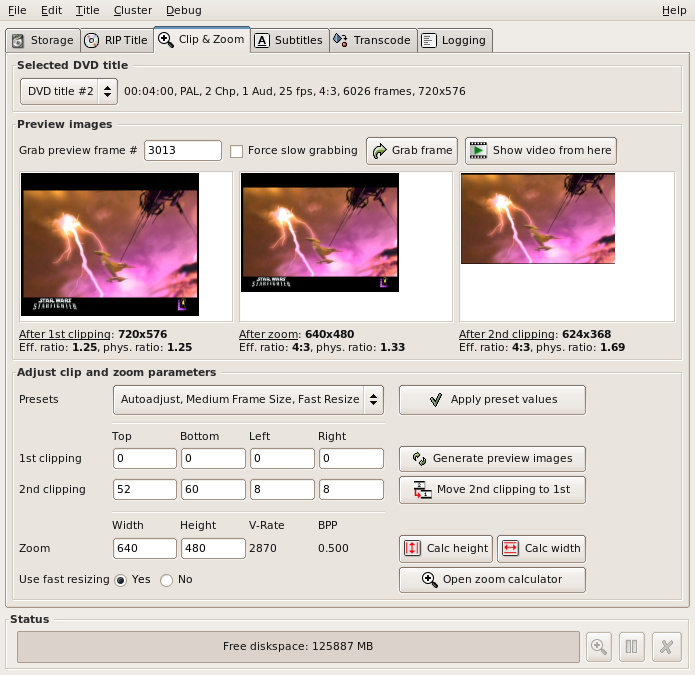
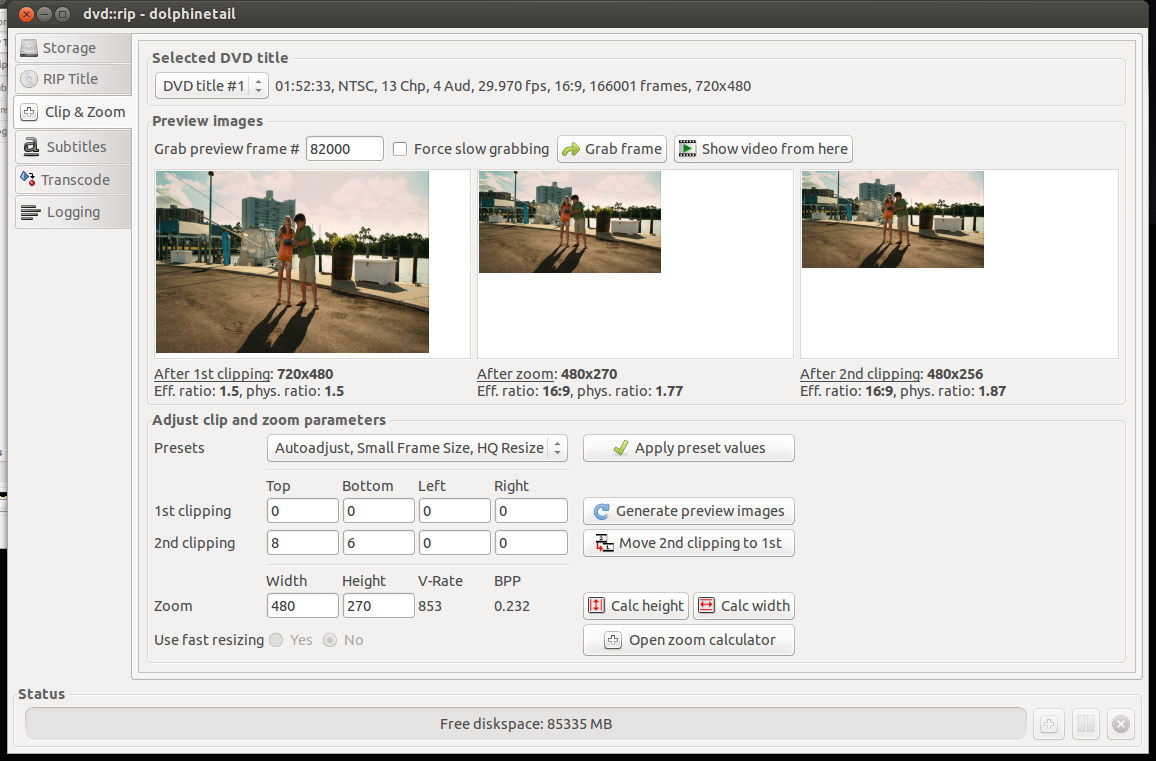
  1. Select next the "Clip & Zoom" which will allow you to set the correct format (size) that is perfect for your TV. You need to be careful here because the source (DVD) can be different such as: letterbox (widescreen) 1.85:1 ratio, anamorphic (widescreen) 16:9 ratio, or pan & scan (fullscreen) 4:3 ratio. Look at the back of your DVD box to verify. To test different settings, do a grab frame and try various "Autoadjust" presets until you find something that looks right. If you are playing back on an older DVD player with USB divx/xvid/avi support, then try to pick Small Frame Size, which is about 480p. This will make playing back smother as your hardware DVD player doesn't have enough CPU power to downscale higher resolutions.

ClipAndZoom

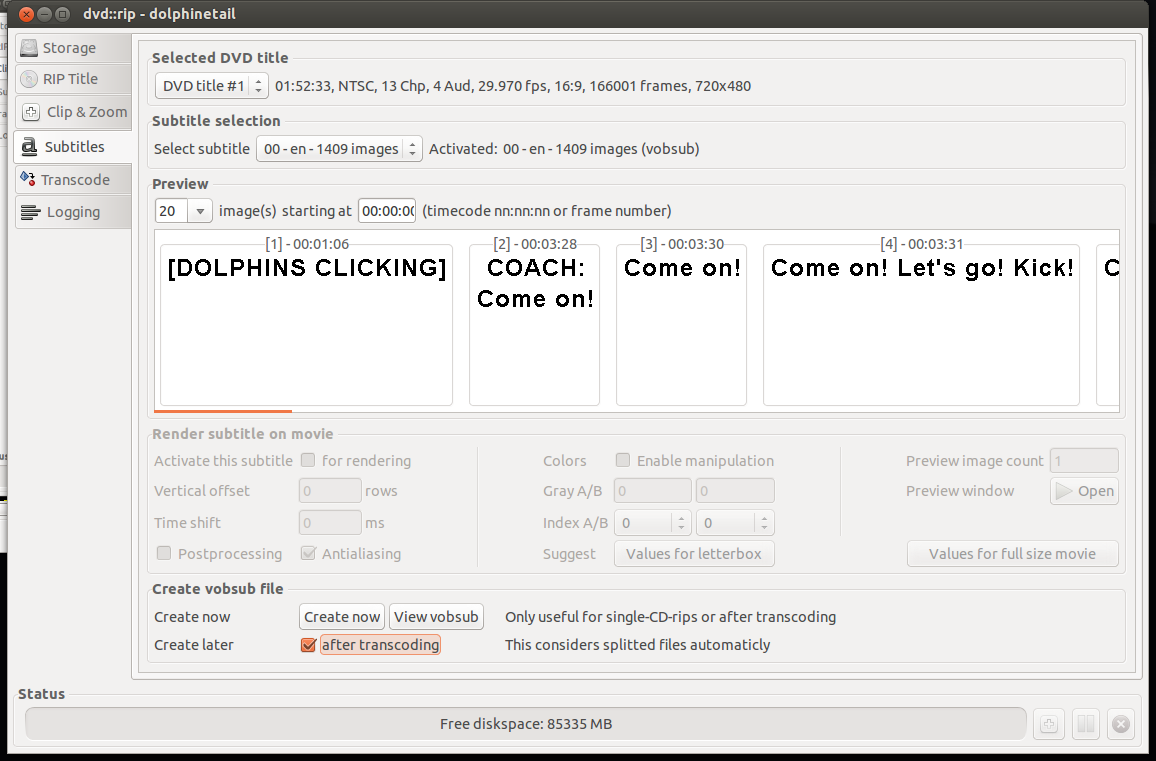
  1. Moving to the Subtitles screen, you can select the DVD title that you ripped and the correct subtitle you wish to rip. You can either "Activate this subtitle" for rendering or "Create now" which will produce separate files which you can use later. I prefer another method of handling subtitles than hard-rendering them to the rip. After "Create Now", you will have extra files that we can convert to SubRip text file format (SRT) later.

Subtitles

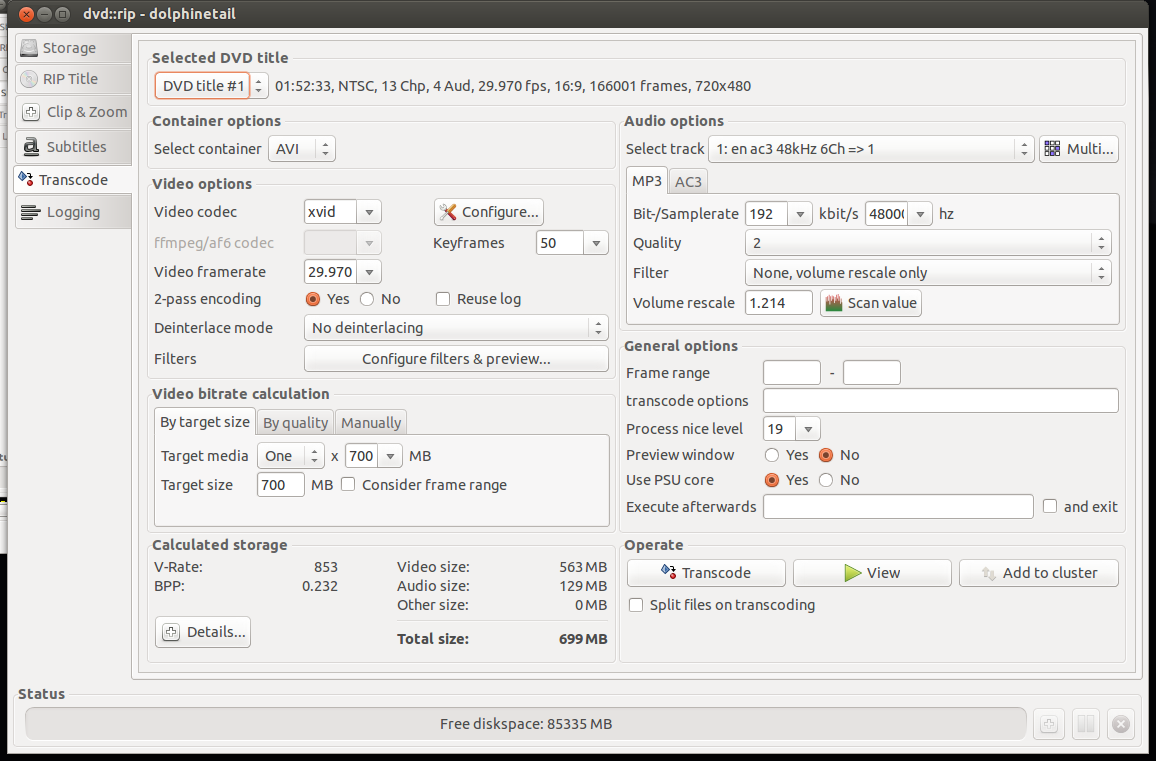
  1. After that we go to the "Transcode" tab which is the 'meat' of the program. We select our DVD title, select a container of AVI, make sure the "Video codec" is xvid, "By target size"'s "Target media" to One x 700MB which will create one file at an acceptable bitrate. On the Audio Options side, "Select track" to the one we ripped and select MP3. I set the Samplerate to 192kbit/s to get better audio. the rest I set to defaults. On the bottom left gives you an "Calculated storage". If you are content with your choices, go to "Operate" and select "Transcode" and wait a bit more.

Transcode

  1. Success! Try out your newly made AVI file with VLC or another player to make sure it is to you liking. If you got an error, you can go to the "Logging" tab on the left and see where you went wrong.

At this point, you should have an AVI file that you can play back in your video player or DVD player. However the job is not yet finished as we also need the subtitles for those in their native language. We saw that we could 'Rip' subtitles with dvd::rip but the files we have are in the VOB format idx/ifo/sub format which may or may not be readable by your player. We can convert this format to a SRT text-based file which is widely supported subtitle format using a tool called: VobSub2SRT.

VobSub2SRT

  1. Download and build VobSub2SRT yourself or install the package via PPA.
  2. You will also need to install 'tesseract-ocr' and any of the language files necessary to handle the subtitle language you ripped earlier.
  3. From the command line, go to where your ripped subtitles are and run the command to convert (OCR) them into an SRT file.

vobsub2srt --lang en dolphinetail-001-sid00

This will use english (en) from the idx/sub files to make the srt file. You can find out which languages you can pick from using the --langlist parameter.

bcurtis@Wintermute:~/.dvdrip-data/dolphinetail/avi/001$ vobsub2srt --lang en dolphinetail-001-sid00 Selected VOBSUB language: 0 language: enen Wrote Subtitles to 'dolphinetail-001-sid00.srt'

Success! Just copy the SRT file to where your AVI is and your player should recognize and automatically use the subtitle file.

There are times when you have the film but there is not subtitle for your language of choice. This is where crowd sourcing comes in as there is no shortage of people wanting to either subtitle the film for free as volunteer work or for some other altruistic or non-altruistic reason.

Crowdsourced Subtitles

  • Bierdopje: Dutch subtitles for films and series.
  • OpenSubtitles: Multi-lingual subtitles for films and series
  • Podnapisi: Older Multi-lingual subtitles for films and series

Resizing Video There can be moments where you have a file you want to play back on your DVD player and it complains that the resolution is not supported. This because it doesn't have a CPU powerful enough to downscale your film to your TV's resolution. I found this Video Conversion Guide which helped. You just need to figure out what your TV's native resolution is, and try to match it. For example my TV is an old CRT PAL monster and the source is a 1280x720 video. The DVD player doesn't support that resolution, but it is 16:9 ratio. We then convert the mkv to an avi to stay within the same ratio and play back on an old style PanScan CRT.

mencoder input.avi -ovc xvid -vf scale=648:364 -oac mp3lame -lameopts cbr:br=192 -xvidencopts pass=2:bitrate=-1400000:threads=4 -o output.avi

This converts the film 648:364, however you should keep in mind your TV's resolution. The guide gives a better understanding and there is no need to repeat the information here.

The end result should be a film for your USB in with a subtitle of your choice.

Upgrade Samsung Galaxy Gio to CyanogenMod 7.2

Android

Going from 2.3.x (Gingerbread) to CyanogenMod 7.2 (Gingerbread) is surprisingly simple unlike upgrading from Froyo. I'll go into more detail below, but there are two necessary bits: an updated recovery rom and a custom (non-official) CyanogenMod rom. This version of CyanogenMod is specific to the Samsung Gio.

Before upgrading your Samsung Gio, you must first be running at least 2.3.x (Gingerbread) before continuing because of the use of ext4 instead of rfs. Please follow my upgrade guide "Upgrade Samsung Galaxy Gio from 2.2.x Froyo to 2.3.x Gingerbread" first.

Warning: Caveat emptor - While I used to this process to update my phone, I take no responsibility if you brick your phone. Be sure to back up anything you wish to save, this procedure works best when your Gio is fully wiped of data.

Installation of the ClockworkMod (CWM)

  1. Download the custom CWM "px-cwm-v2.zip" and copy it to your sdcard.
  2. Reboot into the default recovery in your stock Gingerbread or with your Gio turned off, hold down the Home/OK (middle) button and press the Power button.
  3. In recovery mode, use the Volume buttons for navigation and the Home/OK button for selecting.
  4. Select “Update from SD card” from the recovery menu.
  5. Look for "px-cwm-v2.zip" which should be on your sdcard and press OK to flash.
  6. Reboot again like above into recovery mode and you should now have the new CWM recovery screen.

You can read more about CWM here.

Here is a video that shows the process: http://www.youtube.com/watch?feature=player_embedded&v=hxjxB8P9rSU

Installation of CyanogenMod 7.2 for Samsung Gio

  1. Download update-cm-7.2.0-20120710-NIGHTLY-gio-AROMA.zip from either here or here.
  2. Copy to sdcard
  3. Reboot to Recovery Mode (CWM)
  4. Select install zip from sd card
  5. Select "update-cm-7.2.0-20120710-NIGHTLY-gio-AROMA.zip" ROM
  6. Select Yes - Install update
  7. Wait till the Installation is finish
  8. Select wipe data/factory reset
  9. Select reboot mobile and enjoy

Cyanogen Mod 7.2.0 For Galaxy Gio based on Gingerbread (2.3.7) Working:

  • RIL
  • proximity sensor
  • touchscreen with multi touch
  • keychar
  • storage mode
  • gps
  • compass
  • accelerometer sensor
  • microphone (both phone & headset)
  • headset button
  • Root & Busybox
  • call,sms,mms
  • auto rotate
  • packet data with automatically apn detect
  • GPRS, EDGE, 3G, HSDPA
  • wifi
  • hardware video acceleration
  • secret code
  • bluetooth
  • camera
  • static wifi mac address
  • audio & FM Radio
  • wired & hotspot tether
  • Backlight Notification

Not Working:

  • Sim Toolkit (maybe)

Known issues:

  • some option are not working on setting (like: mute camera sound, etc)
  • slow loading png image on gallery
  • after use camera, governor force back to "ondemand"

Sources:

All thanks should go to CyanogenMod team, phiexz and all those that have put effort into ever aspect of this ROM.

This is part 2 of a 3 part series about the Galaxy Gio. Part1: Upgrade Samsung Galaxy Gio from 2.2.x Froyo to 2.3.x Gingerbread Part2: Upgrade Samsung Galaxy Gio to CyanogenMod 7.2 Part3: Upgrade Samsung Galaxy Gio to CyanogenMod 10.1

The case of the non-booting USB thumb-drive and the Dell R620

dell_poweredge_r620

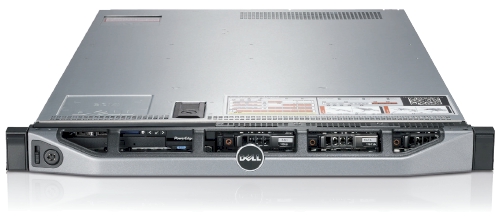
Awhile back I wrote about 'Doing battle with a Dell R620 and Ubuntu' where I touched on the fact that booting from USB thumb-drive was a painful problem. In short, the same USB thumb-drive that would work in the R610 would not work in the R620.

It comes down BIOS support for USB and how it is handled. On the R610 there are 3 options: 'auto-detect', 'floppy emulation' and 'hard drive'. Auto was hit-or-miss, floppy would not work but 'hard drive' worked every time. On the R620 there are no options so I can only suppose that it supports 'floppy emulation' upon detection of a USB thumb-drive.

To try to find the cause of this problem we tried using the 'standard' method of taking Precise 12.04 ISO from Ubuntu's website and using UNetbootin to create a USB thumb-drive that did boot on the R620. It turns out there was something wrong with our process that prevented it from booting. In comparing the partition table (with parted) of our USB thumb-drive and the Precise thumb-drive we noticed that the starting position of the first (and only) partition were different!

Non-booting USB:

Model: TDKMedia Trans-It Drive (scsi) Disk /dev/sdc: 3999MB Sector size (logical/physical): 512B/512B Partition Table: msdos

Number Start End Size Type File system Flags 1 1049kB 3998MB 3997MB primary ext4 boot

Booting USB:

Model: TDKMedia Trans-It Drive (scsi) Disk /dev/sdc: 3999MB Sector size (logical/physical): 512B/512B Partition Table: msdos

Number Start End Size Type File system Flags 1 32.9kB 3998MB 3997MB primary ext4 boot

The choice to do 1MiB was to increase the lifespan of the thumb-drive by aligning the partition to the erase-block size of the thumb-drive. Doing this however renders 'floppy emulation' a non-option on both the Dell R620 and R610. Setting it to 32.9KiB also means that the drive is not properly aligned and you will get bad performance when writing, reading and health of the thumb-drive itself.

In the interest of getting bootable thumbdrive we ended up doing this: parted -a none /dev/sdb 'mkpart primary 0 -1 set 1 boot on' What this does is create a primary partition at the start of the thumb-drive that goes all the way to the end. We ignore the alignment problems and set the partition to bootable. After that, it was easy enough to through our ext4 filesystem on top and syslinux/casper to get our custom installer working.

The end result is that we now have a USB thumb-drive that boots on a R620 every time.

Dell DSET on Ubuntu 10.04 and 12.04

UbuntuOnDell

Dell System E-Support Tool (DSET) is an informative tool used by Dell's support engineers to help diagnose problems for their clients. It is almost a requirement now and Dell usually refuses to continue support without a DSET report.

The problem is that DSET is only supported on Redhat and SuSE Linux and there isn't any information on how to get it running in Ubuntu. I've assembled a rough guide on how to get DSET up and running on Ubuntu 10.04 and 12.04 and it is tested against a Dell R610 and R620. First we need to install Dell's OpenManage Server Administrator (OMSA) which is one piece from Dell that does support Ubuntu. http://linux.dell.com/repo/community/deb/latest/

You can cut and paste the following: echo 'deb http://linux.dell.com/repo/community/deb/latest /' | sudo tee -a /etc/apt/sources.list.d/linux.dell.com.sources.list gpg --keyserver pool.sks-keyservers.net --recv-key 1285491434D8786F gpg -a --export 1285491434D8786F | sudo apt-key add - sudo apt-get update sudo apt-get install -y srvadmin-all sblim-cmpi-base rpm alien sudo ln -sf /usr/bin/rpm /bin/rpm

The above will add Dell's repository to your apt sources and grab everything necessary to install the OMSA. It does include a java/tomcat webserver for a web GUI interface, but that is not enabled by default and not necessary for our DSET. You'll need to logout and log back in again to reset your path variables.

root@dmachine:~# /opt/dell/srvadmin/sbin/srvadmin-services.sh start Starting Systems Management Device Drivers: Starting dell_rbu: * Starting ipmi driver: * Already started Starting Systems Management Data Engine: Starting dsm_sa_datamgrd: * Starting dsm_sa_eventmgrd: * Starting dsm_sa_snmpd: * Starting DSM SA Connection Service: *

Secondly, if you are using an 'OEM Ready' Dell server then OMSA dataeng (Systems Management Data Engine) might complain with "Failed to start because system is not supported". There isn't any 'official' support for OMSA on these systems but you can contact Dell's OEM wing for custom solutions here: http://content.dell.com/us/en/enterprise/d/oem/oem-engineering-services.aspx

To get OMSA working on an OEM system, we need to modify this file: /opt/dell/srvadmin/sbin/CheckSystemType which calls the file: /usr/sbin/smbios-sys-info-lite which does not return back the expected value. I've modified it to key off the 'Is Dell' flag which is 1 (True). The patch can be found here: checksystem.patch patch -p0 < checksystem.patch Once the patch is applied, Systems Management Data Engine should start without problems.

Thirdly you need to download the 32 or 64 bit Linux version of DSET. You then need to edit the bin file to not run the install.sh file and to also not delete /tmp/dell_advdiags when it is finished running. You'll need the rpm files that it extracts to install DSET on Ubuntu.

Example from dell-dset-3.2.0.141_x64_A01.bin: ( the # comments out the none necessary bits )

source install.sh

cd $CDIR

rm -rf $TMPDIR

The only ones that we need are these:

dell-dset-collector-3.2.0.141-1.x86_64.rpm dell-dset-common-3.2.0.141-1.x86_64.rpm dell-dset-provider-3.2.0.141-1.x86_64.rpm

DSET binaries can be found here: http://support.dell.com/dset/

Fourthly you'll need to verify that /bin/sh points to bash instead of dash because Dell's scripts rely on bash's functionality. sudo su - ln -sf /bin/bash /bin/sh sh dell-dset*.bin mv /tmp/dell_advdiags ~ cd ~/dell_advdiags/rpms alien --scripts dell-dset*.rpm dpkg -i --force all *.deb dellsysteminfo

You might have to do these steps one at a time, but that is the flow of things. Alien sometimes complains about 'unknown flags' and dpkg will likely also complain about overwriting existing files. The first problem has bothered me so far, but the last is DSET overwriting existing OMSA files which as far as I can tell are the same files.

When you run dellsysteminfo, you need to give it a password. This is your typical Linux account password. You should now have something to hand over to the Dell Support people.

Upgrade Samsung Galaxy Gio from 2.2.x Froyo to 2.3.x Gingerbread

Android

Going from 2.2.x (Froyo) to 2.3.x (Gingerbread) is an involved process as there is always the fear that you will 'brick' your phone. This fear usually keeps most people away from upgrading. I've found a process, with Google's help and trial/error, that managed to get process done painlessly and without a dead mobile.

Here is a little back story: I was lucky enough to come across the Galaxy Gio in a bad state while at work. The mobile would turn on, give the Samsung logo then black-screen and would not boot any further. It wouldn't have made a good paperweight but if I could salvage it, it was mine.

Note: This process is a requirement before upgrading to a Cyanogenmod release.

What you need

You will need to download the Odin installer with the 'pit and ops' file which is specific to the Galaxy Gio. This process requires Windows and I have yet to find a process that will work under Linux. When browsing above for a 'Gingerbread Rom' be sure to pick one for your country or region. The latest revision as of this writing is: 2.3.6

The upgrade process

  1. If you have not already, you will need to install Samsung's USB Driver.
  2. Power off your Gio and remove your SIM and SD cards.
  3. Unzip/extract your rom, the result should be a 250MiB MD5 file. As an example: S5660XXKTL_S5660XXKT7_S5660XENLT1_HOME.tar.md5
  4. Unzip/extract odin.zip somewhere and run the ODIN executable.
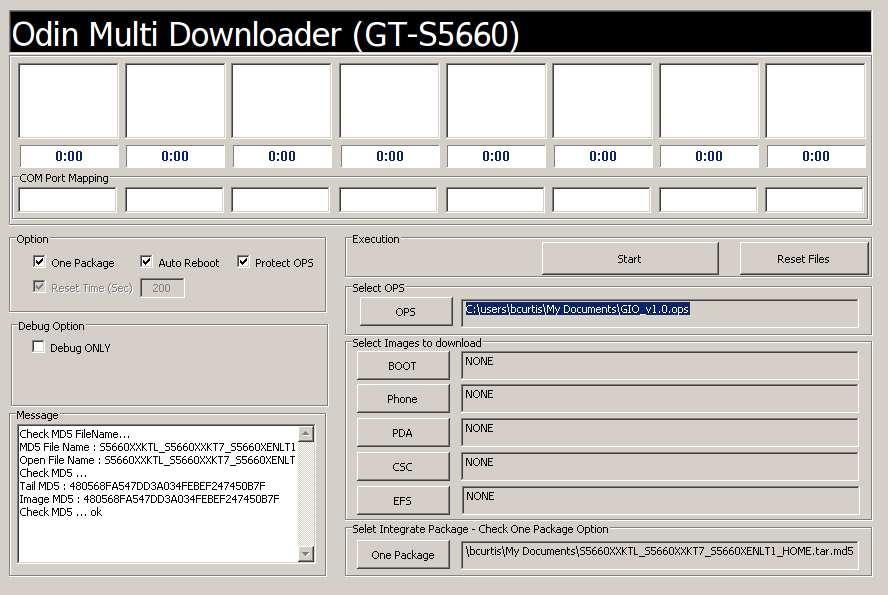
  5. Select OPS file that you just extracted from odin.zip. Select 'One Package' under Option and then a few options will be greyed out. Keep 'Protect OPS' and 'Auto Reboot' checked. Select your 'One Package' at the bottom to be the 250MiB tar.md5 file.

Click to Enlarge

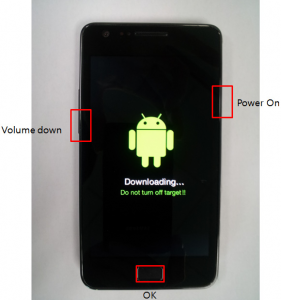
  • Set your Gio to 'Download Mode' by pressing 'Volume Down + OK + Power' at the same time.

Click to Enlarge

  • Connect the phone to the PC with your USB cable. Your COM port mapping will turn yellow when the device is properly detected and connected.
  • Press 'Start' and do not turn off your mobile!
  • Wait about 5 minutes ( could take longer ), when finished the 'PASS' will show up on the left when the upgrade was successful. Your Gio will reboot automatically.

You should now have a Gio with Gingerbread. You'll need this you wish to try the latest Cyanogenmod releases.

This is part 1 of a 3 part series about the Galaxy Gio. Part1: Upgrade Samsung Galaxy Gio from 2.2.x Froyo to 2.3.x Gingerbread Part2: Upgrade Samsung Galaxy Gio to CyanogenMod 7.2 Part3: Upgrade Samsung Galaxy Gio to CyanogenMod 10.1

Skype 4.0 on Ubuntu Precise (12.04) 64-bit

skype

There is a new version of skype out for Linux, version 4.0 which has interesting changelog entries:

* Much lower chance Skype for Linux will crash or freeze * chat history loading is now much faster * ...several investments we made in improving audio quality ... and improving video call quality * ...extended support for more cameras * and more

Good enough for me! There is still no true 64 bit binary/package from Skype. The result is that their fake "64 bit" Skype needs an additional 100MB of i386 packages in order for it to run properly. The rundown:

  1. Remove old skype packages if they exist: sudo apt-get purge skype skype-bin
  2. Download latest Skype (4.0) (fake) 64-bit package for Ubuntu 10.04+. It might say skype 2.2 beta on the screen, they have yet to update the page. The download link goes to the 4.0 version.
  3. Install the necessary support libraries: sudo apt-get install ia32-libs lib32stdc++6 lib32asound2
  4. Install the skype binary package itself: sudo dpkg -i skype-ubuntu_4.0.0.7-1_amd64.deb

Enjoy the ad-free Linux version of Skype thanks to... Microsoft.

Wireless BCM4312 with the 3.4 and 3.5 kernel

Broadcom Chipset BCM4312

The hybrid driver from Broadcom is still a bit behind in terms of support for the latest kernels but there are workarounds. This particular issue also effects other kernel modules such as the out of tree Nvidia and ATI blobs that require the asm/system.h file in their includes.

I've had success with replacing it with asm/switch_to.h which seems to have fixed things for now. The cause for this can be found on the LKML.

Chipsets supported by "Broadcom’s IEEE 802.11a/b/g/n hybrid Linux® device driver" are: BCM4311, BCM4312, BCM4313, BCM4321, BCM4322, BCM43224, and BCM43225, BCM43227 and BCM43228.

Errors:

bcurtis@ronin:~/workspace/wl$ make KBUILD_NOPEDANTIC=1 make -C /lib/modules/uname -r/build M=pwd make[1]: Entering directory /usr/src/linux-headers-3.5.0-030500rc3-generic' Wireless Extension is the only possible API for this kernel version Using Wireless Extension API LD /home/bcurtis/workspace/wl/built-in.o CC /home/bcurtis/workspace/wl/src/shared/linux\_osl.o CC /home/bcurtis/workspace/wl/src/wl/sys/wl\_linux.o /home/bcurtis/workspace/wl/src/wl/sys/wl\_linux.c:43:24: fatal error: asm/system.h: No such file or directory compilation terminated. make[2]: \*\*\* Error 1 make[1]: \*\*\* Error 2 make[1]: Leaving directory/usr/src/linux-headers-3.5.0-030500rc3-generic' make: *** Error 2

The rundown:

  1. Download the 32 or 64-bit version: http://www.broadcom.com/support/802.11/linux_sta.php
  2. Download my patches: bc_wl_abiupdate.patch and switch_to.patch
  3. Extract the sources: cd ~/Downloads; mkdir -p wl; cd wl; tar xf ../hybrid-portsrc*.tar.gz
  4. Patch and compile the sources: patch -p0 src/wl/sys/wl_linux.c < ~/Downloads/switch_to.patch; patch -p0 src/wl/sys/wl_linux.c < ~/Downloads/bc_wl_abiupdate.patch; make; sudo make install; sudo depmod; sudo modprobe wl

Give Ubuntu a few seconds after loading the "wl" kernel module, then eventually the Network Manager will start looking for wireless networks.

TL;DR: These patches are required for a working wl kernel module for the 3.4 and 3.5 kernel series.

Update: Also verified to work with Linux 3.6 series.