Skip to content

Ubuntu

Running Webex on Ubuntu

Webex Logo

Webex running on Ubuntu and other non-Windows platforms is literally a click away, in this case the CMR (Collaboration Meeting Room).

Webex is a fact of life for many people and for many Linux (BSD and other non-Windows) users, it has been a thorn in the side with people going so far as to set up virtual machines just to run Cisco’s collaboration software. While Webex is written in Java, it isn’t so simple to get running everywhere and apparently not all features are available for non-Windows users.

Most likely you are running up against the following message after logging into *.webex.com

Your browser,browser version, or operating system is currently unsupported

This requires the intervention of whoever is administrating the *.webex.com account and they can modify it in the following way.

Directions for disabling CMR

  1. Log into “xxxxx.webex.com/admin” using a site admin level account
  2. Click “Edit user list” on the left navigation Window.
  3. Search for the account you want to change
  4. Click on the account and uncheck “Collaboration Meeting Room”
  5. Click “Update”

Once this has happened, then you can log in and start Webex. Usually this is enough, but in case you hit the next wall which is runnig Java from a web-browser then there is always Firefox ESR (Extended Support Release). This version will allow you to still run the Java (or IcedTea) NPAPI plugin. I usually download and extract to /opt then run a symlink over the system’s version of firefox in /usr/bin/firefox which is enough for my needs.

You can check to see if the Java plugin is installed in Firefox by going to the URL bar and typing:
about:plugins
Should you not see it, but you’re sure the plugin exists on the system you can make a symlink yourself:
ln -vs /usr/lib/jvm/java-8-oracle/jre/lib/amd64/libnpjp2.so ~/.mozilla/plugins/
or
ln -vs /usr/lib/jvm/java-8-openjdk-i386/jre/lib/i386/IcedTeaPlugin.so ~/.mozilla/plugins/
depending on your implementation, 32/64-bit or library location.

Ultimately regardless of which bit-ness of Java you use, Webex uses 32-bit libraries as well. Which ones? Here is list, not complete, of all the ones I needed to get it working:

apt-get install libasound2:i386 libasound2-plugins:i386 libfontconfig1:i386 libfreetype6:i386 libgtk2.0-0:i386 libglib2.0-0:i386 libglib2.0-0:i386 libglib2.0-0:i386 libgtk2.0-0:i386 libgcj14-awt:i386 libpango-1.0-0:i386 libpangoft2-1.0-0:i386 libpangox-1.0-0:i386 gcj-4.8-jre-headless libpangoxft-1.0-0:i386 libpng12-0:i386 lib32stdc++6: libuuid1:i386 libx11-6:i386 libxext6:i386 libxft2:i386 libxi6:i386 libxmu6:i386 libxrender1:i386 libxt6:i386 libxtst6:i386 libxv1:i386 libcanberra-gtk-module:i386 gtk2-engines-murrine:i386

To find which libraries you are still missing, you can go to your Webex directory and ldd through all the ‘so’ files to see what is missing.

cd ~/.webex/ find | grep so | xargs ldd | grep 'not found' | sort | uniq

If the result is something like this:

libjawt.so => not found

then you’re ready to go. Otherwise you’ll need to track down all the libraries in order to get the most out Webex.


Vagrant, Virtualbox and Ubuntu Wily Weerwolf: Getting them to play along

Vagrant

I recently upgraded to Ubuntu 15.10 (Wily Weerwolf) which automatically upgraded VirtualBox from 4.3 to 5.0 and broke compatibility with Vagrant 1.6 in the process. Thinking that Vagrant knows about this and they claim VBox 5.0 compatbility, I upgraded to 1.7 and came across the same error!

Vagrant attempted to execute the capability ‘configure_networks’ on the detect guest OS ‘linux’

There is a workaround!

Apparently it hasn’t been fixed yet and others are also running into this problem. Being pragmatic, I reverted Vagrant back to 1.6 and purged VirtualBox from my system. I manually downloaded an older 4.3 build of VBox from here: https://www.virtualbox.org/wiki/Download_Old_Builds_4_3

Of course these builds are only supported up to Ubuntu 14.10, so we have a bit more work to get back to work. The first bit is that the VBox deb package won’t install until libvpx1 is installed. The problem here is that this package no longer exists in Ubuntu 15.10, but it’s later revision libvpx2 does. So we have to create a temporary empty deb package to allow installation without forcing anything.

You can follow the directions here to create your own package here: Creating_dummy_packages_to_fullfill_dependencies_in_Debian.

Or you can download it from me here: libvpx1_1.0.0_all.deb

Now you can install your VBox 4.3 without it complaining. However if you try to do this:

vagrant up

You’ll get this:

Bringing machine ‘default’ up with ‘virtualbox’ provider…
There was an error while executing VBoxManage, a CLI used by Vagrant
for controlling VirtualBox. The command and stderr is shown below.

Command: [“list”, “hostonlyifs”]

Stderr: VBoxManage: error: Failed to create a session object!
VBoxManage: error: Code NS_ERROR_FACTORY_NOT_REGISTERED (0x80040154) – Class not registered (extended info not available)
VBoxManage: error: Most likely, the VirtualBox COM server is not running or failed to start.

This is solved by making a symlink from libvpx.so.2 to libvpx.so.1 and it should be solved. We’re back to normal, until the original problem with Virtualbox 5.0 and Vagrant are fixed.

Cross-compiling for Raspberry Pi on Ubuntu

RaspberryPi Logo

While the Raspberry Pi 2 has four cores to churn through code, it still takes longer to compile than on most workstations and laptops. If you are feeling adventurous, you can try cross-compiling which has become easier to set up and get working. Cross-compiling is when binaries created are for another target architecture than the one you are compiling on. This kind of set up is very typical when creating Android applications. The end result is that you can take the resulting binary and place on its target platform, and it will run there. There are even tricks to getting the cross-compiled binary to also run on your native system! In this guide, I'll walk you through:

  • Setting up a cross-compile toolchain in Ubuntu (15.04 Vivid)
  • Setting up the proper exports
  • Compiling a test program for your native and target armhf platform
  • Compiling the latest Raspberry Pi 2 kernel with VC4 support.

The first thing we need to do is set up your Ubuntu to be able to compile software for a Raspberry Pi (1 and 2). You'll need at least Ubuntu Vivid (15.04) installed. From there, you'll need to install the following packages.

sudo apt-get install binutils-arm-linux-gnueabihf \
cpp-4.9-arm-linux-gnueabihf \
cpp-arm-linux-gnueabihf \
g++-4.9-arm-linux-gnueabihf \
g++-4.9-multilib-arm-linux-gnueabihf \
g++-arm-linux-gnueabihf \
gcc-4.9-arm-linux-gnueabihf \
gcc-4.9-arm-linux-gnueabihf-base \
gcc-4.9-multilib-arm-linux-gnueabihf \
gcc-arm-linux-gnueabihf \
pkg-config-arm-linux-gnueabihf \
binutils-arm-linux-gnueabihf \
cmake \
cpp-4.9-arm-linux-gnueabihf \
cross-gcc-dev \
dpkg-cross \
g++-4.9-arm-linux-gnueabihf \
g++-4.9-multilib-arm-linux-gnueabihf \
gcc-4.9-arm-linux-gnueabihf \
gcc-4.9-arm-linux-gnueabihf-base \
gcc-4.9-multilib-arm-linux-gnueabihf \
libasan1-armhf-cross \
libatomic1-armhf-cross \
libc6-armel-armhf-cross \
libc6-armel-cross \
libc6-armhf-cross \
libc6-dev-armel-armhf-cross \
libc6-dev-armel-cross \
libc6-dev-armhf-cross \
libdebian-dpkgcross-perl \
libfile-homedir-perl \
libgcc-4.9-dev-armhf-cross \
libgcc1-armhf-cross \
libgomp1-armhf-cross \
libsfasan1-armhf-cross \
libsfatomic1-armhf-cross \
libsfgcc-4.9-dev-armhf-cross \
libsfgcc1-armhf-cross \
libsfgomp1-armhf-cross \
libsfstdc++-4.9-dev-armhf-cross \
libsfstdc++6-armhf-cross \
libsfubsan0-armhf-cross \
libstdc++-4.9-dev-armhf-cross \
libstdc++6-armhf-cross \
libubsan0-armhf-cross \
linux-libc-dev-armhf-cross \
pdebuild-cross \
xapt \

The last package in the list is xapt, a wrapper around apt so that we can install packages specifically for other architectures like armhf. This includes things like *-dev packages with headers which will likely be required if you compile other software. Once those are installed, you need to tell the terminal you are targeting the armhf architecture. The CROSS_COMPILE flag will make your toolchain (gcc and friends) and your software aware that you are using a cross-compiler.

export $(dpkg-architecture -aarmhf) 
export CROSS_COMPILE=arm-linux-gnueabihf-

You might get this warning:

dpkg-architecture: warning: specified GNU system type arm-linux-gnueabihf does not match gcc system type x86_64-linux-gnu, try setting a correct CC environment variable

This message is harmless and you can ignore it. Now to test this, create a file called main.c and copy this Hello World code into it.

#include <stdio .h>
#include <stdlib .h>

int main(int argc, char **argv)
{
    printf("Hello world\
");
}

You'll then compile it twice, first natively and second for your target platform.

gcc -o hello_x86 main.c -static
arm-linux-gnueabihf-gcc -o hello_arm main.c -static

You can then use file to test the resulting output and it should match below:

bcurtis@Redqueen:~/workspace/RPi$ file hello_x86 hello_x86: ELF 64-bit LSB executable, x86-64, version 1 (GNU/Linux), statically linked, for GNU/Linux 2.6.32, BuildID=217c28644cf5be3ea4d24bea79c3da3bbdd9a2a9, not stripped bcurtis@Redqueen:~/workspace/RPi$ file hello_arm hello_arm: ELF 32-bit LSB executable, ARM, EABI5 version 1 (GNU/Linux), statically linked, for GNU/Linux 2.6.32, BuildID=3a5e42174d6b72ddf8b0265a9b76b3cea0668623, not stripped

Notice how the last one is ARM, EABI5 version 1, this indicates that the binary is compiled for armhf, your Raspberry Pi. Next we are going to try to run them:

bcurtis@Redqueen:~/workspace/RPi$ ./hello_x86 Hello world bcurtis@Redqueen:~/workspace/RPi$ ./hello_arm Hello world

You might asking you how the hello_arm binary can run on an x86 system. This is thanks to -static flag during compilation that shoves all the required libraries into your binary. The ones that you included are specifically crafted multi-libs that can used on both your host and your target platform (both x86 and arm). The resulting binaries are larger as a result. You can remove the -static flag and see that it will no longer run on your host machine, but much smaller and will run on your target RPi2. Aiming higher, we will try to get Linux kernel built using Eric Anholt's VC4 branch. Go ahead and checkout Eric's branch: https://github.com/anholt/linux/tree/vc4-kms-v3d-rpi2

git clone [email protected]:anholt/linux.git -b vc4-kms-v3d-rpi2 --depth 10
cd linux
export $(dpkg-architecture -aarmhf); export CROSS_COMPILE=arm-linux-gnueabihf-
make ARCH=arm -j`nproc` bcm2709_defconfig
make ARCH=arm -j`nproc`

It will spawn a number of processes in parallel, nproc will return back how many cores you have. After a few minutes of tea sipping, you'll have your newly minted arch/arm/boot/zImage that you can then copy over to your sdcard. Take a moment to make sure your setup.cfg is pointing to the right kernel, then give it a try. You should now have your RPi2 online with Linux 4.0! Please note, at the time of this post, while the option to compile in VC4 support is there, it currently isn't functioning. Eric is still busy getting RPi2 back to the same state as the original RPi. Cheers!

Wireless BCM4312 with the 3.10, 3.11, 3.12 and 3.13 kernels

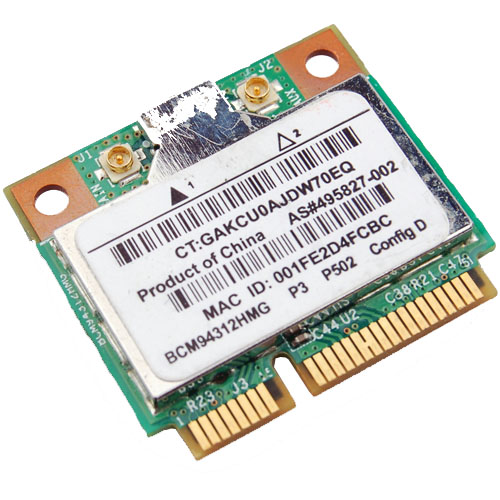
Broadcom Chipset BCM4312

The hybrid driver from Broadcom was updated again in September (2013) with all the previous patches and a few other fixes as well. This brings them up to support linux kernel 3.9, which is very much welcome.

Sadly it breaks again with >= 3.10 with many warnings and errors which isn't good considering that Ubuntu (13.10) Saucy Salamander is about to be released.

We do have a patch for you though that gets us working again up to the 3.11 kernel.

Chipsets supported by "Broadcom’s IEEE 802.11a/b/g/n hybrid Linux® device driver" are: BCM4311, BCM4312, BCM4313, BCM4321, BCM4322, BCM43224, BCM43225, BCM43227 and BCM43228.

The error you will run into:

bcurtis@Aria:~/Workspace/wl.orig$ make KBUILD_NOPEDANTIC=1 make -C /lib/modules/uname -r/build M=pwd make[1]: Entering directory /usr/src/linux-headers-3.11.0-11-generic' CFG80211 API is prefered for this kernel version Using CFG80211 API LD /home/bcurtis/Workspace/wl.orig/built-in.o CC /home/bcurtis/Workspace/wl.orig/src/shared/linux\_osl.o CC /home/bcurtis/Workspace/wl.orig/src/wl/sys/wl\_linux.o /home/bcurtis/Workspace/wl.orig/src/wl/sys/wl\_linux.c: In function ‘wl\_tkip\_printstats’: /home/bcurtis/Workspace/wl.orig/src/wl/sys/wl\_linux.c:3246:7: warning: passing argument 1 of ‘wl->tkipmodops->print\_stats’ from incompatible pointer type wl->tkip\_bcast\_data); ^ /home/bcurtis/Workspace/wl.orig/src/wl/sys/wl\_linux.c:3246:7: note: expected ‘struct seq\_file \*’ but argument is of type ‘char \*’ /home/bcurtis/Workspace/wl.orig/src/wl/sys/wl\_linux.c:3249:4: warning: passing argument 1 of ‘wl->tkipmodops->print\_stats’ from incompatible pointer type wl->tkipmodops->print\_stats(debug\_buf, wl->tkip\_ucast\_data); ^ /home/bcurtis/Workspace/wl.orig/src/wl/sys/wl\_linux.c:3249:4: note: expected ‘struct seq\_file \*’ but argument is of type ‘char \*’ /home/bcurtis/Workspace/wl.orig/src/wl/sys/wl\_linux.c: In function ‘wl\_reg\_proc\_entry’: /home/bcurtis/Workspace/wl.orig/src/wl/sys/wl\_linux.c:3470:2: error: implicit declaration of function ‘create\_proc\_entry’ [-Werror=implicit-function-declaration] if ((wl->proc\_entry = create\_proc\_entry(tmp, 0644, NULL)) == NULL) { ^ /home/bcurtis/Workspace/wl.orig/src/wl/sys/wl\_linux.c:3470:22: warning: assignment makes pointer from integer without a cast if ((wl->proc\_entry = create\_proc\_entry(tmp, 0644, NULL)) == NULL) { ^ /home/bcurtis/Workspace/wl.orig/src/wl/sys/wl\_linux.c:3475:16: error: dereferencing pointer to incomplete type wl->proc\_entry->read\_proc = wl\_proc\_read; ^ /home/bcurtis/Workspace/wl.orig/src/wl/sys/wl\_linux.c:3476:16: error: dereferencing pointer to incomplete type wl->proc\_entry->write\_proc = wl\_proc\_write; ^ /home/bcurtis/Workspace/wl.orig/src/wl/sys/wl\_linux.c:3477:16: error: dereferencing pointer to incomplete type wl->proc\_entry->data = wl; ^ cc1: some warnings being treated as errors make[2]: \*\*\* Error 1 make[1]: \*\*\* Error 2 make[1]: Leaving directory/usr/src/linux-headers-3.11.0-11-generic' make: *** Error 2

The rundown:

  1. Download the 32 or 64-bit version: http://www.broadcom.com/support/802.11/linux_sta.php
  2. Download the patch: wl_3.10.patch
  3. Extract the sources: cd ~/Downloads; mkdir -p wl; cd wl; tar xf ../hybrid-*.tar.gz
  4. Patch and compile the sources: patch -p2 < ~/Downloads/wl_3.10.patch; make; sudo make install; sudo depmod; sudo modprobe wl

Give Ubuntu a few seconds after loading the "wl" kernel module, then eventually the Network Manager will start looking for wireless networks.

TL;DR: These patches are required for a working wl kernel module for the 3.10 and 3.11 kernel series.

Update (2014-04-22): Known to also work with Raring (14.04) that uses the 3.13 kernel.

Wireless BCM4312 with the 3.6, 3.7 and 3.8 kernel

Broadcom Chipset BCM4312

As a follow up to , I've also tested the Broadcom hybrid driver with the 3.6, 3.7 and the soon to be released 3.8 kernels with success. There have been no major changes that should effect the operation of this driver.

To verify that everything is working as expected on the software side, when modprobe or insmod wl, you should get a similar dmesg output:

[ 307.560347] lib80211: common routines for IEEE802.11 drivers [ 307.560353] lib80211_crypt: registered algorithm 'NULL' [ 307.564524] wl: module license 'unspecified' taints kernel. [ 307.564529] Disabling lock debugging due to kernel taint

The only real issue at this point is this:

WARNING: modpost: missing MODULE_LICENSE() in /home/bcurtis/workspace/wl/wl.o see include/linux/module.h for more information WARNING: modpost: Found 1 section mismatch(es). To see full details build your kernel with: 'make CONFIG_DEBUG_SECTION_MISMATCH=y' CC /home/bcurtis/workspace/wl/wl.mod.o LD /home/bcurtis/workspace/wl/wl.ko

While these aren't errors, they are problems to be addressed upstream by Broadcom if they wish to see their driver to be used in the future. They will also need to incorporate my patch sets from my previous post. They haven't updated their driver in about two years now.

Properly ripping DVDs and adding subtitles in Ubuntu

dvd::rip

There are occasions where you legitimately need tools to help that would otherwise be considered the domain of "pirates" and "ne'er-do-wells". In this particular scenario, my grandparents send a DVD from the United States (Region1) to us in Belgium (Region2). Not only will the DVD not play back on a region locked DVD player, there are also no Dutch subtitles.

There are however technological solutions to this type of problem, including such programs as dvd::rip, vobsub2srt and a few websites dedicted to crowdsourced subtitles.

Our first task is to properly rip a DVD. There are many options here, but I chose dvd::rip because it just works. It creates a small xvid (avi) file that is compatible with a set-top DVD player and it is also allows ripping of any subtitles found on the DVD. If may wish to dig into the documentation to really understand the details of dvd:rip. I'll give you a step-by-step run down on how I did things.

dvd::rip

  1. Install the program and it's libraries.
  2. Following the directions and make sure the directories are set, dvd drive is found and that libraries are installed.
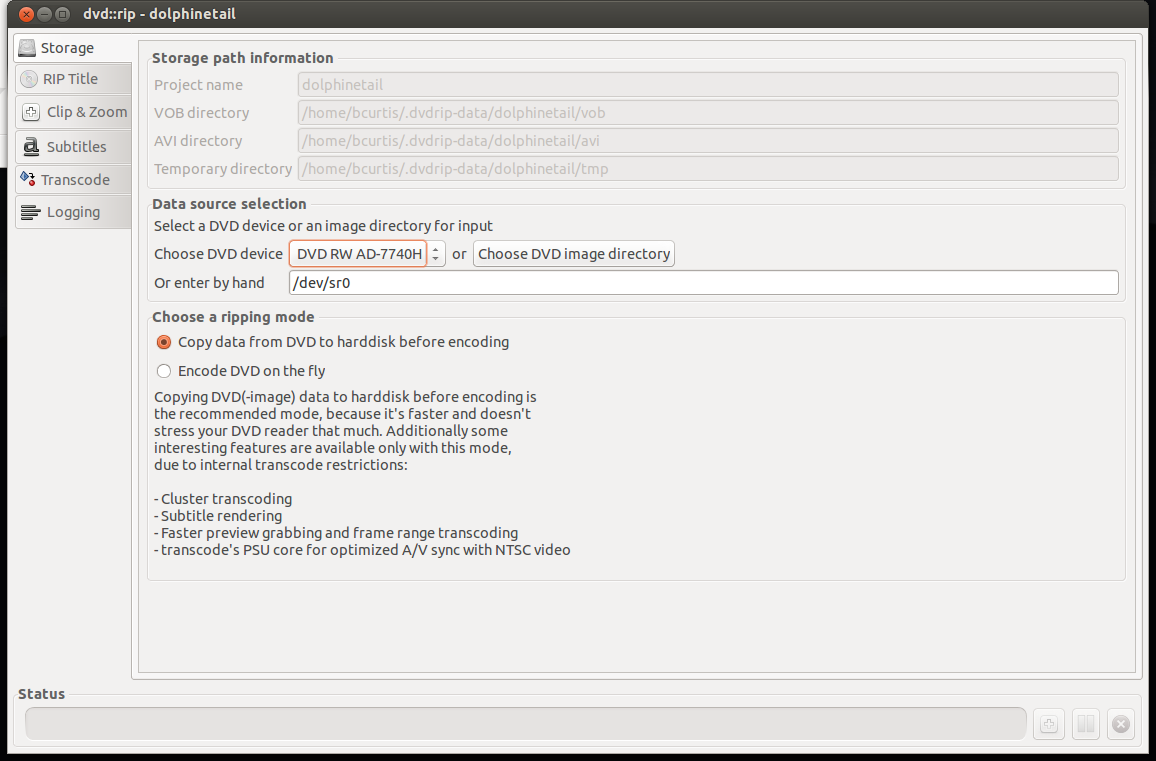
  3. On the left will be tabs, use this as a process. Begin with "Storage" where you set the project name, dvd drive to use and "Copy data from DVD to hard disk before encoding" which will make things faster.

Storage

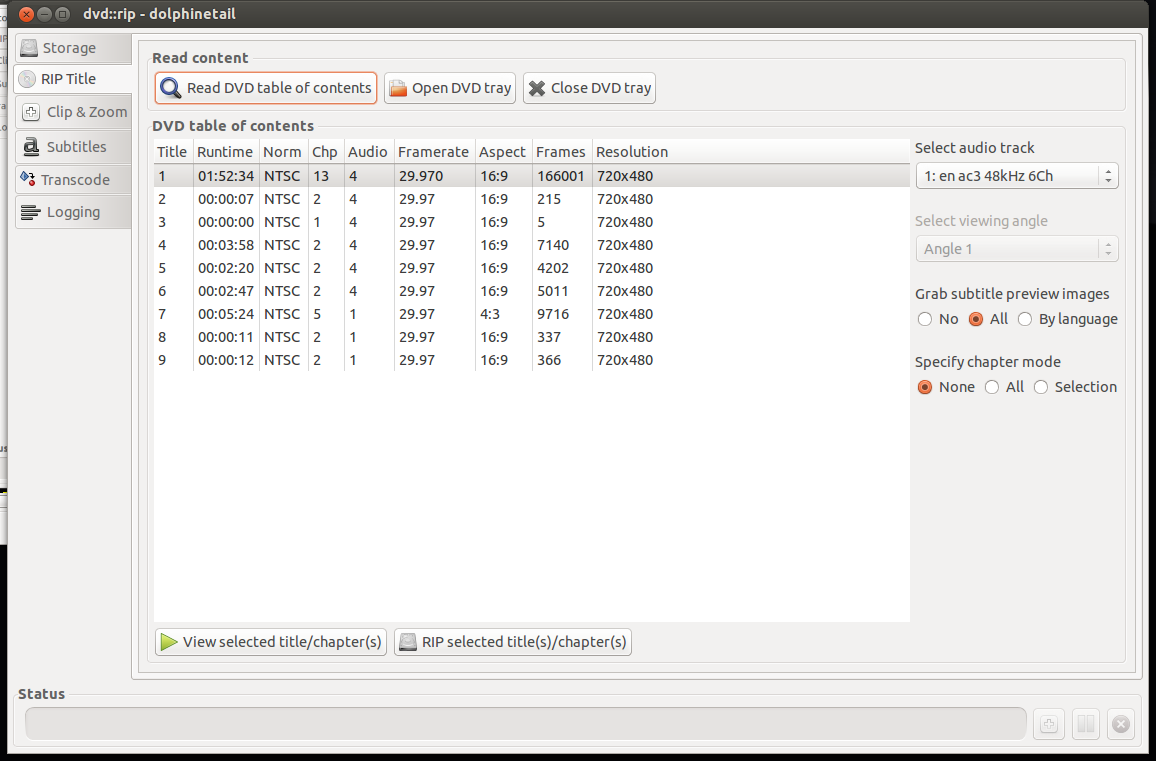
  1. On "Rip Title" you need to read the data on the DVD and select which files to rip. First "Read DVD table of contents", select the Title or Titles you wish to rip, usually the one with the most Chapters and/or Runtime is your target. Highlight that entry, select on the right your audio track (en for English, other en entries are usually commentary tracks). Set "Specify chapter mode" to None so that it is ripped as one file and not a set of files (per chapter) and set the "Grab subtitle preview images" to All so that you can select what subtitles you wish use, if any. The last step here is to "Rip selected title(s)/chapter(s) which will take a few minutes.

RipTitle

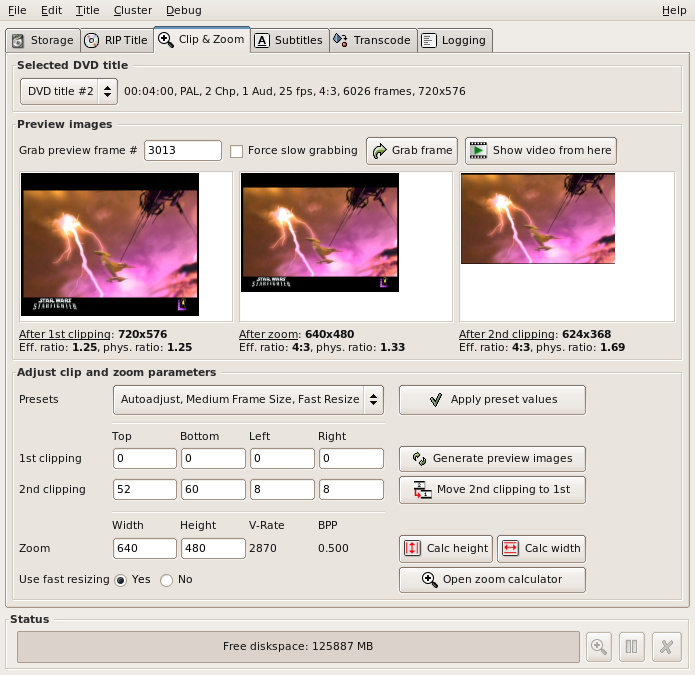
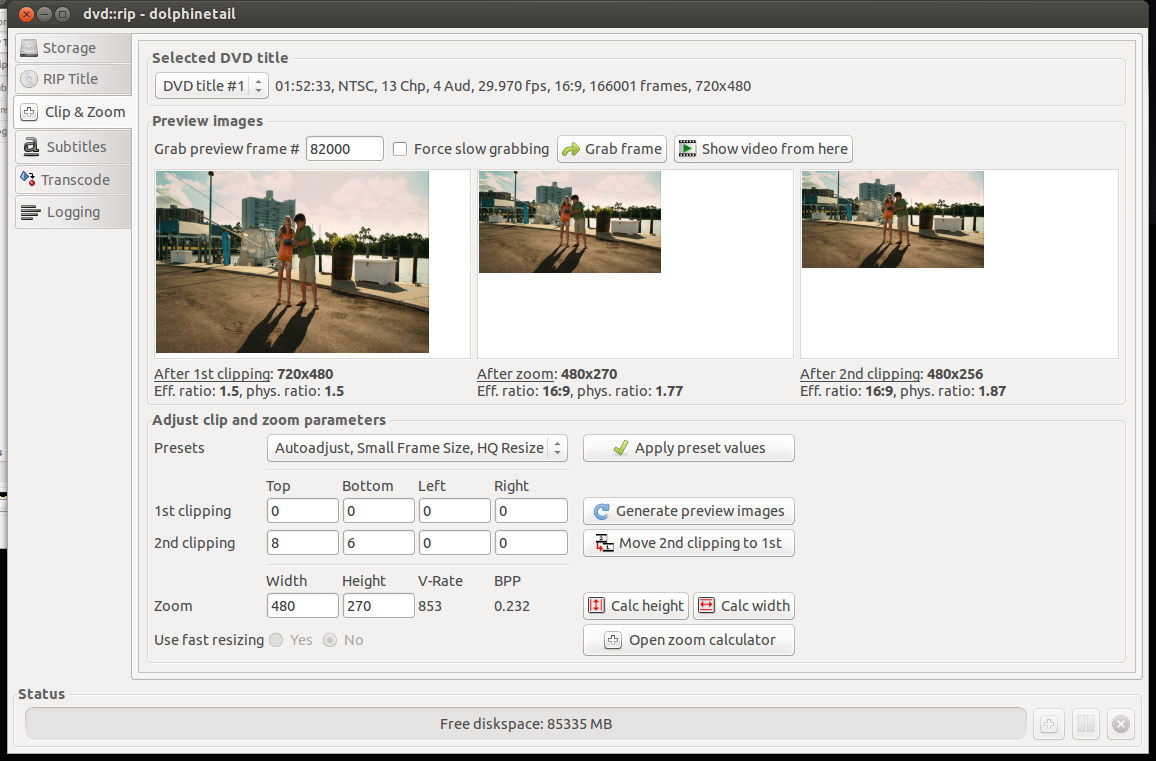
  1. Select next the "Clip & Zoom" which will allow you to set the correct format (size) that is perfect for your TV. You need to be careful here because the source (DVD) can be different such as: letterbox (widescreen) 1.85:1 ratio, anamorphic (widescreen) 16:9 ratio, or pan & scan (fullscreen) 4:3 ratio. Look at the back of your DVD box to verify. To test different settings, do a grab frame and try various "Autoadjust" presets until you find something that looks right. If you are playing back on an older DVD player with USB divx/xvid/avi support, then try to pick Small Frame Size, which is about 480p. This will make playing back smother as your hardware DVD player doesn't have enough CPU power to downscale higher resolutions.

ClipAndZoom

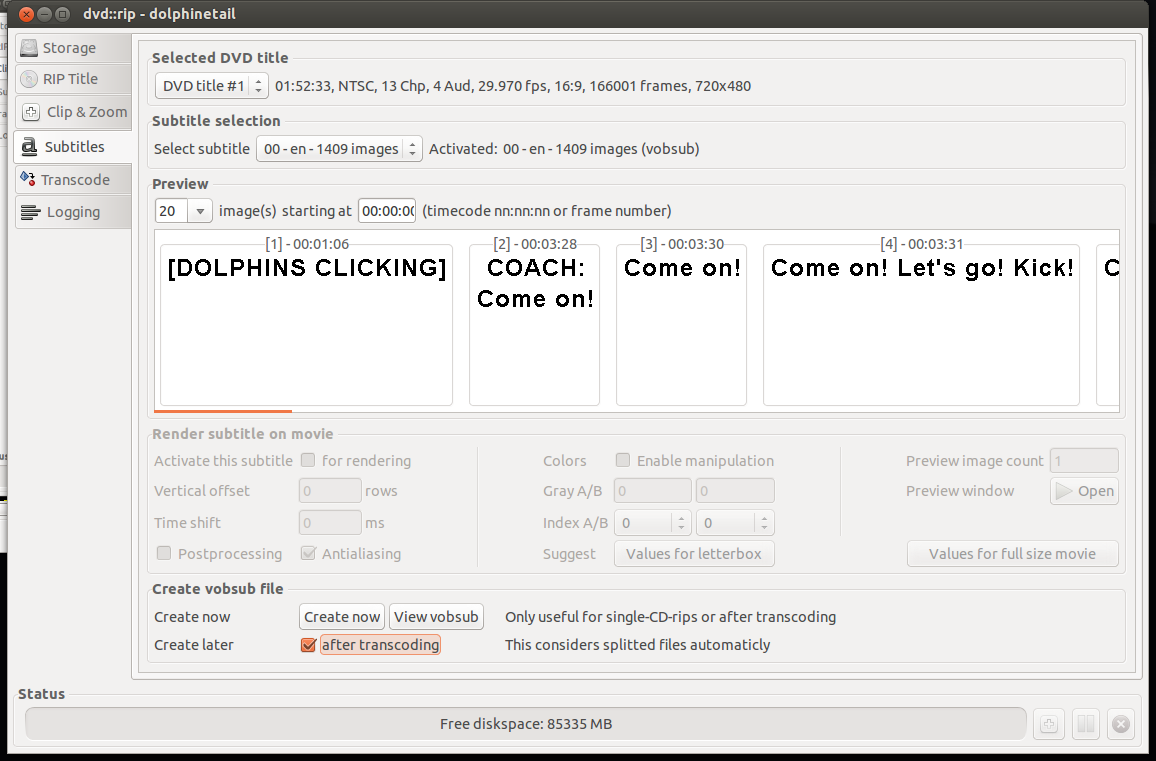
  1. Moving to the Subtitles screen, you can select the DVD title that you ripped and the correct subtitle you wish to rip. You can either "Activate this subtitle" for rendering or "Create now" which will produce separate files which you can use later. I prefer another method of handling subtitles than hard-rendering them to the rip. After "Create Now", you will have extra files that we can convert to SubRip text file format (SRT) later.

Subtitles

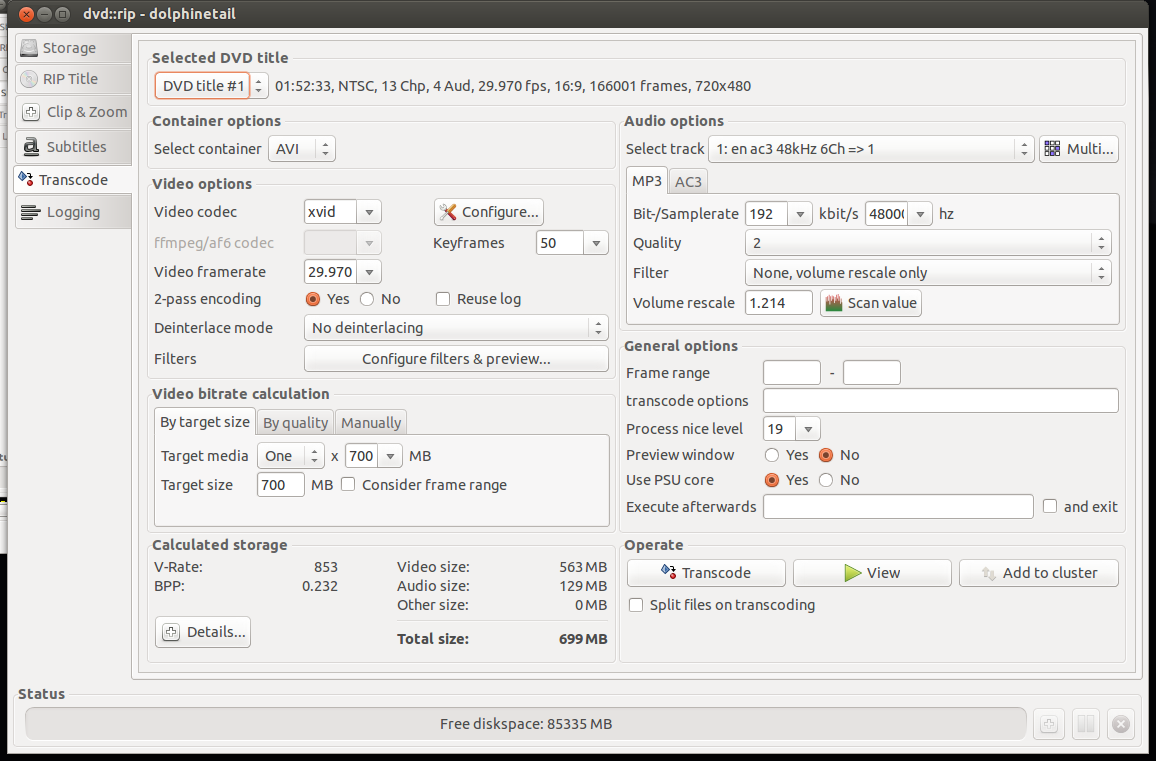
  1. After that we go to the "Transcode" tab which is the 'meat' of the program. We select our DVD title, select a container of AVI, make sure the "Video codec" is xvid, "By target size"'s "Target media" to One x 700MB which will create one file at an acceptable bitrate. On the Audio Options side, "Select track" to the one we ripped and select MP3. I set the Samplerate to 192kbit/s to get better audio. the rest I set to defaults. On the bottom left gives you an "Calculated storage". If you are content with your choices, go to "Operate" and select "Transcode" and wait a bit more.

Transcode

  1. Success! Try out your newly made AVI file with VLC or another player to make sure it is to you liking. If you got an error, you can go to the "Logging" tab on the left and see where you went wrong.

At this point, you should have an AVI file that you can play back in your video player or DVD player. However the job is not yet finished as we also need the subtitles for those in their native language. We saw that we could 'Rip' subtitles with dvd::rip but the files we have are in the VOB format idx/ifo/sub format which may or may not be readable by your player. We can convert this format to a SRT text-based file which is widely supported subtitle format using a tool called: VobSub2SRT.

VobSub2SRT

  1. Download and build VobSub2SRT yourself or install the package via PPA.
  2. You will also need to install 'tesseract-ocr' and any of the language files necessary to handle the subtitle language you ripped earlier.
  3. From the command line, go to where your ripped subtitles are and run the command to convert (OCR) them into an SRT file.

vobsub2srt --lang en dolphinetail-001-sid00

This will use english (en) from the idx/sub files to make the srt file. You can find out which languages you can pick from using the --langlist parameter.

bcurtis@Wintermute:~/.dvdrip-data/dolphinetail/avi/001$ vobsub2srt --lang en dolphinetail-001-sid00 Selected VOBSUB language: 0 language: enen Wrote Subtitles to 'dolphinetail-001-sid00.srt'

Success! Just copy the SRT file to where your AVI is and your player should recognize and automatically use the subtitle file.

There are times when you have the film but there is not subtitle for your language of choice. This is where crowd sourcing comes in as there is no shortage of people wanting to either subtitle the film for free as volunteer work or for some other altruistic or non-altruistic reason.

Crowdsourced Subtitles

  • Bierdopje: Dutch subtitles for films and series.
  • OpenSubtitles: Multi-lingual subtitles for films and series
  • Podnapisi: Older Multi-lingual subtitles for films and series

Resizing Video There can be moments where you have a file you want to play back on your DVD player and it complains that the resolution is not supported. This because it doesn't have a CPU powerful enough to downscale your film to your TV's resolution. I found this Video Conversion Guide which helped. You just need to figure out what your TV's native resolution is, and try to match it. For example my TV is an old CRT PAL monster and the source is a 1280x720 video. The DVD player doesn't support that resolution, but it is 16:9 ratio. We then convert the mkv to an avi to stay within the same ratio and play back on an old style PanScan CRT.

mencoder input.avi -ovc xvid -vf scale=648:364 -oac mp3lame -lameopts cbr:br=192 -xvidencopts pass=2:bitrate=-1400000:threads=4 -o output.avi

This converts the film 648:364, however you should keep in mind your TV's resolution. The guide gives a better understanding and there is no need to repeat the information here.

The end result should be a film for your USB in with a subtitle of your choice.

Dell DSET on Ubuntu 10.04 and 12.04

UbuntuOnDell

Dell System E-Support Tool (DSET) is an informative tool used by Dell's support engineers to help diagnose problems for their clients. It is almost a requirement now and Dell usually refuses to continue support without a DSET report.

The problem is that DSET is only supported on Redhat and SuSE Linux and there isn't any information on how to get it running in Ubuntu. I've assembled a rough guide on how to get DSET up and running on Ubuntu 10.04 and 12.04 and it is tested against a Dell R610 and R620. First we need to install Dell's OpenManage Server Administrator (OMSA) which is one piece from Dell that does support Ubuntu. http://linux.dell.com/repo/community/deb/latest/

You can cut and paste the following: echo 'deb http://linux.dell.com/repo/community/deb/latest /' | sudo tee -a /etc/apt/sources.list.d/linux.dell.com.sources.list gpg --keyserver pool.sks-keyservers.net --recv-key 1285491434D8786F gpg -a --export 1285491434D8786F | sudo apt-key add - sudo apt-get update sudo apt-get install -y srvadmin-all sblim-cmpi-base rpm alien sudo ln -sf /usr/bin/rpm /bin/rpm

The above will add Dell's repository to your apt sources and grab everything necessary to install the OMSA. It does include a java/tomcat webserver for a web GUI interface, but that is not enabled by default and not necessary for our DSET. You'll need to logout and log back in again to reset your path variables.

root@dmachine:~# /opt/dell/srvadmin/sbin/srvadmin-services.sh start Starting Systems Management Device Drivers: Starting dell_rbu: * Starting ipmi driver: * Already started Starting Systems Management Data Engine: Starting dsm_sa_datamgrd: * Starting dsm_sa_eventmgrd: * Starting dsm_sa_snmpd: * Starting DSM SA Connection Service: *

Secondly, if you are using an 'OEM Ready' Dell server then OMSA dataeng (Systems Management Data Engine) might complain with "Failed to start because system is not supported". There isn't any 'official' support for OMSA on these systems but you can contact Dell's OEM wing for custom solutions here: http://content.dell.com/us/en/enterprise/d/oem/oem-engineering-services.aspx

To get OMSA working on an OEM system, we need to modify this file: /opt/dell/srvadmin/sbin/CheckSystemType which calls the file: /usr/sbin/smbios-sys-info-lite which does not return back the expected value. I've modified it to key off the 'Is Dell' flag which is 1 (True). The patch can be found here: checksystem.patch patch -p0 < checksystem.patch Once the patch is applied, Systems Management Data Engine should start without problems.

Thirdly you need to download the 32 or 64 bit Linux version of DSET. You then need to edit the bin file to not run the install.sh file and to also not delete /tmp/dell_advdiags when it is finished running. You'll need the rpm files that it extracts to install DSET on Ubuntu.

Example from dell-dset-3.2.0.141_x64_A01.bin: ( the # comments out the none necessary bits )

source install.sh

cd $CDIR

rm -rf $TMPDIR

The only ones that we need are these:

dell-dset-collector-3.2.0.141-1.x86_64.rpm dell-dset-common-3.2.0.141-1.x86_64.rpm dell-dset-provider-3.2.0.141-1.x86_64.rpm

DSET binaries can be found here: http://support.dell.com/dset/

Fourthly you'll need to verify that /bin/sh points to bash instead of dash because Dell's scripts rely on bash's functionality. sudo su - ln -sf /bin/bash /bin/sh sh dell-dset*.bin mv /tmp/dell_advdiags ~ cd ~/dell_advdiags/rpms alien --scripts dell-dset*.rpm dpkg -i --force all *.deb dellsysteminfo

You might have to do these steps one at a time, but that is the flow of things. Alien sometimes complains about 'unknown flags' and dpkg will likely also complain about overwriting existing files. The first problem has bothered me so far, but the last is DSET overwriting existing OMSA files which as far as I can tell are the same files.

When you run dellsysteminfo, you need to give it a password. This is your typical Linux account password. You should now have something to hand over to the Dell Support people.

Skype 4.0 on Ubuntu Precise (12.04) 64-bit

skype

There is a new version of skype out for Linux, version 4.0 which has interesting changelog entries:

* Much lower chance Skype for Linux will crash or freeze * chat history loading is now much faster * ...several investments we made in improving audio quality ... and improving video call quality * ...extended support for more cameras * and more

Good enough for me! There is still no true 64 bit binary/package from Skype. The result is that their fake "64 bit" Skype needs an additional 100MB of i386 packages in order for it to run properly. The rundown:

  1. Remove old skype packages if they exist: sudo apt-get purge skype skype-bin
  2. Download latest Skype (4.0) (fake) 64-bit package for Ubuntu 10.04+. It might say skype 2.2 beta on the screen, they have yet to update the page. The download link goes to the 4.0 version.
  3. Install the necessary support libraries: sudo apt-get install ia32-libs lib32stdc++6 lib32asound2
  4. Install the skype binary package itself: sudo dpkg -i skype-ubuntu_4.0.0.7-1_amd64.deb

Enjoy the ad-free Linux version of Skype thanks to... Microsoft.

Wireless BCM4312 with the 3.4 and 3.5 kernel

Broadcom Chipset BCM4312

The hybrid driver from Broadcom is still a bit behind in terms of support for the latest kernels but there are workarounds. This particular issue also effects other kernel modules such as the out of tree Nvidia and ATI blobs that require the asm/system.h file in their includes.

I've had success with replacing it with asm/switch_to.h which seems to have fixed things for now. The cause for this can be found on the LKML.

Chipsets supported by "Broadcom’s IEEE 802.11a/b/g/n hybrid Linux® device driver" are: BCM4311, BCM4312, BCM4313, BCM4321, BCM4322, BCM43224, and BCM43225, BCM43227 and BCM43228.

Errors:

bcurtis@ronin:~/workspace/wl$ make KBUILD_NOPEDANTIC=1 make -C /lib/modules/uname -r/build M=pwd make[1]: Entering directory /usr/src/linux-headers-3.5.0-030500rc3-generic' Wireless Extension is the only possible API for this kernel version Using Wireless Extension API LD /home/bcurtis/workspace/wl/built-in.o CC /home/bcurtis/workspace/wl/src/shared/linux\_osl.o CC /home/bcurtis/workspace/wl/src/wl/sys/wl\_linux.o /home/bcurtis/workspace/wl/src/wl/sys/wl\_linux.c:43:24: fatal error: asm/system.h: No such file or directory compilation terminated. make[2]: \*\*\* Error 1 make[1]: \*\*\* Error 2 make[1]: Leaving directory/usr/src/linux-headers-3.5.0-030500rc3-generic' make: *** Error 2

The rundown:

  1. Download the 32 or 64-bit version: http://www.broadcom.com/support/802.11/linux_sta.php
  2. Download my patches: bc_wl_abiupdate.patch and switch_to.patch
  3. Extract the sources: cd ~/Downloads; mkdir -p wl; cd wl; tar xf ../hybrid-portsrc*.tar.gz
  4. Patch and compile the sources: patch -p0 src/wl/sys/wl_linux.c < ~/Downloads/switch_to.patch; patch -p0 src/wl/sys/wl_linux.c < ~/Downloads/bc_wl_abiupdate.patch; make; sudo make install; sudo depmod; sudo modprobe wl

Give Ubuntu a few seconds after loading the "wl" kernel module, then eventually the Network Manager will start looking for wireless networks.

TL;DR: These patches are required for a working wl kernel module for the 3.4 and 3.5 kernel series.

Update: Also verified to work with Linux 3.6 series.

Doing battle with a Dell R620 and Ubuntu

dell_poweredge_r620

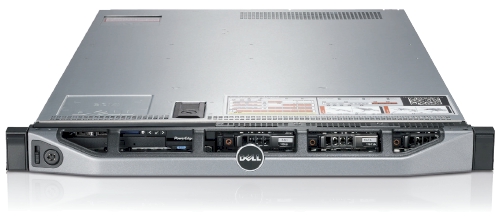
We recently got sent a Dell R620 to evaluate and while its technical specification is amazing there are a few things that need to be handled first.

As far as Ubuntu and the Dell R620 go, Precise (12.04) is the only way to go here. Every release before Precise has issues with this hardware in one way or another. This is new hardware of after all.

For our "use case" we downgraded the PERC H710P controller to a H310 controller so we can have direct access to the drives via pass-through. The H310 allows TRIM support for SSDs and SMART data via smartctl to be used without any problems. If you are interested in SMART information and PERC H700 series RAID controller, I posted about possible workarounds at Dell's customer support site.

Let's begin: USB Booting: try as we might, we could not get any usb stick to boot on the R620. We've gone through the iDRAC to do virtual drives and looked at BIOS/UEFI methods. The usb stick is recognized, but the R620 just shows us a blank screen. The same stick works in the R610, VM and other machines. We have a ticket with Dell support and they have yet to resolve the problem. Booting over PXE or CD/DVD are our only options at this point.

Bad MAC Addresses

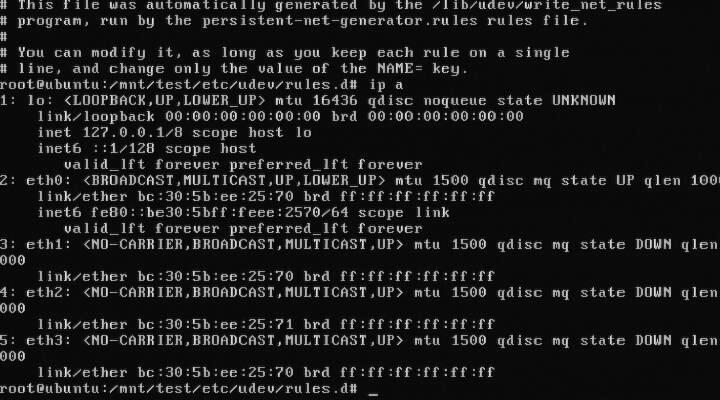
Intel® Ethernet Server Adapter I350-T4: The igb kernel module for 2.6.35 and 2.6.38 will detect this card and it will get you connectivity, but it will behave funny. For example, 3 to 4 ports will have the same MAC address. You need download, compile, and install the latest sources for the igb from Intel before you get full functionality out of your I350-T4. The other option is to install Ubuntu Precise (12.04) as the 3.2 kernel has the updated drivers from Intel.

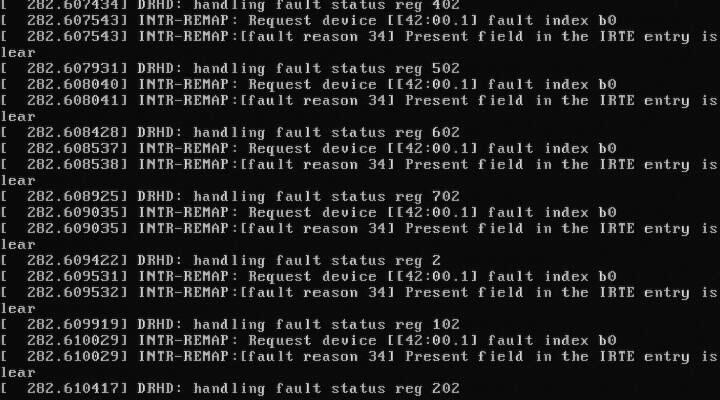
DRHD: handling fault status reg: at some point during booting of a freshly installed Ubuntu with the 2.6.35 kernel, we ran into this error that would effectively loop endlessly and cause the R620 to become unresponsive. We got this:

DRHD INTR-REMAP problems

DRHD: handling fault status reg 502 INTR-REMAP: Request device[[42:00.1] fault index b0 INTR-REMAP:[] Present field in the IRTE entry is clear

and it would endlessly print that to the console. This apparently has something to do with the IO-MMU part of the kernel dealing with interrupt remapping. Whatever the problem was, it was fixed in the 2.6.38 kernel and caused no more problems.

Dell SSD: the SSDs are rebranded Samsung drives which do not support TRIM but are at least over provisioned. These drives have a problem with smartctl in that while there is SMART information, the drive itself doesn't (yet) exist in the drivedb.h file. You have to use the latest smartctl version (5.42) to get anything usefull out of the drive. Older versions give you things like this:

Log Sense failed, IE page

hdparm: and other tools like smartctl, lshw and others have issues when getting the required data from over the PERC H310, even if it is pass-through. You have to use the latest versions of each to even read the serial number off a HDD or SSD. Hdparm versions >= 9.37 work, otherwise you get this:

root@node:~# hdparm -I /dev/sda

/dev/sda: HDIO_DRIVE_CMD(identify) failed: Invalid exchange

Once we got all the little inconveniences out of the way, we got down to benchmarking and performance testing. In comparison to the Dell R610's 2x Xeon(R) E5606, the R620's 2x Xeon(R) CPU E5-2643 has double the CPU performance in our testing. The obvious bottleneck here are the 2x 2port 10Gbps NICs in that even at a theoretical max of 40Gbps, for our purposes, we would be network bound. Thankfully there is another PCI-Express available, just in case.