Skip to content

Software

Skype on Ubuntu 11.10 (Oneiric Ocelot)

skype

If you upgrade to Ubuntu 11.10 on a 64-bit platform and try to run skype then you will likely get this error:

skype: error while loading shared libraries: libXss.so.1: cannot open shared object file: No such file or directory

This is because libxss1 and a few other libraries have been removed from ia32-libs package.

You will need to enable multiarch and install the extra 32 bit libraries by hand: echo foreign-architecture i386 | sudo tee /etc/dpkg/dpkg.cfg.d/multiarch sudo aptitude update sudo aptitude install libxss1:i386 libqtcore4:i386 libqt4-dbus:i386

This is all that is required to get the statically compiled version of Skype to work.

If you are running the dynamically compiled version or one that comes from mediabuntu or other source, you will need to pull in an extra package. sudo aptitude install libqtgui4:i386

However, in my experience this pulls in too many unnecessary packages and some of them may be broken.

Update: I've done a fresh install of Oneiric and determined the following list of packages that need to be install to get skype working. In the mean time, please bug/pester Skype for real 64bit binaries.

sudo aptitude install libxss1:i386 libqtcore4:i386 libqt4-dbus:i386 libasound2:i386 libxv1:i386 libsm6:i386 libxi6:i386 libXrender1:i386 libxrandr2:i386 libfreetype6:i386 libfontconfig1:i386

Ubuntu 11.04 Natty with fglrx and 2.6.39

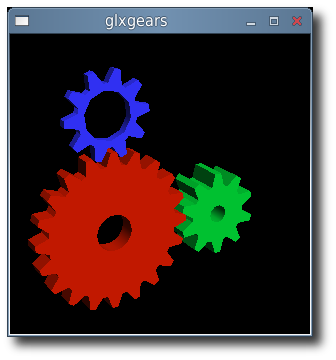
glxgears

Natty (11.04) users can finally get fglrx playing nicely together with X.org 1.10. We can also make the latest driver work well with the 2.6.39 kernel.

Custom build procedure:

  1. Install the latest 2.6.39 kernel revision from Ubuntu Mainline or install the PPA.
  2. Download 64-bit 11.4.
  3. Extract the files from the package: sh ./ati-driver-installer-11-4-x86.x86_64.run --extract ati
  4. For 2.6.39 support, download this extra patch: 2.6.39_bkl.patch
  5. Check for Big Kernel Lock usage: cat /lib/modules/`uname -r`/build/.config | grep -c CONFIG_BKL=y If the result of this command is 0, then download no_bkl.patch as well.
  6. then apply them: cd ati; for i in ../*.patch; do patch -p1 < $i; done
  7. Build your new ati/fglrx deb packages: ./ati-installer.sh 8.841 --buildpkg Ubuntu/natty
  8. Install our newly created deb packages: sudo dpkg -i ../fglrx*.deb
  9. If your /etc/X11/xorg.conf is missing you will need to run: sudo aticonfig --initial and then reboot.

That newly created package should work for the entire 2.6.39 series.

Ubuntu 2.6.39 kernel and fglrx 8.831

glxgears

For those 10.10 Maverick users with 2.6.38 or 2.6.39 (64-bit) kernels, you can get fglrx playing nicely together with X.org 1.9.

Unfortunately this new driver does not support X.org 1.10 and that leaves 11.4 users to use the open-source drivers.

Custom build procedure:

  1. Install the latest 2.6.38 or 2.6.39 kernel revision from Ubuntu Mainline.
  2. Download 64-bit 11.3 from AMD
  3. Extract the files from the package: sh ./ati-driver-installer-11-3-x86.x86_64.run --extract ati
  4. For 2.6.38 and up, download these patches: makefile_compat.patch and 2.6.38_console.patch
  5. For 2.6.39 support, download this additional patch: 2.6.39_bkl.patch
  6. Check for Big Kernel Lock usage: cat /lib/modules/`uname -r`/build/.config | grep -c CONFIG_BKL=y If the result of this command is 0, then download no_bkl.patch as well.
  7. then apply them: cd ati; for i in ../*.patch; do patch -p1 < $i; done
  8. Build your new ati/fglrx deb packages: ./ati-installer.sh 8.831 --buildpkg Ubuntu/maverick
  9. Install our newly created deb packages: sudo dpkg -i ../fglrx*.deb
  10. If your /etc/X11/xorg.conf is missing you will need to run: sudo aticonfig --initial and then reboot.

That newly created package should work for the entire 2.6.38 or 2.6.39 series.

Ubuntu 10.10 Maverick with 2.6.38 kernel and fglrx 8.812

glxgears

X-Swat has not updated their ati packages in a long time which means that Natty users and Maverick users with 2.6.38 (64-bit) cannot run with fglrx video drivers.

In order to get the latest 2.6.38 kernel and fglrx playing nicely together you will need to build these packages yourself.

Custom build procedure:

  1. Install the latest 2.6.38 kernel revision from Ubuntu Mainline.
  2. Download 11.1 from AMD
  3. Extract the files from the package: sh ./ati-driver-installer-11-1-x86.x86_64.run --extract ati
  4. Download the patch here, then apply it: cd ati; patch -p1 < ../2.6.38_console.patch
  5. Build our new ati/fglrx deb packages: ./ati-installer.sh 8.812 --buildpkg Ubuntu/maverick
  6. Install our newly created deb packages: sudo dpkg -i ../fglrx*.deb
  7. If your /etc/X11/xorg.conf is missing you will need to run: sudo aticonfig --initial and then reboot.

That newly created package should work for the entire 2.6.38 series.

threading.Thread vs. multiprocessing.Process

The Feather or the Anvil?

First a bit of background: I was tasked with created a high level tester for my company's system. The idea is create 1 or more monkeys to pound away at the company's product for a very long time. A concurrent parallel programming project with the requirement that it needed to be compatible with 2.6.2 version of Python.

With threading, you get real posix threads (pthread) which works pretty well. They implicitly share state with the parent thread and do not use IPC or messaging. They have low latency and low overall resource footprint.

However there are drawbacks that made further development using threads a real problem. that is the use of signals. Such as threads not handling signals, working with the global interpreter lock (GIL, only one thread allowed to run at a time), and more.

This particular implementation of Python is used as a wrapper to binaries on the system, the benefit of understanding signals and passing them back to Python. The threading module simply does not like this:

failed to set child signal, error signal only works in main thread

According to the documentation:

Some care must be taken if both signals and threads are used in the same program. The fundamental thing to remember in using signals and threads simultaneously is: always perform signal() operations in the main thread of execution. Any thread can perform an alarm(), getsignal(), or pause(); only the main thread can set a new signal handler, and the main thread will be the only one to receive signals (this is enforced by the Python signal module, even if the underlying thread implementation supports sending signals to individual threads).

My hands are tied: I cannot upgrade Python, modify the execute() method being used nor can I trap the signal being sent to the thread by the execute().

There is one heavy handed solution and that is to use multiprocessing. It is almost a 1 to 1 replacement for the threading module, including the same API. However it has drawbacks in comparison to threads like: large resource footprint (big heavy process), processes do not share state and must use some form of message passing such as IPC to communicate.

If you can do this: Thread(target=func, args=(args,)).start() Then it is trivial to convert to: Process(target=func, args=(args,)).start()

There are benefits to the anvil approach however. Processes automatically run on multiple cores which helps make distributive systems easier, processes are safer to use as they do not share any state implicitly and they make high-throughput processing trivial. It has the additional benefit of not needing locks which means you get to side-step the GIL.

I managed to replace all instance with threading with multiprocesser and suddenly I am no longer in GIL hell nor having issues with handling signals in my child processes. The only downside is that we require more resources to run the same test and slower initial start-up due to process creation. No one ever said it was light weight.

xdd is not "extreme dd"

While the ladies and gentlemen at IO Performance Inc. are busy with their 7.0 "Phoenix" release, they have left their website in disrepair including the disappearance of their product, source code and documentation.

phoenix

Since I make heavy use of xdd and apparently I am not the only one that needed the documentation, source and binary; I have provided it here for everyone.

xdd65.013007.tar xdd6.5 documentation

To explain what xdd is:

Xdd is a tool for measuring and characterizing disk subsystem I/O on single systems and clusters of systems. It is a command-line based tool that grew out of the UNIX world and has been ported to run in Window’s environments as well. It is designed to provide consistent and reproducible performance measurements of disk I/O traffic. There are three basic components to xdd that include the xdd program itself, a timeserver program, and a gettime program. The timeserver and gettime programs are used to synchronize the clocks of xdd programs simultaneously running across multiple computer systems.

vNES for J2ME on your mobile

If you have ever wanted to play a NES game on your mobile, then you might have heard about vNES. There is a J2ME version which allows it to run on most mobiles available today. There are however a few rough edges to this application as it requires assembling the necessary files together and running a windows batch file. From a Linux point of view, I have created a replacement shell script that does a better job. It requires unix2dos, rename, and bash.

Just place this file into your vNes directory: makejar.sh

#!/bin/bash
cd roms
#uppercase all our roms
rename 'y/a-z/A-Z/' *.nes
#remove all spaces, shorten name
rename "s/ *//g" *.NES
#rename roms to png
rename 's/\.NES$/\.png/' *.NES
#create our list of roms
package=""
for file in `dir -A` ; do
    package="${package}${file%.png}\
"
done
echo -e $package > ../package.txt
cp *.png ../package
cd ..
#make sure list is with windows line breaks
unix2dos package.txt
cp package.txt package/2.txt
cd package
#package everything up
zip -r -9 ../vnes.jar *
cd ..

Be sure to set: chmod +x makejar.sh

General advice:

The NES rom files must be in iNES format, and also be renamed from *.rom to *.png and copied into "package" directory. There is a file in "package" called 2.txt which is a list of all the roms you have. Rom names should be in capital letters, with .png at the end, not .rom nor .nes. Example: castlevania_3.nes --> CASTLE3.png and in 2.txt add a new line with 'CASTLE3' without the '.

Here are a list of possible problems:

This usually means that something is not right with 2.txt, make sure this is an extra line at the end of list. Use a space if you have to and remember use Windows based EOL 'end of line' characters. It helps to use 'unix2dos' to convert your \ to ^M.

You get the "application is invalid" error message:

Delete the line "MIDlet-Data-Size: 1024000" in the file "package\META-INF\MANIFEST.mf", this line tells the mobile how big the java application is. Problem is some mobiles just do not agree with that size and as a result will refuse to run a slightly dodgy application. It is best just to remove the line for maximum compatibility.

When loading a rom you get "java.lang.NullPointerException" error message:

This is because the rom file either does not exist in the package dir, the name is spelled incorrectly in the 2.txt file, or that there are wrong line endings. Verify that the files exist as *.png in the 'package' directory and to be safe, run unix2dos or todos on 2.txt file make sure the line endings are correct. The application expects dos ^M line endings.

SSH Multiplexing: a faster way to SSH

How it works:

By changing the way you ssh to a machine, you can reuse your initial ssh connection to save time when connecting.

Edit your ~/.ssh/config file to have this:

Host * ControlMaster auto ControlPath ~/.ssh/sockets/%r@%h:%p

We avoid problems of reusing the default /tmp but storing our connections in their own directory.

Be sure to create the directory:

mkdir -m 700 -p ~/.ssh/sockets

When was it available:

The functionality has been available since OpenSSH 3.9.

Usefulness:

I has come in handy for those hard to type passwords. Once in, a repeat ssh on another (local) terminal to the same machine will take just a few miliseconds and you have a command prompt to work with.

Security:

One caveat is that this is on a per-user basis, so if you want to connect with a different username then you will have to initialize a new connection. This also means that anyone using your machine can then reuse your connection to log into the remote machine. This could be a security issue for you.

Apache2 with SSL on Debian

I found myself at a loss on how to enable ssl on apache2, it seemed so simple. Make sure ssl.conf and ssl.load where both in mods-enabled and restart apache2, and done. Not so fast, the damn thing needs a self-signed certificate and the normal scripts are no where to be found on Debian 4.0 Etch. After a bit of searching I've come across this little gem that I hope will help all of you too. aptitude install ssl-cert

/usr/sbin/make-ssl-cert /usr/share/ssl-cert/ssleay.cnf /etc/apache2/ssl/apache.pem

This uses everything that Debian 4.0 gives you by default.

USB not showing up in VMware

For the longest time USB used to work quite well in VMware, then as if by magic, it all stopped working. However, after poking around I've discovered that there is a solution and it involves usbfs (usbdevfs). So here is a solution to get you all back up and running.

  • Create a new user group and name it usbfs, let's say that it has gid 1003
  • within /etc/fstab change the following line usbdevfs /proc/bus/usb usbfs noauto 0 0- if you have it, change it to below, if you don't have it, then just add the following line usbfs /proc/bus/usb usbfs rw, devgid=1003, devmode=0640, busgid=1003, busmode=0550, listgid=1003, listmode=0440 0 0- add vmware users to group usbfs usermod -G usbfs vmwareuser- If you get an error like this: mount: mount point /proc/bus/usb does not exist - then you have to compile a custom kernel from sources with CONFIG_USB_DEVICEFS enabled.