Skip to content

Servers

Latency simulation over long fat network

World Network

One of our clients asked us how we handle latency, and not just a few ms across racks but 2 and even 3 digit ms latency that indicates geographically separate locations across continents, not just a country. Not only that, the "pipes" involved are 10Gbps and we had to fill them. We have the theories and made models of how it would work. We perhaps might not be able to fill a 10Gbps fully with one stream, we could fill it with multiple streams but we had to validate this conclusion. The question now becomes, how do we test this. We've done our research and there are only a few commercial solutions available like the Netropy 10G2 which is a 4 port, 2 lane hardware latency simulator for $30,000 new. Not only is that outside my budget, it is still limited to simulating 2 10Gbps pipes while we need at least 3 lanes (6 ports) and possibility to expand to more as necessary. We decided it was cheaper in terms of total cost to put the research into creating our own Latency Simulator. We studied what we could from google, specifically the work done by NASA on a "Channel Emulator". They used traffic control (tc) to handle delay on the egress of an interface. This means that if a packet travels through, it is delayed but the return packet is not and goes right through. Our setup means that we have one 10Gbps card with 2 ports. We then link the two interfaces with bridge control (brctl) to create a layer2 bridge. We then split the "round trip time" or RTT delay and apply that to each 10Gbps interface. All packets going to and returning from a network then have the full simulated RTT delay. This type of machine does not need much in the way of RAM as the buffers necessary are not large, 4GiB is sufficient. What is important is the CPU operating frequency, all other aspects of the CPU is not important except that there should be 1 core per 10Gbps interface. This is required because part of the network stack is being simulated with the bridge then processed. For a 3 lane setup, that is 6 ports so we need at least a 6 core CPU @ >= 2.2 Ghz to handle the load.
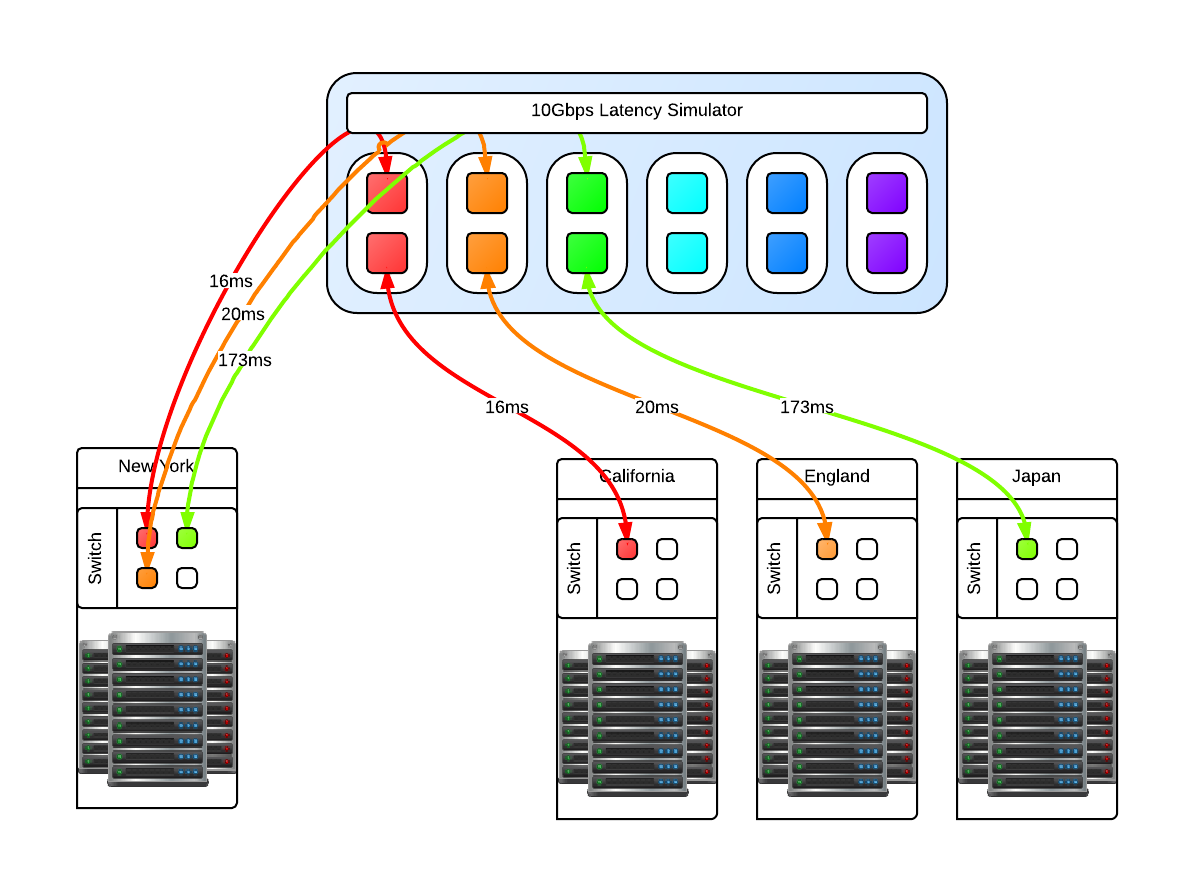
Latency Simulator

You may be asking why just 3 and not 4 latency lanes, this is because for us there will always be a 'local' data center and the other 3 connect to it in a star like network layout like in the above diagram. Since this is a 'flat' network in the same subnet, any ping from one of the data centers to another data center will go through the 'local' data center. In reality, these 'data center' switches are connected to the Latency Simulator which then connects to the local data center switch. Realistic latency from the 'local' data center in New York: California: 32ms England: 80ms Japan: 346ms Source: Verizon's latency table Going from California to Ireland would involve first a hop through New York, so the compound delay would be 112ms. With that in mind you can then compute your bandwidth delay product (BDP) Once the machine is up and running with whatever Linux distribution you like, make sure that tc and brctl are installed. Here are the scripts that can be used to bring the bridges up and down, and apply latencies and remove the latencies for the four geographically seperate datacenters. Files:

Once in place, we could ping from one side to the other and see the latency being applied. It is now time for baseline testing. First we turned off the latency and used iperf to test end to end that we can fill the 10Gbps pipes and that the Latency Simulator isn't the bottleneck. We could get around 9.50Gbps point to point. Then we turn on the latency and see the impact directly. The first thing we noticed is that when running iperf for the default 10s that the slow start and initial TCP window size has an impact how much data we can send over the wire. Because of the slow start, if you want better performance in your stream then you need to test for longer than 10s. We could not fill a pipe with 120ms latency until after 25s of running iperf which time we had transferred something like 15GiB of data. So trying to send a 1GiB file will not fill pipe.

RTT in ms   MiB/s default   MiB/s MAX
0       1162        1157
2       1053        1136
4       513     1076
8       248     1075
16      103     691
22      91      366
32      47      358
44      31      208
64      8.2     64
128     0.8     26
130     0.7     26

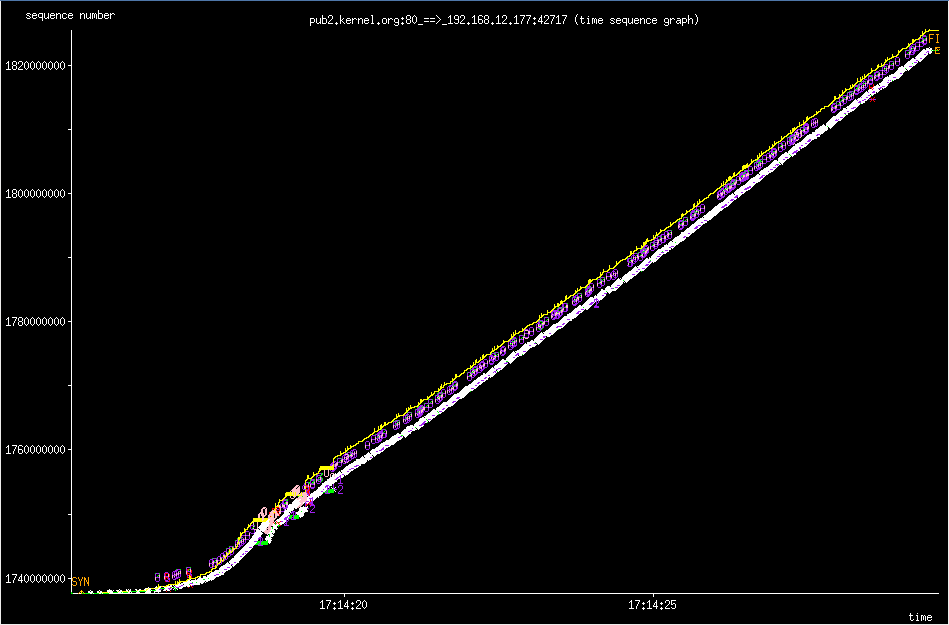
The MAX settings I used is the MAX TCP Window Size of 1GiB. If you try to go above that, you will find that Linux gets mad and some networking services will just not work. The sweet spot for us to set the initial window size to 8MiB which gave the algorithm enough time to shrink to either 4096 bytes or to grow in the other direction. Below are two 'key' tunables where rmem is the read buffer and wmem is the write buffer of the TCP buffer. sysctl -w net.ipv4.tcp_rmem='4096 8388608 33554432' sysctl -w net.ipv4.tcp_wmem='4096 8388608 33554432' However even with an initial 8MiB TCP Window Size, you'll never reach this potential because the Initial Congestion Window (initcwnd) is set to 10 as of 2011 per this git diff. This "slow start" is a congestion avoidance mechanism with exponential growth, a feature not a bug. Below is the 'slow start' in action when downloading a linux source tarball from kernel.org. slow star congestion control slow star congestion control What you are seeing is the an exponential growth of the congestion window that eventually grows to allow the TCP Window Size to kick in which then scales up linearly. You can however changed this per route which makes sense because congestion control works on a per network/host level. Examples of setting the initial congestion and receive windows: ip route change default via x.x.x.x initcwnd 20 initrwnd 20 # update your default gateway ip route change dev eth0 192.168.1.0/24 proto kernel src 192.168.0.1 initcwnd 20 initrwnd 20 # if you want to apply it just to one network Do not think of this as just updating the values and expecting fantastic results, because if you enter packet loss into the equation or real network congestion, then you are in for a painful experience with values that are too large. You'll not be as agile to respond to the pitfalls of the Internet, but if you are on a long fat network then adjusting these values can be a real boon for your throughput. You should now the tools necessary to implement your own "Long Fat Network" simulator and various things you can look at and adjust to get the most out of your network and applications.

The case of the non-booting USB thumb-drive and the Dell R620

dell_poweredge_r620

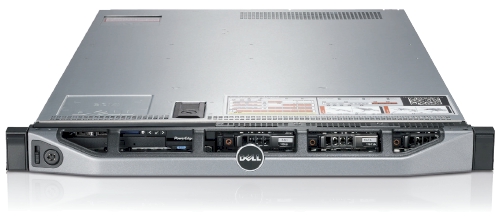
Awhile back I wrote about 'Doing battle with a Dell R620 and Ubuntu' where I touched on the fact that booting from USB thumb-drive was a painful problem. In short, the same USB thumb-drive that would work in the R610 would not work in the R620.

It comes down BIOS support for USB and how it is handled. On the R610 there are 3 options: 'auto-detect', 'floppy emulation' and 'hard drive'. Auto was hit-or-miss, floppy would not work but 'hard drive' worked every time. On the R620 there are no options so I can only suppose that it supports 'floppy emulation' upon detection of a USB thumb-drive.

To try to find the cause of this problem we tried using the 'standard' method of taking Precise 12.04 ISO from Ubuntu's website and using UNetbootin to create a USB thumb-drive that did boot on the R620. It turns out there was something wrong with our process that prevented it from booting. In comparing the partition table (with parted) of our USB thumb-drive and the Precise thumb-drive we noticed that the starting position of the first (and only) partition were different!

Non-booting USB:

Model: TDKMedia Trans-It Drive (scsi) Disk /dev/sdc: 3999MB Sector size (logical/physical): 512B/512B Partition Table: msdos

Number Start End Size Type File system Flags 1 1049kB 3998MB 3997MB primary ext4 boot

Booting USB:

Model: TDKMedia Trans-It Drive (scsi) Disk /dev/sdc: 3999MB Sector size (logical/physical): 512B/512B Partition Table: msdos

Number Start End Size Type File system Flags 1 32.9kB 3998MB 3997MB primary ext4 boot

The choice to do 1MiB was to increase the lifespan of the thumb-drive by aligning the partition to the erase-block size of the thumb-drive. Doing this however renders 'floppy emulation' a non-option on both the Dell R620 and R610. Setting it to 32.9KiB also means that the drive is not properly aligned and you will get bad performance when writing, reading and health of the thumb-drive itself.

In the interest of getting bootable thumbdrive we ended up doing this: parted -a none /dev/sdb 'mkpart primary 0 -1 set 1 boot on' What this does is create a primary partition at the start of the thumb-drive that goes all the way to the end. We ignore the alignment problems and set the partition to bootable. After that, it was easy enough to through our ext4 filesystem on top and syslinux/casper to get our custom installer working.

The end result is that we now have a USB thumb-drive that boots on a R620 every time.

Dell DSET on Ubuntu 10.04 and 12.04

UbuntuOnDell

Dell System E-Support Tool (DSET) is an informative tool used by Dell's support engineers to help diagnose problems for their clients. It is almost a requirement now and Dell usually refuses to continue support without a DSET report.

The problem is that DSET is only supported on Redhat and SuSE Linux and there isn't any information on how to get it running in Ubuntu. I've assembled a rough guide on how to get DSET up and running on Ubuntu 10.04 and 12.04 and it is tested against a Dell R610 and R620. First we need to install Dell's OpenManage Server Administrator (OMSA) which is one piece from Dell that does support Ubuntu. http://linux.dell.com/repo/community/deb/latest/

You can cut and paste the following: echo 'deb http://linux.dell.com/repo/community/deb/latest /' | sudo tee -a /etc/apt/sources.list.d/linux.dell.com.sources.list gpg --keyserver pool.sks-keyservers.net --recv-key 1285491434D8786F gpg -a --export 1285491434D8786F | sudo apt-key add - sudo apt-get update sudo apt-get install -y srvadmin-all sblim-cmpi-base rpm alien sudo ln -sf /usr/bin/rpm /bin/rpm

The above will add Dell's repository to your apt sources and grab everything necessary to install the OMSA. It does include a java/tomcat webserver for a web GUI interface, but that is not enabled by default and not necessary for our DSET. You'll need to logout and log back in again to reset your path variables.

root@dmachine:~# /opt/dell/srvadmin/sbin/srvadmin-services.sh start Starting Systems Management Device Drivers: Starting dell_rbu: * Starting ipmi driver: * Already started Starting Systems Management Data Engine: Starting dsm_sa_datamgrd: * Starting dsm_sa_eventmgrd: * Starting dsm_sa_snmpd: * Starting DSM SA Connection Service: *

Secondly, if you are using an 'OEM Ready' Dell server then OMSA dataeng (Systems Management Data Engine) might complain with "Failed to start because system is not supported". There isn't any 'official' support for OMSA on these systems but you can contact Dell's OEM wing for custom solutions here: http://content.dell.com/us/en/enterprise/d/oem/oem-engineering-services.aspx

To get OMSA working on an OEM system, we need to modify this file: /opt/dell/srvadmin/sbin/CheckSystemType which calls the file: /usr/sbin/smbios-sys-info-lite which does not return back the expected value. I've modified it to key off the 'Is Dell' flag which is 1 (True). The patch can be found here: checksystem.patch patch -p0 < checksystem.patch Once the patch is applied, Systems Management Data Engine should start without problems.

Thirdly you need to download the 32 or 64 bit Linux version of DSET. You then need to edit the bin file to not run the install.sh file and to also not delete /tmp/dell_advdiags when it is finished running. You'll need the rpm files that it extracts to install DSET on Ubuntu.

Example from dell-dset-3.2.0.141_x64_A01.bin: ( the # comments out the none necessary bits )

source install.sh

cd $CDIR

rm -rf $TMPDIR

The only ones that we need are these:

dell-dset-collector-3.2.0.141-1.x86_64.rpm dell-dset-common-3.2.0.141-1.x86_64.rpm dell-dset-provider-3.2.0.141-1.x86_64.rpm

DSET binaries can be found here: http://support.dell.com/dset/

Fourthly you'll need to verify that /bin/sh points to bash instead of dash because Dell's scripts rely on bash's functionality. sudo su - ln -sf /bin/bash /bin/sh sh dell-dset*.bin mv /tmp/dell_advdiags ~ cd ~/dell_advdiags/rpms alien --scripts dell-dset*.rpm dpkg -i --force all *.deb dellsysteminfo

You might have to do these steps one at a time, but that is the flow of things. Alien sometimes complains about 'unknown flags' and dpkg will likely also complain about overwriting existing files. The first problem has bothered me so far, but the last is DSET overwriting existing OMSA files which as far as I can tell are the same files.

When you run dellsysteminfo, you need to give it a password. This is your typical Linux account password. You should now have something to hand over to the Dell Support people.

Doing battle with a Dell R620 and Ubuntu

dell_poweredge_r620

We recently got sent a Dell R620 to evaluate and while its technical specification is amazing there are a few things that need to be handled first.

As far as Ubuntu and the Dell R620 go, Precise (12.04) is the only way to go here. Every release before Precise has issues with this hardware in one way or another. This is new hardware of after all.

For our "use case" we downgraded the PERC H710P controller to a H310 controller so we can have direct access to the drives via pass-through. The H310 allows TRIM support for SSDs and SMART data via smartctl to be used without any problems. If you are interested in SMART information and PERC H700 series RAID controller, I posted about possible workarounds at Dell's customer support site.

Let's begin: USB Booting: try as we might, we could not get any usb stick to boot on the R620. We've gone through the iDRAC to do virtual drives and looked at BIOS/UEFI methods. The usb stick is recognized, but the R620 just shows us a blank screen. The same stick works in the R610, VM and other machines. We have a ticket with Dell support and they have yet to resolve the problem. Booting over PXE or CD/DVD are our only options at this point.

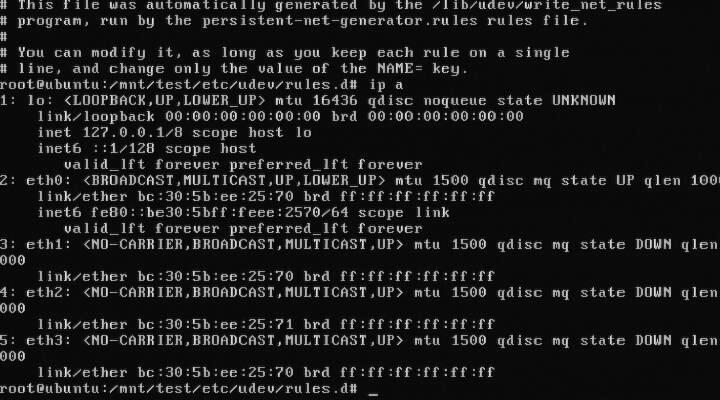
Bad MAC Addresses

Intel® Ethernet Server Adapter I350-T4: The igb kernel module for 2.6.35 and 2.6.38 will detect this card and it will get you connectivity, but it will behave funny. For example, 3 to 4 ports will have the same MAC address. You need download, compile, and install the latest sources for the igb from Intel before you get full functionality out of your I350-T4. The other option is to install Ubuntu Precise (12.04) as the 3.2 kernel has the updated drivers from Intel.

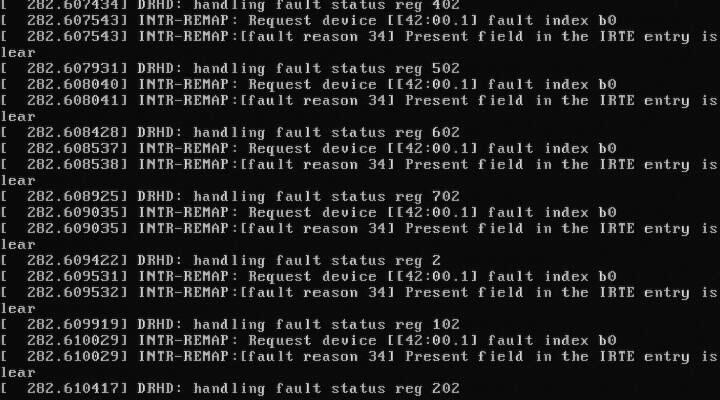
DRHD: handling fault status reg: at some point during booting of a freshly installed Ubuntu with the 2.6.35 kernel, we ran into this error that would effectively loop endlessly and cause the R620 to become unresponsive. We got this:

DRHD INTR-REMAP problems

DRHD: handling fault status reg 502 INTR-REMAP: Request device[[42:00.1] fault index b0 INTR-REMAP:[] Present field in the IRTE entry is clear

and it would endlessly print that to the console. This apparently has something to do with the IO-MMU part of the kernel dealing with interrupt remapping. Whatever the problem was, it was fixed in the 2.6.38 kernel and caused no more problems.

Dell SSD: the SSDs are rebranded Samsung drives which do not support TRIM but are at least over provisioned. These drives have a problem with smartctl in that while there is SMART information, the drive itself doesn't (yet) exist in the drivedb.h file. You have to use the latest smartctl version (5.42) to get anything usefull out of the drive. Older versions give you things like this:

Log Sense failed, IE page

hdparm: and other tools like smartctl, lshw and others have issues when getting the required data from over the PERC H310, even if it is pass-through. You have to use the latest versions of each to even read the serial number off a HDD or SSD. Hdparm versions >= 9.37 work, otherwise you get this:

root@node:~# hdparm -I /dev/sda

/dev/sda: HDIO_DRIVE_CMD(identify) failed: Invalid exchange

Once we got all the little inconveniences out of the way, we got down to benchmarking and performance testing. In comparison to the Dell R610's 2x Xeon(R) E5606, the R620's 2x Xeon(R) CPU E5-2643 has double the CPU performance in our testing. The obvious bottleneck here are the 2x 2port 10Gbps NICs in that even at a theoretical max of 40Gbps, for our purposes, we would be network bound. Thankfully there is another PCI-Express available, just in case.

Asymmetric networking using Linux

asymmetric_network_icon

The idea is simple, two subnets (separate networks) and then route packets from one to the other. The environment, however, is not symmetric. We wanted to contact a node on the other subnet and we could see the packets travelling over the switch to the router back through another switch to the node, but the node itself refused to reply. Each node has two NICs and each NIC is connected to a separate network. If you try to connect or ping one node from another, Linux is smart enough to go directly over the NIC with the right network. If a NIC should ever fail, the failover is that the packets are then routed up one network to the router then over to the other network. The network looks something like this:

        ----(router)----
        |               |
        |               |
   | switch |__  __| switch |
        |      \/       |
        |      /\       |
        |     /  \      |
        |    x    \     |
   | node1 |/      \| node2 |

note: The x is the broken link.

Apparently when going from node1 to node2 is not the problem, node2 just does not respond. This has to do Reverse Path Filtering and per default is enabled in the Linux kernel. From the manual:

By default, routers route everything, even packets which 'obviously' don't belong on your network. A common example is private IP space escaping onto the internet. If you have an interface with a route of 195.96.96.0/24 to it, you do not expect packets from 212.64.94.1 to arrive there. ... Basically, if the reply to this packet wouldn't go out the interface this packet came in, then this is a bogus packet and should be ignored.

Armed with this new knowledge and acknowledging that this system will not be on an Internet route-able environment, we decided to turn off the filtering. for i in /proc/sys/net/ipv4/conf/*/rp_filter ; do echo 0 > $i; done This solved the problem and node2 could reply back over it's NIC to the other network without having to go back through the router.

threading.Thread vs. multiprocessing.Process

The Feather or the Anvil?

First a bit of background: I was tasked with created a high level tester for my company's system. The idea is create 1 or more monkeys to pound away at the company's product for a very long time. A concurrent parallel programming project with the requirement that it needed to be compatible with 2.6.2 version of Python.

With threading, you get real posix threads (pthread) which works pretty well. They implicitly share state with the parent thread and do not use IPC or messaging. They have low latency and low overall resource footprint.

However there are drawbacks that made further development using threads a real problem. that is the use of signals. Such as threads not handling signals, working with the global interpreter lock (GIL, only one thread allowed to run at a time), and more.

This particular implementation of Python is used as a wrapper to binaries on the system, the benefit of understanding signals and passing them back to Python. The threading module simply does not like this:

failed to set child signal, error signal only works in main thread

According to the documentation:

Some care must be taken if both signals and threads are used in the same program. The fundamental thing to remember in using signals and threads simultaneously is: always perform signal() operations in the main thread of execution. Any thread can perform an alarm(), getsignal(), or pause(); only the main thread can set a new signal handler, and the main thread will be the only one to receive signals (this is enforced by the Python signal module, even if the underlying thread implementation supports sending signals to individual threads).

My hands are tied: I cannot upgrade Python, modify the execute() method being used nor can I trap the signal being sent to the thread by the execute().

There is one heavy handed solution and that is to use multiprocessing. It is almost a 1 to 1 replacement for the threading module, including the same API. However it has drawbacks in comparison to threads like: large resource footprint (big heavy process), processes do not share state and must use some form of message passing such as IPC to communicate.

If you can do this: Thread(target=func, args=(args,)).start() Then it is trivial to convert to: Process(target=func, args=(args,)).start()

There are benefits to the anvil approach however. Processes automatically run on multiple cores which helps make distributive systems easier, processes are safer to use as they do not share any state implicitly and they make high-throughput processing trivial. It has the additional benefit of not needing locks which means you get to side-step the GIL.

I managed to replace all instance with threading with multiprocesser and suddenly I am no longer in GIL hell nor having issues with handling signals in my child processes. The only downside is that we require more resources to run the same test and slower initial start-up due to process creation. No one ever said it was light weight.