Skip to content

Linux

Upgrade Samsung Galaxy Gio to CyanogenMod 7.2

Android

Going from 2.3.x (Gingerbread) to CyanogenMod 7.2 (Gingerbread) is surprisingly simple unlike upgrading from Froyo. I'll go into more detail below, but there are two necessary bits: an updated recovery rom and a custom (non-official) CyanogenMod rom. This version of CyanogenMod is specific to the Samsung Gio.

Before upgrading your Samsung Gio, you must first be running at least 2.3.x (Gingerbread) before continuing because of the use of ext4 instead of rfs. Please follow my upgrade guide "Upgrade Samsung Galaxy Gio from 2.2.x Froyo to 2.3.x Gingerbread" first.

Warning: Caveat emptor - While I used to this process to update my phone, I take no responsibility if you brick your phone. Be sure to back up anything you wish to save, this procedure works best when your Gio is fully wiped of data.

Installation of the ClockworkMod (CWM)

  1. Download the custom CWM "px-cwm-v2.zip" and copy it to your sdcard.
  2. Reboot into the default recovery in your stock Gingerbread or with your Gio turned off, hold down the Home/OK (middle) button and press the Power button.
  3. In recovery mode, use the Volume buttons for navigation and the Home/OK button for selecting.
  4. Select “Update from SD card” from the recovery menu.
  5. Look for "px-cwm-v2.zip" which should be on your sdcard and press OK to flash.
  6. Reboot again like above into recovery mode and you should now have the new CWM recovery screen.

You can read more about CWM here.

Here is a video that shows the process: http://www.youtube.com/watch?feature=player_embedded&v=hxjxB8P9rSU

Installation of CyanogenMod 7.2 for Samsung Gio

  1. Download update-cm-7.2.0-20120710-NIGHTLY-gio-AROMA.zip from either here or here.
  2. Copy to sdcard
  3. Reboot to Recovery Mode (CWM)
  4. Select install zip from sd card
  5. Select "update-cm-7.2.0-20120710-NIGHTLY-gio-AROMA.zip" ROM
  6. Select Yes - Install update
  7. Wait till the Installation is finish
  8. Select wipe data/factory reset
  9. Select reboot mobile and enjoy

Cyanogen Mod 7.2.0 For Galaxy Gio based on Gingerbread (2.3.7) Working:

  • RIL
  • proximity sensor
  • touchscreen with multi touch
  • keychar
  • storage mode
  • gps
  • compass
  • accelerometer sensor
  • microphone (both phone & headset)
  • headset button
  • Root & Busybox
  • call,sms,mms
  • auto rotate
  • packet data with automatically apn detect
  • GPRS, EDGE, 3G, HSDPA
  • wifi
  • hardware video acceleration
  • secret code
  • bluetooth
  • camera
  • static wifi mac address
  • audio & FM Radio
  • wired & hotspot tether
  • Backlight Notification

Not Working:

  • Sim Toolkit (maybe)

Known issues:

  • some option are not working on setting (like: mute camera sound, etc)
  • slow loading png image on gallery
  • after use camera, governor force back to "ondemand"

Sources:

All thanks should go to CyanogenMod team, phiexz and all those that have put effort into ever aspect of this ROM.

This is part 2 of a 3 part series about the Galaxy Gio. Part1: Upgrade Samsung Galaxy Gio from 2.2.x Froyo to 2.3.x Gingerbread Part2: Upgrade Samsung Galaxy Gio to CyanogenMod 7.2 Part3: Upgrade Samsung Galaxy Gio to CyanogenMod 10.1
The case of the non-booting USB thumb-drive and the Dell R620

dell_poweredge_r620

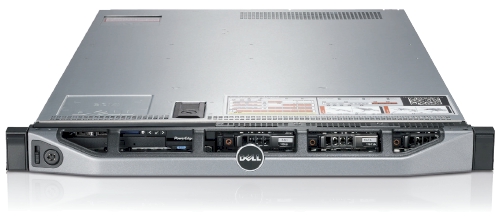
Awhile back I wrote about 'Doing battle with a Dell R620 and Ubuntu' where I touched on the fact that booting from USB thumb-drive was a painful problem. In short, the same USB thumb-drive that would work in the R610 would not work in the R620.

It comes down BIOS support for USB and how it is handled. On the R610 there are 3 options: 'auto-detect', 'floppy emulation' and 'hard drive'. Auto was hit-or-miss, floppy would not work but 'hard drive' worked every time. On the R620 there are no options so I can only suppose that it supports 'floppy emulation' upon detection of a USB thumb-drive.

To try to find the cause of this problem we tried using the 'standard' method of taking Precise 12.04 ISO from Ubuntu's website and using UNetbootin to create a USB thumb-drive that did boot on the R620. It turns out there was something wrong with our process that prevented it from booting. In comparing the partition table (with parted) of our USB thumb-drive and the Precise thumb-drive we noticed that the starting position of the first (and only) partition were different!

Non-booting USB:

Model: TDKMedia Trans-It Drive (scsi) Disk /dev/sdc: 3999MB Sector size (logical/physical): 512B/512B Partition Table: msdos

Number Start End Size Type File system Flags 1 1049kB 3998MB 3997MB primary ext4 boot

Booting USB:

Model: TDKMedia Trans-It Drive (scsi) Disk /dev/sdc: 3999MB Sector size (logical/physical): 512B/512B Partition Table: msdos

Number Start End Size Type File system Flags 1 32.9kB 3998MB 3997MB primary ext4 boot

The choice to do 1MiB was to increase the lifespan of the thumb-drive by aligning the partition to the erase-block size of the thumb-drive. Doing this however renders 'floppy emulation' a non-option on both the Dell R620 and R610. Setting it to 32.9KiB also means that the drive is not properly aligned and you will get bad performance when writing, reading and health of the thumb-drive itself.

In the interest of getting bootable thumbdrive we ended up doing this: parted -a none /dev/sdb 'mkpart primary 0 -1 set 1 boot on' What this does is create a primary partition at the start of the thumb-drive that goes all the way to the end. We ignore the alignment problems and set the partition to bootable. After that, it was easy enough to through our ext4 filesystem on top and syslinux/casper to get our custom installer working.

The end result is that we now have a USB thumb-drive that boots on a R620 every time.

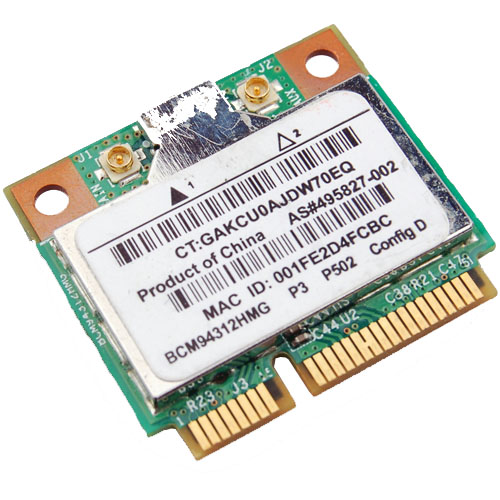
Wireless BCM4312 with the 3.4 and 3.5 kernel

Broadcom Chipset BCM4312

The hybrid driver from Broadcom is still a bit behind in terms of support for the latest kernels but there are workarounds. This particular issue also effects other kernel modules such as the out of tree Nvidia and ATI blobs that require the asm/system.h file in their includes.

I've had success with replacing it with asm/switch_to.h which seems to have fixed things for now. The cause for this can be found on the LKML.

Chipsets supported by "Broadcom’s IEEE 802.11a/b/g/n hybrid Linux® device driver" are: BCM4311, BCM4312, BCM4313, BCM4321, BCM4322, BCM43224, and BCM43225, BCM43227 and BCM43228.

Errors:

bcurtis@ronin:~/workspace/wl$ make KBUILD_NOPEDANTIC=1 make -C /lib/modules/uname -r/build M=pwd make[1]: Entering directory /usr/src/linux-headers-3.5.0-030500rc3-generic' Wireless Extension is the only possible API for this kernel version Using Wireless Extension API LD /home/bcurtis/workspace/wl/built-in.o CC /home/bcurtis/workspace/wl/src/shared/linux\_osl.o CC /home/bcurtis/workspace/wl/src/wl/sys/wl\_linux.o /home/bcurtis/workspace/wl/src/wl/sys/wl\_linux.c:43:24: fatal error: asm/system.h: No such file or directory compilation terminated. make[2]: \*\*\* Error 1 make[1]: \*\*\* Error 2 make[1]: Leaving directory/usr/src/linux-headers-3.5.0-030500rc3-generic' make: *** Error 2

The rundown:

  1. Download the 32 or 64-bit version: http://www.broadcom.com/support/802.11/linux_sta.php
  2. Download my patches: bc_wl_abiupdate.patch and switch_to.patch
  3. Extract the sources: cd ~/Downloads; mkdir -p wl; cd wl; tar xf ../hybrid-portsrc*.tar.gz
  4. Patch and compile the sources: patch -p0 src/wl/sys/wl_linux.c < ~/Downloads/switch_to.patch; patch -p0 src/wl/sys/wl_linux.c < ~/Downloads/bc_wl_abiupdate.patch; make; sudo make install; sudo depmod; sudo modprobe wl

Give Ubuntu a few seconds after loading the "wl" kernel module, then eventually the Network Manager will start looking for wireless networks.

TL;DR: These patches are required for a working wl kernel module for the 3.4 and 3.5 kernel series.

Update: Also verified to work with Linux 3.6 series.

Doing battle with a Dell R620 and Ubuntu

dell_poweredge_r620

We recently got sent a Dell R620 to evaluate and while its technical specification is amazing there are a few things that need to be handled first.

As far as Ubuntu and the Dell R620 go, Precise (12.04) is the only way to go here. Every release before Precise has issues with this hardware in one way or another. This is new hardware of after all.

For our "use case" we downgraded the PERC H710P controller to a H310 controller so we can have direct access to the drives via pass-through. The H310 allows TRIM support for SSDs and SMART data via smartctl to be used without any problems. If you are interested in SMART information and PERC H700 series RAID controller, I posted about possible workarounds at Dell's customer support site.

Let's begin: USB Booting: try as we might, we could not get any usb stick to boot on the R620. We've gone through the iDRAC to do virtual drives and looked at BIOS/UEFI methods. The usb stick is recognized, but the R620 just shows us a blank screen. The same stick works in the R610, VM and other machines. We have a ticket with Dell support and they have yet to resolve the problem. Booting over PXE or CD/DVD are our only options at this point.

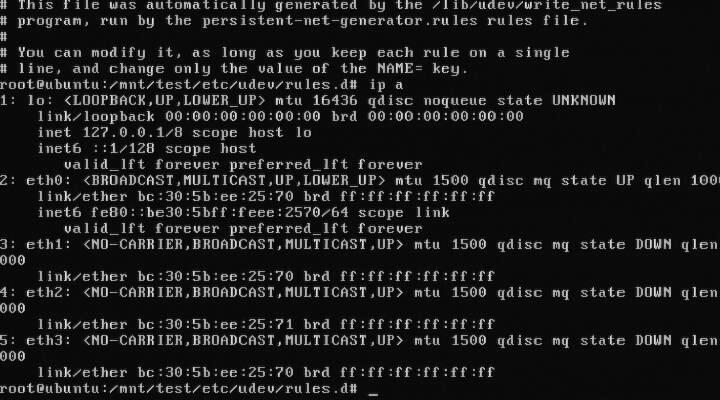
Bad MAC Addresses

Intel® Ethernet Server Adapter I350-T4: The igb kernel module for 2.6.35 and 2.6.38 will detect this card and it will get you connectivity, but it will behave funny. For example, 3 to 4 ports will have the same MAC address. You need download, compile, and install the latest sources for the igb from Intel before you get full functionality out of your I350-T4. The other option is to install Ubuntu Precise (12.04) as the 3.2 kernel has the updated drivers from Intel.

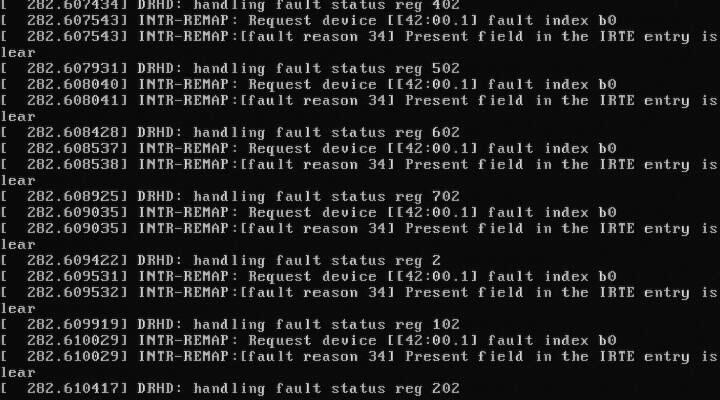
DRHD: handling fault status reg: at some point during booting of a freshly installed Ubuntu with the 2.6.35 kernel, we ran into this error that would effectively loop endlessly and cause the R620 to become unresponsive. We got this:

DRHD INTR-REMAP problems

DRHD: handling fault status reg 502 INTR-REMAP: Request device[[42:00.1] fault index b0 INTR-REMAP:[] Present field in the IRTE entry is clear

and it would endlessly print that to the console. This apparently has something to do with the IO-MMU part of the kernel dealing with interrupt remapping. Whatever the problem was, it was fixed in the 2.6.38 kernel and caused no more problems.

Dell SSD: the SSDs are rebranded Samsung drives which do not support TRIM but are at least over provisioned. These drives have a problem with smartctl in that while there is SMART information, the drive itself doesn't (yet) exist in the drivedb.h file. You have to use the latest smartctl version (5.42) to get anything usefull out of the drive. Older versions give you things like this:

Log Sense failed, IE page

hdparm: and other tools like smartctl, lshw and others have issues when getting the required data from over the PERC H310, even if it is pass-through. You have to use the latest versions of each to even read the serial number off a HDD or SSD. Hdparm versions >= 9.37 work, otherwise you get this:

root@node:~# hdparm -I /dev/sda

/dev/sda: HDIO_DRIVE_CMD(identify) failed: Invalid exchange

Once we got all the little inconveniences out of the way, we got down to benchmarking and performance testing. In comparison to the Dell R610's 2x Xeon(R) E5606, the R620's 2x Xeon(R) CPU E5-2643 has double the CPU performance in our testing. The obvious bottleneck here are the 2x 2port 10Gbps NICs in that even at a theoretical max of 40Gbps, for our purposes, we would be network bound. Thankfully there is another PCI-Express available, just in case.

A poor man's https, using ssh to secure web traffic

HTTPS_Everywhere_new_logo

Sometimes you get a web-hosting environment that only serves non-ssl (http) content. If you need to do any type of management through tools like phpMyAdmin, then you can see the problem with this. All it would take is someone on your network or on the Internet to sniff the traffic and retrieve your username and password, then they too can do a bit of "management" on your site.

If you also have secure shell (SSH) access, then there is a way to manage your site securely by using SSH's venerable port forwarding (SOCKS). The trick is to tell your management tools to only listen or respond to connections coming in over SSH instead of normal traffic. First you need to set up your SSH connection and configure your browser to use your newly made SOCKS proxy. Please refer to my post about SSH Proxies for more information.

The second part is to secure your application to only accept connections from itself, which is where your browser requests travels through your secure tunnel. We can mask it a bit so that you will have to look hard to see that there is something of interest going on there. It will also be ignored by Google and other search engines.

You can add this to your php code: /* custom code to deny access to world */ if ($_SERVER["SERVER_ADDR"] != $_SERVER["REMOTE_ADDR"]){ header('HTTP/1.1 404 Not Found'); exit();

If the remote IP (your request) is not he same as the server IP, then we give the 404 error message in return, otherwise you get to your application.

SSH as a socks proxy

passwords

Recently there was a need to visit a US based website to verify some personal information. Apparently there are 'rules' about who is geographical allowed to get access to the site which means that a citizen of said country cannot access the site from outside of the US.

I will not get into the absurdity of such security mandates, instead we will go around the problem and get our information that bureaucracy tried to prevent.

The general idea is to use a proxy inside the US that will allow us to hop over the geographical firewall. I do not trust open proxies by default because of their ability to sniff traffic. I do however have access to a secure shell (SSH) in the US that I can use. Using this command: ssh -D 8080 [email protected]

will create a port 8080 on localhost (your computer). You can then use a web-browser like chrome from anywhere in the world and through an encrypted tunnel come out the other side on a network based in the US. You need to configure your web-browser to use a 'SOCKS Proxy' in order for this to work.

For chrome, it is easy as doing this: chrome --proxy-server="socks5://127.0.0.1:8080" or you can follow this guide to setting up chrome with socks.

To check that it is working, go to google and ask "What is my IP".

For more detailed information, here is the ssh man page:

Specifies a local “dynamic” application-level port forwarding. This works by allocating a socket to listen to port on the local side, optionally bound to the specified bind_address. Whenever a connection is made to this port, the connection is forwarded over the secure channel, and the application protocol is then used to determine where to connect to from the remote machine. Currently the SOCKS4 and SOCKS5 protocols are supported, and ssh will act as a SOCKS server.

Asymmetric networking using Linux

asymmetric_network_icon

The idea is simple, two subnets (separate networks) and then route packets from one to the other. The environment, however, is not symmetric. We wanted to contact a node on the other subnet and we could see the packets travelling over the switch to the router back through another switch to the node, but the node itself refused to reply. Each node has two NICs and each NIC is connected to a separate network. If you try to connect or ping one node from another, Linux is smart enough to go directly over the NIC with the right network. If a NIC should ever fail, the failover is that the packets are then routed up one network to the router then over to the other network. The network looks something like this:

        ----(router)----
        |               |
        |               |
   | switch |__  __| switch |
        |      \/       |
        |      /\       |
        |     /  \      |
        |    x    \     |
   | node1 |/      \| node2 |

note: The x is the broken link.

Apparently when going from node1 to node2 is not the problem, node2 just does not respond. This has to do Reverse Path Filtering and per default is enabled in the Linux kernel. From the manual:

By default, routers route everything, even packets which 'obviously' don't belong on your network. A common example is private IP space escaping onto the internet. If you have an interface with a route of 195.96.96.0/24 to it, you do not expect packets from 212.64.94.1 to arrive there. ... Basically, if the reply to this packet wouldn't go out the interface this packet came in, then this is a bogus packet and should be ignored.

Armed with this new knowledge and acknowledging that this system will not be on an Internet route-able environment, we decided to turn off the filtering. for i in /proc/sys/net/ipv4/conf/*/rp_filter ; do echo 0 > $i; done This solved the problem and node2 could reply back over it's NIC to the other network without having to go back through the router.

Wireless BCM4312 3.0 kernel

Broadcom Chipset BCM4312

With the latest 3.0 kernel there is still no "out of the box" support for my BCM4312 wireless chipset. Nor is there any help from Ubuntu 11.04 leaving me to use Broadcoms hybrid driver with patch.

Chipsets supported by "Broadcom's IEEE 802.11a/b/g/n hybrid Linux® device driver" are: BCM4311, BCM4312, BCM4313, BCM4321, BCM4322, BCM43224, and BCM43225, BCM43227 and BCM43228.

My specific chipset from lspci command:

Broadcom Corporation BCM4312 802.11b/g LP-PHY (rev 01)

Below is the error I get with v5_100_82_38 from Broadcom when compiling against Linux kernel 3.0:

bcurtis@zwartevogel:~/Downloads/wl.org$ make KBUILD_NOPEDANTIC=1 make -C /lib/modules/uname -r/build M=pwd make[1]: Entering directory /usr/src/linux-headers-2.6.38-020638-generic' LD /home/bcurtis/Downloads/wl.org/built-in.o CC /home/bcurtis/Downloads/wl.org/src/shared/linux\_osl.o CC /home/bcurtis/Downloads/wl.org/src/wl/sys/wl\_linux.o /home/bcurtis/Downloads/wl.org/src/wl/sys/wl\_linux.c: In function ‘wl\_attach’: /home/bcurtis/Downloads/wl.org/src/wl/sys/wl\_linux.c:485:3: error: implicit declaration of function ‘init\_MUTEX’ make[2]: \*\*\* Error 1 make[1]: \*\*\* Error 2 make[1]: Leaving directory/usr/src/linux-headers-3.0.0-0300rc1-generic' make: *** Error 2

To get your wireless adapter working again:

  1. Download the 32 or 64-bit version: http://www.broadcom.com/support/802.11/linux_sta.php
  2. Download my patch for > 2.6.37 support: broadcom-sta_4_kernel-2.6.38.patch
  3. Extract the sources: cd ~/Downloads; mkdir -p wl; cd wl; tar xf ../hybrid-portsrc*-v5_100_82_38.tar.gz
  4. Patch the sources, compile and install: patch -p1 < ../broadcom-sta_4_kernel-2.6.38.patch make; sudo make install; sudo depmod; sudo modprobe wl

Give Ubuntu a few seconds after loading the "wl" kernel module, then eventually the Network Manager will start looking for wireless networks.

USB console cable for Cisco Catalyst

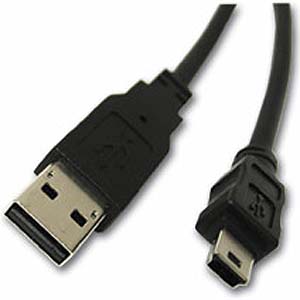
usb a mini b

Cisco’s new line of equipment now use a mini-USB cable for console configuration. There is no longer a need for a USB to serial adapter or a roll-over cable.

Connecting the USB cable on Linux should give you a new ACM device that looks something like this: “/dev/ttyACM0″.

To verify, you can also look through your dmesg or /var/log/messages :

[265430.720082] usb 4-1: new full speed USB device using uhci_hcd and address 4 [265430.914246] cdc_acm 4-1:1.0: This device cannot do calls on its own. It is not a modem. [265430.914305] cdc_acm 4-1:1.0: ttyACM0: USB ACM device

The easiest way to connect to an USB capable Cisco device is to use screen, however you can still use minicom.

Screen command: screen 9600 /dev/ttyACM0

The USB cable from Cisco is pin for pin the exact USB A to mini-B that you can find at your local electronics store.

Make your external screen your primary screen

Or how to move gnome panels to a different monitor in Ubuntu.

multiMonitor setup

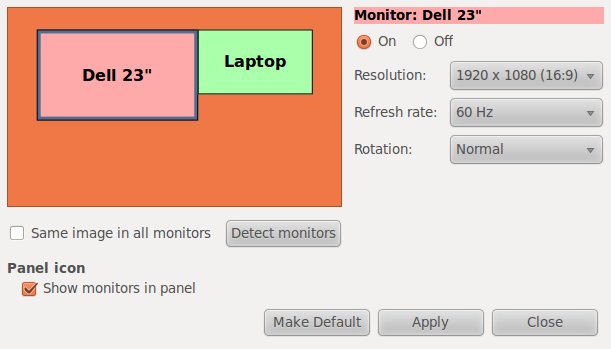
In my particular setup, I have a laptop and a much larger external display. I like having my main Gnome panel on the external display and use the laptop display for other things like Skype and email.

To make this change perminant, I use some gConf magic:

#!/bin/bash gconftool-2 --set "/apps/panel/toplevels/top_panel_screen0/monitor" --type integer "1" gconftool-2 --set "/apps/panel/toplevels/bottom_panel_screen0/monitor" --type integer "1"

To reverse this, you can run this:

#!/bin/bash gconftool-2 --set "/apps/panel/toplevels/top_panel_screen0/monitor" --type integer "0" gconftool-2 --set "/apps/panel/toplevels/bottom_panel_screen0/monitor" --type integer "0"

The beautiful thing about this is that when on the go, Gnome will put the panels on your laptop display when the external display is not available.