Skip to content

Hardware

Cross-compiling for Raspberry Pi on Ubuntu

RaspberryPi Logo

While the Raspberry Pi 2 has four cores to churn through code, it still takes longer to compile than on most workstations and laptops. If you are feeling adventurous, you can try cross-compiling which has become easier to set up and get working. Cross-compiling is when binaries created are for another target architecture than the one you are compiling on. This kind of set up is very typical when creating Android applications. The end result is that you can take the resulting binary and place on its target platform, and it will run there. There are even tricks to getting the cross-compiled binary to also run on your native system! In this guide, I'll walk you through:

  • Setting up a cross-compile toolchain in Ubuntu (15.04 Vivid)
  • Setting up the proper exports
  • Compiling a test program for your native and target armhf platform
  • Compiling the latest Raspberry Pi 2 kernel with VC4 support.

The first thing we need to do is set up your Ubuntu to be able to compile software for a Raspberry Pi (1 and 2). You'll need at least Ubuntu Vivid (15.04) installed. From there, you'll need to install the following packages.

sudo apt-get install binutils-arm-linux-gnueabihf \
cpp-4.9-arm-linux-gnueabihf \
cpp-arm-linux-gnueabihf \
g++-4.9-arm-linux-gnueabihf \
g++-4.9-multilib-arm-linux-gnueabihf \
g++-arm-linux-gnueabihf \
gcc-4.9-arm-linux-gnueabihf \
gcc-4.9-arm-linux-gnueabihf-base \
gcc-4.9-multilib-arm-linux-gnueabihf \
gcc-arm-linux-gnueabihf \
pkg-config-arm-linux-gnueabihf \
binutils-arm-linux-gnueabihf \
cmake \
cpp-4.9-arm-linux-gnueabihf \
cross-gcc-dev \
dpkg-cross \
g++-4.9-arm-linux-gnueabihf \
g++-4.9-multilib-arm-linux-gnueabihf \
gcc-4.9-arm-linux-gnueabihf \
gcc-4.9-arm-linux-gnueabihf-base \
gcc-4.9-multilib-arm-linux-gnueabihf \
libasan1-armhf-cross \
libatomic1-armhf-cross \
libc6-armel-armhf-cross \
libc6-armel-cross \
libc6-armhf-cross \
libc6-dev-armel-armhf-cross \
libc6-dev-armel-cross \
libc6-dev-armhf-cross \
libdebian-dpkgcross-perl \
libfile-homedir-perl \
libgcc-4.9-dev-armhf-cross \
libgcc1-armhf-cross \
libgomp1-armhf-cross \
libsfasan1-armhf-cross \
libsfatomic1-armhf-cross \
libsfgcc-4.9-dev-armhf-cross \
libsfgcc1-armhf-cross \
libsfgomp1-armhf-cross \
libsfstdc++-4.9-dev-armhf-cross \
libsfstdc++6-armhf-cross \
libsfubsan0-armhf-cross \
libstdc++-4.9-dev-armhf-cross \
libstdc++6-armhf-cross \
libubsan0-armhf-cross \
linux-libc-dev-armhf-cross \
pdebuild-cross \
xapt \

The last package in the list is xapt, a wrapper around apt so that we can install packages specifically for other architectures like armhf. This includes things like *-dev packages with headers which will likely be required if you compile other software. Once those are installed, you need to tell the terminal you are targeting the armhf architecture. The CROSS_COMPILE flag will make your toolchain (gcc and friends) and your software aware that you are using a cross-compiler.

export $(dpkg-architecture -aarmhf) 
export CROSS_COMPILE=arm-linux-gnueabihf-

You might get this warning:

dpkg-architecture: warning: specified GNU system type arm-linux-gnueabihf does not match gcc system type x86_64-linux-gnu, try setting a correct CC environment variable

This message is harmless and you can ignore it. Now to test this, create a file called main.c and copy this Hello World code into it.

#include <stdio .h>
#include <stdlib .h>

int main(int argc, char **argv)
{
    printf("Hello world\
");
}

You'll then compile it twice, first natively and second for your target platform.

gcc -o hello_x86 main.c -static
arm-linux-gnueabihf-gcc -o hello_arm main.c -static

You can then use file to test the resulting output and it should match below:

bcurtis@Redqueen:~/workspace/RPi$ file hello_x86 hello_x86: ELF 64-bit LSB executable, x86-64, version 1 (GNU/Linux), statically linked, for GNU/Linux 2.6.32, BuildID=217c28644cf5be3ea4d24bea79c3da3bbdd9a2a9, not stripped bcurtis@Redqueen:~/workspace/RPi$ file hello_arm hello_arm: ELF 32-bit LSB executable, ARM, EABI5 version 1 (GNU/Linux), statically linked, for GNU/Linux 2.6.32, BuildID=3a5e42174d6b72ddf8b0265a9b76b3cea0668623, not stripped

Notice how the last one is ARM, EABI5 version 1, this indicates that the binary is compiled for armhf, your Raspberry Pi. Next we are going to try to run them:

bcurtis@Redqueen:~/workspace/RPi$ ./hello_x86 Hello world bcurtis@Redqueen:~/workspace/RPi$ ./hello_arm Hello world

You might asking you how the hello_arm binary can run on an x86 system. This is thanks to -static flag during compilation that shoves all the required libraries into your binary. The ones that you included are specifically crafted multi-libs that can used on both your host and your target platform (both x86 and arm). The resulting binaries are larger as a result. You can remove the -static flag and see that it will no longer run on your host machine, but much smaller and will run on your target RPi2. Aiming higher, we will try to get Linux kernel built using Eric Anholt's VC4 branch. Go ahead and checkout Eric's branch: https://github.com/anholt/linux/tree/vc4-kms-v3d-rpi2

git clone [email protected]:anholt/linux.git -b vc4-kms-v3d-rpi2 --depth 10
cd linux
export $(dpkg-architecture -aarmhf); export CROSS_COMPILE=arm-linux-gnueabihf-
make ARCH=arm -j`nproc` bcm2709_defconfig
make ARCH=arm -j`nproc`

It will spawn a number of processes in parallel, nproc will return back how many cores you have. After a few minutes of tea sipping, you'll have your newly minted arch/arm/boot/zImage that you can then copy over to your sdcard. Take a moment to make sure your setup.cfg is pointing to the right kernel, then give it a try. You should now have your RPi2 online with Linux 4.0! Please note, at the time of this post, while the option to compile in VC4 support is there, it currently isn't functioning. Eric is still busy getting RPi2 back to the same state as the original RPi. Cheers!

Latency simulation over long fat network

World Network

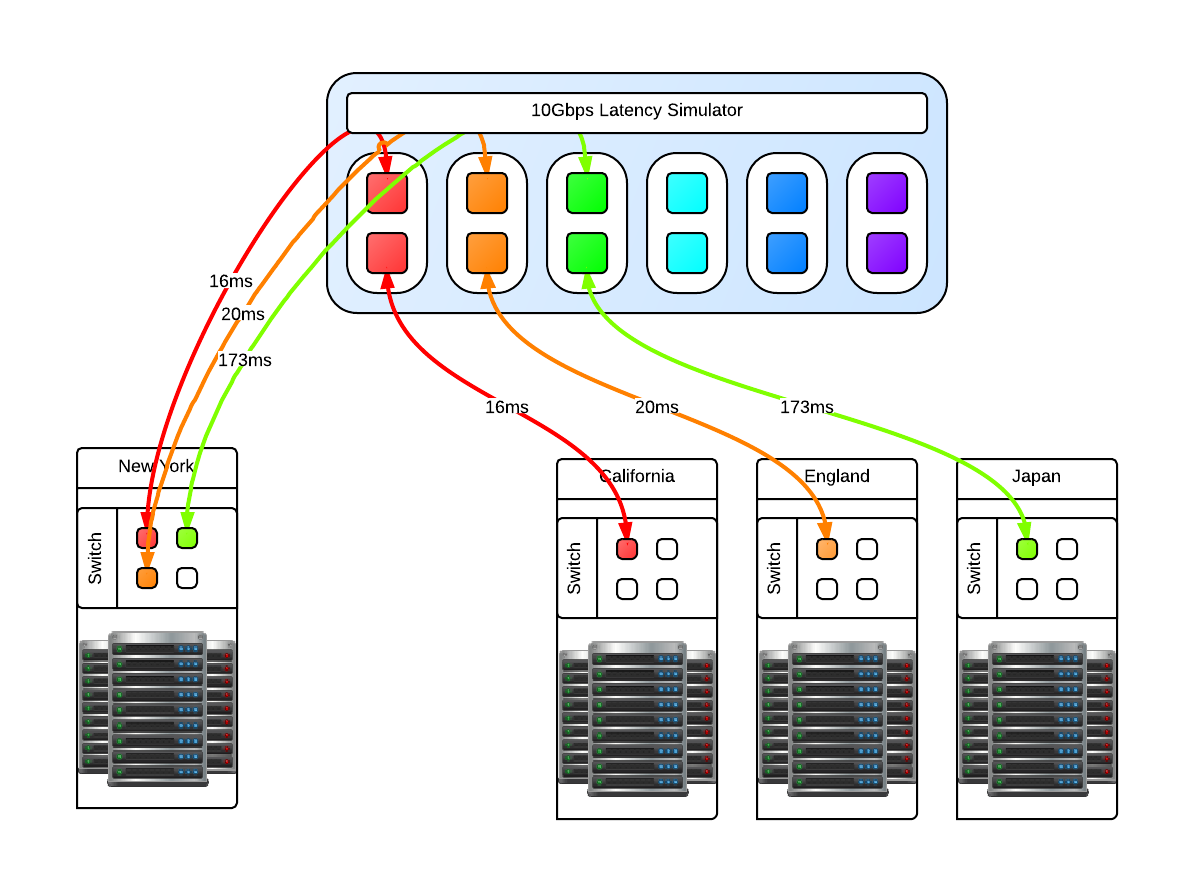
One of our clients asked us how we handle latency, and not just a few ms across racks but 2 and even 3 digit ms latency that indicates geographically separate locations across continents, not just a country. Not only that, the "pipes" involved are 10Gbps and we had to fill them. We have the theories and made models of how it would work. We perhaps might not be able to fill a 10Gbps fully with one stream, we could fill it with multiple streams but we had to validate this conclusion. The question now becomes, how do we test this. We've done our research and there are only a few commercial solutions available like the Netropy 10G2 which is a 4 port, 2 lane hardware latency simulator for $30,000 new. Not only is that outside my budget, it is still limited to simulating 2 10Gbps pipes while we need at least 3 lanes (6 ports) and possibility to expand to more as necessary. We decided it was cheaper in terms of total cost to put the research into creating our own Latency Simulator. We studied what we could from google, specifically the work done by NASA on a "Channel Emulator". They used traffic control (tc) to handle delay on the egress of an interface. This means that if a packet travels through, it is delayed but the return packet is not and goes right through. Our setup means that we have one 10Gbps card with 2 ports. We then link the two interfaces with bridge control (brctl) to create a layer2 bridge. We then split the "round trip time" or RTT delay and apply that to each 10Gbps interface. All packets going to and returning from a network then have the full simulated RTT delay. This type of machine does not need much in the way of RAM as the buffers necessary are not large, 4GiB is sufficient. What is important is the CPU operating frequency, all other aspects of the CPU is not important except that there should be 1 core per 10Gbps interface. This is required because part of the network stack is being simulated with the bridge then processed. For a 3 lane setup, that is 6 ports so we need at least a 6 core CPU @ >= 2.2 Ghz to handle the load.

Latency Simulator

You may be asking why just 3 and not 4 latency lanes, this is because for us there will always be a 'local' data center and the other 3 connect to it in a star like network layout like in the above diagram. Since this is a 'flat' network in the same subnet, any ping from one of the data centers to another data center will go through the 'local' data center. In reality, these 'data center' switches are connected to the Latency Simulator which then connects to the local data center switch. Realistic latency from the 'local' data center in New York: California: 32ms England: 80ms Japan: 346ms Source: Verizon's latency table Going from California to Ireland would involve first a hop through New York, so the compound delay would be 112ms. With that in mind you can then compute your bandwidth delay product (BDP) Once the machine is up and running with whatever Linux distribution you like, make sure that tc and brctl are installed. Here are the scripts that can be used to bring the bridges up and down, and apply latencies and remove the latencies for the four geographically seperate datacenters. Files:

Once in place, we could ping from one side to the other and see the latency being applied. It is now time for baseline testing. First we turned off the latency and used iperf to test end to end that we can fill the 10Gbps pipes and that the Latency Simulator isn't the bottleneck. We could get around 9.50Gbps point to point. Then we turn on the latency and see the impact directly. The first thing we noticed is that when running iperf for the default 10s that the slow start and initial TCP window size has an impact how much data we can send over the wire. Because of the slow start, if you want better performance in your stream then you need to test for longer than 10s. We could not fill a pipe with 120ms latency until after 25s of running iperf which time we had transferred something like 15GiB of data. So trying to send a 1GiB file will not fill pipe.

RTT in ms   MiB/s default   MiB/s MAX
0       1162        1157
2       1053        1136
4       513     1076
8       248     1075
16      103     691
22      91      366
32      47      358
44      31      208
64      8.2     64
128     0.8     26
130     0.7     26

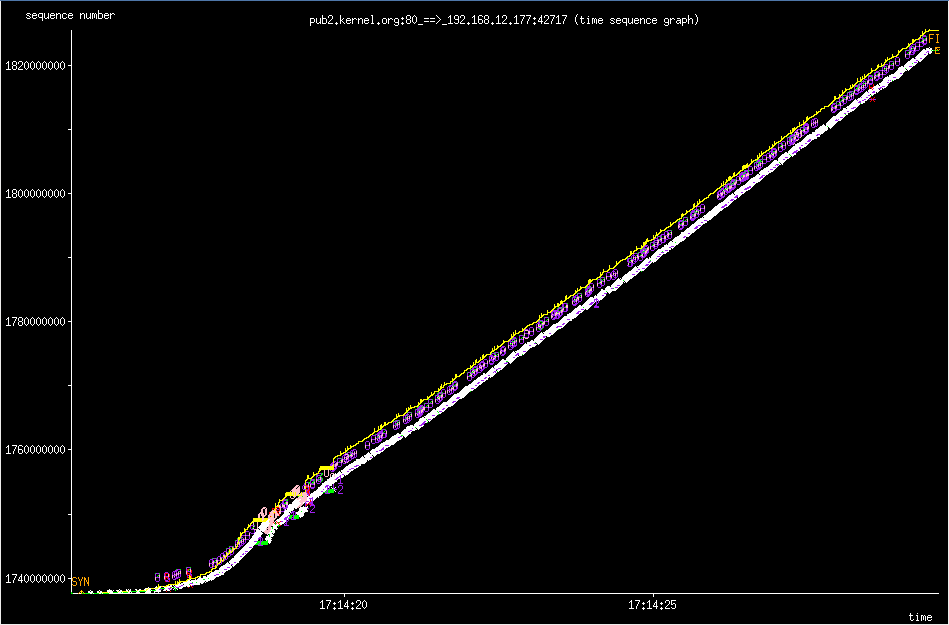
The MAX settings I used is the MAX TCP Window Size of 1GiB. If you try to go above that, you will find that Linux gets mad and some networking services will just not work. The sweet spot for us to set the initial window size to 8MiB which gave the algorithm enough time to shrink to either 4096 bytes or to grow in the other direction. Below are two 'key' tunables where rmem is the read buffer and wmem is the write buffer of the TCP buffer. sysctl -w net.ipv4.tcp_rmem='4096 8388608 33554432' sysctl -w net.ipv4.tcp_wmem='4096 8388608 33554432' However even with an initial 8MiB TCP Window Size, you'll never reach this potential because the Initial Congestion Window (initcwnd) is set to 10 as of 2011 per this git diff. This "slow start" is a congestion avoidance mechanism with exponential growth, a feature not a bug. Below is the 'slow start' in action when downloading a linux source tarball from kernel.org. slow star congestion control slow star congestion control What you are seeing is the an exponential growth of the congestion window that eventually grows to allow the TCP Window Size to kick in which then scales up linearly. You can however changed this per route which makes sense because congestion control works on a per network/host level. Examples of setting the initial congestion and receive windows: ip route change default via x.x.x.x initcwnd 20 initrwnd 20 # update your default gateway ip route change dev eth0 192.168.1.0/24 proto kernel src 192.168.0.1 initcwnd 20 initrwnd 20 # if you want to apply it just to one network Do not think of this as just updating the values and expecting fantastic results, because if you enter packet loss into the equation or real network congestion, then you are in for a painful experience with values that are too large. You'll not be as agile to respond to the pitfalls of the Internet, but if you are on a long fat network then adjusting these values can be a real boon for your throughput. You should now the tools necessary to implement your own "Long Fat Network" simulator and various things you can look at and adjust to get the most out of your network and applications.

The case of the non-booting USB thumb-drive and the Dell R620

dell_poweredge_r620

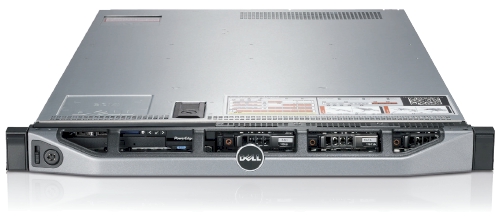
Awhile back I wrote about 'Doing battle with a Dell R620 and Ubuntu' where I touched on the fact that booting from USB thumb-drive was a painful problem. In short, the same USB thumb-drive that would work in the R610 would not work in the R620.

It comes down BIOS support for USB and how it is handled. On the R610 there are 3 options: 'auto-detect', 'floppy emulation' and 'hard drive'. Auto was hit-or-miss, floppy would not work but 'hard drive' worked every time. On the R620 there are no options so I can only suppose that it supports 'floppy emulation' upon detection of a USB thumb-drive.

To try to find the cause of this problem we tried using the 'standard' method of taking Precise 12.04 ISO from Ubuntu's website and using UNetbootin to create a USB thumb-drive that did boot on the R620. It turns out there was something wrong with our process that prevented it from booting. In comparing the partition table (with parted) of our USB thumb-drive and the Precise thumb-drive we noticed that the starting position of the first (and only) partition were different!

Non-booting USB:

Model: TDKMedia Trans-It Drive (scsi) Disk /dev/sdc: 3999MB Sector size (logical/physical): 512B/512B Partition Table: msdos

Number Start End Size Type File system Flags 1 1049kB 3998MB 3997MB primary ext4 boot

Booting USB:

Model: TDKMedia Trans-It Drive (scsi) Disk /dev/sdc: 3999MB Sector size (logical/physical): 512B/512B Partition Table: msdos

Number Start End Size Type File system Flags 1 32.9kB 3998MB 3997MB primary ext4 boot

The choice to do 1MiB was to increase the lifespan of the thumb-drive by aligning the partition to the erase-block size of the thumb-drive. Doing this however renders 'floppy emulation' a non-option on both the Dell R620 and R610. Setting it to 32.9KiB also means that the drive is not properly aligned and you will get bad performance when writing, reading and health of the thumb-drive itself.

In the interest of getting bootable thumbdrive we ended up doing this: parted -a none /dev/sdb 'mkpart primary 0 -1 set 1 boot on' What this does is create a primary partition at the start of the thumb-drive that goes all the way to the end. We ignore the alignment problems and set the partition to bootable. After that, it was easy enough to through our ext4 filesystem on top and syslinux/casper to get our custom installer working.

The end result is that we now have a USB thumb-drive that boots on a R620 every time.

Doing battle with a Dell R620 and Ubuntu

dell_poweredge_r620

We recently got sent a Dell R620 to evaluate and while its technical specification is amazing there are a few things that need to be handled first.

As far as Ubuntu and the Dell R620 go, Precise (12.04) is the only way to go here. Every release before Precise has issues with this hardware in one way or another. This is new hardware of after all.

For our "use case" we downgraded the PERC H710P controller to a H310 controller so we can have direct access to the drives via pass-through. The H310 allows TRIM support for SSDs and SMART data via smartctl to be used without any problems. If you are interested in SMART information and PERC H700 series RAID controller, I posted about possible workarounds at Dell's customer support site.

Let's begin: USB Booting: try as we might, we could not get any usb stick to boot on the R620. We've gone through the iDRAC to do virtual drives and looked at BIOS/UEFI methods. The usb stick is recognized, but the R620 just shows us a blank screen. The same stick works in the R610, VM and other machines. We have a ticket with Dell support and they have yet to resolve the problem. Booting over PXE or CD/DVD are our only options at this point.

Bad MAC Addresses

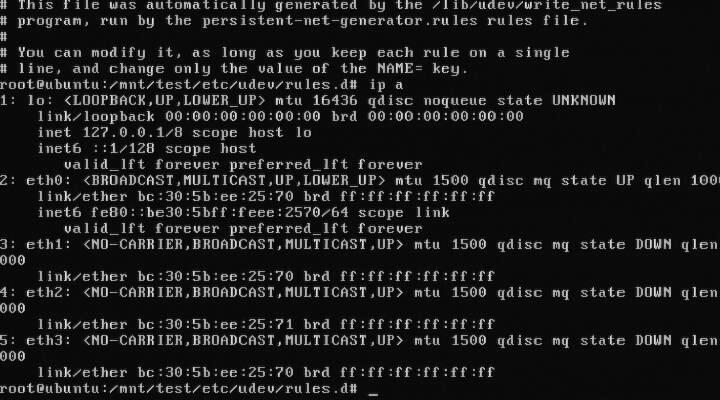
Intel® Ethernet Server Adapter I350-T4: The igb kernel module for 2.6.35 and 2.6.38 will detect this card and it will get you connectivity, but it will behave funny. For example, 3 to 4 ports will have the same MAC address. You need download, compile, and install the latest sources for the igb from Intel before you get full functionality out of your I350-T4. The other option is to install Ubuntu Precise (12.04) as the 3.2 kernel has the updated drivers from Intel.

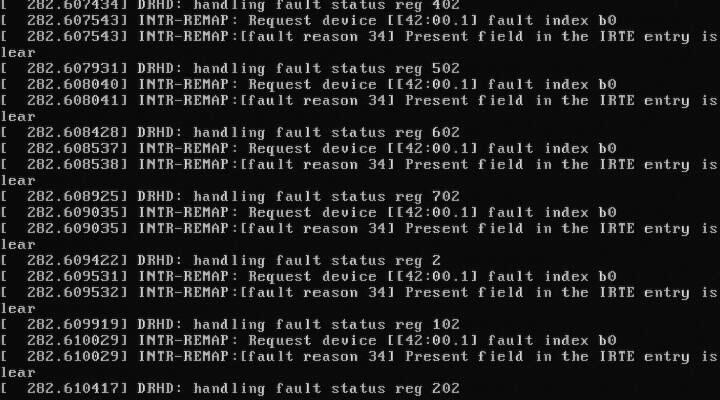
DRHD: handling fault status reg: at some point during booting of a freshly installed Ubuntu with the 2.6.35 kernel, we ran into this error that would effectively loop endlessly and cause the R620 to become unresponsive. We got this:

DRHD INTR-REMAP problems

DRHD: handling fault status reg 502 INTR-REMAP: Request device[[42:00.1] fault index b0 INTR-REMAP:[] Present field in the IRTE entry is clear

and it would endlessly print that to the console. This apparently has something to do with the IO-MMU part of the kernel dealing with interrupt remapping. Whatever the problem was, it was fixed in the 2.6.38 kernel and caused no more problems.

Dell SSD: the SSDs are rebranded Samsung drives which do not support TRIM but are at least over provisioned. These drives have a problem with smartctl in that while there is SMART information, the drive itself doesn't (yet) exist in the drivedb.h file. You have to use the latest smartctl version (5.42) to get anything usefull out of the drive. Older versions give you things like this:

Log Sense failed, IE page

hdparm: and other tools like smartctl, lshw and others have issues when getting the required data from over the PERC H310, even if it is pass-through. You have to use the latest versions of each to even read the serial number off a HDD or SSD. Hdparm versions >= 9.37 work, otherwise you get this:

root@node:~# hdparm -I /dev/sda

/dev/sda: HDIO_DRIVE_CMD(identify) failed: Invalid exchange

Once we got all the little inconveniences out of the way, we got down to benchmarking and performance testing. In comparison to the Dell R610's 2x Xeon(R) E5606, the R620's 2x Xeon(R) CPU E5-2643 has double the CPU performance in our testing. The obvious bottleneck here are the 2x 2port 10Gbps NICs in that even at a theoretical max of 40Gbps, for our purposes, we would be network bound. Thankfully there is another PCI-Express available, just in case.

Switch your switch with switches

Switch

It is not unusual for me to find 10,000 Euro worth of networking equipment on my desk one day. It usually means that I have a long week of reading and testing ahead of me as I am the only person in the company, let alone building, that has ever seen or worked with these devices before. That means I am on my own aside from an Internet connection.

While your mileage may very, I've had the joy (and horror) of testing these devices as 'drop in replacements' to the test environment that we are using. In some instances, things just worked out of the box, however there are a few devices that needed to be poked a few times to get things moving.

Manufactures of routers and switches I have tested are:

  • Arista: We where able to test the Arista 7000 to validate it against our setup. Painless to install and without tweaking, handed Cisco's 3560-X it's hat. The latency (cut through as opposed to store and forward) helped and the overall throughput was great.
  • Brocade: SSE-X24S was a interesting 24 port 10Gbps switch, we where however unable to capture the same level of performance as the Arista.
  • Cisco: Tried and tested Cisco and their IOS that every switch tries to emulate. Everything we've tried to do with Cisco devices just worked. What is better is that they abandoned their serial and have gone USB. That cannot be said for the rest of the devices we've tested. We where limited to just 2 10G ports per 3560 switch, which is a shame.
  • Extreme Networks: After meeting with their technical sales people, they (twice) gave us the wrong equipment. We ask for 48 port 1Gbit (Cat5) with 4 10Gbps SFP+ switch and we received a 48 prt 1Gbit SFP which was later replaced with what we needed but with only 2 10Gbit SFP+. After a month of being unable to test their product(s) in our environment, we stopped dealing with Extreme Networks and their purple hardware.
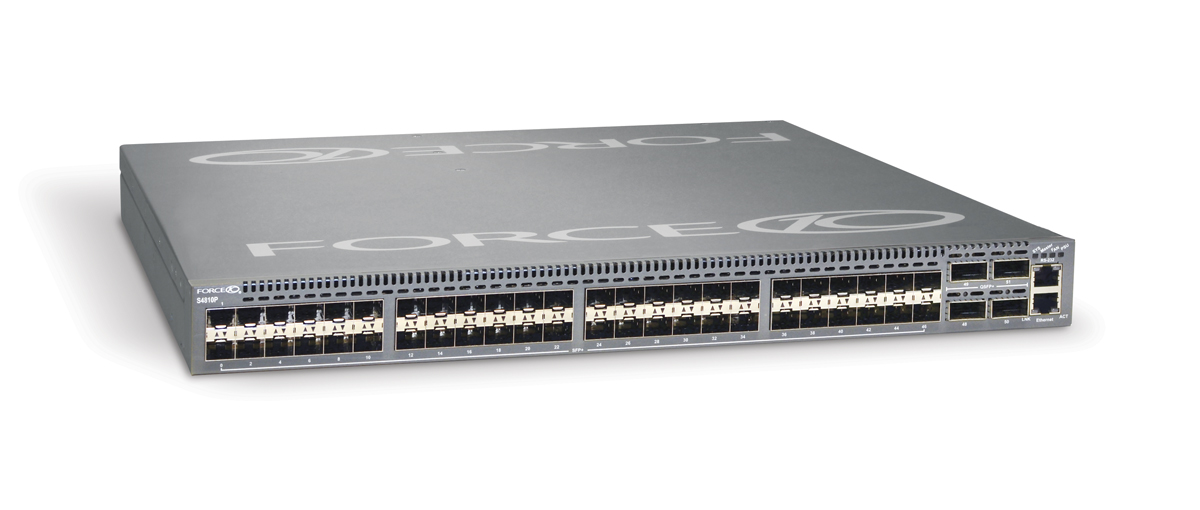
  • Force10: lived up to its expectations as a force to be reckoned with. Nothing worked at first as all the ports are shutdown by default. You must first use a usb->serial->rollover cable to get in, 'no shutdown' your ports and then tell them they are 'switchports', at which point they should start switching packets. Same level of performance as the Arista, meaning that we could saturate our 10Gbps nics.
  • Interface Masters: the Niagara 2924-24TG switch was the latest to be tested and there isn't much information about them online. Their switches (24x 1Gbps and 24x 10Gbps) where comparable if slightly less performant than Force10. Their plus point was that they allow you to re-brand their products. We experienced hardware fault in their 10Gbps port, we used another port and continued testing. Their technical support was good but we never got to deep dive into why that one port had so many problems. They sent us a new switch to test and everything worked out.

There is also an issue with SFP+ cable length and Intel cards:

This issue has been witnessed at Intel's POC using 10Gbps Intel NIC and Arista DCS-7048T-A switch.

The INTEL LAN department has analyzed that there is a known issue with short SFP+ cables, leading to a flicker in the network signal. Apparently there needs to be a minimum length of 3m.

Replacing all 0.5 m cables with 3m cables solves the issue.

For those looking for some numbers and benchmarks, I'm not allowed to post the results. Needless to say, they are not far off from my experiences that I've listed above. I'm now a fan of Force10 being reliable and performant. Arista ranks up there as well and Interface Masters (a total unknown) can be competitive and allow for re-branding which is interesting for some companies.

Infiniband on Ubuntu 10.10 Meerkat

ts

My current project that involves hundreds of mini-ITX Atom machines and we are testing the performance difference between Infiniband and Intel Gigabit NICs.

In my testing the overhead of processing TCP is too high for a dual-core Atom. There is simply not enough processing power to handle the capabilities of the Intel NICs.

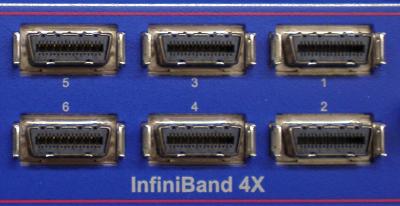
A possible solution is to replace TCP by using SDP (RDMA and Zerocopy) over Infiniband. Infiniband equipment has come down significantly in price (dual port 4xSDR card for around $50), which makes it attractive to high-performance and cost-sensitive applications like mine.

In theory we can get 4xSDR speeds (8 Gigabit/s), but the tested result is 1.5 Gigabit/s speeds because of TCP processing over Infiniband. This is almost exactly the performance we achieved using the Intel NICs. We then replaced TCP with SDP over Infiniband. With the switch we saw 4.2 Gigabits/s performance on one process. With two processes, one for each core of the Atom, we saw 7.8 Gigabit/s which is close to the theoretical limit of the Infiniband NIC. It is a significant improvement over the Intel NICs. The limiting factor is number of context switches and interrupts, as a single process would take up 100 % CPU usage. By running two processes we used both cores of the Atom and the full bandwidth of Infiniband.

Unfortunately Ubuntu does not ship SDP in its kernel yet and there is no way to compile just SDP. Our only option was "to throw the baby out with the bath water" by compiling from scratch and overwriting Ubuntu's kernel modules.

Steps for a working Infiniband stack:

  1. Download OpenFabricAlliance (OFA) source package: http://www.openfabrics.org/downloads/OFED/ofed-1.5.3/OFED-1.5.3.1.tgz
  2. Extract and look into srpm directory for the kernel package: rpm2cpio ofa_kernel-*.rpm | cpio -idmv
  3. Extract it and step into the directory: tar xf ofa_kernel-.tgz; cd ofa_kernel*
  4. Configure what modules to compile: ./configure --with-sdp-mod --with-core-mod --with-ipoib-mod --with-ipoib-cm --with-iser-mod --with-mlx4_inf-mod --with-mlx4_en-mod --with-mlx4_core-mod --with-mlx4-mod --with-mthca-mod --with-addr_trans-mod --with-user_access-mod --with-user_mad-mod
  5. Compile and install modules: make; sudo make install
  6. add these to your /etc/modules file: ib_mthca ib_ipoib ib_sdp
  7. Unload all running ib_* modules then load them again or reboot. The reason for this is to make sure you no longer running Ubuntu's IB modules, which will cause symbol conflicts.

Normal TCP usage: iperf -s

To allow seamless SDP usage: LD_PRELOAD=libsdp.so iperf -s

Please note that the shared library overrides the normal creation of sockets, but if SDP cannot be negotiated, then it defaults to TCP. That is why both ends need to LD_PRELOAD libsdp.so in order for SDP to be used.

UPDATE: OFA changed their directory download directory structure and removed the stand-alone kernel source. You now have to download the whole package to get the kernel sources. Instructions are updated above.

USB console cable for Cisco Catalyst

usb a mini b

Cisco’s new line of equipment now use a mini-USB cable for console configuration. There is no longer a need for a USB to serial adapter or a roll-over cable.

Connecting the USB cable on Linux should give you a new ACM device that looks something like this: “/dev/ttyACM0″.

To verify, you can also look through your dmesg or /var/log/messages :

[265430.720082] usb 4-1: new full speed USB device using uhci_hcd and address 4 [265430.914246] cdc_acm 4-1:1.0: This device cannot do calls on its own. It is not a modem. [265430.914305] cdc_acm 4-1:1.0: ttyACM0: USB ACM device

The easiest way to connect to an USB capable Cisco device is to use screen, however you can still use minicom.

Screen command: screen 9600 /dev/ttyACM0

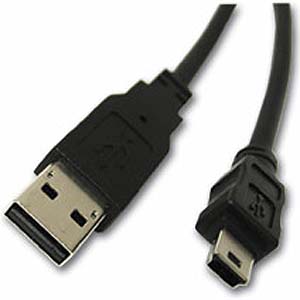
The USB cable from Cisco is pin for pin the exact USB A to mini-B that you can find at your local electronics store.