Skip to content

Bash

Transcoding for mobiles
transcode-icon

There are times where I need a few films on my mobile for my son to watch. For my particular mobile "Galaxy Gio" the constraints for hardware acceleration is 360p as anything bigger will cause it to switch to software which is slower and sometimes a slideshow. For the uninitiated, 360p means either 480x360 at 4:3 ratio (your old TV) or 640x360 at 16:9 ratio (your HD TV).

First we need to cleanup our file names and sometimes 'rename' doesn't work properly. We list all files and separate them by commas and then parse line by line to first remove everything between () and then everything between []. We then move from the old name to the new name. File name cleanup: IFS=","; files=`ls --format commas | tr -d '\040\011\012\015'`; for file in $files; do newfile=`echo $file| sed 's/(.*)//' | sed 's/\[.*\]_//' | sed 's/_\[.*\]//' `; mv $file $newfile; done The code above will try to remove spaces, and everything between () and [].

ls | while read -r FILE do mv -v "$FILE" `echo $FILE | tr ' ' '_' | tr -d '[{}(),\!]' | tr -d "\'" | tr '' '' | sed 's/_-_/_/g'` done The above code will convert all your spaces to underscores, remove characters like {}(),! and convert the filename to lowercase.

ls | while read -r FILE do mv -v "$FILE" `echo $FILE | tr ' ' '_' ` done The above just converts all spaces to underscores.

Mass encoding: IFS=', '; set +x; for x in `ls --format commas | tr -d '\040\011\012\015'`; do height=`mediainfo $x | egrep -i "Height " | cut -d":" -f2 | sed 's/[^0-9]*//g'`; if [ $height -gt 360 ]; then name=`echo $x | sed 's/[^0-9]*//g'`; avconv -i $x -vcodec mpeg4 -acodec copy -scodec copy -threads 4 -vb 800000 -vf scale=640:360 series_name_${name}_SD.mkv; fi done

This last bit will go through your directory looking for media files who's height is greater than 360 and then transcode it to a lower resolution MKV file. Feel free to change MKV to AVI or whatever avconv supports as a container format. This keeps the original music, fonts and subtitles intact. By lowering the resolution, we match the screen resolution of the mobile and allow for hardware acceleration which will spare your battery. This has been incredibly handy during long flights with the kids.

Update: Convert to xvid that converts the audio track to mp3, this helps with playback on low end hardware DVD players as well as mobiles. avconv -i something.HDTV.mkv -vcodec mpeg4 -vtag xvid -acodec libmp3lame -ab 128k -ac 2 -ar 44100 -scodec copy -threads 4 -vb 800000 -vf scale=640:360 something.HDTV.avi

For aac (better quality and to preserve 5.1 audio): avconv -i something.HDTV.mkv -vcodec mpeg4 -vtag xvid -acodec aac -ab 192k -ar 44100 -strict expiremental -scodec copy -threads 4 -vb 800000 -vf scale=640:360 something.HDTV.avi

Should you need to adjust the aspect ratio and/or scale down, there are tools available to help. Aspect Ratio Calculator avconv -i something.HDTV.mkv -vcodec mpeg4 -acodec aac -ab 192k -ar 44100 -strict expiremental -scodec copy -threads 4 -vb 800000 -aspect 45:22 -vf scale=640:313 something.HDTV.mkv

Latency simulation over long fat network

World Network

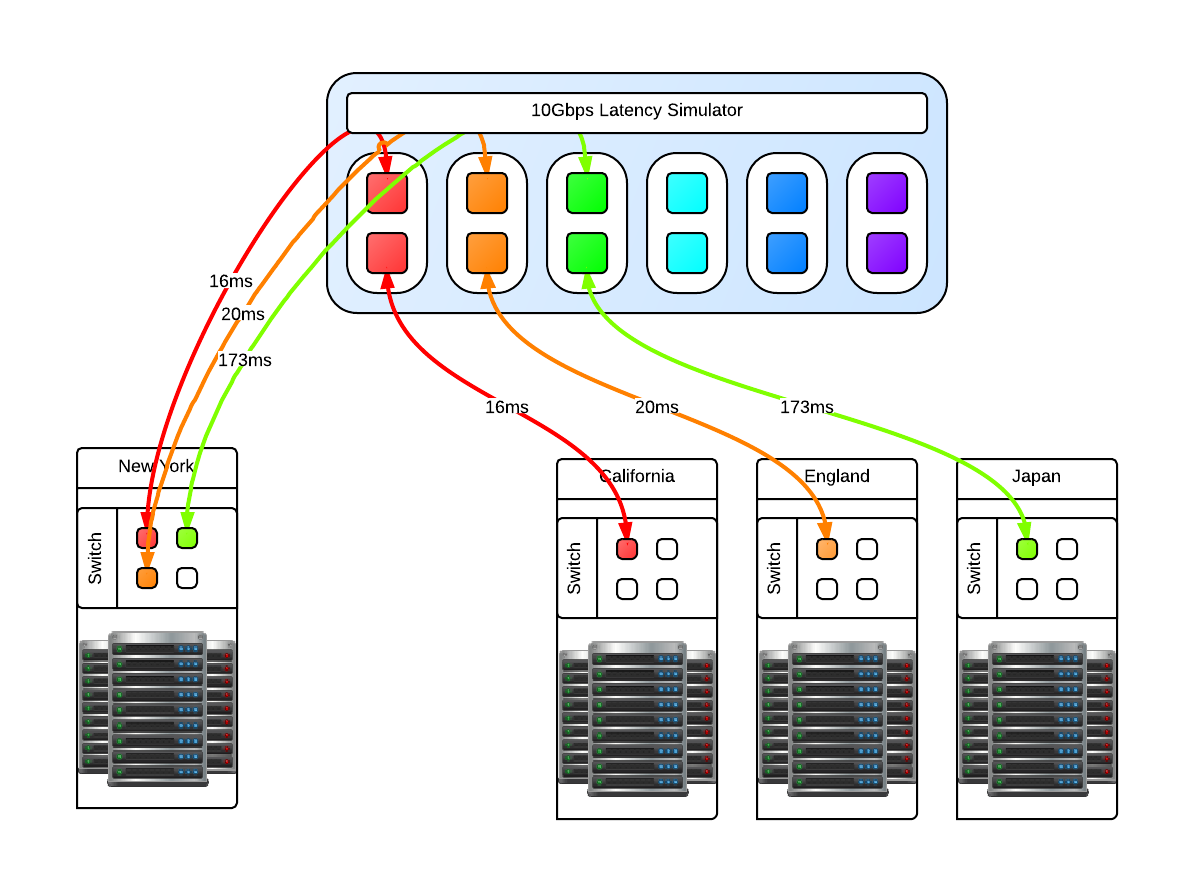
One of our clients asked us how we handle latency, and not just a few ms across racks but 2 and even 3 digit ms latency that indicates geographically separate locations across continents, not just a country. Not only that, the "pipes" involved are 10Gbps and we had to fill them. We have the theories and made models of how it would work. We perhaps might not be able to fill a 10Gbps fully with one stream, we could fill it with multiple streams but we had to validate this conclusion. The question now becomes, how do we test this. We've done our research and there are only a few commercial solutions available like the Netropy 10G2 which is a 4 port, 2 lane hardware latency simulator for $30,000 new. Not only is that outside my budget, it is still limited to simulating 2 10Gbps pipes while we need at least 3 lanes (6 ports) and possibility to expand to more as necessary. We decided it was cheaper in terms of total cost to put the research into creating our own Latency Simulator. We studied what we could from google, specifically the work done by NASA on a "Channel Emulator". They used traffic control (tc) to handle delay on the egress of an interface. This means that if a packet travels through, it is delayed but the return packet is not and goes right through. Our setup means that we have one 10Gbps card with 2 ports. We then link the two interfaces with bridge control (brctl) to create a layer2 bridge. We then split the "round trip time" or RTT delay and apply that to each 10Gbps interface. All packets going to and returning from a network then have the full simulated RTT delay. This type of machine does not need much in the way of RAM as the buffers necessary are not large, 4GiB is sufficient. What is important is the CPU operating frequency, all other aspects of the CPU is not important except that there should be 1 core per 10Gbps interface. This is required because part of the network stack is being simulated with the bridge then processed. For a 3 lane setup, that is 6 ports so we need at least a 6 core CPU @ >= 2.2 Ghz to handle the load.

Latency Simulator

You may be asking why just 3 and not 4 latency lanes, this is because for us there will always be a 'local' data center and the other 3 connect to it in a star like network layout like in the above diagram. Since this is a 'flat' network in the same subnet, any ping from one of the data centers to another data center will go through the 'local' data center. In reality, these 'data center' switches are connected to the Latency Simulator which then connects to the local data center switch. Realistic latency from the 'local' data center in New York: California: 32ms England: 80ms Japan: 346ms Source: Verizon's latency table Going from California to Ireland would involve first a hop through New York, so the compound delay would be 112ms. With that in mind you can then compute your bandwidth delay product (BDP) Once the machine is up and running with whatever Linux distribution you like, make sure that tc and brctl are installed. Here are the scripts that can be used to bring the bridges up and down, and apply latencies and remove the latencies for the four geographically seperate datacenters. Files:

Once in place, we could ping from one side to the other and see the latency being applied. It is now time for baseline testing. First we turned off the latency and used iperf to test end to end that we can fill the 10Gbps pipes and that the Latency Simulator isn't the bottleneck. We could get around 9.50Gbps point to point. Then we turn on the latency and see the impact directly. The first thing we noticed is that when running iperf for the default 10s that the slow start and initial TCP window size has an impact how much data we can send over the wire. Because of the slow start, if you want better performance in your stream then you need to test for longer than 10s. We could not fill a pipe with 120ms latency until after 25s of running iperf which time we had transferred something like 15GiB of data. So trying to send a 1GiB file will not fill pipe.

RTT in ms   MiB/s default   MiB/s MAX
0       1162        1157
2       1053        1136
4       513     1076
8       248     1075
16      103     691
22      91      366
32      47      358
44      31      208
64      8.2     64
128     0.8     26
130     0.7     26

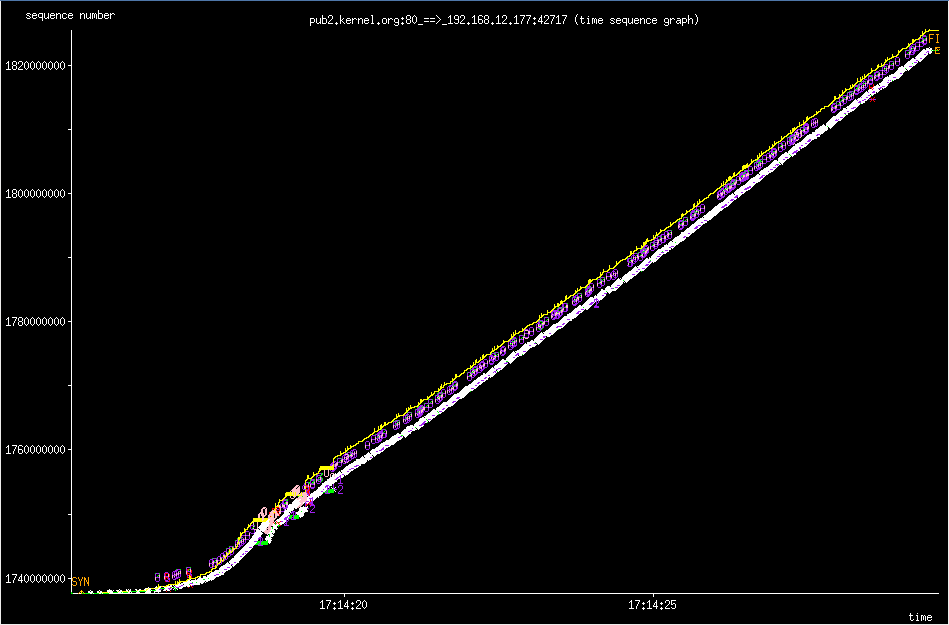
The MAX settings I used is the MAX TCP Window Size of 1GiB. If you try to go above that, you will find that Linux gets mad and some networking services will just not work. The sweet spot for us to set the initial window size to 8MiB which gave the algorithm enough time to shrink to either 4096 bytes or to grow in the other direction. Below are two 'key' tunables where rmem is the read buffer and wmem is the write buffer of the TCP buffer. sysctl -w net.ipv4.tcp_rmem='4096 8388608 33554432' sysctl -w net.ipv4.tcp_wmem='4096 8388608 33554432' However even with an initial 8MiB TCP Window Size, you'll never reach this potential because the Initial Congestion Window (initcwnd) is set to 10 as of 2011 per this git diff. This "slow start" is a congestion avoidance mechanism with exponential growth, a feature not a bug. Below is the 'slow start' in action when downloading a linux source tarball from kernel.org. slow star congestion control slow star congestion control What you are seeing is the an exponential growth of the congestion window that eventually grows to allow the TCP Window Size to kick in which then scales up linearly. You can however changed this per route which makes sense because congestion control works on a per network/host level. Examples of setting the initial congestion and receive windows: ip route change default via x.x.x.x initcwnd 20 initrwnd 20 # update your default gateway ip route change dev eth0 192.168.1.0/24 proto kernel src 192.168.0.1 initcwnd 20 initrwnd 20 # if you want to apply it just to one network Do not think of this as just updating the values and expecting fantastic results, because if you enter packet loss into the equation or real network congestion, then you are in for a painful experience with values that are too large. You'll not be as agile to respond to the pitfalls of the Internet, but if you are on a long fat network then adjusting these values can be a real boon for your throughput. You should now the tools necessary to implement your own "Long Fat Network" simulator and various things you can look at and adjust to get the most out of your network and applications.

Dell DSET on Ubuntu 10.04 and 12.04

UbuntuOnDell

Dell System E-Support Tool (DSET) is an informative tool used by Dell's support engineers to help diagnose problems for their clients. It is almost a requirement now and Dell usually refuses to continue support without a DSET report.

The problem is that DSET is only supported on Redhat and SuSE Linux and there isn't any information on how to get it running in Ubuntu. I've assembled a rough guide on how to get DSET up and running on Ubuntu 10.04 and 12.04 and it is tested against a Dell R610 and R620. First we need to install Dell's OpenManage Server Administrator (OMSA) which is one piece from Dell that does support Ubuntu. http://linux.dell.com/repo/community/deb/latest/

You can cut and paste the following: echo 'deb http://linux.dell.com/repo/community/deb/latest /' | sudo tee -a /etc/apt/sources.list.d/linux.dell.com.sources.list gpg --keyserver pool.sks-keyservers.net --recv-key 1285491434D8786F gpg -a --export 1285491434D8786F | sudo apt-key add - sudo apt-get update sudo apt-get install -y srvadmin-all sblim-cmpi-base rpm alien sudo ln -sf /usr/bin/rpm /bin/rpm

The above will add Dell's repository to your apt sources and grab everything necessary to install the OMSA. It does include a java/tomcat webserver for a web GUI interface, but that is not enabled by default and not necessary for our DSET. You'll need to logout and log back in again to reset your path variables.

root@dmachine:~# /opt/dell/srvadmin/sbin/srvadmin-services.sh start Starting Systems Management Device Drivers: Starting dell_rbu: * Starting ipmi driver: * Already started Starting Systems Management Data Engine: Starting dsm_sa_datamgrd: * Starting dsm_sa_eventmgrd: * Starting dsm_sa_snmpd: * Starting DSM SA Connection Service: *

Secondly, if you are using an 'OEM Ready' Dell server then OMSA dataeng (Systems Management Data Engine) might complain with "Failed to start because system is not supported". There isn't any 'official' support for OMSA on these systems but you can contact Dell's OEM wing for custom solutions here: http://content.dell.com/us/en/enterprise/d/oem/oem-engineering-services.aspx

To get OMSA working on an OEM system, we need to modify this file: /opt/dell/srvadmin/sbin/CheckSystemType which calls the file: /usr/sbin/smbios-sys-info-lite which does not return back the expected value. I've modified it to key off the 'Is Dell' flag which is 1 (True). The patch can be found here: checksystem.patch patch -p0 < checksystem.patch Once the patch is applied, Systems Management Data Engine should start without problems.

Thirdly you need to download the 32 or 64 bit Linux version of DSET. You then need to edit the bin file to not run the install.sh file and to also not delete /tmp/dell_advdiags when it is finished running. You'll need the rpm files that it extracts to install DSET on Ubuntu.

Example from dell-dset-3.2.0.141_x64_A01.bin: ( the # comments out the none necessary bits )

source install.sh

cd $CDIR

rm -rf $TMPDIR

The only ones that we need are these:

dell-dset-collector-3.2.0.141-1.x86_64.rpm dell-dset-common-3.2.0.141-1.x86_64.rpm dell-dset-provider-3.2.0.141-1.x86_64.rpm

DSET binaries can be found here: http://support.dell.com/dset/

Fourthly you'll need to verify that /bin/sh points to bash instead of dash because Dell's scripts rely on bash's functionality. sudo su - ln -sf /bin/bash /bin/sh sh dell-dset*.bin mv /tmp/dell_advdiags ~ cd ~/dell_advdiags/rpms alien --scripts dell-dset*.rpm dpkg -i --force all *.deb dellsysteminfo

You might have to do these steps one at a time, but that is the flow of things. Alien sometimes complains about 'unknown flags' and dpkg will likely also complain about overwriting existing files. The first problem has bothered me so far, but the last is DSET overwriting existing OMSA files which as far as I can tell are the same files.

When you run dellsysteminfo, you need to give it a password. This is your typical Linux account password. You should now have something to hand over to the Dell Support people.

Kabouter: a gnome terminal based multi-ssh connector

kabouter

Kabouter is Dutch for gnome and also a tool to connect to a range of IP addresses via ssh. It uses gnome-terminal to manage the sessions which, for me, seems more natural than some of the other 3rd party SSH applications available.

Usage is simple:

bcurtis@ronin:~$ kabouter ampli 172.19.18.65 172.19.18.96

This creates a gnome-terminal session with 32 tabs connecting to the range of SSH enabled machines. This works very well when using it with SSH Multiplexing which then gives you a way to automate remote commands through SSH without needing secure key authentication and without having to authenticate each time you want to run a command.

Download: kabouter

vNES for J2ME on your mobile

If you have ever wanted to play a NES game on your mobile, then you might have heard about vNES. There is a J2ME version which allows it to run on most mobiles available today. There are however a few rough edges to this application as it requires assembling the necessary files together and running a windows batch file. From a Linux point of view, I have created a replacement shell script that does a better job. It requires unix2dos, rename, and bash.

Just place this file into your vNes directory: makejar.sh

#!/bin/bash
cd roms
#uppercase all our roms
rename 'y/a-z/A-Z/' *.nes
#remove all spaces, shorten name
rename "s/ *//g" *.NES
#rename roms to png
rename 's/\.NES$/\.png/' *.NES
#create our list of roms
package=""
for file in `dir -A` ; do
    package="${package}${file%.png}\
"
done
echo -e $package > ../package.txt
cp *.png ../package
cd ..
#make sure list is with windows line breaks
unix2dos package.txt
cp package.txt package/2.txt
cd package
#package everything up
zip -r -9 ../vnes.jar *
cd ..

Be sure to set: chmod +x makejar.sh

General advice:

The NES rom files must be in iNES format, and also be renamed from *.rom to *.png and copied into "package" directory. There is a file in "package" called 2.txt which is a list of all the roms you have. Rom names should be in capital letters, with .png at the end, not .rom nor .nes. Example: castlevania_3.nes --> CASTLE3.png and in 2.txt add a new line with 'CASTLE3' without the '.

Here are a list of possible problems:

This usually means that something is not right with 2.txt, make sure this is an extra line at the end of list. Use a space if you have to and remember use Windows based EOL 'end of line' characters. It helps to use 'unix2dos' to convert your \ to ^M.

You get the "application is invalid" error message:

Delete the line "MIDlet-Data-Size: 1024000" in the file "package\META-INF\MANIFEST.mf", this line tells the mobile how big the java application is. Problem is some mobiles just do not agree with that size and as a result will refuse to run a slightly dodgy application. It is best just to remove the line for maximum compatibility.

When loading a rom you get "java.lang.NullPointerException" error message:

This is because the rom file either does not exist in the package dir, the name is spelled incorrectly in the 2.txt file, or that there are wrong line endings. Verify that the files exist as *.png in the 'package' directory and to be safe, run unix2dos or todos on 2.txt file make sure the line endings are correct. The application expects dos ^M line endings.

Batch file and directory rename

I needed a quick way to go through a directory and rename some files and directories to remove a specific bit from the name. By using bash's parameter expansion feature we can accomplish that in just a few lines.

#!/bin/bash for i in *something* ; do echo ${i/-*} mv $i ${i/-*} done

This takes all files and directories with something somewhere in their name, and strips it out.