Skip to content

2012

The case of the non-booting USB thumb-drive and the Dell R620
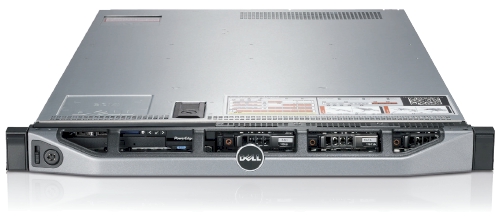
dell_poweredge_r620

Awhile back I wrote about 'Doing battle with a Dell R620 and Ubuntu' where I touched on the fact that booting from USB thumb-drive was a painful problem. In short, the same USB thumb-drive that would work in the R610 would not work in the R620.

It comes down BIOS support for USB and how it is handled. On the R610 there are 3 options: 'auto-detect', 'floppy emulation' and 'hard drive'. Auto was hit-or-miss, floppy would not work but 'hard drive' worked every time. On the R620 there are no options so I can only suppose that it supports 'floppy emulation' upon detection of a USB thumb-drive.

To try to find the cause of this problem we tried using the 'standard' method of taking Precise 12.04 ISO from Ubuntu's website and using UNetbootin to create a USB thumb-drive that did boot on the R620. It turns out there was something wrong with our process that prevented it from booting. In comparing the partition table (with parted) of our USB thumb-drive and the Precise thumb-drive we noticed that the starting position of the first (and only) partition were different!

Non-booting USB:

Model: TDKMedia Trans-It Drive (scsi) Disk /dev/sdc: 3999MB Sector size (logical/physical): 512B/512B Partition Table: msdos

Number Start End Size Type File system Flags 1 1049kB 3998MB 3997MB primary ext4 boot

Booting USB:

Model: TDKMedia Trans-It Drive (scsi) Disk /dev/sdc: 3999MB Sector size (logical/physical): 512B/512B Partition Table: msdos

Number Start End Size Type File system Flags 1 32.9kB 3998MB 3997MB primary ext4 boot

The choice to do 1MiB was to increase the lifespan of the thumb-drive by aligning the partition to the erase-block size of the thumb-drive. Doing this however renders 'floppy emulation' a non-option on both the Dell R620 and R610. Setting it to 32.9KiB also means that the drive is not properly aligned and you will get bad performance when writing, reading and health of the thumb-drive itself.

In the interest of getting bootable thumbdrive we ended up doing this: parted -a none /dev/sdb 'mkpart primary 0 -1 set 1 boot on' What this does is create a primary partition at the start of the thumb-drive that goes all the way to the end. We ignore the alignment problems and set the partition to bootable. After that, it was easy enough to through our ext4 filesystem on top and syslinux/casper to get our custom installer working.

The end result is that we now have a USB thumb-drive that boots on a R620 every time.

Dell DSET on Ubuntu 10.04 and 12.04

UbuntuOnDell

Dell System E-Support Tool (DSET) is an informative tool used by Dell's support engineers to help diagnose problems for their clients. It is almost a requirement now and Dell usually refuses to continue support without a DSET report.

The problem is that DSET is only supported on Redhat and SuSE Linux and there isn't any information on how to get it running in Ubuntu. I've assembled a rough guide on how to get DSET up and running on Ubuntu 10.04 and 12.04 and it is tested against a Dell R610 and R620. First we need to install Dell's OpenManage Server Administrator (OMSA) which is one piece from Dell that does support Ubuntu. http://linux.dell.com/repo/community/deb/latest/

You can cut and paste the following: echo 'deb http://linux.dell.com/repo/community/deb/latest /' | sudo tee -a /etc/apt/sources.list.d/linux.dell.com.sources.list gpg --keyserver pool.sks-keyservers.net --recv-key 1285491434D8786F gpg -a --export 1285491434D8786F | sudo apt-key add - sudo apt-get update sudo apt-get install -y srvadmin-all sblim-cmpi-base rpm alien sudo ln -sf /usr/bin/rpm /bin/rpm

The above will add Dell's repository to your apt sources and grab everything necessary to install the OMSA. It does include a java/tomcat webserver for a web GUI interface, but that is not enabled by default and not necessary for our DSET. You'll need to logout and log back in again to reset your path variables.

root@dmachine:~# /opt/dell/srvadmin/sbin/srvadmin-services.sh start Starting Systems Management Device Drivers: Starting dell_rbu: * Starting ipmi driver: * Already started Starting Systems Management Data Engine: Starting dsm_sa_datamgrd: * Starting dsm_sa_eventmgrd: * Starting dsm_sa_snmpd: * Starting DSM SA Connection Service: *

Secondly, if you are using an 'OEM Ready' Dell server then OMSA dataeng (Systems Management Data Engine) might complain with "Failed to start because system is not supported". There isn't any 'official' support for OMSA on these systems but you can contact Dell's OEM wing for custom solutions here: http://content.dell.com/us/en/enterprise/d/oem/oem-engineering-services.aspx

To get OMSA working on an OEM system, we need to modify this file: /opt/dell/srvadmin/sbin/CheckSystemType which calls the file: /usr/sbin/smbios-sys-info-lite which does not return back the expected value. I've modified it to key off the 'Is Dell' flag which is 1 (True). The patch can be found here: checksystem.patch patch -p0 < checksystem.patch Once the patch is applied, Systems Management Data Engine should start without problems.

Thirdly you need to download the 32 or 64 bit Linux version of DSET. You then need to edit the bin file to not run the install.sh file and to also not delete /tmp/dell_advdiags when it is finished running. You'll need the rpm files that it extracts to install DSET on Ubuntu.

Example from dell-dset-3.2.0.141_x64_A01.bin: ( the # comments out the none necessary bits )

source install.sh

cd $CDIR

rm -rf $TMPDIR

The only ones that we need are these:

dell-dset-collector-3.2.0.141-1.x86_64.rpm dell-dset-common-3.2.0.141-1.x86_64.rpm dell-dset-provider-3.2.0.141-1.x86_64.rpm

DSET binaries can be found here: http://support.dell.com/dset/

Fourthly you'll need to verify that /bin/sh points to bash instead of dash because Dell's scripts rely on bash's functionality. sudo su - ln -sf /bin/bash /bin/sh sh dell-dset*.bin mv /tmp/dell_advdiags ~ cd ~/dell_advdiags/rpms alien --scripts dell-dset*.rpm dpkg -i --force all *.deb dellsysteminfo

You might have to do these steps one at a time, but that is the flow of things. Alien sometimes complains about 'unknown flags' and dpkg will likely also complain about overwriting existing files. The first problem has bothered me so far, but the last is DSET overwriting existing OMSA files which as far as I can tell are the same files.

When you run dellsysteminfo, you need to give it a password. This is your typical Linux account password. You should now have something to hand over to the Dell Support people.

Upgrade Samsung Galaxy Gio from 2.2.x Froyo to 2.3.x Gingerbread

Android

Going from 2.2.x (Froyo) to 2.3.x (Gingerbread) is an involved process as there is always the fear that you will 'brick' your phone. This fear usually keeps most people away from upgrading. I've found a process, with Google's help and trial/error, that managed to get process done painlessly and without a dead mobile.

Here is a little back story: I was lucky enough to come across the Galaxy Gio in a bad state while at work. The mobile would turn on, give the Samsung logo then black-screen and would not boot any further. It wouldn't have made a good paperweight but if I could salvage it, it was mine.

Note: This process is a requirement before upgrading to a Cyanogenmod release.

What you need

You will need to download the Odin installer with the 'pit and ops' file which is specific to the Galaxy Gio. This process requires Windows and I have yet to find a process that will work under Linux. When browsing above for a 'Gingerbread Rom' be sure to pick one for your country or region. The latest revision as of this writing is: 2.3.6

The upgrade process

  1. If you have not already, you will need to install Samsung's USB Driver.
  2. Power off your Gio and remove your SIM and SD cards.
  3. Unzip/extract your rom, the result should be a 250MiB MD5 file. As an example: S5660XXKTL_S5660XXKT7_S5660XENLT1_HOME.tar.md5
  4. Unzip/extract odin.zip somewhere and run the ODIN executable.
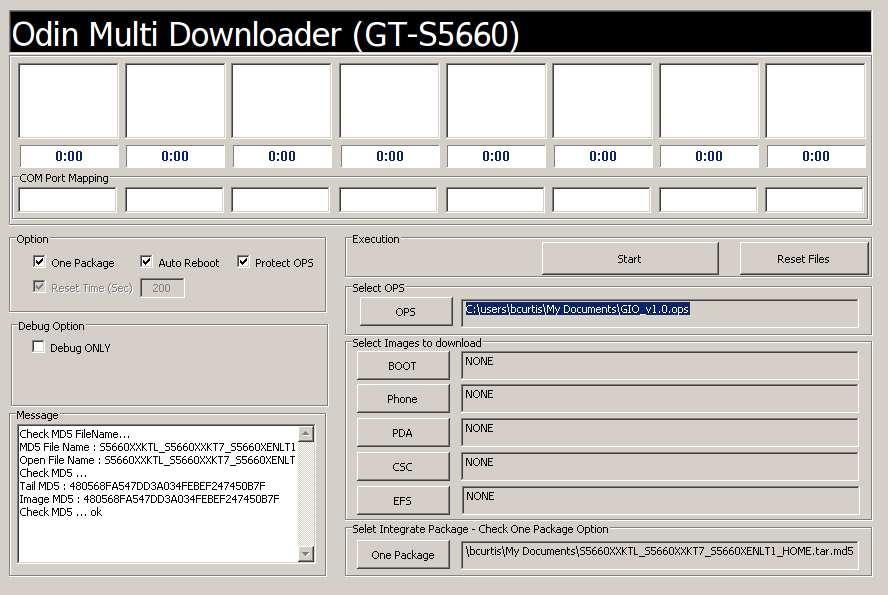
  5. Select OPS file that you just extracted from odin.zip. Select 'One Package' under Option and then a few options will be greyed out. Keep 'Protect OPS' and 'Auto Reboot' checked. Select your 'One Package' at the bottom to be the 250MiB tar.md5 file.

Click to Enlarge

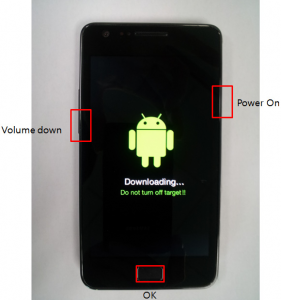
  • Set your Gio to 'Download Mode' by pressing 'Volume Down + OK + Power' at the same time.

Click to Enlarge

  • Connect the phone to the PC with your USB cable. Your COM port mapping will turn yellow when the device is properly detected and connected.
  • Press 'Start' and do not turn off your mobile!
  • Wait about 5 minutes ( could take longer ), when finished the 'PASS' will show up on the left when the upgrade was successful. Your Gio will reboot automatically.

You should now have a Gio with Gingerbread. You'll need this you wish to try the latest Cyanogenmod releases.

This is part 1 of a 3 part series about the Galaxy Gio. Part1: Upgrade Samsung Galaxy Gio from 2.2.x Froyo to 2.3.x Gingerbread Part2: Upgrade Samsung Galaxy Gio to CyanogenMod 7.2 Part3: Upgrade Samsung Galaxy Gio to CyanogenMod 10.1

Skype 4.0 on Ubuntu Precise (12.04) 64-bit

skype

There is a new version of skype out for Linux, version 4.0 which has interesting changelog entries:

* Much lower chance Skype for Linux will crash or freeze * chat history loading is now much faster * ...several investments we made in improving audio quality ... and improving video call quality * ...extended support for more cameras * and more

Good enough for me! There is still no true 64 bit binary/package from Skype. The result is that their fake "64 bit" Skype needs an additional 100MB of i386 packages in order for it to run properly. The rundown:

  1. Remove old skype packages if they exist: sudo apt-get purge skype skype-bin
  2. Download latest Skype (4.0) (fake) 64-bit package for Ubuntu 10.04+. It might say skype 2.2 beta on the screen, they have yet to update the page. The download link goes to the 4.0 version.
  3. Install the necessary support libraries: sudo apt-get install ia32-libs lib32stdc++6 lib32asound2
  4. Install the skype binary package itself: sudo dpkg -i skype-ubuntu_4.0.0.7-1_amd64.deb

Enjoy the ad-free Linux version of Skype thanks to... Microsoft.

Wireless BCM4312 with the 3.4 and 3.5 kernel

Broadcom Chipset BCM4312

The hybrid driver from Broadcom is still a bit behind in terms of support for the latest kernels but there are workarounds. This particular issue also effects other kernel modules such as the out of tree Nvidia and ATI blobs that require the asm/system.h file in their includes.

I've had success with replacing it with asm/switch_to.h which seems to have fixed things for now. The cause for this can be found on the LKML.

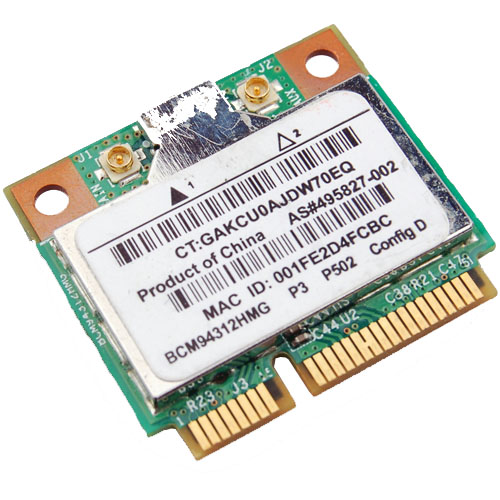
Chipsets supported by "Broadcom’s IEEE 802.11a/b/g/n hybrid Linux® device driver" are: BCM4311, BCM4312, BCM4313, BCM4321, BCM4322, BCM43224, and BCM43225, BCM43227 and BCM43228.

Errors:

bcurtis@ronin:~/workspace/wl$ make KBUILD_NOPEDANTIC=1 make -C /lib/modules/uname -r/build M=pwd make[1]: Entering directory /usr/src/linux-headers-3.5.0-030500rc3-generic' Wireless Extension is the only possible API for this kernel version Using Wireless Extension API LD /home/bcurtis/workspace/wl/built-in.o CC /home/bcurtis/workspace/wl/src/shared/linux\_osl.o CC /home/bcurtis/workspace/wl/src/wl/sys/wl\_linux.o /home/bcurtis/workspace/wl/src/wl/sys/wl\_linux.c:43:24: fatal error: asm/system.h: No such file or directory compilation terminated. make[2]: \*\*\* Error 1 make[1]: \*\*\* Error 2 make[1]: Leaving directory/usr/src/linux-headers-3.5.0-030500rc3-generic' make: *** Error 2

The rundown:

  1. Download the 32 or 64-bit version: http://www.broadcom.com/support/802.11/linux_sta.php
  2. Download my patches: bc_wl_abiupdate.patch and switch_to.patch
  3. Extract the sources: cd ~/Downloads; mkdir -p wl; cd wl; tar xf ../hybrid-portsrc*.tar.gz
  4. Patch and compile the sources: patch -p0 src/wl/sys/wl_linux.c < ~/Downloads/switch_to.patch; patch -p0 src/wl/sys/wl_linux.c < ~/Downloads/bc_wl_abiupdate.patch; make; sudo make install; sudo depmod; sudo modprobe wl

Give Ubuntu a few seconds after loading the "wl" kernel module, then eventually the Network Manager will start looking for wireless networks.

TL;DR: These patches are required for a working wl kernel module for the 3.4 and 3.5 kernel series.

Update: Also verified to work with Linux 3.6 series.

Doing battle with a Dell R620 and Ubuntu

dell_poweredge_r620

We recently got sent a Dell R620 to evaluate and while its technical specification is amazing there are a few things that need to be handled first.

As far as Ubuntu and the Dell R620 go, Precise (12.04) is the only way to go here. Every release before Precise has issues with this hardware in one way or another. This is new hardware of after all.

For our "use case" we downgraded the PERC H710P controller to a H310 controller so we can have direct access to the drives via pass-through. The H310 allows TRIM support for SSDs and SMART data via smartctl to be used without any problems. If you are interested in SMART information and PERC H700 series RAID controller, I posted about possible workarounds at Dell's customer support site.

Let's begin: USB Booting: try as we might, we could not get any usb stick to boot on the R620. We've gone through the iDRAC to do virtual drives and looked at BIOS/UEFI methods. The usb stick is recognized, but the R620 just shows us a blank screen. The same stick works in the R610, VM and other machines. We have a ticket with Dell support and they have yet to resolve the problem. Booting over PXE or CD/DVD are our only options at this point.

Bad MAC Addresses

Intel® Ethernet Server Adapter I350-T4: The igb kernel module for 2.6.35 and 2.6.38 will detect this card and it will get you connectivity, but it will behave funny. For example, 3 to 4 ports will have the same MAC address. You need download, compile, and install the latest sources for the igb from Intel before you get full functionality out of your I350-T4. The other option is to install Ubuntu Precise (12.04) as the 3.2 kernel has the updated drivers from Intel.

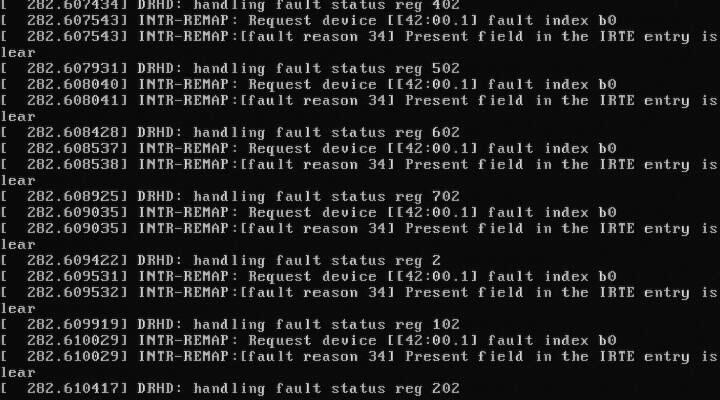
DRHD: handling fault status reg: at some point during booting of a freshly installed Ubuntu with the 2.6.35 kernel, we ran into this error that would effectively loop endlessly and cause the R620 to become unresponsive. We got this:

DRHD INTR-REMAP problems

DRHD: handling fault status reg 502 INTR-REMAP: Request device[[42:00.1] fault index b0 INTR-REMAP:[] Present field in the IRTE entry is clear

and it would endlessly print that to the console. This apparently has something to do with the IO-MMU part of the kernel dealing with interrupt remapping. Whatever the problem was, it was fixed in the 2.6.38 kernel and caused no more problems.

Dell SSD: the SSDs are rebranded Samsung drives which do not support TRIM but are at least over provisioned. These drives have a problem with smartctl in that while there is SMART information, the drive itself doesn't (yet) exist in the drivedb.h file. You have to use the latest smartctl version (5.42) to get anything usefull out of the drive. Older versions give you things like this:

Log Sense failed, IE page

hdparm: and other tools like smartctl, lshw and others have issues when getting the required data from over the PERC H310, even if it is pass-through. You have to use the latest versions of each to even read the serial number off a HDD or SSD. Hdparm versions >= 9.37 work, otherwise you get this:

root@node:~# hdparm -I /dev/sda

/dev/sda: HDIO_DRIVE_CMD(identify) failed: Invalid exchange

Once we got all the little inconveniences out of the way, we got down to benchmarking and performance testing. In comparison to the Dell R610's 2x Xeon(R) E5606, the R620's 2x Xeon(R) CPU E5-2643 has double the CPU performance in our testing. The obvious bottleneck here are the 2x 2port 10Gbps NICs in that even at a theoretical max of 40Gbps, for our purposes, we would be network bound. Thankfully there is another PCI-Express available, just in case.

Finding and making a network subnet calculator

subnet ip calculator

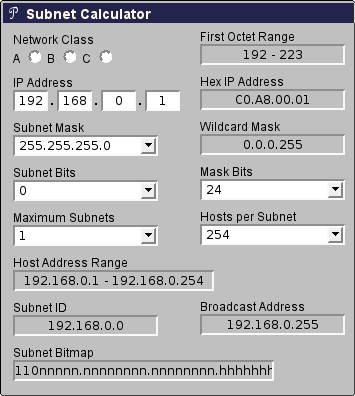
Doing subnet calculations by hand can be tedious and thankfully there are tools available online to help with that. One in particular Subnet Calculator with a PHP backend was handy and compact.

I've sent a few requests asking if I could re-write it to be client side so that it could be used in intranet applications or even possibly be ported as an hand-held application. After a few months of waiting and no response, I repurposed some of their CSS and layout and wrote the javascript equivalent.

Mindwerks's Subnet Calculator

The code is released as open source and can be reused as per terms of the license. It is part of the WP-Mindwerks wordpress plugin, but you can use it also as a standalone webpage.

ipcalc

Switch your switch with switches

Switch

It is not unusual for me to find 10,000 Euro worth of networking equipment on my desk one day. It usually means that I have a long week of reading and testing ahead of me as I am the only person in the company, let alone building, that has ever seen or worked with these devices before. That means I am on my own aside from an Internet connection.

While your mileage may very, I've had the joy (and horror) of testing these devices as 'drop in replacements' to the test environment that we are using. In some instances, things just worked out of the box, however there are a few devices that needed to be poked a few times to get things moving.

Manufactures of routers and switches I have tested are:

  • Arista: We where able to test the Arista 7000 to validate it against our setup. Painless to install and without tweaking, handed Cisco's 3560-X it's hat. The latency (cut through as opposed to store and forward) helped and the overall throughput was great.
  • Brocade: SSE-X24S was a interesting 24 port 10Gbps switch, we where however unable to capture the same level of performance as the Arista.
  • Cisco: Tried and tested Cisco and their IOS that every switch tries to emulate. Everything we've tried to do with Cisco devices just worked. What is better is that they abandoned their serial and have gone USB. That cannot be said for the rest of the devices we've tested. We where limited to just 2 10G ports per 3560 switch, which is a shame.
  • Extreme Networks: After meeting with their technical sales people, they (twice) gave us the wrong equipment. We ask for 48 port 1Gbit (Cat5) with 4 10Gbps SFP+ switch and we received a 48 prt 1Gbit SFP which was later replaced with what we needed but with only 2 10Gbit SFP+. After a month of being unable to test their product(s) in our environment, we stopped dealing with Extreme Networks and their purple hardware.
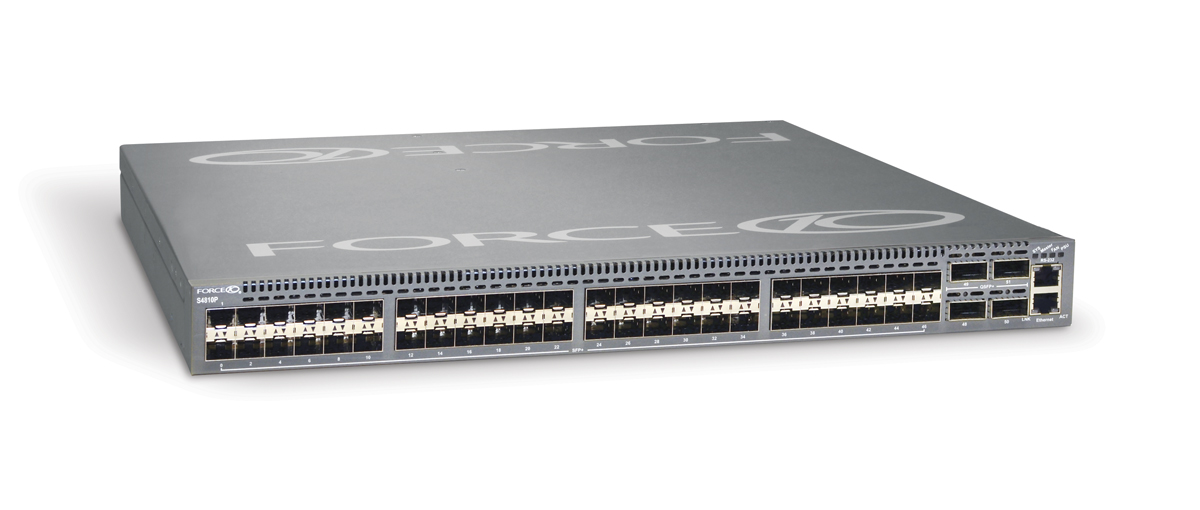
  • Force10: lived up to its expectations as a force to be reckoned with. Nothing worked at first as all the ports are shutdown by default. You must first use a usb->serial->rollover cable to get in, 'no shutdown' your ports and then tell them they are 'switchports', at which point they should start switching packets. Same level of performance as the Arista, meaning that we could saturate our 10Gbps nics.
  • Interface Masters: the Niagara 2924-24TG switch was the latest to be tested and there isn't much information about them online. Their switches (24x 1Gbps and 24x 10Gbps) where comparable if slightly less performant than Force10. Their plus point was that they allow you to re-brand their products. We experienced hardware fault in their 10Gbps port, we used another port and continued testing. Their technical support was good but we never got to deep dive into why that one port had so many problems. They sent us a new switch to test and everything worked out.

There is also an issue with SFP+ cable length and Intel cards:

This issue has been witnessed at Intel's POC using 10Gbps Intel NIC and Arista DCS-7048T-A switch.

The INTEL LAN department has analyzed that there is a known issue with short SFP+ cables, leading to a flicker in the network signal. Apparently there needs to be a minimum length of 3m.

Replacing all 0.5 m cables with 3m cables solves the issue.

For those looking for some numbers and benchmarks, I'm not allowed to post the results. Needless to say, they are not far off from my experiences that I've listed above. I'm now a fan of Force10 being reliable and performant. Arista ranks up there as well and Interface Masters (a total unknown) can be competitive and allow for re-branding which is interesting for some companies.

Ubuntu 12.04 (Precise) and AMD Catalyst 12.4

glxgears

Precise Pangola has been released and a day later comes a new fglrx driver. While there isn't a changelog, this build apparently gives us:

early-look support for Ubuntu 12.04, Linux PowerXpress support for the Intel Ivy Bridge platform, packaging script updates, and various bug-fixes.

Among the bug-fixes for Catalyst 12.4 on Linux are: fixing some multi-head issues, a system hang in certain PowerXpress configurations, fixing a system hang when using OpenGL overlays, correcting an OpenGL performance drop, a soft-hang when killing the X Server, and severe corruption for OpenGL games using the AMD "Redwood" graphics processors.

If you want to build these for yourself then you can follow these instructions:

  1. Download 64-bit 12.4 from AMD
  2. Extract the files from the package: sh ./amd-driver-installer-12-4-x86.x86_64.run --extract ati
  3. Build your new ati/fglrx deb packages: ./ati-installer.sh 8.961 --buildpkg Ubuntu/precise
  4. Install our newly created deb packages: sudo dpkg -i ../fglrx*.deb
  5. If your /etc/X11/xorg.conf is missing you will need to run: sudo aticonfig --initial and then reboot.

That newly created package should work for 3.2 kernel series in Precise.