Skip to content

Blog

Running Webex on Ubuntu

Webex Logo

Webex running on Ubuntu and other non-Windows platforms is literally a click away, in this case the CMR (Collaboration Meeting Room).

Webex is a fact of life for many people and for many Linux (BSD and other non-Windows) users, it has been a thorn in the side with people going so far as to set up virtual machines just to run Cisco’s collaboration software. While Webex is written in Java, it isn’t so simple to get running everywhere and apparently not all features are available for non-Windows users.

Most likely you are running up against the following message after logging into *.webex.com

Your browser,browser version, or operating system is currently unsupported

This requires the intervention of whoever is administrating the *.webex.com account and they can modify it in the following way.

Directions for disabling CMR

  1. Log into “xxxxx.webex.com/admin” using a site admin level account
  2. Click “Edit user list” on the left navigation Window.
  3. Search for the account you want to change
  4. Click on the account and uncheck “Collaboration Meeting Room”
  5. Click “Update”

Once this has happened, then you can log in and start Webex. Usually this is enough, but in case you hit the next wall which is runnig Java from a web-browser then there is always Firefox ESR (Extended Support Release). This version will allow you to still run the Java (or IcedTea) NPAPI plugin. I usually download and extract to /opt then run a symlink over the system’s version of firefox in /usr/bin/firefox which is enough for my needs.

You can check to see if the Java plugin is installed in Firefox by going to the URL bar and typing:
about:plugins
Should you not see it, but you’re sure the plugin exists on the system you can make a symlink yourself:
ln -vs /usr/lib/jvm/java-8-oracle/jre/lib/amd64/libnpjp2.so ~/.mozilla/plugins/
or
ln -vs /usr/lib/jvm/java-8-openjdk-i386/jre/lib/i386/IcedTeaPlugin.so ~/.mozilla/plugins/
depending on your implementation, 32/64-bit or library location.

Ultimately regardless of which bit-ness of Java you use, Webex uses 32-bit libraries as well. Which ones? Here is list, not complete, of all the ones I needed to get it working:

apt-get install libasound2:i386 libasound2-plugins:i386 libfontconfig1:i386 libfreetype6:i386 libgtk2.0-0:i386 libglib2.0-0:i386 libglib2.0-0:i386 libglib2.0-0:i386 libgtk2.0-0:i386 libgcj14-awt:i386 libpango-1.0-0:i386 libpangoft2-1.0-0:i386 libpangox-1.0-0:i386 gcj-4.8-jre-headless libpangoxft-1.0-0:i386 libpng12-0:i386 lib32stdc++6: libuuid1:i386 libx11-6:i386 libxext6:i386 libxft2:i386 libxi6:i386 libxmu6:i386 libxrender1:i386 libxt6:i386 libxtst6:i386 libxv1:i386 libcanberra-gtk-module:i386 gtk2-engines-murrine:i386

To find which libraries you are still missing, you can go to your Webex directory and ldd through all the ‘so’ files to see what is missing.

cd ~/.webex/ find | grep so | xargs ldd | grep 'not found' | sort | uniq

If the result is something like this:

libjawt.so => not found

then you’re ready to go. Otherwise you’ll need to track down all the libraries in order to get the most out Webex.

Using Qemu and Chroot to replace your cross-compile toolchain

RaspberryPi Logo

Awhile back I wrote about how you can set up a cross-compile toolchain for compiling on x86_64 with the Raspberry Pi as a target. There is another, perhaps easier way to do the same thing by using Qemu 2.0 as your backend.

By installing and enabling Qemu support, you can run code compiled for another architecture (that is supported by Qemu) on your native machine. You can then create a Chroot environment, perhaps similar to what you have on your Raspberry Pi, and run it as if it was natively.

You can verify support by checking for the availability of the aarch64 interpreter:
# update-binfmts --display | grep -i aarch qemu-aarch64 (enabled): interpreter = /usr/bin/qemu-aarch64-static

First you’ll need to set up your locales on your host:
You’ll need to configure locales so your Qemu Chroots have access to them. Otherwise, you will have to configure each Chroot’s locale individually.

# From the host sudo dpkg-reconfigure locales

Secondly you’ll need to install the necessary packages:
This includes qemu, Chroot and binfmt support
# From the host sudo apt-get install qemu qemu-user-static binfmt-support debootstrap

Thirdly we create the Chroot.
This uses debootstrap to create the Chroot environment. In the command below, the Chroot will be named debian-arm64. You can change it to suit your taste.

From the host

sudo qemu-debootstrap –arch=arm64 –keyring /usr/share/keyrings/debian-archive-keyring.gpg \
–variant=buildd –exclude=debfoster stretch debian-arm64 http://ftp.debian.org/debian

I: Retrieving Release
I: Retrieving Release.gpg
I: Checking Release signature

Fourthly we step into Chroot
Lastly before it’s usable we’ll setup the guest environment.

# From the host sudo chroot debian-arm64/

apt-get install debian-ports-archive-keyring

apt-get install locales build-essential git curl cmake # and etc.

Lastly…
The sky is the limit, you have your own chroot using binaries compiled for another arch. Clone your git repo, run cmake, install deps as necessary and run make to compile. The resulting binaries should run just fine on your RPi3.

WildMIDI 0.4 is here with support for other formats!

WildMIDI

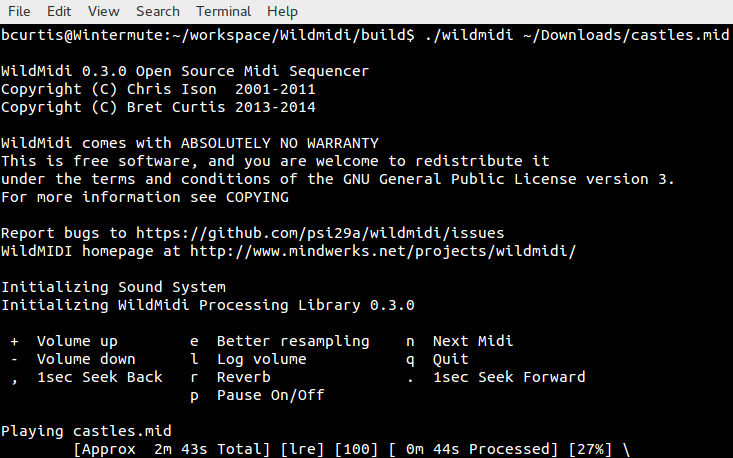
WildMIDI 0.4 is released!

It has been two years in development and we’ve pushed WildMIDI 0.4 beyond just MIDI support, we’ve branched out into MIDI like files as well. We’ve worked together with other projects like GStreamer, OpenTESArena, XLEngine (DaggerXL), Thirdeye, ZDoom and more to ask what we can do to make their lives easier, as a result we now support rendering, streaming and playback of many older MIDI-like formats!

What’s new in this release

We’ve added support for KAR (MIDI with Karaoke) files, MIDI Type 2 and many MIDI-like formats such as HMI, HMP, MUS (Id) and XMI! We’ve also expanded our API in libwildmidi to support getting text/karaoke out of files, seeking songs in multi song MIDI Type 2, get errors instead of having a noisy library, setting conversion options, converting MIDI-like files into MIDI files and library now returns a buffer in the Endian format of the host.

You’ll want to re-experience old game soundtracks:

You probably still remember the soundtracks of your favorite games in their original OPL2, OPL3 or even MT32 glory, but now you’ll get to experience via a softsynth. Real guitars thrashing away on Doom’s opening anthem from e1m1 hangar or relax to the ambient Daggerfall soundtrack rendered by an orchestra. Here is a non-complete list of games that WildMIDI can use their native file formats to play back:

  • 1992-03-?? XMI Ultima Underworld: The Stygian Abyss
  • 1992-04-16 XMI Ultima VII: The Black Gate
  • 1992-05-?? XMI The Legend of Kyrandia: Book One
  • 1992-12-?? XMI Dune II: The Building of a Dynasty
  • 1992-??-?? XMI Eye of the Beholder III: Assault on Myth Drannor
  • 1992-??-?? XMI Battle Chess 4000
  • 1992-??-?? XMI The Dark Queen of Krynn
  • 1992-??-?? XMI Tetris Classic
  • 1993-12-10 MUS Doom
  • 1993-12-?? XMI Isle of the Dead
  • 1993-??-?? XMI Dungeon Hack
  • 1993-??-?? XMI The Legend of Kyrandia: Book Two – Hand of Fate
  • 1993-??-?? XMI The Seven Cities of Gold
  • 1993-??-?? XMI SimCity 2000
  • 1993-??-?? XMI SimFarm
  • 1993-??-?? XMI Wayne’s World
  • 1994-04-01 MUS Raptor: Call of the Shadows
  • 1994-05-06 HMP Magic Carpet
  • 1994-09-23 XMI System Shock
  • 1994-10-10 MUS Doom II: Hell On Earth
  • 1994-11-19 XMI U.S. Navy Fighters
  • 1994-12-23 MUS Heretic: Shadow of the Serpent Riders
  • 1994-12-?? HMP Wing Commander III: Heart of the Tiger
  • 1994-??-?? XMI The Settlers
  • 1994-??-?? HMP Sensible Golf
  • 1995-03-17 HMP Descent
  • 1995-08-?? HMP Abuse
  • 1995-09-30 MUS Hexen: Beyond Heretic
  • 1995-10-30 HMP Whiplash (a.k.a. Fatal Racing)
  • 1995-??-?? XMI Hi Octane
  • 1995-??-?? HMI The Terminator: Future Shock
  • 1996-03-13 HMP Descent II
  • 1996-03-31 XMI ATF: Advanced Tactical Fighters
  • 1996-05-15 MUS Strife
  • 1996-08-31 HMI Daggerfall
  • 1996-08-31 XMI The Settlers II
  • 1996-11-30 XMI Rex Blade: The Battle Begins
  • 1996-??-?? HMP Astérix & Obélix
  • 1996-??-?? HMI The Terminator: SkyNET
  • 1997-06-30 HMI Carmageddon
  • 1997-07-15 HMI X-COM Apocalypse

Head on over to Videogame Music Preservation Foundation track down your nostalgia!

What others have been up to:
It seems that WildMIDI has been webified, over at Wild Web Midi you can give them your MIDI file and they will stream or give you the resulting rendered file! You can look at their source code here: wild-web-midi github account.

Great job guys!

What to look forward to…:

We would like to of course support more formats! So far on our list are: MMF, RMI, RDL, CMF, DRO, IMF and RDos.

Additional features also include SF2 and DLS support to help expand WildMIDI’s softsynth ability. There is also OPL3 emulation also known as a backup soundfont generator.

Support for AmigaOS and OpenBSD are also coming.

As was mentioned already, we’ve reached out to a few project to ask if there was anything we could help them with and now we want to extend that invitation to everyone. So if there is something you think WildMIDI should be supporting, let us know!

That’s it for this release, it was a huge and long one in coming. Now that the heavy lifting has finished, we can get back to smaller updates and shorter release cycle.

WildMIDI Resources:
Release: WildMIDI 0.4
Issues: WildMIDI Issue Tracker

New releases of WorldEngine, OpenMW and TESAnnwyn

Rivers

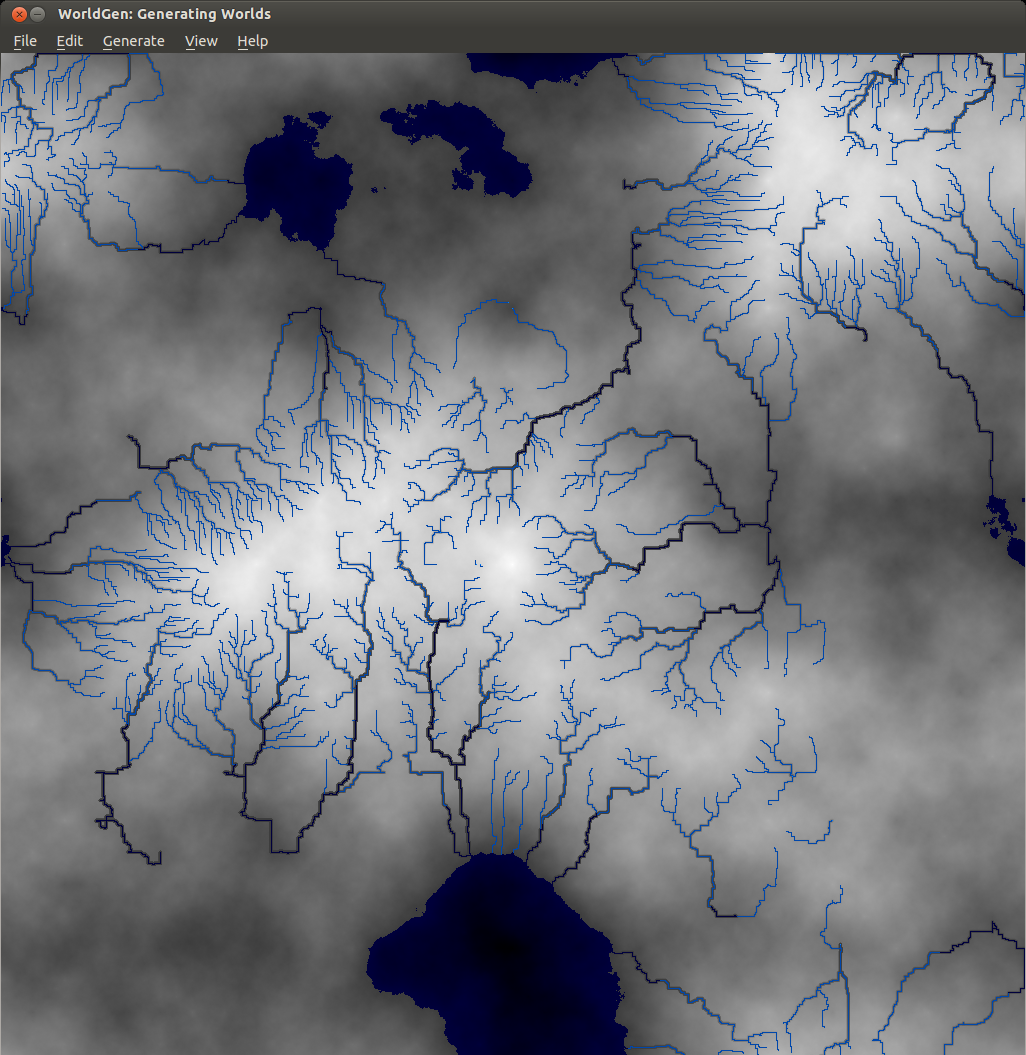
WorldEngine 0.19 has been released! In case you’re wondering, WorldEngine is the combination of two projects: Lands and WorldSynth. The biggest gain in the merge is that we’re now two developers on the same wavelength and we’ve added plate tectonic simulations! As things have become more serious and complicated, we’ve had to write tests suites to cover our bases. We’re currently about 86% code coverage and the tests guarantee reproducibility which aids us in finding regressions. We’ve got many contributions, so having these in place are crucial for project stability.

What’s new in WorldEngine 0.19:

  • Speed of generation increased by almost a factor of 3 (due to update to Platec and making heavy use of numpy).
  • World-generation is now deterministic, i.e. generation is 100% reproducible.
  • Added support for exporting heightmaps using libgdal (see http://www.gdal.org/formats_list.html for possible formats).
  • Added the ability to modify temperature and humidity ranges as well as the temperature/precipitation curve.
  • Added the ability to generate scatter plots showing temperature and humidity of all terrestrial cells.
  • Added small variations to the temperature-map based on basic orbital parameters.
  • Added a satellite-like view of the world.
  • Added support to save/load worlds in/from HDF5-format.

Exposure!

In addition to a new release, Smashing Magazine published an article that I co-authored with Federico titled “Diving Into Procedural Content Generation” which goes into detail about our motivations in creating WorldEngine (originally WorldSynth and Lands) and how by simulating real world phenomenon we can “create” realistic worlds, the results of which have been used by others for their own projects.

Speaking of own projects…

I’ve been a member of OpenMW for a while now and with the recent advances in the OpenMW-CS (construction set), it has made it possible to create your own “game” and not have to rely on Morrowind or any other Bethesda IP. In this particular case, I’ve been working on the OpenMW-Template and OpenMW-Example-Suite. The Template is fully CC-BY 3.0 and can be used by anyone wanting to have something akin to a starter kit or SDK when using OpenMW and its CS. The Example-Suite is OpenMW’s own game using the Template as a basis but going further in demonstrating what the engine can do.

One of the things I’ve been working on is getting height data (DEM) into OpenMW, such as ones created by WorldEngine. Introducing TESAnnwyn, originally open-sourced by Lightwave, I’ve been working to turn it into a library with a CLI and improving it even further by adding features and fixing bugs. The result is that you can use GDAL to convert whatever DEM you might have, into a 32-bit signed raw (ENVI) file that can be read by TESAnnwyn and converted to an ESP full of terrain data! My hope is that one day it will have Python bindings so it can be used directly by OpenMW-CS.

Here is an example of the result of a DEM that was reduced by 50% in terms of resolution and size running in OpenMW with all the setting cranked to max, including view distance.

https://www.youtube.com/watch?v=4LmzpdhNHds

As you can see, we’ve come a long way and many of the projects I’ve been working on are cross pollinating. There is so much left to do! If you’re interested in any of the projects, please feel free to leave a comment and/or help!

Deadlines and Timeouts for Realtime MongoDB Access with TxMongo

2000px-Twisted_Logo_(software).svg

Murphey had an adage: “Anything that can go wrong, will go wrong.” The best we can do is attempt to anticipate any problems that might come up and keep ‘the machine’ running. From an end-user perspective that means being responsive, even with errors. If there is a network error, we want to know as soon as possible with the guarantee that state of ‘the machine’ was not effected by the error.

With the release of TxMongo 15.3.1 we’ve introduced a few things that are useful when creating real-time applications.

We now have per-call deadline and timeouts!

Deadline: The latest time (in the future) by which the call should be completed. Useful when your application has a deadline to complete a task and you pass the same deadline to all MongoDB calls.

Timeout: How much time the call has to complete itself. Useful when each call in your application is allowed a certain amount of time to complete itself.

If these are ever exceeded, an error TimeExceeded is raised that you can trap. The guarantee is that when the error is raised, the call will not have modified MongoDB.

Here are two examples of how to implement these in your application:

yield conn.db.coll.insert({'x': 42}, safe=True, timeout=10)
yield conn.db.coll.insert({'x': 42}, safe=True, deadline=time()+10)

We also have additional features that will be useful as well:

  • When dealing with connection.ConnectionPool, max\_delay is now exposed which is used to set the maximum number of seconds between connection attempts. The default is set to 60.
  • When dealing with connection.ConnectionPool, initial\_delay is now exposed which is used to set the initial backoff retry delay. The default is set to 1.
  • NotMaster instead of AutoReconnect error will be returned when a call can be safely
  • Python3 support!

If you have any feature requests or problems, you can use our txmongo github issue tracker!

Vagrant, Virtualbox and Ubuntu Wily Weerwolf: Getting them to play along

Vagrant

I recently upgraded to Ubuntu 15.10 (Wily Weerwolf) which automatically upgraded VirtualBox from 4.3 to 5.0 and broke compatibility with Vagrant 1.6 in the process. Thinking that Vagrant knows about this and they claim VBox 5.0 compatbility, I upgraded to 1.7 and came across the same error!

Vagrant attempted to execute the capability ‘configure_networks’ on the detect guest OS ‘linux’

There is a workaround!

Apparently it hasn’t been fixed yet and others are also running into this problem. Being pragmatic, I reverted Vagrant back to 1.6 and purged VirtualBox from my system. I manually downloaded an older 4.3 build of VBox from here: https://www.virtualbox.org/wiki/Download_Old_Builds_4_3

Of course these builds are only supported up to Ubuntu 14.10, so we have a bit more work to get back to work. The first bit is that the VBox deb package won’t install until libvpx1 is installed. The problem here is that this package no longer exists in Ubuntu 15.10, but it’s later revision libvpx2 does. So we have to create a temporary empty deb package to allow installation without forcing anything.

You can follow the directions here to create your own package here: Creating_dummy_packages_to_fullfill_dependencies_in_Debian.

Or you can download it from me here: libvpx1_1.0.0_all.deb

Now you can install your VBox 4.3 without it complaining. However if you try to do this:

vagrant up

You’ll get this:

Bringing machine ‘default’ up with ‘virtualbox’ provider…
There was an error while executing VBoxManage, a CLI used by Vagrant
for controlling VirtualBox. The command and stderr is shown below.

Command: [“list”, “hostonlyifs”]

Stderr: VBoxManage: error: Failed to create a session object!
VBoxManage: error: Code NS_ERROR_FACTORY_NOT_REGISTERED (0x80040154) – Class not registered (extended info not available)
VBoxManage: error: Most likely, the VirtualBox COM server is not running or failed to start.

This is solved by making a symlink from libvpx.so.2 to libvpx.so.1 and it should be solved. We’re back to normal, until the original problem with Virtualbox 5.0 and Vagrant are fixed.

Cross-compiling for Raspberry Pi on Ubuntu

RaspberryPi Logo

While the Raspberry Pi 2 has four cores to churn through code, it still takes longer to compile than on most workstations and laptops. If you are feeling adventurous, you can try cross-compiling which has become easier to set up and get working. Cross-compiling is when binaries created are for another target architecture than the one you are compiling on. This kind of set up is very typical when creating Android applications. The end result is that you can take the resulting binary and place on its target platform, and it will run there. There are even tricks to getting the cross-compiled binary to also run on your native system! In this guide, I'll walk you through:

  • Setting up a cross-compile toolchain in Ubuntu (15.04 Vivid)
  • Setting up the proper exports
  • Compiling a test program for your native and target armhf platform
  • Compiling the latest Raspberry Pi 2 kernel with VC4 support.

The first thing we need to do is set up your Ubuntu to be able to compile software for a Raspberry Pi (1 and 2). You'll need at least Ubuntu Vivid (15.04) installed. From there, you'll need to install the following packages.

sudo apt-get install binutils-arm-linux-gnueabihf \
cpp-4.9-arm-linux-gnueabihf \
cpp-arm-linux-gnueabihf \
g++-4.9-arm-linux-gnueabihf \
g++-4.9-multilib-arm-linux-gnueabihf \
g++-arm-linux-gnueabihf \
gcc-4.9-arm-linux-gnueabihf \
gcc-4.9-arm-linux-gnueabihf-base \
gcc-4.9-multilib-arm-linux-gnueabihf \
gcc-arm-linux-gnueabihf \
pkg-config-arm-linux-gnueabihf \
binutils-arm-linux-gnueabihf \
cmake \
cpp-4.9-arm-linux-gnueabihf \
cross-gcc-dev \
dpkg-cross \
g++-4.9-arm-linux-gnueabihf \
g++-4.9-multilib-arm-linux-gnueabihf \
gcc-4.9-arm-linux-gnueabihf \
gcc-4.9-arm-linux-gnueabihf-base \
gcc-4.9-multilib-arm-linux-gnueabihf \
libasan1-armhf-cross \
libatomic1-armhf-cross \
libc6-armel-armhf-cross \
libc6-armel-cross \
libc6-armhf-cross \
libc6-dev-armel-armhf-cross \
libc6-dev-armel-cross \
libc6-dev-armhf-cross \
libdebian-dpkgcross-perl \
libfile-homedir-perl \
libgcc-4.9-dev-armhf-cross \
libgcc1-armhf-cross \
libgomp1-armhf-cross \
libsfasan1-armhf-cross \
libsfatomic1-armhf-cross \
libsfgcc-4.9-dev-armhf-cross \
libsfgcc1-armhf-cross \
libsfgomp1-armhf-cross \
libsfstdc++-4.9-dev-armhf-cross \
libsfstdc++6-armhf-cross \
libsfubsan0-armhf-cross \
libstdc++-4.9-dev-armhf-cross \
libstdc++6-armhf-cross \
libubsan0-armhf-cross \
linux-libc-dev-armhf-cross \
pdebuild-cross \
xapt \

The last package in the list is xapt, a wrapper around apt so that we can install packages specifically for other architectures like armhf. This includes things like *-dev packages with headers which will likely be required if you compile other software. Once those are installed, you need to tell the terminal you are targeting the armhf architecture. The CROSS_COMPILE flag will make your toolchain (gcc and friends) and your software aware that you are using a cross-compiler.

export $(dpkg-architecture -aarmhf) 
export CROSS_COMPILE=arm-linux-gnueabihf-

You might get this warning:

dpkg-architecture: warning: specified GNU system type arm-linux-gnueabihf does not match gcc system type x86_64-linux-gnu, try setting a correct CC environment variable

This message is harmless and you can ignore it. Now to test this, create a file called main.c and copy this Hello World code into it.

#include <stdio .h>
#include <stdlib .h>

int main(int argc, char **argv)
{
    printf("Hello world\
");
}

You'll then compile it twice, first natively and second for your target platform.

gcc -o hello_x86 main.c -static
arm-linux-gnueabihf-gcc -o hello_arm main.c -static

You can then use file to test the resulting output and it should match below:

bcurtis@Redqueen:~/workspace/RPi$ file hello_x86 hello_x86: ELF 64-bit LSB executable, x86-64, version 1 (GNU/Linux), statically linked, for GNU/Linux 2.6.32, BuildID=217c28644cf5be3ea4d24bea79c3da3bbdd9a2a9, not stripped bcurtis@Redqueen:~/workspace/RPi$ file hello_arm hello_arm: ELF 32-bit LSB executable, ARM, EABI5 version 1 (GNU/Linux), statically linked, for GNU/Linux 2.6.32, BuildID=3a5e42174d6b72ddf8b0265a9b76b3cea0668623, not stripped

Notice how the last one is ARM, EABI5 version 1, this indicates that the binary is compiled for armhf, your Raspberry Pi. Next we are going to try to run them:

bcurtis@Redqueen:~/workspace/RPi$ ./hello_x86 Hello world bcurtis@Redqueen:~/workspace/RPi$ ./hello_arm Hello world

You might asking you how the hello_arm binary can run on an x86 system. This is thanks to -static flag during compilation that shoves all the required libraries into your binary. The ones that you included are specifically crafted multi-libs that can used on both your host and your target platform (both x86 and arm). The resulting binaries are larger as a result. You can remove the -static flag and see that it will no longer run on your host machine, but much smaller and will run on your target RPi2. Aiming higher, we will try to get Linux kernel built using Eric Anholt's VC4 branch. Go ahead and checkout Eric's branch: https://github.com/anholt/linux/tree/vc4-kms-v3d-rpi2

git clone [email protected]:anholt/linux.git -b vc4-kms-v3d-rpi2 --depth 10
cd linux
export $(dpkg-architecture -aarmhf); export CROSS_COMPILE=arm-linux-gnueabihf-
make ARCH=arm -j`nproc` bcm2709_defconfig
make ARCH=arm -j`nproc`

It will spawn a number of processes in parallel, nproc will return back how many cores you have. After a few minutes of tea sipping, you'll have your newly minted arch/arm/boot/zImage that you can then copy over to your sdcard. Take a moment to make sure your setup.cfg is pointing to the right kernel, then give it a try. You should now have your RPi2 online with Linux 4.0! Please note, at the time of this post, while the option to compile in VC4 support is there, it currently isn't functioning. Eric is still busy getting RPi2 back to the same state as the original RPi. Cheers!

TxMongo - Your Asynchronous MongoDB Twisted Client

2000px-Twisted_Logo_(software).svg

We're proud to announce the release of 0.6 of TxMongo, which brings SSL support using Twisted's SSL context factory, "find with cursor" support just like PyMongo, bug fixes and updated unit tests! TxMongo is an asynchronous MongoDB client written for Twisted in Python. The biggest change is that TxMongo is now sponsored by Amplidata. Through them we were able to get development, bug fixes and Twisted first-party sponsorship online. We now have continuous integration (CI) with a wide matrix of support for py26/py27/pypy using Twisted 12.1 to 14.0 (and trunk). We also now have 78% code coverage with unit testing as a result! This is also the very last release in the 0.x series before we step over to the "year.release" model used by Twisted, it will also eventually find its way into Twisted's github organization as a first class library. You can download TxMongo 0.6.0 and other releases here: TxMongo Github Releases

What to expect We have a list of priorities:

  • Switch documentation over to sphinx for readthedocs.org supports.
  • Get TxMongo moved over to Twisted's org, with Travis-CI and Coveralls.
  • Get coverage to at least 80%.
  • Research functions found in PyMongo that are missing TxMongo.
  • Contact various TxMongo forks and gather up bugs/issues/patches from various distros.

Backstory In evaluating various options for using MongoDB with Twisted, there where two options:

  1. PyMongo
  2. TxMongo

The first option, supported by MongoDB themselves, is up to date in form of features but is synchronous and blocking. To get around this behaviour, you'll need to defer it thread. The second option is TxMongo that lacks a lot of the features of PyMongo, but is made for Twisted. Amplidata's only concern was the lack of SSL support in TxMongo, but all the main features that we needed are there. Thankfully the original author Alexandre Fiori, who is now in maintenance mode, accepted our patch. We talked a bit about the future of TxMongo and as it turns out, he is no longer developing TxMongo but he would love to give it to the community to see it furthered developed and maintained since he no longer has the time. We included Glyph of Twisted into the conversation to see about a new home, with the driving development work coming from Amplidata. The rest, is how they say, history. Example code using TxMongo and SSL First we startup mongodb:

#!/bin/bash
# create the path
mkdir -p /tmp/mongodb
# start mongodb process
mongod --dbpath /tmp/mongodb --sslMode requireSSL --sslPEMKeyFile mongodb.pem

Second we run this code:


from OpenSSL import SSL from txmongo.connection import ConnectionPool from twisted.internet import defer, reactor, ssl

class ServerTLSContext(ssl.DefaultOpenSSLContextFactory): def init(self, args, kw): kw['sslmethod'] = SSL.TLSv1_METHOD ssl.DefaultOpenSSLContextFactory.init(self, args, **kw)

@defer.inlineCallbacks def example(): tls_ctx = ServerTLSContext(privateKeyFileName='./mongodb.key', certificateFileName='./mongodb.crt') mongodb_uri = "mongodb://localhost:27017"

mongo = yield ConnectionPool(mongodb_uri, ssl_context_factory=tls_ctx)

foo = mongo.foo  # `foo` database
test = foo.test  # `test` collection

# fetch some documents
docs = yield test.find(limit=10)
for doc in docs:
    print doc

if name == 'main': example().addCallback(lambda ign: reactor.stop()) reactor.run()


Enterprise all your Twisted applications with Ldaptor

2000px-Twisted_Logo_(software).svg

We're proud to announce the release of 14.0.0 of Ldaptor, now a first party Twisted project! Ldaptor is an asynchronous LDAP (Lightweight Directory Access Protocol) client and server implementation written for Twisted in Python. The biggest change is that Ldaptor is now sponsored by Amplidata. Through them we were able to get development, bug fixes and Twisted first-party sponsorship back online. We now have continuous integration (CI) with a wide matrix of support for py26/py27/pypy using Twisted 12.1 to 14.0 (and trunk). We also have about 75% code coverage with unit testing! You can download 14.0.0 and other releases here: Ldaptor Github Releases For a full review of what has changed, feel free to take a look at our live documentation over at ReadTheDocs: Ldaptor Documentation and the Changelog itself. Backstory That is quite a jump from the last official release of 0.0.43 back in 2012 and from all the unofficial forks that have popped up to fill the void in between. Here is a bit of back story on how we got to where we are now. It was originally written and carried by Tommi Virtanen until 2012, since then Ldaptor was forked many ways to solve various problems and each distro of Linux and BSD had their own patches building up dust. In the spring of 2014, an internal project at Amplidata required an OpenLDAP client for their Twisted services and the only one that offered the most promise was Ldaptor. We got in touch with Tommi (tv42) and Glyph of Twisted to work out an arrangement where Amplidata would sponsor continued work on Twisted, Tommi would re-license Ldaptor under the MIT Expat License and it would be hosted as a first party library with Twisted. Since then we've consolidated the bug-fixes of other forks and distributions, improved the unit tests, cleaned up the code-base and managed to recover the PyPI Ldaptor entry. Once Travis was all green, we made our first release 14.0 (on Halloween) and are now seeing development picking up with pull requests for more tests and features! Usage and Example This particular example also includes how to connect to OpenLDAP with StartTLS. This particular feature is critical to Amplidata and there isn't any Ldaptor information about it. Now there is!


from OpenSSL import SSL from twisted.internet import reactor, defer, ssl from ldaptor.protocols.ldap import ldapclient, ldapsyntax, ldapconnector

class ServerTLSContext(ssl.DefaultOpenSSLContextFactory): def init(self, args, kw): kw['sslmethod'] = SSL.TLSv1_METHOD ssl.DefaultOpenSSLContextFactory.init(self, args, **kw)

@defer.inlineCallbacks def example(): serverip = '192.168.128.21' basedn = 'dc=example,dc=com' binddn = 'bjensen' bindpw = 'secret' ssl = True query = '(cn=*)' c = ldapconnector.LDAPClientCreator(reactor, ldapclient.LDAPClient) overrides = {basedn: (serverip, 389)} client = yield c.connect(basedn, overrides=overrides)

# do you want SSL/TLS, then you need to create a context for startTLS
if ssl:
    tls_ctx = ServerTLSContext(
        privateKeyFileName='your.key',
        certificateFileName='your.crt'
    )
    yield client.startTLS(tls_ctx)

yield client.bind(binddn, bindpw)
o = ldapsyntax.LDAPEntry(client, basedn)
results = yield o.search(filterText=query)
for entry in results:
    print entry

if name == 'main': df = example() df.addErrback(lambda err: err.printTraceback()) df.addCallback(lambda _: reactor.stop()) reactor.run()


The above should work as-is, but you'll need to change the IPs, basedn, binddn, certs and keys. If you don't need SSL/TLS, then just ssl to False and you should be ready to go!

VideocoreIV Glamor on your Raspberry Pi

RaspberryPi Logo

Running an X (Xorg) server on your Raspberry Pi is frustrating. You can either use the fbdev or fbturbo driver which will give an un-accelerated 2D environment with swrast 3D (OpenGL) all beating your poor RPi's CPU. Overclocking it will only help you so much which is a pity considering that there is another layer on the SoC that would be perfect for that but is now unused.

Enter the VideocoreIV (VC4) and Eric Anholt (formally of Intel, now of Broadcom), who are going to breath new life into the RPi. The idea is to offload the 2D rendering, via Glamor, to the VC4 with OpenGL calls. Since a OpenGL stack needs to exist, that means there will be a Direct Rendering Manager (DRM) Linux kernel module and Gallium/DRI module in Mesa.

This is happening now, here is the current status of support via the Piglit test-suite: skip 19102, fail 3866, pass 3146, crash 153, total 26267

While we skip a great deal of tests, they are because some extensions are not yet implemented. Of those implemented, almost half of the tests are passing! Wrapping up the crashed and failed tests will help add stability to the OpenGL stack that will lead to the eventual use of the VC4 as an everyday use of the RPi.

If you would like to follow along from home, and I suggest you do as there are updates almost every day, then you can see the progress for yourself! The end result, at least for me, is to see OpenMW running on the RPi with full OpenGL acceleration under X. Eric has left some low-hanging fruit for new and would be contributors to help out! I'll provide a check-list of things you'll need, best practices and ways that you can help too.

Phase 1: Setting up your RPi workbench You'll need an RPi, running the latest Raspbian "Jessie" release. Setup a 'dev' directory under your account. Optionally, but highly recommended is to set this dev directory up as an NFS mountpoint so that your compiling/working is not ruining your SD-card with constant writes.

Phase 2: Getting the VC4 kernel driver At this point, you'll need to git clone Eric's fork of the kernel and get familiar with building your own kernel. You'll need do the following:

  • sudo apt-get install git build-essential ncurses-dev
  • git clone -b vc4 --depth=10 https://github.com/anholt/linux.git
  • cd linux; zcat /proc/config.gz > .config; make oldconfig

The basic idea is that you are cloning his specific branch and not the whole tree, otherwise your just wasting time. You'll pull in your running kernel's config and bring it up to date with what is new in Eric's VC4 branch.

You'll also need to modify a few things in the .config file, first: CONFIG_CMA_SIZE_MBYTES=5 --> CONFIG_CMA_SIZE_MBYTES=64 This needs to be set to, at least, 64 since 5 is NOT enough for the VC4 kernel module. The VC4 DRM module on the other hand is best, currently at least, to be built into the kernel. You'll need to turn on DRM and VC4 like below.

Direct Rendering Manager

CONFIG_DRM=y CONFIG_DRM_KMS_HELPER=y CONFIG_DRM_KMS_FB_HELPER=y

CONFIG_DRM_LOAD_EDID_FIRMWARE is not set

CONFIG_DRM_GEM_CMA_HELPER=y CONFIG_DRM_KMS_CMA_HELPER=y

I2C encoder or helper chips

CONFIG_DRM_I2C_CH7006 is not set

CONFIG_DRM_I2C_SIL164 is not set

CONFIG_DRM_I2C_NXP_TDA998X is not set

CONFIG_DRM_UDL is not set

CONFIG_DRM_ARMADA is not set

CONFIG_DRM_RCAR_DU is not set

CONFIG_DRM_SHMOBILE is not set

CONFIG_DRM_PTN3460 is not set

CONFIG_DRM_VC4=y

If you don't wish to do this by hand, just give the 'make menuconfig' a spin and you'll work through the options available there. A this point, you should be ready to build your kernel. The first time around will take a while.

make; make modules; make modules_install

After it is finished, time to copy your newly baked kernel and copy it to /boot to be usable. If you screw up, and your RPi no longer boots, just insert your SD-card into a FAT readable machine and edit the config.txt file to point to the old kernel since we'll be moving it out-of-the-way first.

sudo mv /boot/kernel.img /boot/kernel.img.orig; sudo cp arch/arm/boot/zImage /boot/kernel.img; sync

At this point, cross your fingers and reboot your RPi. If it comes back online, check your dmesg for the following output:

[ 1.267449] BCM2708FB: allocated DMA memory 58400000 [ 1.272631] BCM2708FB: allocated DMA channel 0 @ f2007000 [ 1.298488] Console: switching to colour frame buffer device 200x75 [ 1.320303] uart-pl011 dev:f1: no DMA platform data [ 1.325906] vc-cma: Videocore CMA driver [ 1.330043] vc-cma: vc_cma_base = 0x00000000 [ 1.334843] vc-cma: vc_cma_size = 0x00000000 (0 MiB) [ 1.340424] vc-cma: vc_cma_initial = 0x00000000 (0 MiB) [ 1.346345] Initialized drm 1.1.0 20060810 [ 1.361836] vc4-drm vc4-drm.0: fb1: frame buffer device [ 1.367283] vc4-drm vc4-drm.0: registered panic notifier [ 1.372819] Initialized vc4 0.0.0 20140616 on minor 0

At this point, you are good to go! The glue between VC4 and userland is ready to be abused! Keep in mind, if there are updates on the linux side, git pull and rebuild your kernel and modules. Don't forget to install both! Thankfully this doesn't happen often as most of the work happens in Mesa.

Phase 3: Getting Mesa and building the VC4 Gallium DRM

This is pretty straight forward, if you know the right magic during configuration. We've (Eric and I) finally nailed with is necessary to build and get working.

  • sudo apt-get install xorg-dev libgl1-mesa-dev libgles1-mesa-dev libgles2-mesa-dev libglu1-mesa-dev xutils-dev xserver-xorg-dev
  • git clone --depth=10 git://anongit.freedesktop.org/mesa/mesa
  • cd mesa; autoreconf -v --install
  • ./autogen.sh \ --prefix=$HOME/prefix \ --with-gallium-drivers=vc4,swrast \ --enable-gles1 \ --enable-gles2 \ --with-egl-platforms=x11,drm \ --enable-glx-tls \ --enable-dri \ --with-dri-drivers=swrast \ --enable-shared-glapi \ --enable-texture-float \ --with-log-dir=/var/log \ --prefix=/usr \ --libdir=/usr/lib/arm-linux-gnueabihf
  • make; sudo make install

What is going on here is that you need to install some development headers so that you can build your Mesa drivers that will be used with Xorg. You might need to install more packages, if so, please notify me but these should work and configuration shouldn't fail. At the end of the configuration, it should give you an output of everything it will do during compilation. Yours should look like mine:

prefix: /usr exec_prefix: ${prefix} libdir: ${exec_prefix}/lib includedir: ${prefix}/include

OpenGL: yes (ES1: yes ES2: yes) OpenVG: no

OSMesa: no

DRI platform: drm DRI drivers: swrast DRI driver dir: ${libdir}/dri GLX: DRI-based

EGL: yes EGL platforms: x11 drm EGL drivers: builtin:egl_dri2

llvm: no

Gallium: yes

Shared libs: yes Static libs: no Shared-glapi: yes

CFLAGS: -g -O2 -Wall -std=c99 -Werror=implicit-function-declaration -Werror=missing-prototypes -fno-strict-aliasing -fno-builtin-memcmp CXXFLAGS: -g -O2 -Wall -fno-strict-aliasing -fno-builtin-memcmp Macros: -DUSE_EXTERNAL_DXTN_LIB=1 -D_GNU_SOURCE -DTEXTURE_FLOAT_ENABLED -DHAVE_DLOPEN -DHAVE_POSIX_MEMALIGN -DHAVE_LIBDRM -DGLX_USE_DRM -DHAVE_LIBUDEV -DGLX_INDIRECT_RENDERING -DGLX_DIRECT_RENDERING -DGLX_USE_TLS -DHAVE_ALIAS -DHAVE_DRI3 -DHAVE_MINCORE

PYTHON2: python2

Phase 4: Piglit testing

This is the part that will tell you that everything you've done up to this point hasn't been in vain. Piglit is a OpenGL test-suite that is very thorough. You'll use this when developing, to test against.

  • sudo apt-get install libwaffle-dev python-dev
  • git clone --depth=10 git://anongit.freedesktop.org/git/piglit
  • cd piglit; cmake -DPIGLIT_BUILD_GLES2_TESTS=TRUE .
  • PIGLIT_PLATFORM=gbm ./bin/shader_runner tests/shaders/glsl-algebraic-add-add-1.shader_test -auto -fbo

After running the individual test, you should get something like this:

PIGLIT: {"result": "pass" }

Don't mind the rather noisy MESA-LOADER issues, the RPi doesn't have a PCI bus. Congratulations, you're now utilizing your VC4! Happy hacking!

For additional output, debug information and trace level QIR calls, try running the former command like this:

PIGLIT_PLATFORM=gbm VC4_DEBUG=qir ./bin/shader_runner tests/shaders/glsl-algebraic-add-add-1.shader_test -auto -fbo

MESA-LOADER: malformed or no PCI ID MESA-LOADER: malformed or no PCI ID libEGL debug: Native platform type: drm (environment overwrite) libEGL debug: EGL search path is /usr/lib/arm-linux-gnueabihf/egl libEGL debug: added /usr/lib/arm-linux-gnueabihf/egl/egl_gallium.so to module array libEGL debug: added egl_dri2 to module array libEGL debug: dlopen(/usr/lib/arm-linux-gnueabihf/egl/egl_gallium.so) libEGL info: use DRM for display 0x16a1568 libEGL debug: EGL user error 0x3001 (EGL_NOT_INITIALIZED) in eglInitialize(no usable display)

libEGL debug: the best driver is DRI2 QIR: mov t2, u2 mov t3, u3 mov t4, u4 mov t5, u5 fadd t6, u0, t2 fadd t7, u1, t3 fadd t8, u1, t4 fadd t9, u1, t5 pack_colors t15, t6, t7, t8, t9 tlb_color null, t15 ... PIGLIT: {"result": "pass" }

Now on to the real work, as Eric describes it in his LJ article helping out with VC4:

Now the actual work: I've left some of the TGSI opcodes unfinished (SCS, DST, DPH, and XPD, for example), so the driver just aborts when a shader tries to use them. How they work is described in src/gallium/docs/source/tgsi.rst. The TGSI-to_QIR code is in vc4_program.c (where you'll find all the opcodes that are implemented currently), and vc4_qir.h has all the opcodes that are available to you and helpers for generating them. Once it's in QIR (which I think should have all the opcodes you need for this work), vc4_qpu_emit.c will turn the QIR into actual QPU code like you find described in the chip specs.

Phase 5: Bonus Round -- Modesetting Xorg driver

You're likely thinking, right... all this work and how do I get it into Xorg's driver seat? The answer is the 'modesetting' driver which acts as the glue to getting X talking with Glamor. Be warned though, there isn't anything usable yet. This might change though in a month or two so keep an eye on this. Who knows, glxgears might be just around the corner!

  • git clone git://people.freedesktop.org/~anholt/xf86-video-modesetting
  • ./configure --prefix=/usr
  • make; sudo make install

You'll need to create an xorg.conf file and run startx to see anything. However, be again warned, if you do this, the VC4 will be in an unknown state afterwards and likely need a reboot of your RPi.

sudo vim /etc/X11/xorg.conf

Section "Module" Load "glamoregl" Load "glx" EndSection

Section "Device" Identifier "Default screen" Driver "modesetting" # you can change this back to fbdev Option "ForceGallium" "True" Option "AccelMethod" "glamor" EndSection

Section "dri" Mode 0666 EndSection

As always, you should also keep up to date with what Eric has been up to here: http://anholt.livejournal.com/

This wraps up hacking the VC4 on your Raspberry Pi boot-camp and I hope it was useful enough to get you started in the right direction.